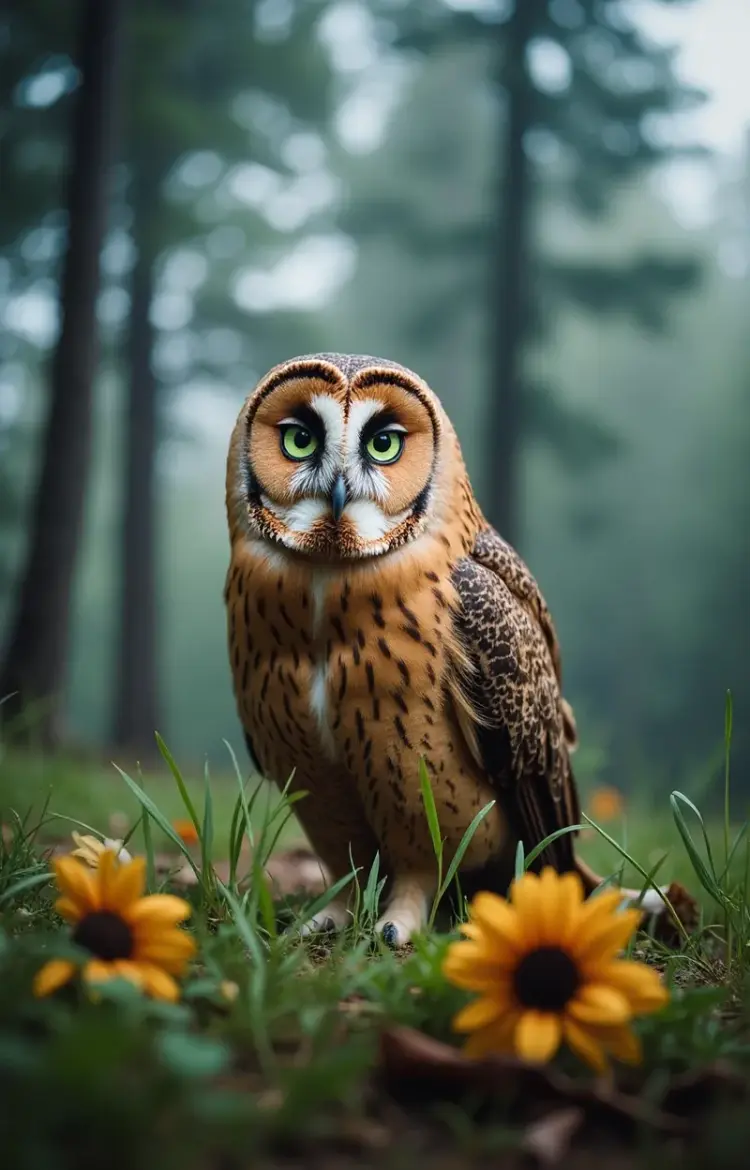
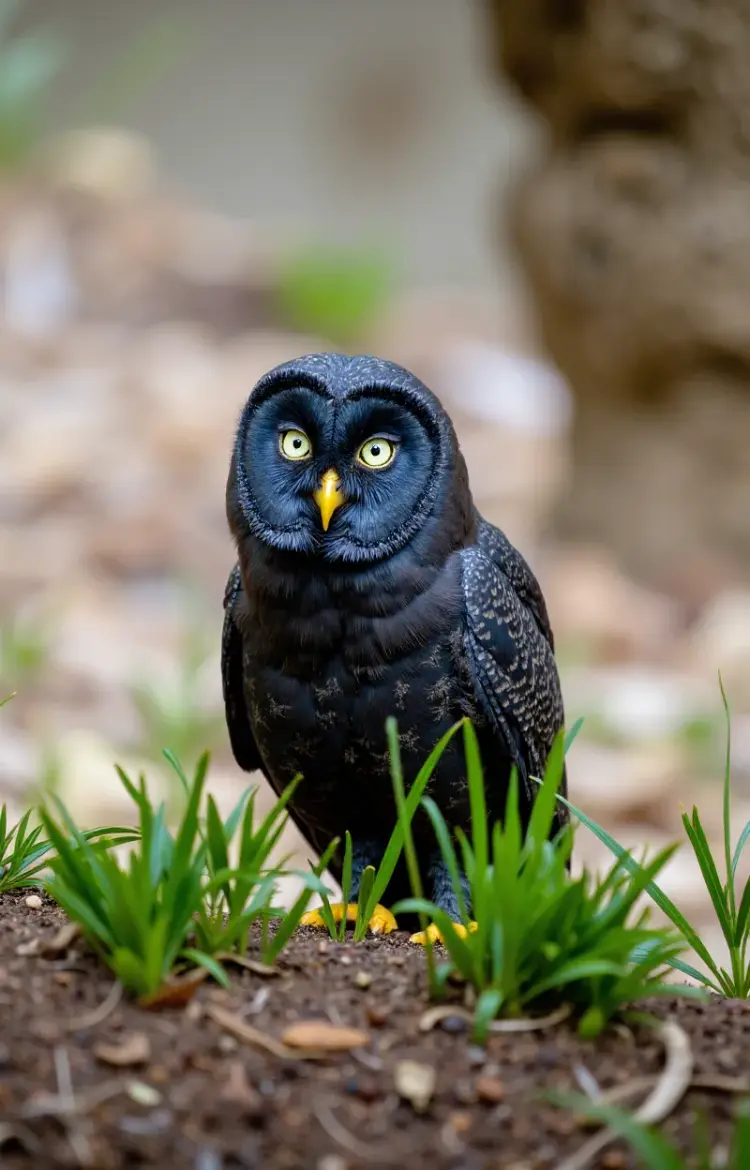
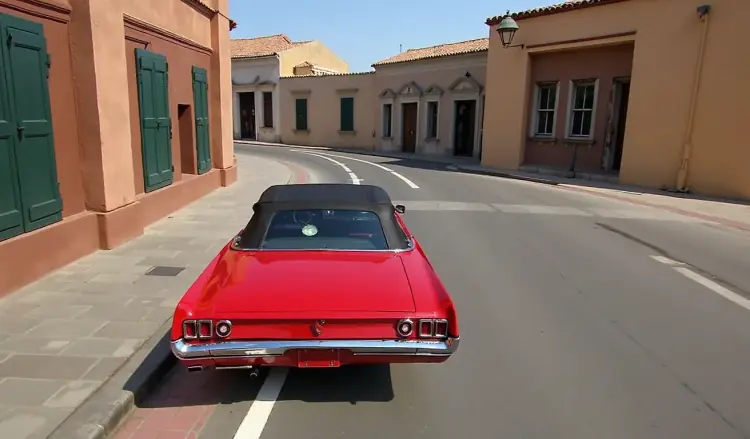
Flux Canny Dev is an open-weight image generation model that uses Canny edge detection to control the structure and composition of generated images. You supply a reference image and a text prompt, and the model reads the edges of that image to preserve the layout while generating entirely new visual content around it. The result follows the exact outline of your reference, but looks exactly like what you described. The model outputs up to 1 megapixel and can match the size of your input image automatically. You can produce several variations in a single run, save them as WebP, JPG, or PNG, and set output quality from 0 to 100. The inference step count (28 to 50) lets you trade speed for detail on each run. It fits naturally into workflows where composition matters: replacing the aesthetic of a product photo while keeping the subject's silhouette, applying a new visual style to a sketch, or iterating on a layout without rebuilding it from scratch. Open the model on Picasso IA, upload your reference, write a prompt, and generate.
Flux Canny Dev generates new images that follow the structural outlines of a reference photo or drawing, while applying the visual style and subject you describe in a text prompt. The model automatically extracts edge lines from your control image, so there is no preprocessing required on your end. This is useful when you need to recreate a specific composition, transfer a layout to a different art style, or maintain spatial consistency across a series of outputs. Available on Picasso IA, it runs entirely in the browser with no installation or configuration.
Do I need programming skills or technical knowledge to use this? No, just open Flux Canny Dev on Picasso IA, adjust the settings you want, and hit generate.
Is it free to try? Yes, you can run Flux Canny Dev without paying upfront. Start with the default settings to see how your control image translates into a generated result before adjusting anything.
How long does it take to get results? Most generations finish in under a minute. Using fewer inference steps speeds things up, though very low step counts produce less detailed outputs.
What output formats are supported? You can download results as WebP, JPG, or PNG. WebP is the default and works well for web use. PNG is lossless and suits print or further editing in design software.
Can I customize the output quality or style? Yes. The guidance parameter controls how closely the image follows your text prompt versus the edge structure. The output quality setting (0-100) adjusts compression for WebP and JPG exports. More inference steps generally produce sharper, more coherent results.
How many times can I run the model? You can iterate as many times as you need. If a result is close but not quite right, adjust the prompt, tweak the guidance, or swap in a different control image and run again.
Where can I use the outputs? The generated images are yours to use in any project: social media posts, client work, concept art, print designs, or product mockups. Downloads have no watermarks.
Everything this model can do for you
Extracts Canny edges from any reference image so you do not need to prepare a separate edge map.
Keeps the layout, shapes, and structure of your reference intact while generating entirely new visuals.
Produces images up to 1 megapixel or matches your input image size with a single setting.
Save results as WebP, JPG, or PNG with output quality adjustable from 0 to 100.
Run several variations in one session by setting the number of outputs before you generate.
Set between 28 and 50 denoising steps to balance generation speed against output detail.
Fix the seed value to reproduce the same result exactly when you re-run with identical inputs.