• Picasso AI Logo
    Logo Picasso IA
  • Home
  • AI Image
    Nano Banana 2
  • AI Video
    Veo 3.1 Fast
  • AI Chat
    Gemini 3 Pro
  • Edit Images
  • Upscale Image
  • Remove Background
  • Text to Speech
  • Effects
    NEW
  • Generations
  • Billing
  • Support
  • Account
  1. Collection
  2. Text to Image
  3. Flux Fill Dev

Edit and Extend Images with Flux Fill Dev

Flux Fill Dev is an open-weight inpainting model that lets you replace, remove, or extend any part of an existing image using a text prompt. If you have a photo with an unwanted object, a background you want to swap out, or an edge you want to push outward, this model handles the pixel-level work. You mark the target area with a mask, describe what you want to appear there, and the model fills it in with results that blend into the surrounding image. The model takes a reference image and a mask alongside your text prompt, giving you precise control over which areas get replaced and which stay intact. You can adjust guidance strength and the number of inference steps to balance speed against output fidelity. It also supports LoRA weights, so you can steer the fill toward a specific visual style without disrupting the coherence of the original image. Whether you are cleaning up product photos, compositing promotional visuals, or iterating on concept art, Flux Fill Dev fits cleanly into an image editing workflow without requiring separate software. Bring your image to Picasso IA, mark what to change, and run it in a few clicks.

Official

Black Forest Labs

1.81m runs

Flux Fill Dev

2024-11-20

Commercial Use

Edit and Extend Images with Flux Fill Dev

Table of contents

  • Overview
  • How It Works
  • Frequently Asked Questions
  • Credit Cost
  • Features
  • Use Cases
  • Examples
Get Nano Banana Pro

Overview

Flux Fill Dev is an open-weight inpainting model built for editing and extending existing images without starting over. On Picasso IA, you upload a photo, paint over the region you want to change, write a short description of what should appear there, and the model fills that zone to match the rest of the image. Whether you need to remove an unwanted object, replace a background, or extend a scene beyond its original border, Flux Fill Dev blends edits in without leaving obvious seams. It was distilled from the professional-grade FLUX.1 Fill model, bringing high-fidelity inpainting to anyone who can type a prompt.

How It Works

  • Upload your base image. If the dimensions are not multiples of 32, the model will scale them automatically before processing.
  • Draw or upload a mask that marks the region you want replaced. White areas will be repainted; black areas stay exactly as they are.
  • Write a prompt describing what should appear in the masked zone. Mention colors, textures, lighting, or scene details to get precise results.
  • Adjust guidance scale, number of inference steps, and output resolution to balance quality against generation speed.
  • Optionally load a LoRA weight and set the LoRA scale to apply a specific visual style on top of the inpainted region.
  • Hit generate and download your edited image in WebP, JPEG, or PNG.

Frequently Asked Questions

Do I need programming skills or technical knowledge to use this? No, just open Flux Fill Dev on Picasso IA, adjust the settings you want, and hit generate.

Is it free to try? Yes, Flux Fill Dev is available on Picasso IA without a paid plan to test it. You can run generations and see results before committing to anything.

How long does it take to get results? Most generations finish in under 30 seconds at standard resolution. Dropping to 0.25 megapixels or reducing inference steps below 28 cuts that time further if you are iterating quickly.

What output formats are supported? You can download results as WebP, JPEG, or PNG. WebP and JPEG support a quality slider from 0 to 100; PNG output is always lossless and ignores that setting.

Can I control how closely the model follows my prompt? Yes. The guidance scale (default 30) determines how strictly the output sticks to your text. Higher values stay closer to the prompt; lower values give the model more creative latitude. Inference steps in the 28-50 range control detail and sharpness.

How many times can I run the model? You can iterate as many times as you need. Use a fixed seed to reproduce a result you like, or leave the seed blank to get a different variation on each run.

Where can I use the outputs? Downloaded images carry no watermarks and are ready for client work, social media, print, or any other project where you own or have rights to the source image.

Credit Cost

Each generation consumes 1 credit

1 credit

or 5 credits for 5 generations

Features

Everything this model can do for you

Precise masking

Use a black-and-white mask to control exactly which pixels get replaced and which stay untouched.

Text-driven fill

Describe what should appear in the masked region and the model generates it to match the surrounding image.

LoRA support

Load custom style weights to shift the aesthetic of the fill without disrupting the rest of the image.

Flexible output formats

Download results in WebP, JPG, or PNG at quality settings from 0 to 100.

Reproducible results

Set a seed value to regenerate the exact same fill across multiple runs.

Resolution control

Match the output to the original image dimensions or choose a fixed megapixel count up to 1440x1440.

Adjustable inference steps

Run fewer steps for a quick preview or increase them for higher-fidelity output.

Use Cases

Remove an unwanted object from a photo by masking it and prompting for the background that should show through

Swap the background of a product photo by masking everything behind the subject and describing the new setting

Extend a landscape beyond its original edges by masking the border area and prompting for a continuation of the scene

Replace clothing or accessories on a portrait by masking the item and describing the new outfit in the prompt

Fix damaged or overexposed areas in a photo by masking the affected region and prompting for a natural-looking restoration

Add a new element to a scene, such as furniture in a room, by masking the empty area and describing the object

Clean up text or logos from an image by masking the overlay and prompting for the underlying background texture

Examples

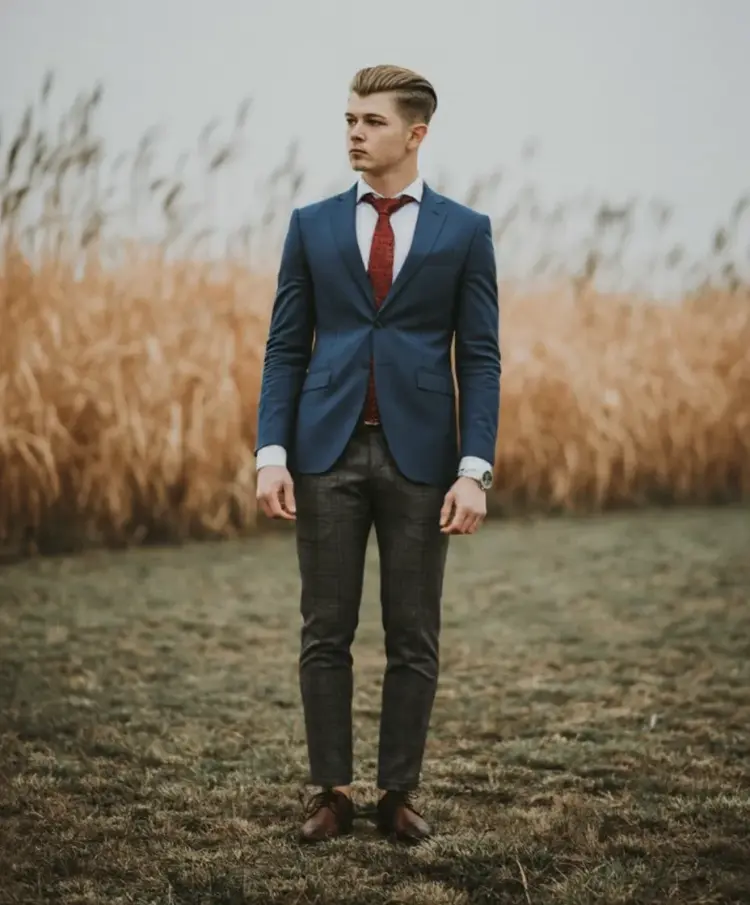
a man in a blue jacket
Input
Input 1
Output
a man in a blue jacket
6.7s
View Example
a spaceship
Input
Input 1
Output
a spaceship
9.6s
View Example

Switch Category

Effects

Text To Image

Text To Image

Text To Video

Large Language Models

Large Language Models

Text To Speech

Text To Speech

Super Resolution

Super Resolution

Lipsync

AI Music Generation

AI Music Generation

Video Editing

Speech To Text

Speech To Text

AI Enhance Videos

Remove Backgrounds

Remove Backgrounds