Overview
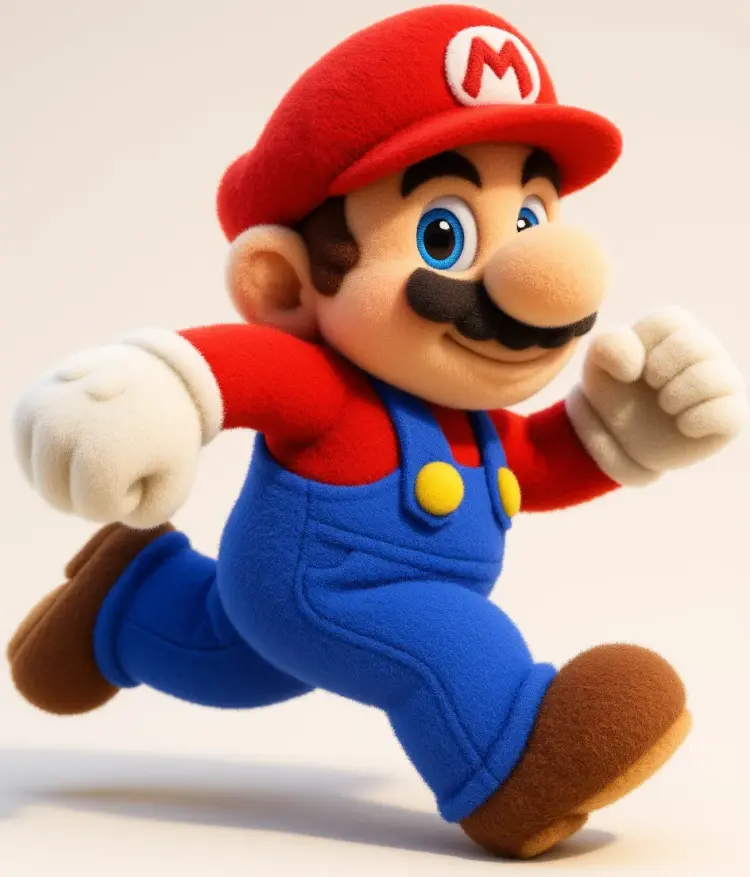
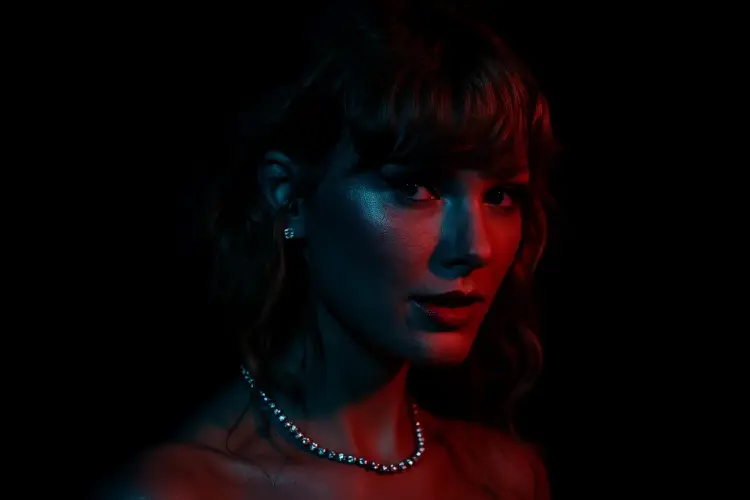
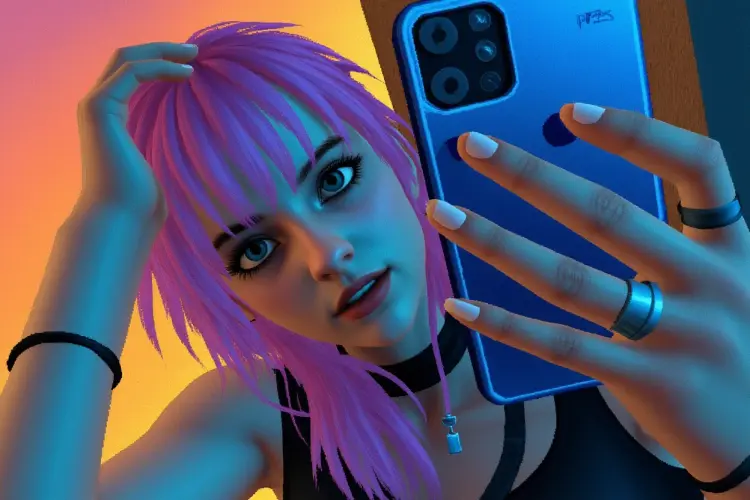
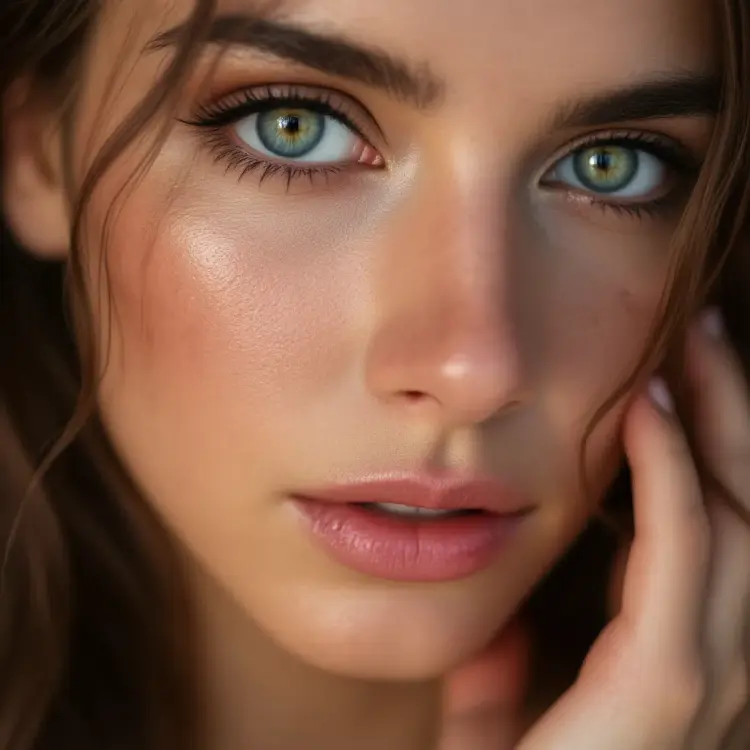
Flux Kontext Dev LoRA is an image editing model that applies custom LoRA fine-tune weights to generate or modify images from a text prompt and a reference photo. Instead of building from scratch every time, you start with an existing image and describe what you want changed, added, or reinterpreted. On Picasso IA, this means running your own style weights against the model without writing a single line of code. Think of it as an AI editor that already knows your visual aesthetic before you type the first word.
How It Works
- Upload a reference image in JPEG, PNG, GIF, or WebP format and write a prompt describing the edit or the scene you want.
- Paste the path to your LoRA weights file, then use the strength slider to control how heavily the fine-tune shapes the output.
- Choose the aspect ratio that suits your project from options including 1:1, 16:9, portrait orientations, and a setting that matches your source image exactly.
- Set the output resolution (1 megapixel or 0.25 megapixel), adjust the guidance scale, and pick the number of inference steps to balance detail against generation speed.
- Generate, preview, and download your result in WebP, JPG, or PNG at your chosen quality level.
Frequently Asked Questions
Do I need programming skills or technical knowledge to use this?
No, just open Flux Kontext Dev LoRA on Picasso IA, adjust the settings you want, and hit generate.
Is it free to try?
Picasso IA provides access to Flux Kontext Dev LoRA as part of its model library. Check the current plan page for free-tier credits and any applicable usage limits.
What are LoRA weights and where do I get them?
LoRA weights are compact fine-tune files that teach the model a specific style, character, or visual concept. You can train your own using standard fine-tuning workflows, or use weights you have already prepared. Enter the file path or a hosted URL in the lora_weights field before generating.
How long does a generation take?
Most runs finish in under 30 seconds at 1-megapixel resolution with the default 30 inference steps. Dropping to 0.25 megapixels or reducing the step count cuts that time noticeably when you are iterating quickly.
Can I control how much my LoRA affects the output?
Yes. The lora_strength value ranges from 0 (no fine-tune influence) to 1 (full influence). Values around 0.7 to 0.85 tend to keep the learned style visible while still responding clearly to your text prompt.
What output formats are supported?
Results can be saved as WebP, JPG, or PNG. WebP and JPG both support a quality setting from 0 to 100, so you can trade file size for sharpness. PNG is lossless and ignores the quality slider entirely.
What if the result does not match what I had in mind?
Adjust the guidance scale, change the number of inference steps, or tune the lora_strength up or down. Setting a fixed seed locks in the composition, so you can then rephrase your prompt until the output lines up with your vision.