Overview
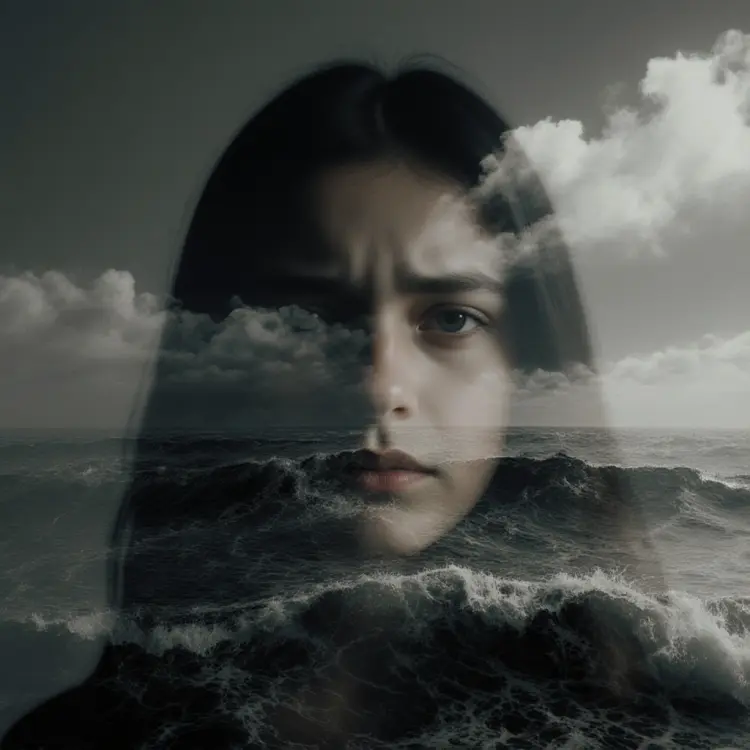
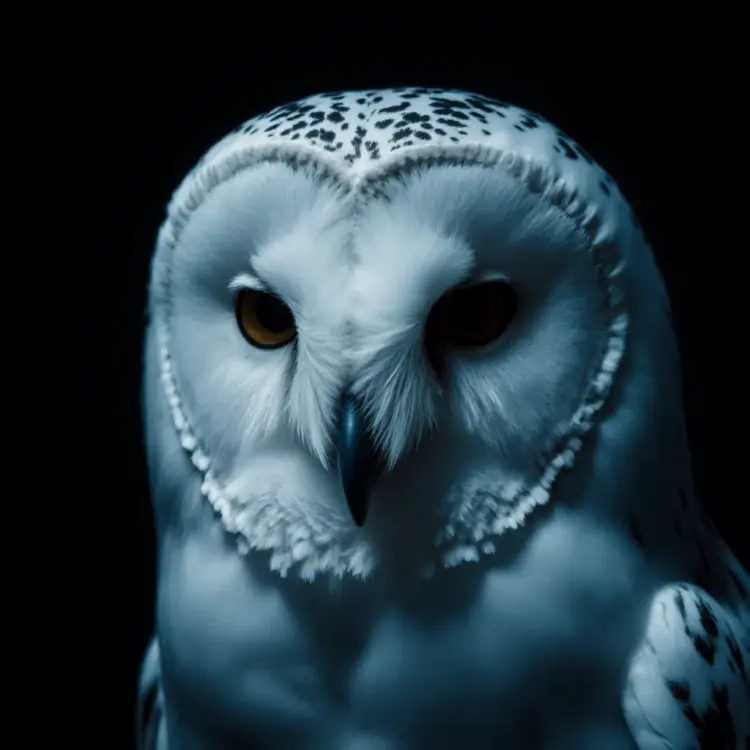
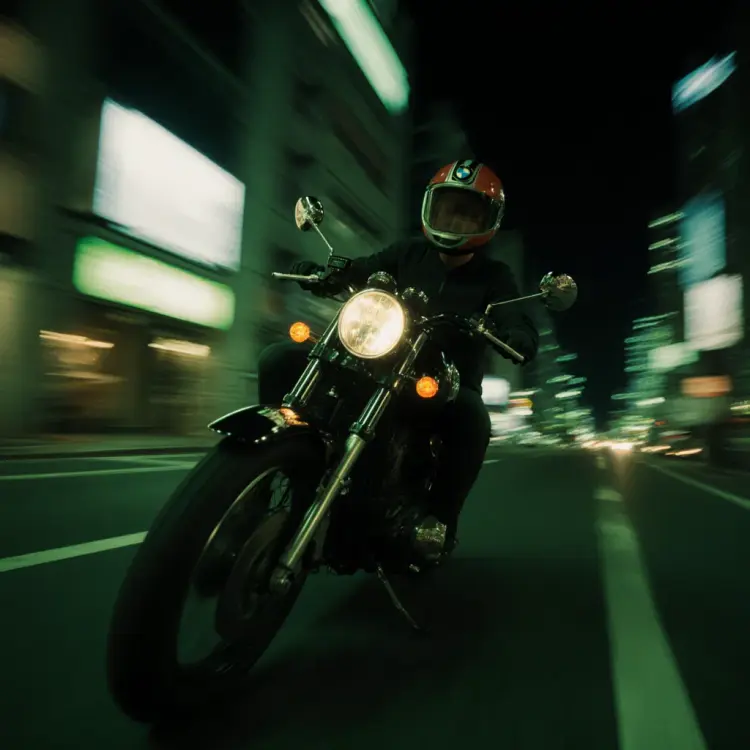
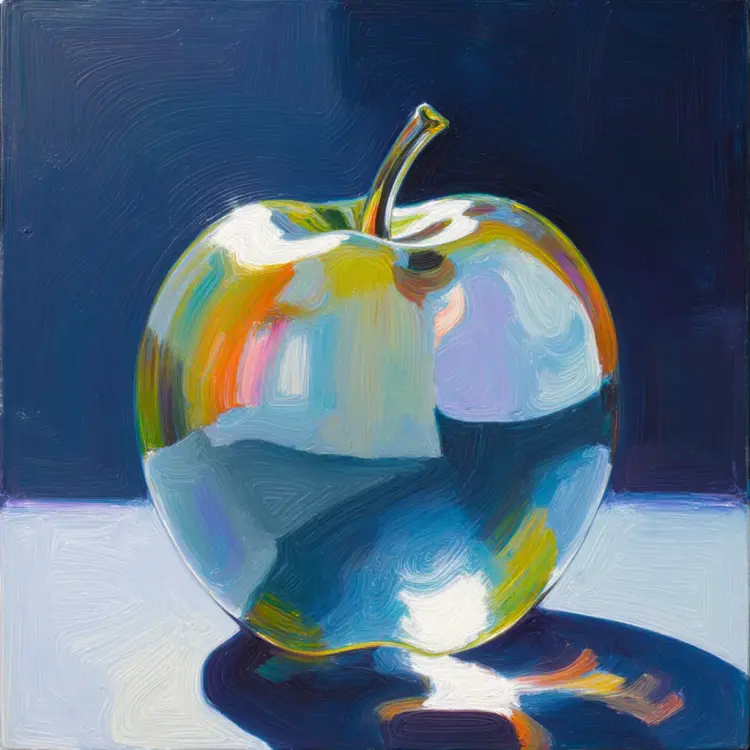
Flux Krea Dev is a text-to-image model built specifically for photorealism, targeting the most common complaint about AI-generated images: that oversaturated, plastic look that immediately reads as artificial. By design, outputs carry natural tonal ranges, realistic lighting, and the kind of imperfect detail that makes an image feel taken rather than generated. It handles a wide range of subjects well, from close-up portraits and product shots to architectural scenes and editorial stills. On Picasso IA, you can run it directly in your browser, starting from a text prompt or from a reference image you upload.
How It Works
- Write a prompt describing your subject, lighting, environment, and mood in plain language
- Choose an aspect ratio that fits your output format: 1:1 for social, 16:9 for widescreen, 9:16 for vertical, and several others in between
- Upload a reference image to activate image-to-image mode, where the existing photo sets the composition and Flux Krea Dev fills in the rest
- Set guidance scale and inference steps to control how literally the model interprets your prompt and how much refinement goes into the result
- Download the finished image in webp, jpg, or png at up to 1 megapixel resolution
Frequently Asked Questions
Do I need programming skills or technical knowledge to use this?
No, just open Flux Krea Dev on Picasso IA, adjust the settings you want, and hit generate.
Is it free to try?
Yes, you can run Flux Krea Dev directly in your browser without installing anything. Check Picasso IA for current generation credits and plan options.
How long does it take to get results?
Most generations finish in a few seconds at the default 28 inference steps. The speed-optimized mode is on by default and keeps things fast. Increasing steps toward 50 produces sharper detail at the cost of a slightly longer wait.
What output formats are supported?
Images download as webp, jpg, or png. For webp and jpg, output quality is adjustable from 0 to 100. PNG outputs are always lossless and unaffected by the quality slider.
Can I customize the output quality or style?
Yes, through three main controls. Guidance scale sets how strictly the model follows your prompt. Inference steps, recommended between 28 and 50, affect detail level and sharpness. When using a reference image, prompt strength determines how much of the original is preserved versus reinterpreted.
How many times can I run the model?
Each run can return multiple outputs at once, and you can re-run as many times as you like to iterate on a prompt. Locking the seed reproduces the same result; changing it produces a fresh variation from the same prompt.
Where can I use the outputs?
The images you generate are yours to use. They fit personal projects, client mockups, editorial visuals, print designs, and digital campaigns, all delivered without watermarks.