Overview
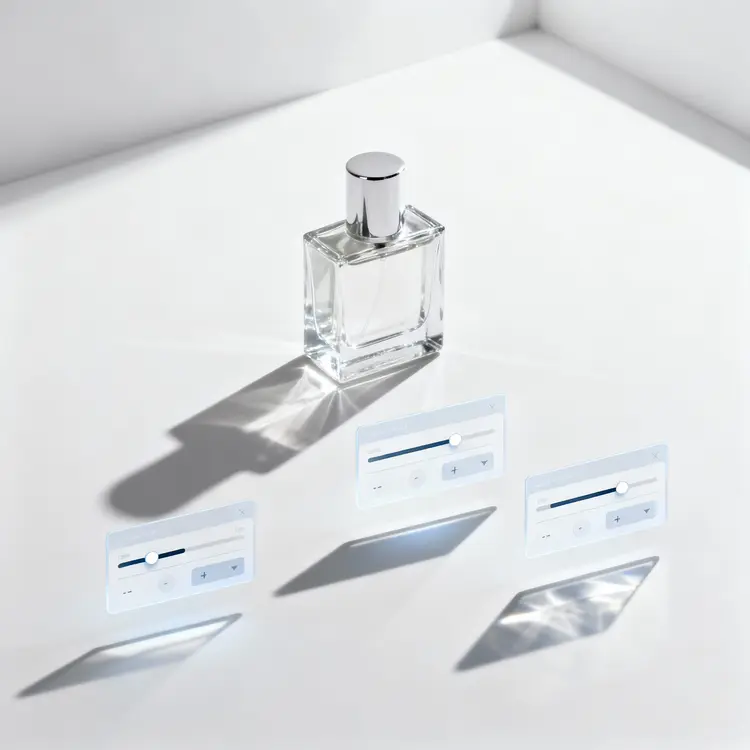
Product Shadow adds clean, realistic drop shadows to product cutout images without requiring any photo editing software. For e-commerce sellers, product photographers, and social media designers who need polished visuals fast, it removes the tedium of recreating shadows in post-production by hand. On Picasso IA, you upload a product photo, pick your shadow style, and get a finished image ready for a listing, ad, or catalog in seconds. Whether your shot was taken on a white background or already has a transparent layer, the model handles the composition so you can stay focused on the product.
How It Works
- Upload your product image, either a JPEG or PNG, with or without an existing transparent background
- If the image has an unwanted background, enable the background removal option before generating
- Choose between a regular drop shadow that follows the product shape or a floating elliptical shadow that gives a hovering effect
- Set the shadow color using a hex code, then dial in the offset, blur, and intensity with the provided controls
- Select a background color for the final export or keep it transparent for layered design work, then generate and download
Frequently Asked Questions
Do I need programming skills or technical knowledge to use this?
No, just open Product Shadow on Picasso IA, adjust the settings you want, and hit generate.
Is it free to try?
Yes, you can run Product Shadow without any upfront payment. Sign in and generate your first shadow directly from the browser, no installation needed.
How long does it take to get results?
Most images process in a few seconds. The exact time depends on file size and chosen settings, but turnaround is fast enough to iterate without breaking your workflow.
What is the difference between a regular shadow and a floating shadow?
A regular shadow traces the outline of the product and falls behind it at an angle, simulating natural light. A floating shadow places an ellipse directly beneath the product to create the impression that it is hovering above the surface.
Can I control the shadow color and exact position?
Yes. Enter any hex code to set the shadow color, and use the horizontal and vertical offset fields to position it precisely. Blur and intensity sliders let you go from a soft ambient shadow to a sharp dramatic one.
What output formats does the model support?
The model outputs a PNG file. You can preserve the alpha channel for transparent backgrounds or specify a solid background color so the file is immediately ready to drop into a product page or ad template.
What if I am not happy with the first result?
Adjust one or two parameters, such as the blur level or offset distance, and generate again. Because each run takes only seconds, you can test several shadow styles in a single session until the result matches what you had in mind.