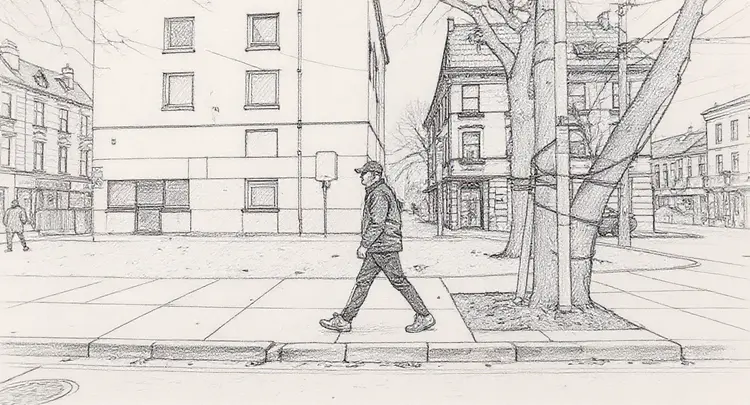
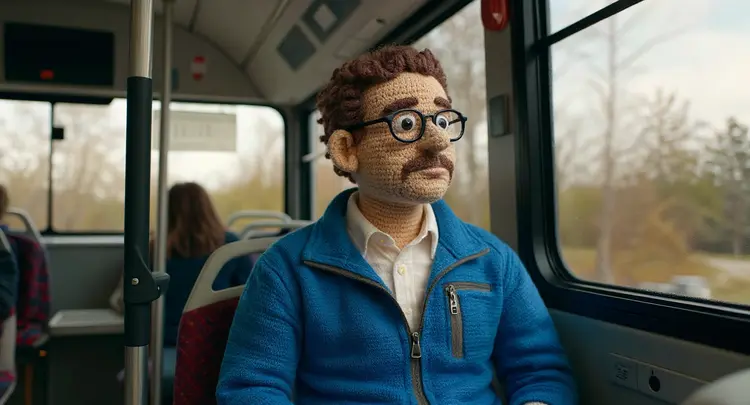
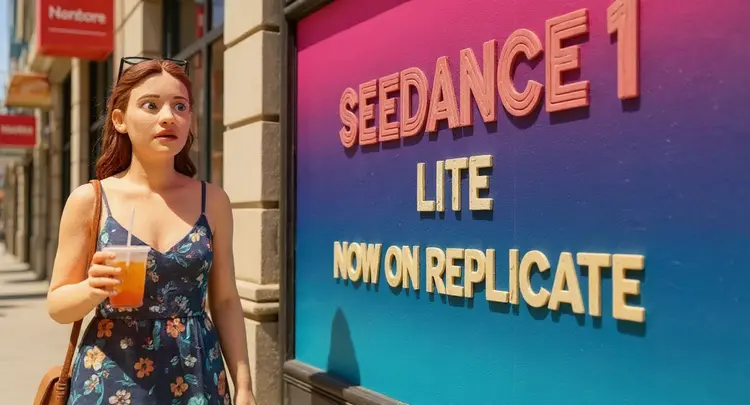
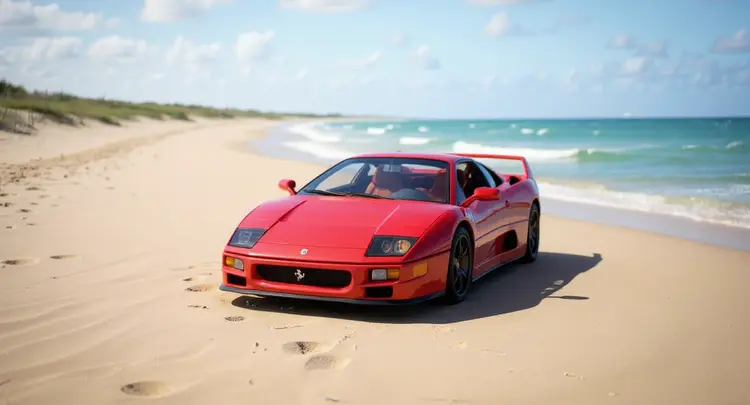
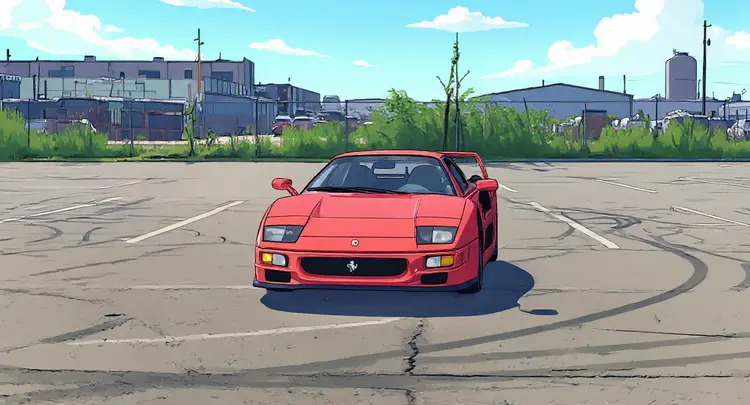
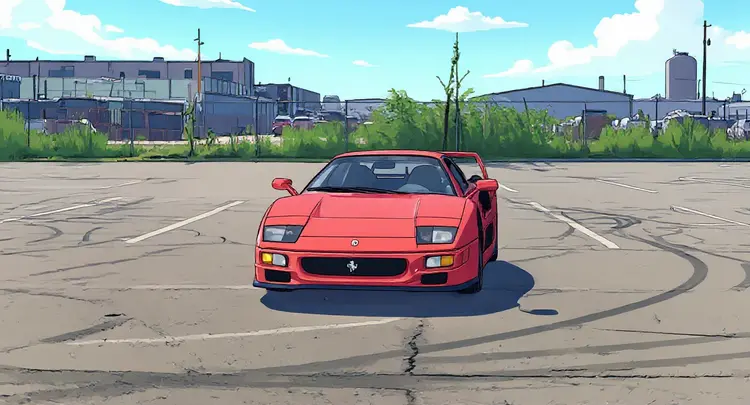
If you want to change how a video looks but don't know where to start, Restyle Video Frame gives you a practical way in. It takes the first or last frame of your video, reads your text description of the style you want, and produces a new image that captures that look. That single image becomes the visual anchor for the rest of your restyle work. The model reads your prompt with precision, so describing "a moody noir cityscape at night" or "a soft watercolor painting" produces noticeably different results. You can choose between the opening frame or the closing frame depending on which end of your video is more representative. Output comes back as a clean PNG or JPG, ready to drop into your next generation step. This tool fits naturally into video restyling workflows where you need a consistent reference image before processing the full clip. Start with a frame that captures the scene you care about, describe the style in plain text, and generate the anchor. From there, you can feed that image into a video generation model to carry the look through every frame.
Restyle Video Frame takes the opening or closing shot of any video clip and rewrites its visual style based on a text prompt you write. If you want to test a new color grade, atmosphere, or artistic direction before committing to a full edit, this model gives you a concrete reference image in seconds. On Picasso IA, there is no timeline to manage and no plugins to install, you upload a clip, describe what the frame should look like, and receive a styled image back. That image then becomes the visual anchor for restyling the entire video in a consistent direction.
Do I need programming skills or technical knowledge to use this? No, just open Restyle Video Frame on Picasso IA, adjust the settings you want, and hit generate.
Is it free to try? Yes, you can run the model without a paid subscription to see what it produces before committing to further use.
How long does it take to get results? Most jobs complete in under 30 seconds. The exact time depends on the resolution and length of the clip you upload.
Can I choose which frame gets restyled? Yes. Before generating, you select either the first or last frame of your video, giving you control over which reference point the model works from.
What output formats are supported? The model returns either a JPG or PNG image. PNG is the default and preserves the most detail. JPG produces a smaller file that works well for web use.
How do I use the restyled frame once I download it? Drop it into your editing or color grading workflow as a visual target for the rest of the clip. Most editors accept it as a reference frame for style transfer or grading passes.
What should I do if the result does not match what I had in mind? Adjust the prompt to be more specific about the style details you want, or try a different seed value. Small wording changes often produce noticeably different outputs.
Everything this model can do for you
Choose whether to extract and restyle the first or last frame of your video.
Describe the look you want in plain language and get a styled frame image in return.
Save your restyled frame as a JPG or PNG to fit your editing and publishing workflow.
Set a seed value to recreate the exact same output whenever you need it.
Adjust the safety tolerance level from strict to permissive based on your content needs.
Use the output image as a styled reference frame to drive a full video restyle pass.
Fine-tune your text description to shift the output from photorealistic to painterly or abstract.