Overview
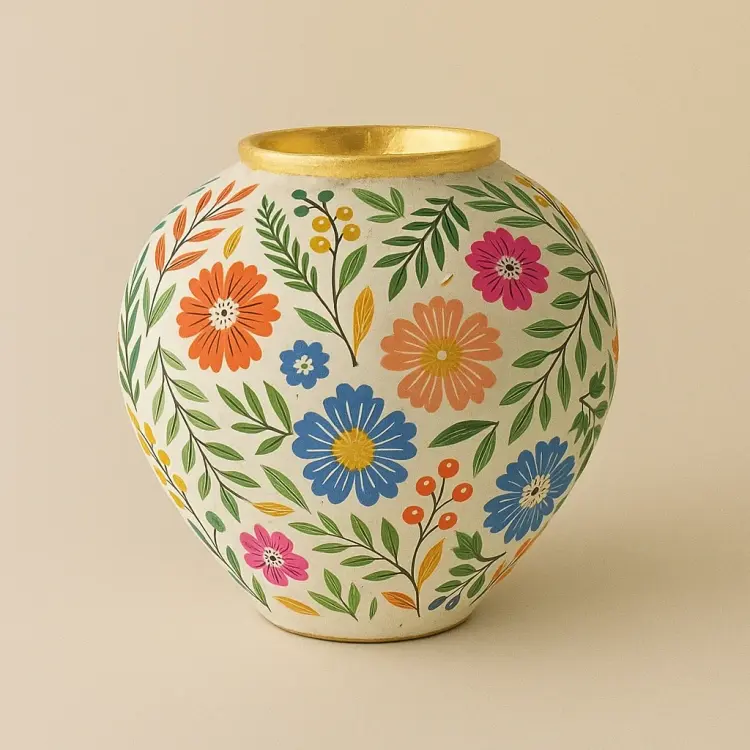
GPT Image 1 is a multimodal image generation model that converts text descriptions into polished, high-resolution images, with built-in support for reference image inputs. On Picasso IA, you control the full output: background transparency, aspect ratio, quality level, and file format, all from a single interface. It works across a wide range of visual styles, from clean product photography to illustrated scenes and detailed concept art. Because it accepts real images alongside your prompt, you can anchor the result to a specific face, product, or visual reference rather than starting entirely from scratch.
How It Works
- Write a text prompt describing the image you want, including the subject, setting, lighting, and any stylistic details you care about.
- Optionally upload one or more reference images to steer the output toward a specific subject, face, or visual style.
- Set your output preferences: aspect ratio (1:1, 3:2, or 2:3), quality level (low, medium, high, or auto), and background type (transparent, opaque, or auto).
- If using reference images, adjust input fidelity to control how strictly the model follows the subject's features or style elements.
- Select your output format (PNG, JPEG, or WebP), choose how many images to generate (1 to 10), and hit generate to get your results.
Frequently Asked Questions
Do I need programming skills or technical knowledge to use this?
No, just open GPT Image 1 on Picasso IA, adjust the settings you want, and hit generate.
Is it free to try?
GPT Image 1 uses usage-based billing tied to your account. Generation costs vary by quality level and number of images, so check your account dashboard for current rates and any available credits before you start.
How long does it take to get results?
Generation time depends on the quality setting. Low quality is the fastest, usually delivering results in a few seconds. High quality takes longer but produces sharper detail and more refined compositions. For fast iteration, start low and move up once you are happy with the direction.
What output formats are supported?
Images can be downloaded as PNG, JPEG, or WebP. PNG is the best choice when you need a transparent background. JPEG and WebP produce smaller files, which is useful when preparing assets for web or social media.
Can I generate multiple images at once?
Yes. Each run can produce between 1 and 10 images. Generating several variations on the same prompt at once is the fastest way to compare directions and find the one worth refining.
What happens if I'm not happy with the result?
Rewrite or expand your prompt, try a different quality setting, or change the aspect ratio and run again. Small changes in wording often shift the output noticeably. If you are using a reference image, toggling the input fidelity setting can also change how closely the model follows it.
Where can I use the outputs?
Images from Picasso IA are yours to use across design projects, client deliverables, social media posts, print materials, and anywhere else, subject to your account's terms of service.