• Picasso AI Logo
    Logo Picasso IA
  • Home
  • AI Image
    Nano Banana 2
  • AI Video
    Veo 3.1 Fast
  • AI Chat
    Gemini 3 Pro
  • Edit Images
  • Upscale Image
  • Remove Background
  • Text to Speech
  • Effects
    NEW
  • Generations
  • Billing
  • Support
  • Account
  1. Collection
  2. Text to Image
  3. P Image Edit Lora

P Image Edit LoRA: AI Photo Editing Free

P Image Edit LoRA is a text-guided image editing model that applies LoRA-based styles to any photo you upload. You describe the change you want, reference your images by position, and the model outputs a new version with the style or modification applied. This removes the need for photo editing software or any prior design experience. The model accepts several reference images at once and lets you address each one by label inside your prompt, giving you precise control over which part of the scene changes. A lora_scale slider lets you dial the effect intensity from barely noticeable to fully dominant. Aspect ratio presets cover the most common publishing formats, from square 1:1 to widescreen 16:9, and an automatic mode matches whatever ratio your input image already has. For creators who batch-process branded assets or need a consistent visual identity across a set of images, this model fits directly into that workflow. Set your LoRA weights, write a single edit description, and run it across each file. Download clean results and move on.

Official

66.9k runs

P Image Edit Lora

2026-01-12

Commercial Use

P Image Edit LoRA: AI Photo Editing Free

Table of contents

  • Overview
  • How It Works
  • Frequently Asked Questions
  • Credit Cost
  • Features
  • Use Cases
  • Examples
Get Nano Banana Pro

Overview

P Image Edit LoRA is a text-guided image editing model that lets you apply custom LoRA styles to any photo without writing a single line of code. Where most AI editors give you a fixed look, this model accepts swappable LoRA weights, so the visual style of the output is yours to define. On Picasso IA, you upload a reference image, load a LoRA, write a short prompt, and get back an edited result that matches your intent. It is built for creators who need repeatable, stylized edits across multiple images without starting from scratch each time.

How It Works

  • Upload one or more reference images and write a prompt that describes the edit you want, referring to each image as "image 1", "image 2", and so on.
  • Paste the URL of your chosen LoRA weights into the LoRA field to load a specific style or editing behavior.
  • Set the LoRA scale to control how strongly the style is applied, from a light touch to full saturation.
  • Choose an aspect ratio for the output, or let the model automatically match the dimensions of your input image.
  • Hit generate and download the result. Reuse the same seed value to reproduce the exact same output across multiple sessions.

Frequently Asked Questions

Do I need programming skills or technical knowledge to use this? No, just open P Image Edit LoRA on Picasso IA, adjust the settings you want, and hit generate.

Is it free to try? Yes, you can run the model directly on the platform without a paid subscription to get started. Check the current plan details for information on generation limits.

How long does it take to get results? Most edits complete in a few seconds with turbo mode enabled. For complex prompts or detail-heavy LoRAs, disabling turbo may improve output quality at the cost of a slightly longer wait.

What is a LoRA and where do I find one? A LoRA is a compact set of weights that shifts the model's output toward a specific style, character, or editing behavior. You can browse community-contributed LoRAs in the P Image Edit LoRA collection on Picasso IA, or load your own trained weights using a direct URL.

Can I use more than one image in a single generation? Yes. You can provide several reference images and address each one in your prompt by name, for example "image 1" or "image 2". The model draws on all of them as visual context during the editing pass.

What aspect ratios and output sizes are supported? You can choose from standard ratios including 1:1, 16:9, 9:16, 4:3, 3:4, 3:2, and 2:3, or use the match input image option to preserve your original file dimensions exactly.

What if the result does not look right? Refine the prompt to be more specific about the change you want, then try adjusting the LoRA scale up or down. Switching to a different seed or disabling turbo mode are also quick ways to get a noticeably different result without changing anything else.

Credit Cost

Each generation consumes 1 credit

1 credit

or 5 credits for 5 generations

Features

Everything this model can do for you

LoRA style control

Load any compatible LoRA weights and adjust their influence from subtle to dominant using a single scale slider.

Text-driven edits

Describe your change in plain language and reference uploaded images by position to target specific areas.

Multi-image input

Upload several reference images at once and address each in your prompt using simple labels like 'image 1'.

Flexible aspect ratios

Output in 1:1, 16:9, 9:16, 4:3, or match the exact ratio of your input image automatically.

Turbo mode

Speeds up generation for straightforward edits while letting you disable it when a task needs more processing detail.

Reproducible results

Set a fixed seed to get the same output each time, useful for comparing variations or rerunning edits.

No setup required

Run LoRA-based image edits directly in the browser without installing software or writing any code.

Use Cases

Apply a specific art style to a product photo by loading a style LoRA and describing the visual treatment you want in a single text prompt

Edit the background of a portrait by uploading the image and writing a description of the new scene you want behind the subject

Generate consistent on-brand illustrations by reusing the same LoRA weights across multiple images with the same scale setting

Convert a daytime outdoor photo into a night scene by referencing the image and describing the lighting and atmosphere change

Add a texture or color grade to a flat photograph by describing the effect and adjusting the LoRA scale to control intensity

Produce multiple aspect-ratio versions of an edited image for different platforms by switching the ratio setting between runs

Test different LoRA styles on the same base image by adjusting the lora_scale and comparing outputs side by side

Examples

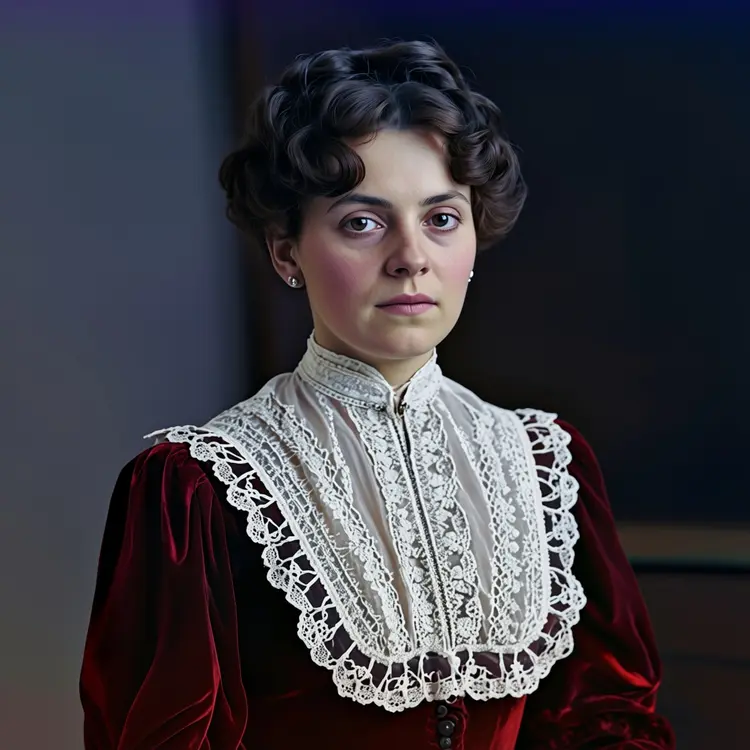
Upscale this picture to 4K resolution.
Input
Input 1
Output
Upscale this picture to 4K resolution.
1.4s
View Example
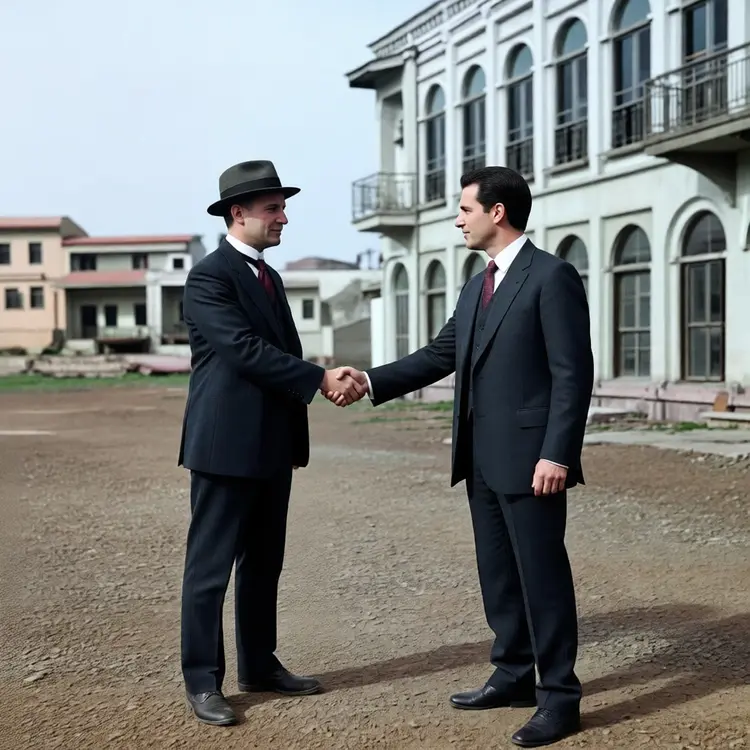
Next Scene:  The man is shaking hands with another man.
Input
Input 1
Output
Next Scene: The man is shaking hands with another man.
1.6s
View Example
make the subjects skin details more prominent and natural
Input
Input 1
Output
make the subjects skin details more prominent and natural
1.5s
View Example
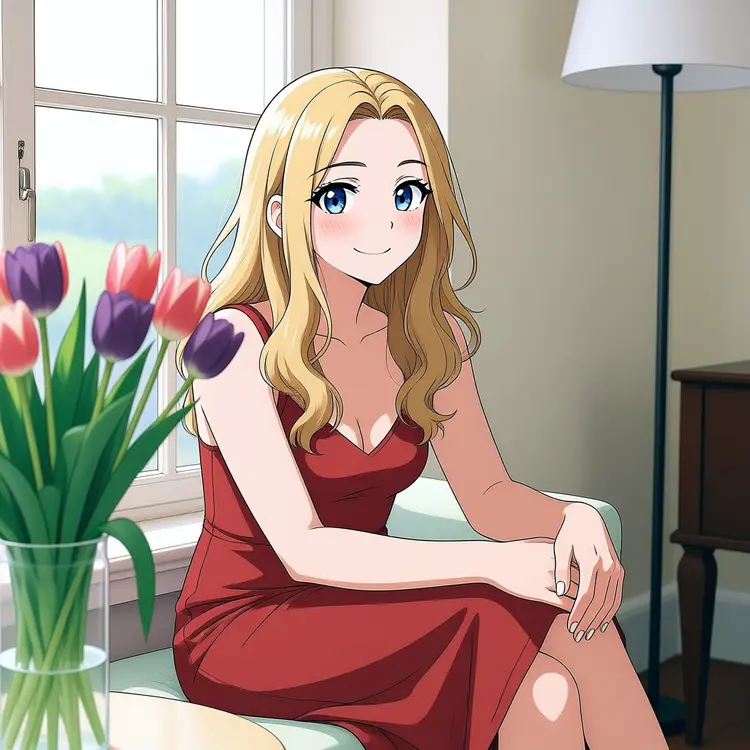
transform into anime
Input
Input 1
Output
transform into anime
3.6s
View Example
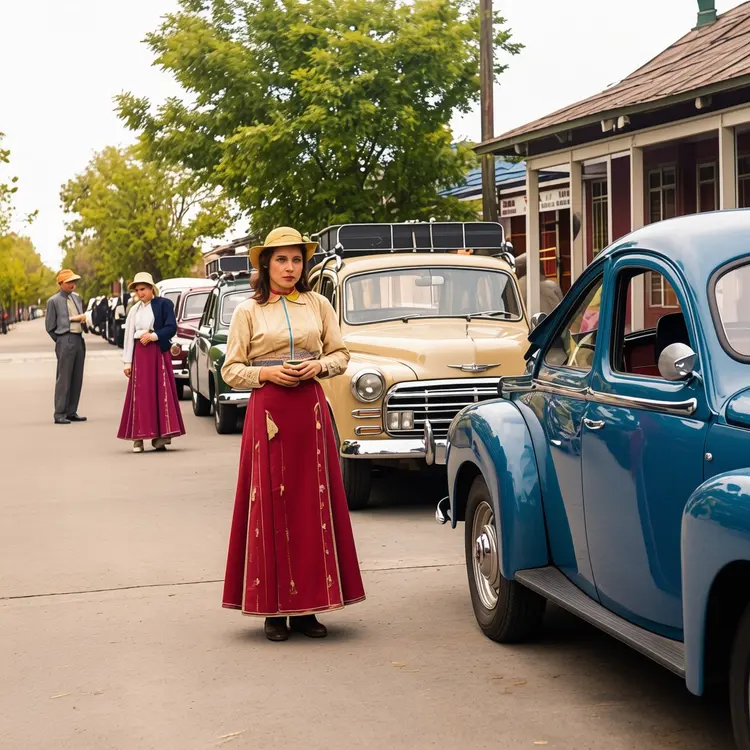
tok_enhance
Input
Input 1
Output
tok_enhance
2.8s
View Example
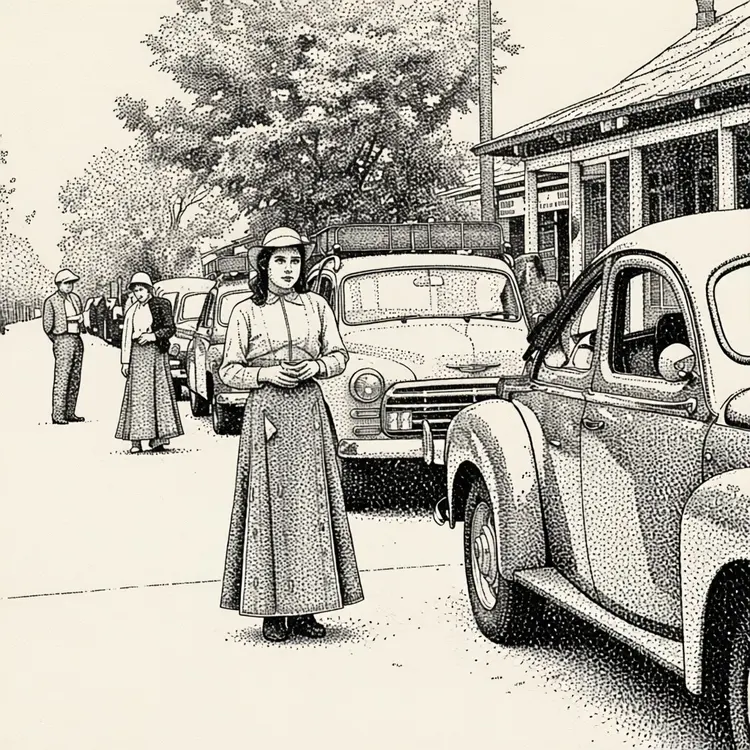
dotted illustration
Input
Input 1
Output
dotted illustration
2.8s
View Example

Switch Category

Effects

Text To Image

Text To Image

Text To Video

Large Language Models

Large Language Models

Text To Speech

Text To Speech

Super Resolution

Super Resolution

Lipsync

AI Music Generation

AI Music Generation

Video Editing

Speech To Text

Speech To Text

AI Enhance Videos

Remove Backgrounds

Remove Backgrounds