• Picasso AI Logo
    Logo Picasso IA
  • Home
  • AI Image
    Nano Banana 2
  • AI Video
    Veo 3.1 Lite
  • AI Chat
    Gemini 3 Pro
  • Edit Images
  • Upscale Image
  • Remove Background
  • Text to Speech
  • Effects
    NEW
  • Generations
  • Billing
  • Support
  • Account
  1. Collection
  2. Text to Image
  3. Multi Image List

Combine Multiple Photos with Multi Image List

Multi Image List is an AI image model designed for working with several photos at once. Instead of editing images one by one, you supply a list of references and a text description of what you want the final result to look like. It reads the visual relationships between your input images and produces a new image that reflects your instructions. This solves a real bottleneck for anyone who regularly needs to merge references, swap elements between photos, or apply a consistent treatment across multiple visuals. The model accepts JPEG, PNG, GIF, and WebP files and outputs either JPG or PNG. You control the aspect ratio from a set of 14 preset options, or tell it to match the dimensions of your input image. Setting a seed locks in a specific random state, so you can reproduce a result exactly or build on it with small prompt changes. The output reflects the combination of all supplied images, guided entirely by what you describe in the prompt. In practice, this fits naturally into product photography workflows, creative compositing, and iterative concept development. You can feed in a product image and a background reference, describe the placement you want, and get a clean composite in seconds. Run it on Picasso IA directly in your browser, no software to install and no prior experience needed.

Official

Flux Kontext Apps

180k runs

Multi Image List

2025-06-04

Commercial Use

Combine Multiple Photos with Multi Image List

Table of contents

  • Overview
  • How It Works
  • Frequently Asked Questions
  • Credit Cost
  • Features
  • Use Cases
  • Examples
Get Nano Banana Pro

Overview

Multi Image List is a text-guided multi-image editor that takes several photos at once and combines, blends, or transforms them according to your written instructions. If you have ever needed to merge two product shots, match the style of one photo with the composition of another, or build a single cohesive scene from separate assets, this is the tool for that. On Picasso IA, you can do it directly in your browser without writing a line of code. Upload your images, describe what you want, and the model works out how to make them fit together into one output.

How It Works

  • Upload two or more images in JPEG, PNG, GIF, or WebP format using the image list input.
  • Write a prompt describing how the images should be combined, edited, or transformed.
  • Choose an aspect ratio from the dropdown, or select "match input image" to keep the original proportions.
  • Pick your output format (JPG or PNG) and optionally set a seed if you want to reproduce the same result later.
  • Submit the job and receive a single composed image built from your inputs and prompt in seconds.

Frequently Asked Questions

Do I need programming skills or technical knowledge to use this? No, just open Multi Image List on Picasso IA, adjust the settings you want, and hit generate.

Is it free to try? You can run Multi Image List without a paid subscription. Check Picasso IA's current plan details for generation limits and credit usage.

How many images can I upload at once? The model accepts a list of images, so you can supply multiple reference files in one session. For best results, keep your inputs focused on the elements you want reflected in the final output.

How long does it take to get a result? Most generations complete within a few seconds. Inputs with several large files or detailed prompts may take a moment longer, but you will not be waiting minutes.

What output formats are supported? You can download your result as a PNG or JPG file. PNG is the default and works well for assets you plan to edit further.

Can I reproduce the same result? Yes. Set a specific seed value before generating, and reusing that seed with the same prompt and images will give you a consistent output across multiple runs.

Where can I use the generated images? The output is a standard image file with no watermarks, so you can use it in presentations, social media posts, product listings, or any creative project.

Credit Cost

Each generation consumes 1 credit

1 credit

or 5 credits for 5 generations

Features

Everything this model can do for you

Multi-image input

Feed several photos at once as reference material for a single AI generation.

Prompt-driven editing

Write what you want done in plain text and the model figures out the rest.

Flexible aspect ratios

Choose from 14 preset ratios or match the output to your input image dimensions.

JPG and PNG output

Download in either format to fit your file size or quality needs.

Reproducible results

Set a seed value to get the same output again without re-running the generation from scratch.

No manual masking

Combine visuals in context without any background removal or cutout steps.

Adjustable safety settings

Control the content tolerance level directly from the settings panel.

Use Cases

Merge two portrait photos to generate a new face that shares features from both by writing a prompt describing the blended result

Swap the background from one photo onto a subject from a different photo using a short text description

Apply a consistent visual style across a set of product images by supplying a style reference and describing the look you want

Combine a product shot and a lifestyle photo to place the item in a real-world scene without manual compositing

Replace the outfit in a person's photo by referencing a clothing image and describing the change in the prompt

Pull elements from multiple reference photos into a single scene based on a written description of the arrangement

Create a composite image from several source photos by describing how you want the subjects or objects positioned

Examples

1:1
png
9.5s
Safety Tolerance: 2

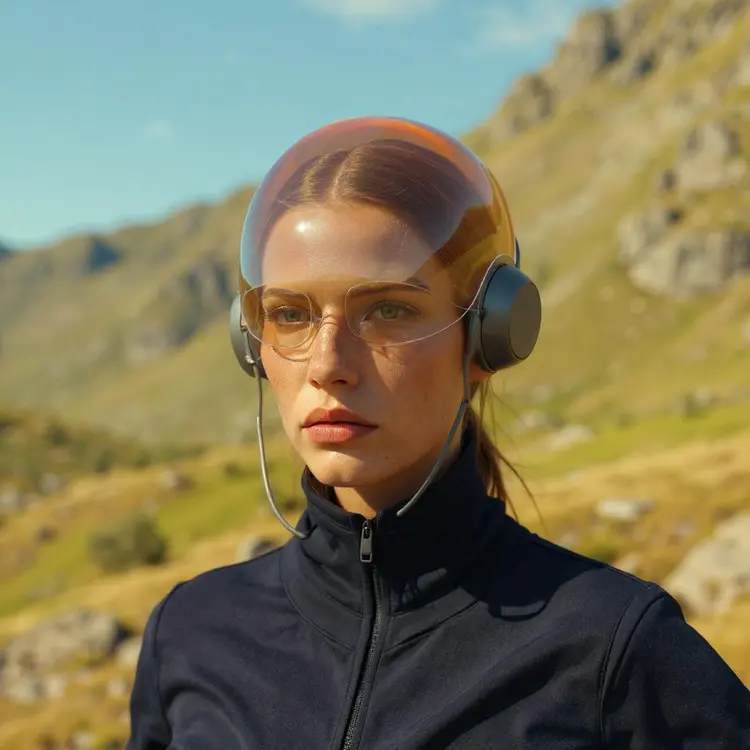
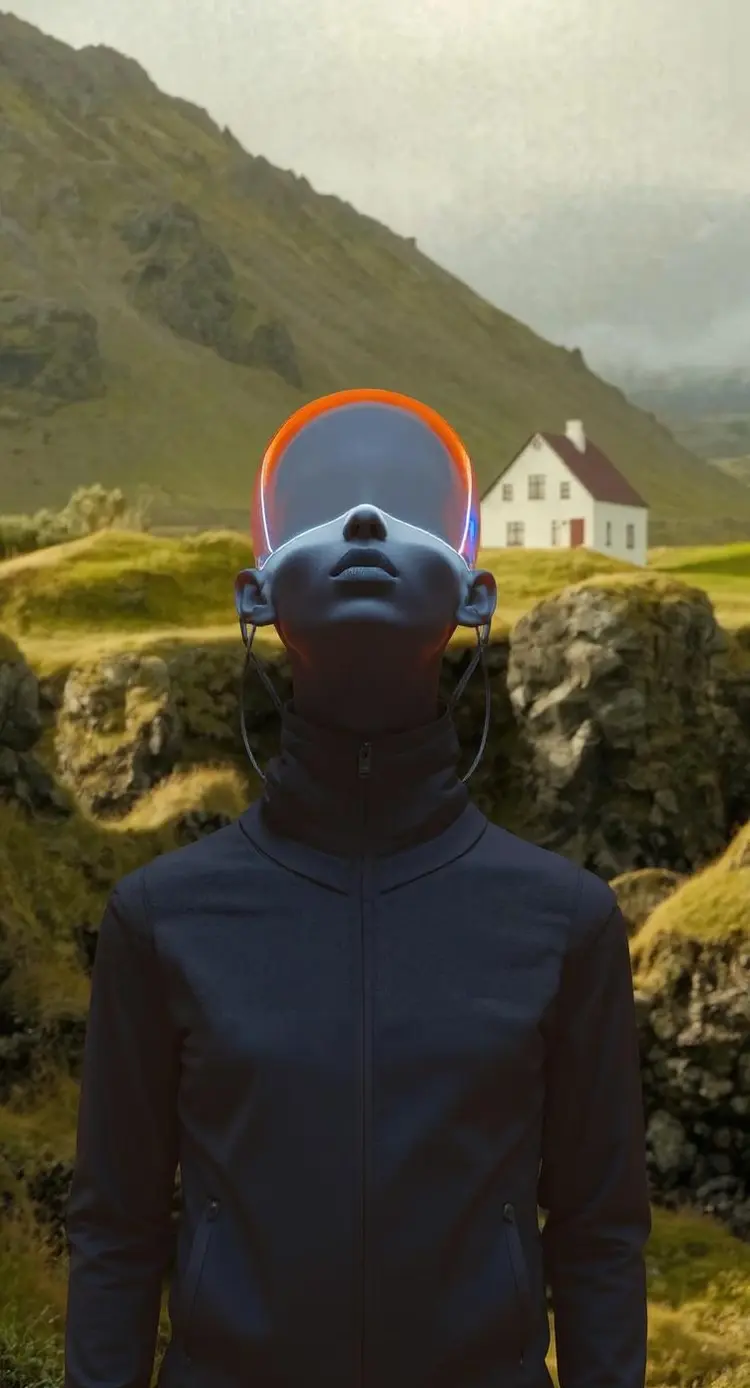
Combine these photos into one fluid scene. Make the woman in the first image wear the futuristic headgear in the second image. Then put the same woman the third image's scene.

1:1
png
7.5s
Safety Tolerance: 2

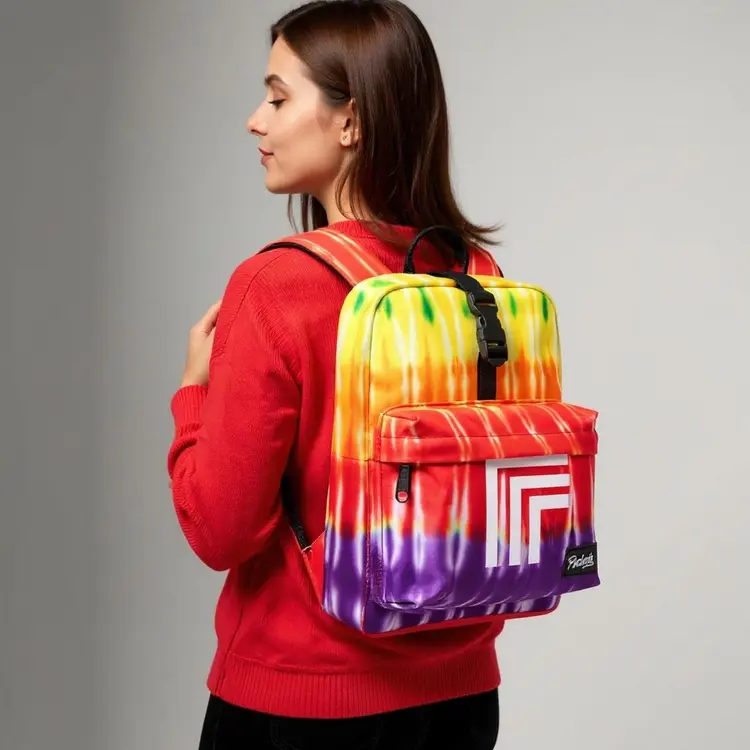
Combine these photos into one fluid scene. Replace the logo on the backpack with the logo submitted as the second image. Then, make the woman in the third image wear the backpack with the new logo.

9:16
png
8.8s
Safety Tolerance: 2

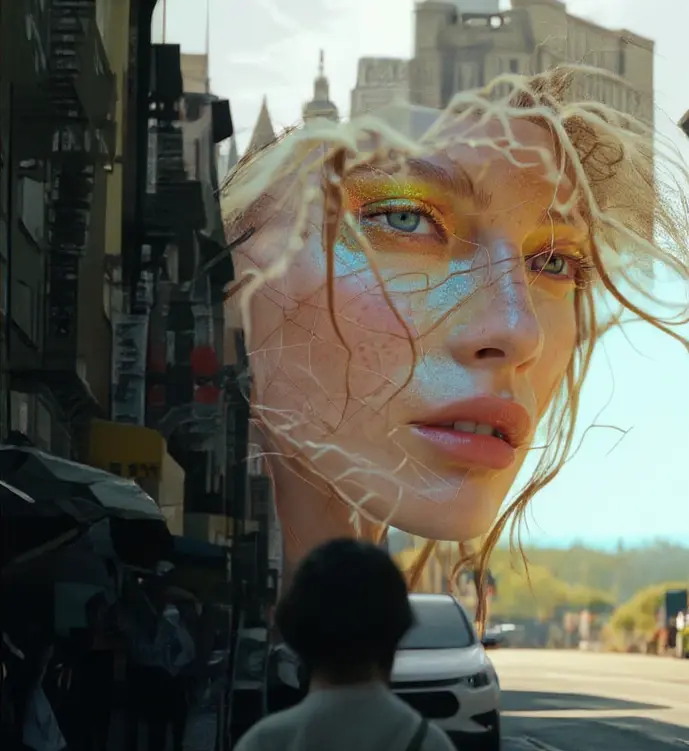
Combine these photos into one fluid scene

Switch Category

Effects

Text To Image

Text To Image

Text To Video

Large Language Models

Large Language Models

Text To Speech

Text To Speech

Super Resolution

Super Resolution

Lipsync

AI Music Generation

AI Music Generation

Video Editing

Speech To Text

Speech To Text

AI Enhance Videos

Remove Backgrounds

Remove Backgrounds