• Picasso AI Logo
    Logo Picasso IA
  • Home
  • AI Image
    Nano Banana 2
  • AI Video
    Veo 3.1 Fast
  • AI Chat
    Gemini 3 Pro
  • Edit Images
  • Upscale Image
  • Remove Background
  • Text to Speech
  • Effects
    NEW
  • Generations
  • Billing
  • Support
  • Account
  1. Collection
  2. Text to Image
  3. Reframe Image

Reframe Image: Change Aspect Ratio Without Cropping

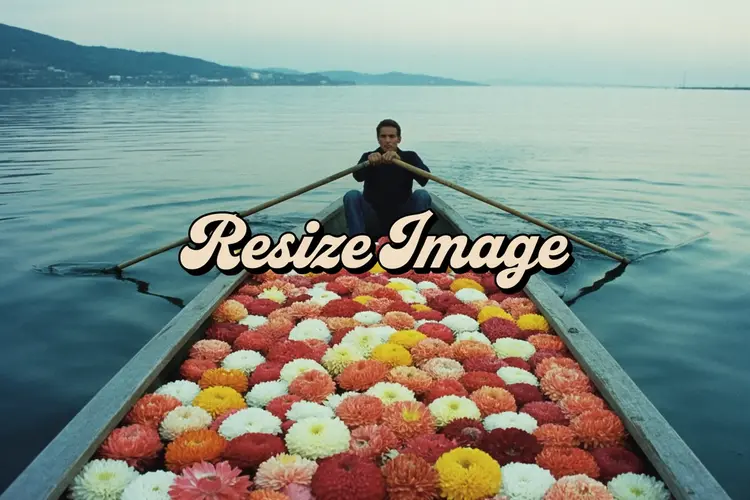
Reframe Image changes the aspect ratio of a photo without cropping out any part of the original content. Instead of cutting the edges, the AI fills in the areas around your image to match the new frame dimensions. This is useful when you shoot a portrait but need a widescreen version, or when a square post needs to become a vertical story. The model supports seven aspect ratios: 1:1, 4:3, 3:4, 16:9, 9:16, 21:9, and 9:21. You can position your source image anywhere within the new frame using pixel-level crop bounds, and add a text prompt to steer how the filled areas look. Two processing modes let you balance speed against output quality depending on your deadline. Designers, social media managers, and photographers use it to repurpose a single image across multiple platforms without reshoots. Drop in a product photo, set the target ratio, type a brief scene description, and download the result in seconds. No software to install and no technical setup required.

Official

Luma

293k runs

Reframe Image

2025-06-12

Commercial Use

Reframe Image: Change Aspect Ratio Without Cropping

Table of contents

  • Overview
  • How It Works
  • Frequently Asked Questions
  • Credit Cost
  • Features
  • Use Cases
  • Examples
Get Nano Banana Pro

Overview

Reframe Image takes a photo and changes its aspect ratio by generating new visual content in the areas your original image doesn't cover, instead of cropping parts of it away. The result is a full image at the target ratio, with your subject fully preserved and the surrounding areas built by AI to match the lighting, texture, and style of the original scene. This solves a persistent problem for creators and marketers working across multiple platforms at once: a portrait shot at 4:3 can become a cinematic 16:9 without losing anyone's face, or a square social post can be extended into an ultrawide 21:9 banner without starting over. On Picasso IA, the whole process takes a few clicks, and you can guide the fill with a plain-text description if you want the AI to generate something specific rather than infer from context.

How It Works

  • Upload your photo directly or paste in an image URL to set the source material
  • Pick the target aspect ratio from seven preset options: 1:1, 3:4, 4:3, 9:16, 16:9, 9:21, and 21:9
  • Optionally write a short prompt to describe what the AI should generate in the new areas, such as the type of background or the scene you want extended
  • Use the position and boundary controls to specify exactly where your original image sits within the new, larger frame
  • Choose between two model variants: one tuned for speed, one for higher visual fidelity
  • Hit generate and download your reframed result

Frequently Asked Questions

Do I need programming skills or technical knowledge to use this? No, just open Reframe Image on Picasso IA, adjust the settings you want, and hit generate.

Is it free to try? Yes, you can run Reframe Image without a paid subscription to start. The number of free generations available depends on your account level, so check the credits panel before running a large batch.

How long does it take to get results? Most reframes finish within a few seconds. Processing time varies based on the original image resolution and how much new area the AI needs to generate around your subject.

Can I control the style of the generated fill? Yes. A short text prompt steers what the AI builds in the newly added areas, so you can describe a specific background style, lighting condition, or visual atmosphere. Switching between the two available model variants also affects the character and sharpness of the generated fill.

What happens if I'm not happy with the result? Run it again. Each generation can produce a different output even with identical settings. Adjusting the prompt or repositioning the source image within the frame usually gets you closer to what you want, and iterating two or three times is often enough.

Where can I use the outputs? The downloaded image has no watermarks and is yours to use in any context, including social posts, print layouts, client deliverables, and website banners. Picasso IA does not restrict how you use the files you generate.

Credit Cost

Each generation consumes 1 credit

1 credit

or 5 credits for 5 generations

Features

Everything this model can do for you

No-crop reframing

Extends the canvas around your original image instead of removing any part of it.

Seven aspect ratios

Choose from 1:1, 4:3, 3:4, 16:9, 9:16, 21:9, or 9:21 to match any platform format.

Prompt-steered fill

Write a short description to direct how the AI fills the areas outside your source photo.

Pixel-level positioning

Set exact crop bounds to control where your image sits within the output frame.

Two processing modes

Pick fast or standard mode depending on how quickly you need the result.

Instant output

Get the finished reframed image in seconds, ready to download and use right away.

No installation needed

Runs directly in the browser with no plugins, software, or code required.

Use Cases

Convert a portrait photo to 16:9 widescreen format without losing the subject at the center

Turn a landscape vacation photo into a 9:16 vertical story by letting the AI add sky and ground around the original frame

Refit a product image from square to 4:3 for an e-commerce listing without reshooting

Add cinematic ultra-wide 21:9 letterbox framing to a standard photo by filling both sides with a matching scene

Repurpose a single event photo across multiple social media formats in one session

Position a subject off-center in a new wider canvas by adjusting pixel-level crop bounds

Use a text prompt to control how AI-filled areas look, such as adding a matching sky or floor to blend with the original

Examples

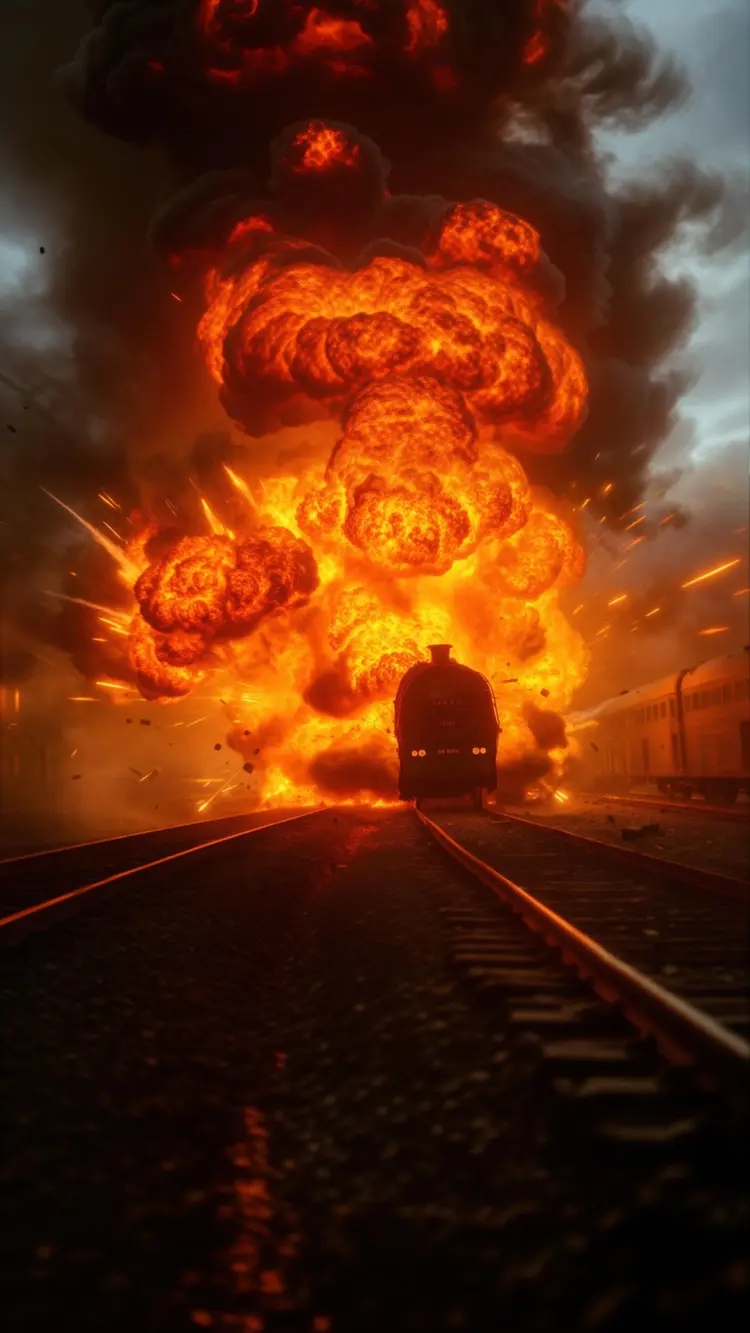
An explosion
Input
Input 1
Output
An explosion
18.8s
View Example

Switch Category

Effects

Text To Image

Text To Image

Text To Video

Large Language Models

Large Language Models

Text To Speech

Text To Speech

Super Resolution

Super Resolution

Lipsync

AI Music Generation

AI Music Generation

Video Editing

Speech To Text

Speech To Text

AI Enhance Videos

Remove Backgrounds

Remove Backgrounds