Overview
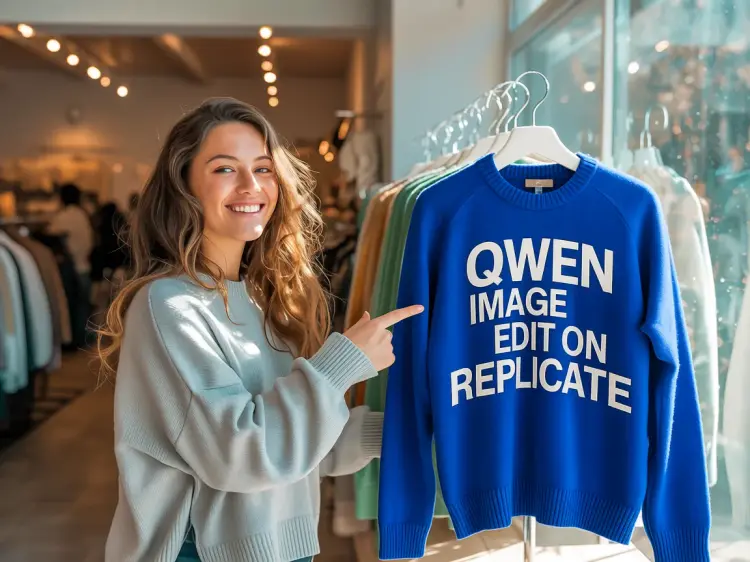
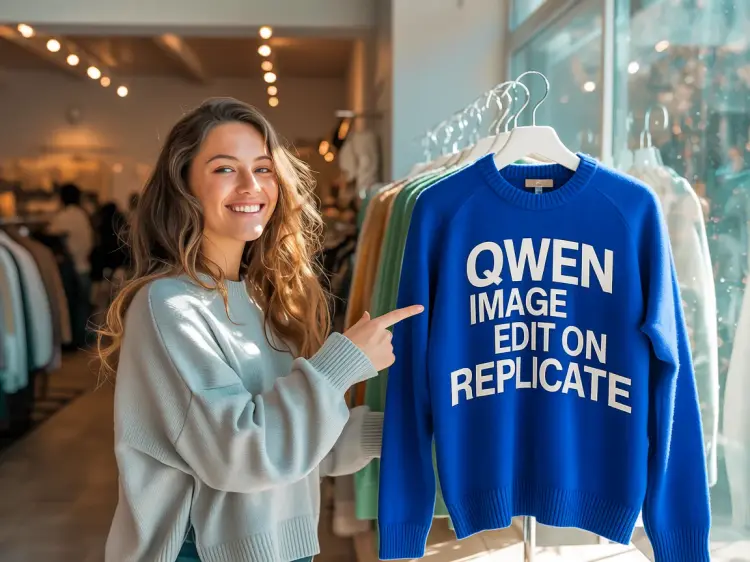
Qwen Image Edit takes an existing image and a plain-text instruction, then returns a modified version with your requested changes applied. Its standout capability is text rendering: the model can locate text already present in an image, read it accurately, and replace it with whatever you specify. That alone solves a problem that trips up most generative tools. Picasso IA hosts Qwen Image Edit in a clean interface where you upload your file, type what needs to change, and get a result in seconds. Designers fixing client sign mockups, marketers refreshing seasonal banners, and social media managers updating promotional graphics are the people who get the most value from this model.
How It Works
- Upload your reference image in JPEG, PNG, GIF, or WebP format.
- Write a short text prompt describing the specific change you want, for example "replace the storefront sign text with OPEN" or "swap the solid red background for a light gray studio backdrop."
- Choose your preferred output format: WebP, JPG, or PNG.
- Set the quality level between 0 and 100 to balance file size against sharpness. This setting applies to WebP and JPG exports.
- Optionally enter a seed number to lock in a specific result so you can reproduce it consistently across runs.
- Click generate and download the edited image once it is ready.
Frequently Asked Questions
Do I need programming skills or technical knowledge to use this?
No, just open Qwen Image Edit on Picasso IA, adjust the settings you want, and hit generate.
Is it free to try?
Yes. You can run Qwen Image Edit without any upfront cost. Create an account and start editing images right away.
How long does it take to get results?
Most edits finish in a few seconds with fast processing enabled. More detailed instructions or larger source images may take slightly longer, but you typically won't wait more than 15 to 20 seconds.
What output formats are supported?
You can save your result as WebP, JPG, or PNG. WebP is the default and gives a solid balance between file size and visual quality. PNG is the right choice when you need a lossless file with no compression artifacts.
Can I adjust the output quality?
Yes. A quality setting runs from 0 to 100, with 80 as the default. That level works well for most web use. Raise it to 100 for print or professional delivery. Quality settings only affect WebP and JPG; PNG exports are always lossless regardless of what you enter.
How many times can I run the model?
As many times as you need. There is no hard cap on iterations, so you can adjust the prompt and re-generate until the output matches what you had in mind.
Where can I use the edited images?
The files you generate are yours to use across social media posts, product listings, marketing materials, and internal presentations. Always check the terms of service for the specific platform where you plan to publish.