• Picasso AI Logo
    Logo Picasso IA
  • Home
  • AI Image
    Nano Banana 2
  • AI Video
    Veo 3.1 Fast
  • AI Chat
    Gemini 3 Pro
  • Edit Images
  • Upscale Image
  • Remove Background
  • Text to Speech
  • Effects
    NEW
  • Generations
  • Billing
  • Support
  • Account
  1. Collection
  2. Text to Image
  3. Qwen Image Edit Plus Lora Upscale

Qwen Image Edit Plus LoRA Upscale: Sharpen Photos

Qwen Image Edit Plus LoRA Upscale takes a blurry, compressed, or low-resolution photo and runs it through a dedicated LoRA upscale pass that sharpens texture, restores color contrast, and recovers fine detail that compression or downscaling had buried. If you have an old photo, a product shot that looks muddy, or any image that needs more visual clarity, this model does the job without manual layer work in editing software. The model offers two denoising presets: a fast 8-step mode for quick previews and a 40-step detailed mode when you want maximum texture recovery. A text prompt field lets you describe the scene so the LoRA focuses on the right details. Output quality goes up to 100 out of 100, and you can export in WebP, JPEG, or PNG depending on where the image is going. This fits naturally at the end of any image workflow where a finished asset still looks flat or soft. Drop in the image, add a one-line scene description, pick your speed setting, and the result is ready to download clean, in your chosen format.

Official

Qwen Edit Apps

2k runs

Qwen Image Edit Plus Lora Upscale

2025-11-14

Commercial Use

Qwen Image Edit Plus LoRA Upscale: Sharpen Photos

Table of contents

  • Overview
  • How It Works
  • Frequently Asked Questions
  • Credit Cost
  • Features
  • Use Cases
  • Examples
Get Nano Banana Pro

Overview

Qwen Image Edit Plus LoRA Upscale takes a low-resolution or degraded photo and returns a sharper, more detailed version by running a dedicated upscale LoRA pass over your image. It is built for users who work with old scans, compressed exports, or AI-generated images that lack the crispness needed for print or high-resolution display. On Picasso IA, you upload the image, optionally write a short description of the scene to help the model target the right textures and colors, and the pipeline handles the rest. The result is a cleaner file with recovered fine details, truer color fidelity, and better contrast, ready to download in your preferred format.

How It Works

  • Upload your image (JPEG, PNG, GIF, or WebP) directly in the interface
  • Write a short prompt describing the scene or subject so the LoRA adapter knows which textures and colors to recover
  • Choose between the 8-step fast preset or the 40-step detailed preset depending on how much processing time you want to trade for fidelity
  • Optionally adjust the LoRA scale and output format (WebP, JPG, or PNG) before running
  • Download the upscaled result at up to quality level 95, with no visible compression artifacts

Frequently Asked Questions

Do I need programming skills or technical knowledge to use this? No, just open Qwen Image Edit Plus LoRA Upscale on Picasso IA, adjust the settings you want, and hit generate.

Is it free to try? Yes, you can run the model on Picasso IA without any account setup required to test it out. Just upload an image and go.

How long does it take to get results? The fast preset (8 inference steps) typically returns results in seconds. The detailed preset (40 steps) takes longer but produces finer texture recovery and sharper edges, making it worth the wait for final-quality output.

What output formats are supported? You can download your upscaled image as WebP, JPG, or PNG. WebP is the default and offers a good balance of quality and file size. PNG is best when you need lossless output with no compression.

Can I customize the output quality or style? Yes. You control the LoRA scale to set how strongly the upscale adapter applies its corrections, the number of inference steps, and the output quality slider from 0 to 100. You can also fix the seed to reproduce the exact same output across runs.

What happens if I am not happy with the result? Adjust the prompt to include more detail about the scene, increase the inference steps to 40, or raise the LoRA scale, then run the model again. Because you can set a fixed seed, you can isolate exactly which change made the difference.

Where can I use the outputs? The output images carry no watermarks and are ready to use in client projects, social media posts, print layouts, or any workflow that needs high-resolution assets.

Credit Cost

Each generation consumes 1 credit

1 credit

or 5 credits for 5 generations

Features

Everything this model can do for you

LoRA upscale pass

Uses a dedicated upscale adapter to recover fine texture and color detail in a single run.

Two speed presets

Choose 8-step fast mode for quick previews or 40-step detailed mode for maximum restoration quality.

Prompt-guided restoration

Add a short scene description to direct the model toward the specific details that matter most.

Flexible output formats

Export results as WebP, JPEG, or PNG with quality settings up to 100 for lossless clarity.

Aspect ratio control

Keep the original image ratio or switch to standard sizes like 16:9, 4:3, or 1:1.

Reproducible results

Set a seed value to get the same output each time you run the model with identical settings.

Adjustable LoRA strength

Control how aggressively the upscale adapter is applied to balance sharpness against natural look.

Use Cases

Sharpen a soft portrait photo by uploading it and adding a short description of the subject so the LoRA recovers facial texture accurately.

Restore a compressed product photo to crisp clarity before using it on a website or marketplace listing.

Upscale a low-resolution screenshot or scanned document photo without introducing blurring artifacts.

Recover washed-out colors and contrast in an old photo by describing the original scene in the prompt field.

Preview quick restorations with the 8-step fast mode, then switch to the 40-step detailed mode for your final export.

Convert the upscaled output to PNG, JPEG, or WebP to match the format your project or client requires.

Match the output aspect ratio to your original image or switch to a standard ratio like 16:9 for presentation-ready results.

Examples

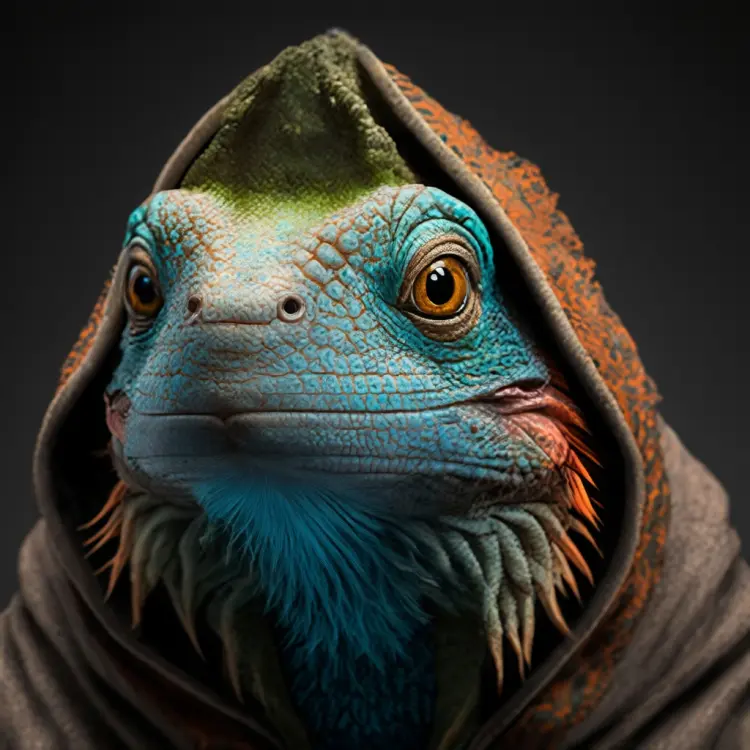
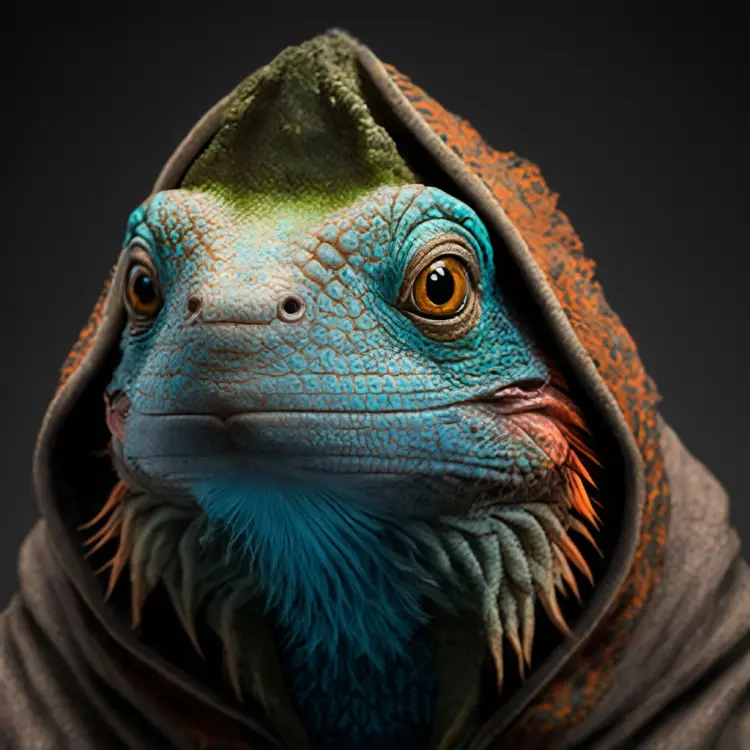
Enhance image quality, sharpen fine textures, restore natural colors and contrast
Input
Input 1
Output
Enhance image quality, sharpen fine textures, restore natural colors and contrast
37.9s
View Example

Switch Category

Effects

Text To Image

Text To Image

Text To Video

Large Language Models

Large Language Models

Text To Speech

Text To Speech

Super Resolution

Super Resolution

Lipsync

AI Music Generation

AI Music Generation

Video Editing

Speech To Text

Speech To Text

AI Enhance Videos

Remove Backgrounds

Remove Backgrounds