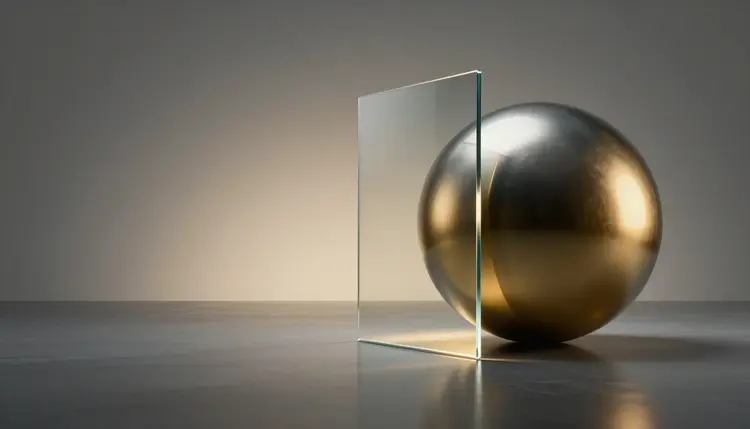
A website hero image does a lot of quiet work. It sets the mood in the first second, holds the headline without fighting it, and has to look like it belongs to your brand rather than to a stock library. Image models can now draw a wide, clean banner from a few sentences, so the real job moves from hunting for a picture to describing the one your page needs, with room left for the words.
Stock photos have two problems when you use them as a hero. Plenty of other sites downloaded the same ones, and nobody shot them with your layout in mind. A hero needs a specific shape (wide), a specific mood (yours) and an empty zone where the headline and the button will sit. A photo library rarely gives you all three at once, so teams crop, tint and hope.
A text-to-image model starts from the other end. You say what the scene is, which colors it should lean toward and where the calm area goes, and it draws that. Picasso IA keeps 212 text-to-image models behind one workspace, the toolkit, so you can run the same brief through a model that is strong at clean design work, one that renders text, and one that follows reference images, then keep whichever suits the site. New accounts get free credits, which is enough to test a direction before you commit to it.
The habit that pays off is generating several hero options per page and choosing one the way you would choose a layout, instead of accepting the first image that looks nice.
Different heroes ask different things of a model. The table pairs the common cases with the model worth trying first and the thing most likely to go wrong. Every model named here is in the catalog, and the pairing is a starting point rather than a rule.
| Hero type | Ratio to ask for | Start with | Watch for |
|---|
| Abstract brand background | 16:9 or 2:1 | recraft-ai/recraft-v4.1-pro | Colors drifting from your palette |
| Ultra-wide banner behind a headline | 21:9 | bytedance/seedream-5-pro | Busy detail landing under the text |
| Hero with words inside the image | 2560x1440 or 3168x1296 | ideogram-ai/ideogram-v4-balanced | Misspelled or oddly sized letters |
| Scene built from your own reference images | 16:9 | bytedance/seedream-5-pro | Reference details blending the wrong way |
| Existing photo too narrow for the layout | 16:9 | bria/expand-image | Seams or repeated patterns at the new edges |
Recraft v4.1 Pro offers 16:9 and 2:1 among its aspect ratios and outputs up to 2048 pixels on a side, which gives a background room to be cropped. Seedream 5 Pro takes up to 10 reference images and offers a 21:9 ratio. Ideogram v4 Balanced lists legible text inside images as a core feature and has wide presets such as 3168x1296. Expand Image takes an existing picture and extends it to a chosen ratio, with an optional prompt for what belongs in the new area.
This is the sequence that ends with a file you can put on a page instead of a folder of pretty pictures. It uses the models above and takes about as long as writing the brief.
- Write the brief around the layout. Say what the scene is, the mood, two or three brand colors in plain words, and where the empty space goes, for example the left third kept calm and dark for a headline.
- Pick the model and the ratio. Open the toolkit and choose Recraft v4.1 Pro for clean backgrounds, Seedream 5 Pro for ultra-wide or reference-based heroes, or Ideogram v4 Balanced if words belong in the picture, then set the ratio.
- Test each option with the real headline. Generate four candidates, drop your actual headline and button over each one in your page builder or design tool, and discard any image where detail collides with the copy.
- Fix the winner instead of rewriting the prompt. If the framing is right but too narrow, run it through Expand Image to reach 16:9; if one color is off, attach the image to an editor such as nano banana and ask for that single change.
- Export, compress and write the alt text. Save as JPEG or PNG, compress the file with your usual web tool, and describe what the image shows in one plain sentence for the alt attribute.
Models read color words better than they read codes. Name the colors the way a person would, deep navy, warm off-white, one accent of amber, and if you have a brand image or a mood board, attach it as a reference to a model that accepts one. Seedream 5 Pro takes up to 10 reference images at once. Then compare the result against your real swatches on screen, because a prompt gets you near a palette, not onto it.
The empty area has to be asked for out loud. Name the side and the quality you want: a calm, low-contrast zone across the left third, no objects, no bright highlights. Text needs contrast to stay readable, so a soft gradient or a dark, even area beats a detailed one. Think about phones too. Many themes show the hero in a taller frame on mobile and cut the sides, so keep the important part of the subject near the middle or check the crop before you publish.
Tip: put your real headline over the image before you fall in love with it. A hero is judged with text on top, and the prettiest candidate is often the one with detail exactly where the words need to go.
The most common one is asking for everything. A prompt with a skyline, a team, a product and an abstract pattern produces a busy picture with no calm zone. Pick one subject and one mood, and let the background do the supporting work. If you need several visuals for a campaign, make them as separate pieces, as you would for static ad creatives.
The second is generating at the wrong ratio and cropping afterward. Cropping a square down to a banner throws away most of what the model drew, and the subject often ends up cut. Set the wide ratio before generating, or extend a good image sideways with the steps in expanding images with AI.
The third is shipping the file at full size. A large PNG straight from the model is heavy for a page that has to load quickly, and a slow hero costs more than a plain one ever saves. Resize and compress it, and if a favorite candidate looks soft at the size you need, an AI photo upscaler can rebuild detail before you compress. Last, a hero that looks nothing like the rest of the site reads as a stock image with extra steps, so reuse the same palette words and style words across every page you generate.
Hero images are a good fit for generation, but five limits are worth knowing before you build a page around one:
- Exact brand colors: a model lands near a palette, not on it, so a strict brand guide still needs a check against your swatches and sometimes a color correction after generation.
- Text inside the image: even models built for lettering can misspell a word, and words baked into a picture cannot be translated, selected or read by a screen reader, so the headline usually belongs in live page text.
- Real products and real people: a generated product is not your product, and a hero that shows an item for sale has to show the real item; people in generated heroes are fictional, never a real identifiable person.
- File weight and format: models output large files, up to 2K, which must be resized and compressed for the web, and Picasso IA does not replace your site build or image pipeline.
- Consistency across pages: every generation is a new image, so a series of heroes with one look needs the same references and wording, and it will still drift a little.
None of these rules out the approach. They mark the steps that stay with you: the color check, the headline, the real photo and the file prep.
Can AI generate a website hero image?
Yes. Text-to-image models draw wide banner images from a written description, and you can pick the ratio before generating. On Picasso IA you can run the same brief through several models in the toolkit and keep the best one. Check the terms of the model and of your plan for commercial use, and look at your platform requirements before you publish anything on a client or company site.
What size should a website hero image be?
It depends on your theme, your builder and how the hero is cropped, so there is no single right answer here. Start from the shape: most heroes are wide, often 16:9 or wider, and ask the model for that ratio so you do not crop afterward. Then check your platform or theme documentation for the current recommended dimensions and export to match.
Which AI model is best for website banners?
There is no single best, which is why a catalog helps. Recraft v4.1 Pro works well for clean abstract backgrounds at 16:9 or 2:1, Seedream 5 Pro offers a 21:9 ratio and accepts up to 10 reference images, and Ideogram v4 Balanced is the one to try when words belong in the picture. Run the same brief through two of them and judge with your headline on top.
How do I make the hero image match my brand colors?
Describe the colors in words, like deep navy with one warm amber accent, and attach a brand image as a reference to a model that accepts references, such as Seedream 5 Pro. Then compare the output against your real swatches on screen. Models get close but not exact, so if your brand guide is strict, correct the color afterward in an editor or ask an editing model for one specific change.
How do I leave space for the headline text?
Ask for it in the prompt and name the side: a calm, low-contrast area across the left third with no objects or bright highlights. Then test it by placing your real headline and button over each candidate. If the framing is right but the empty zone is too small, extend the image sideways with Expand Image and fill the new area with a plain backdrop.
Can I put the headline inside the AI image?
You can, since Ideogram v4 Balanced is built to render legible text, but it is rarely the best choice for a website. Text inside a picture cannot be selected, translated or read aloud by screen readers, and it scales badly on phones. Keep the headline as live text over the image, and use in-image lettering only for a logo-like element you will check letter by letter.
How do I turn a narrow photo into a wide hero banner?
Use Expand Image. Upload the photo, choose 16:9 or another preset ratio, and optionally describe what should appear in the new area, such as a soft plain backdrop. The model generates pixels that match the color and texture of the original. Look closely at the new edges for seams or repeated patterns, and run it again with a different prompt if you see any.
How do I compress a hero image for fast loading?
Compress after generating, with the tool you already use for the rest of your site, because the work happens outside the model. Seedream 5 Pro lets you save as PNG or JPEG, and JPEG is usually lighter for photographic scenes. Resize to the largest size your layout actually shows, compress, and then view the page on a phone to confirm it loads quickly and still looks sharp.
What alt text should a hero image have?
Describe what the image shows in one plain sentence, the way you would tell someone who cannot see it. If the hero is purely decorative, like an abstract gradient behind a headline, an empty alt attribute is often the better choice, since a long description adds noise for screen reader users. You can ask a chat model in the toolkit for a draft, but read it and fix it yourself.
How much does it cost to generate hero images?
Generations are paid in credits, and the cost depends on the model and the settings you pick, so any number written here would go out of date. New accounts get free credits to start, which is enough to compare a few candidates. Current plan details are on the pricing page, and it is the only place worth trusting for numbers.
Your next page deserves a hero made for it. Open the Picasso IA toolkit, set the ratio and generate the first four options with your headline in mind.