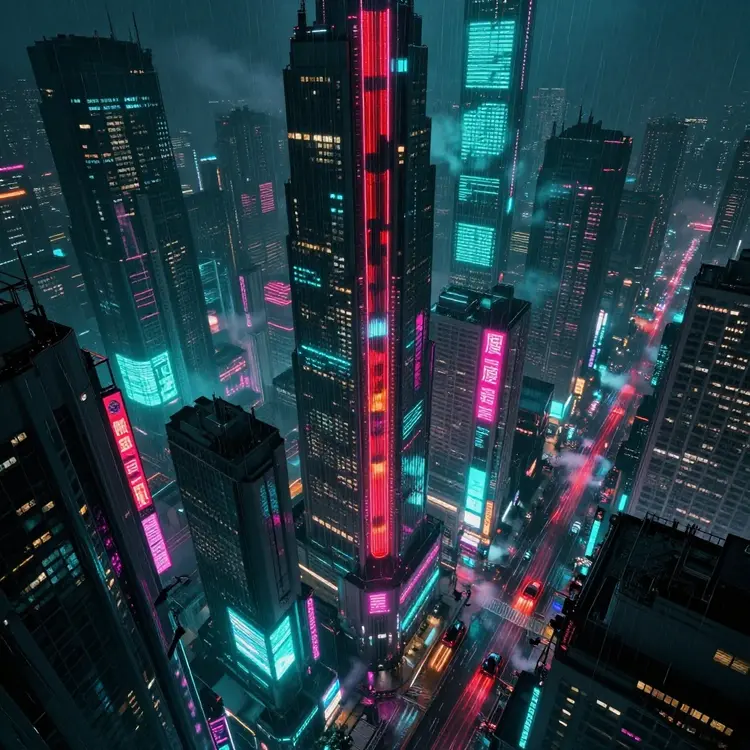
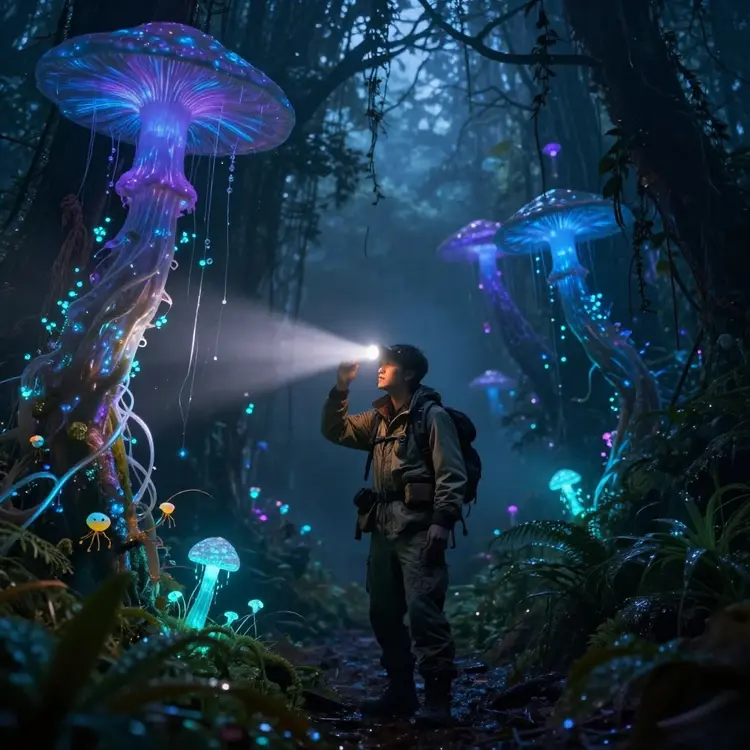
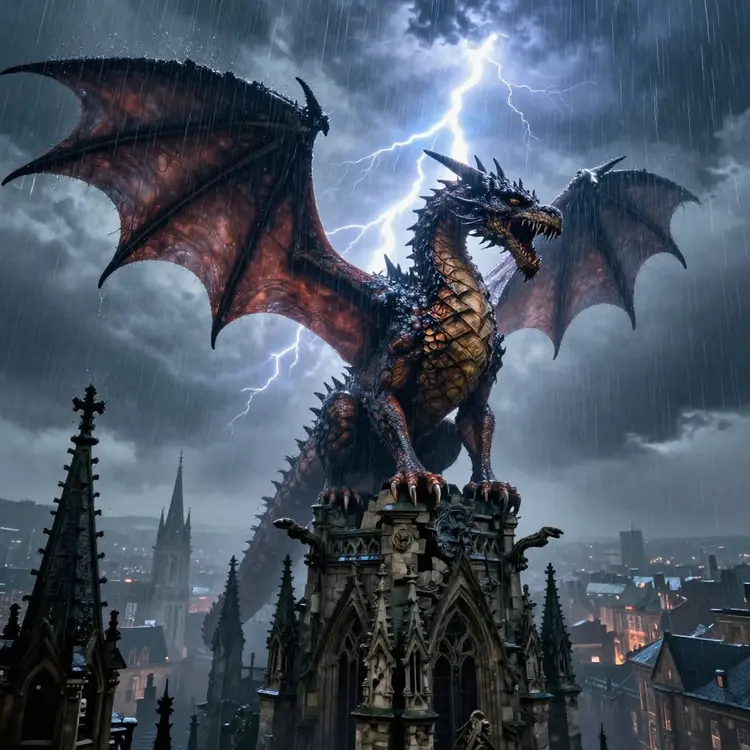
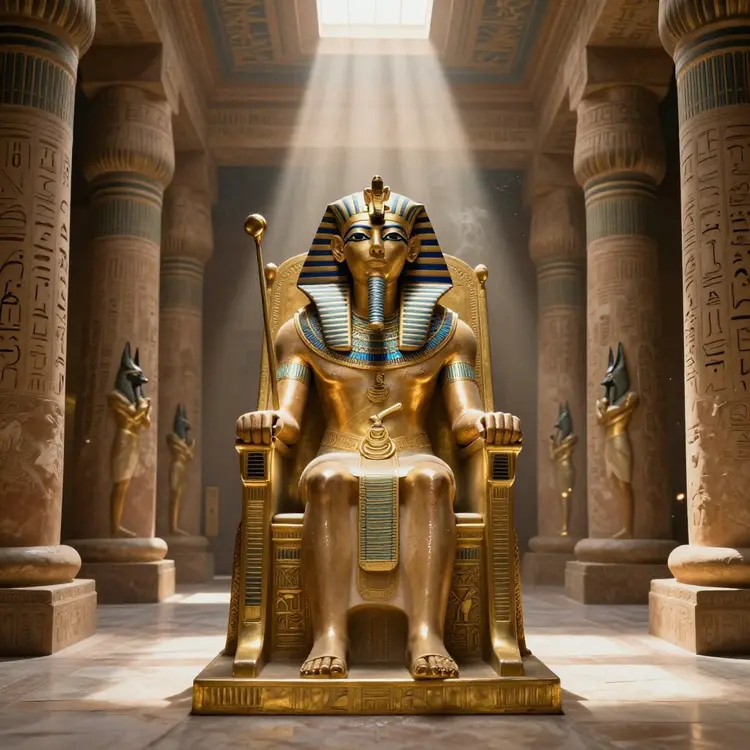
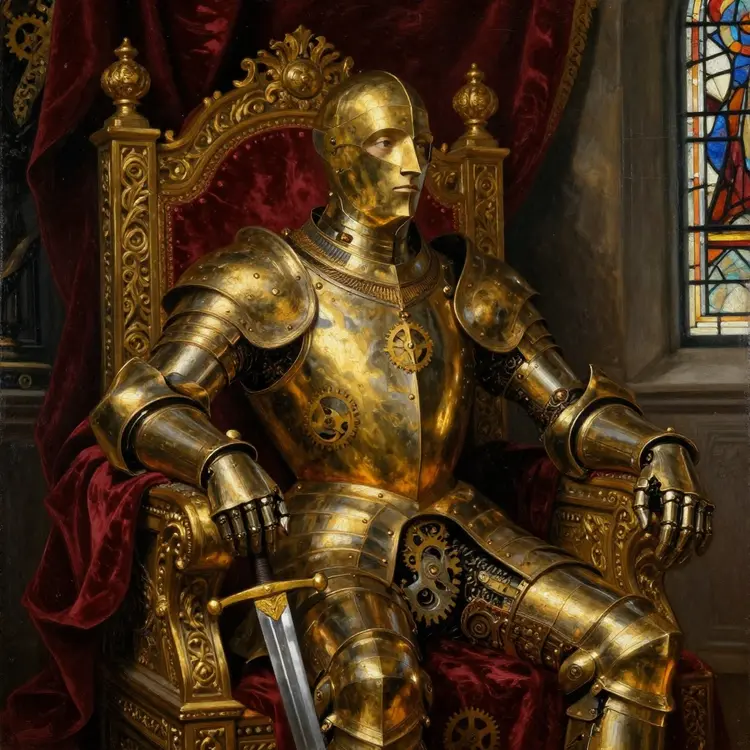
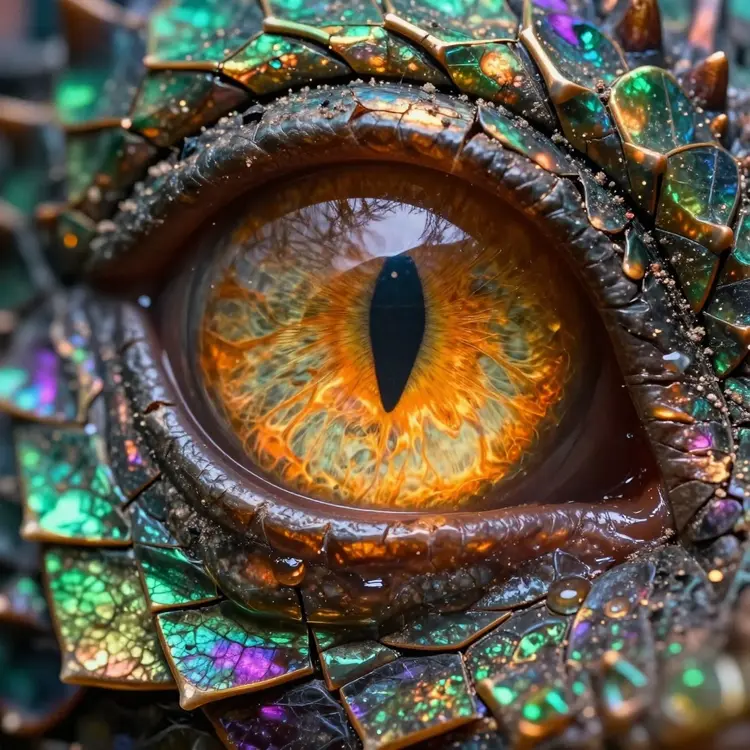
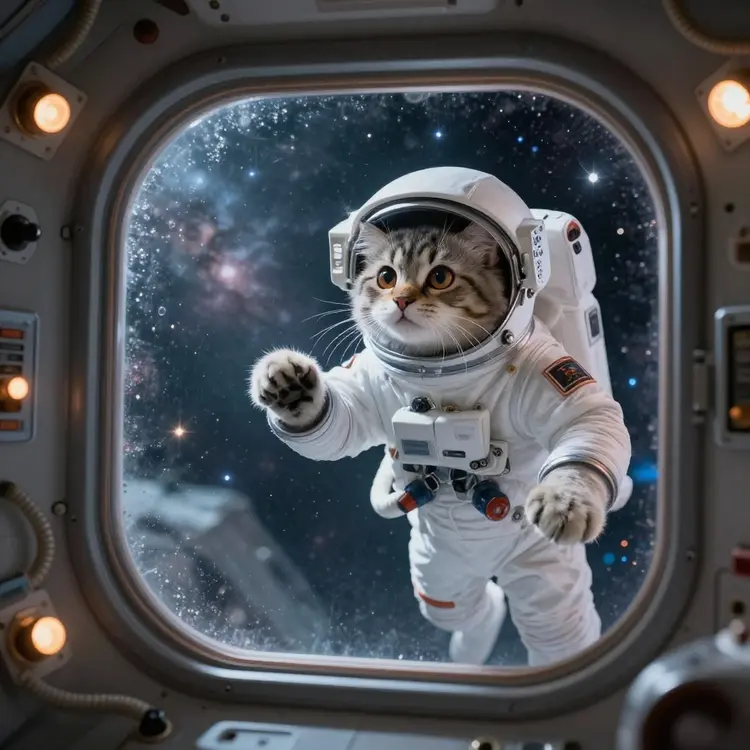
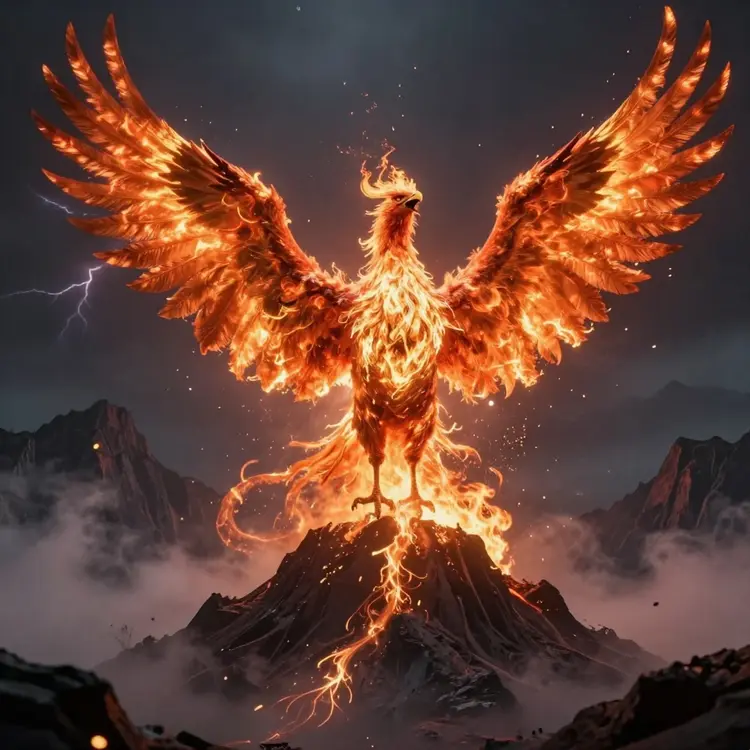
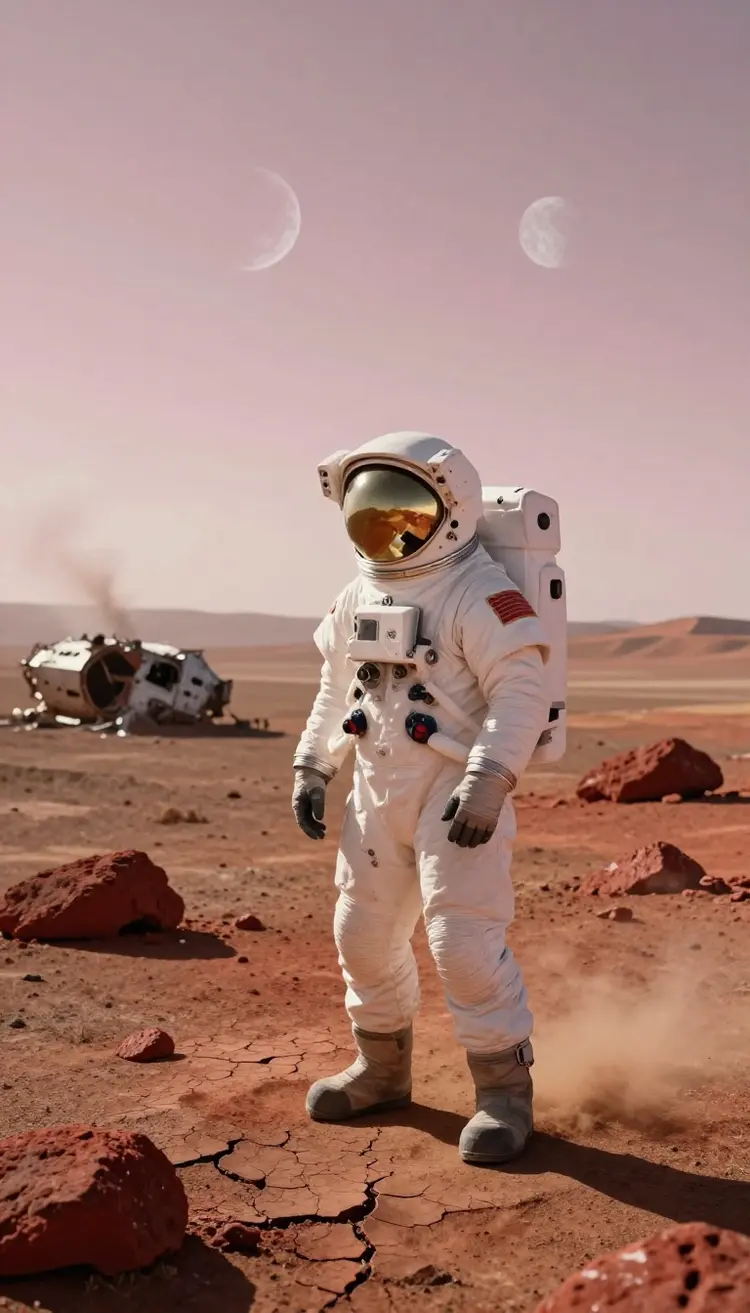
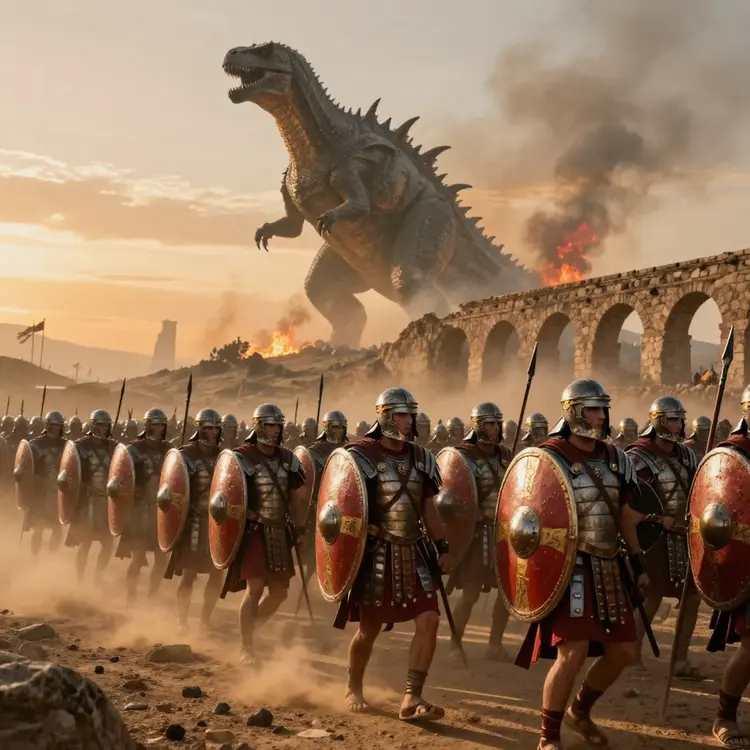
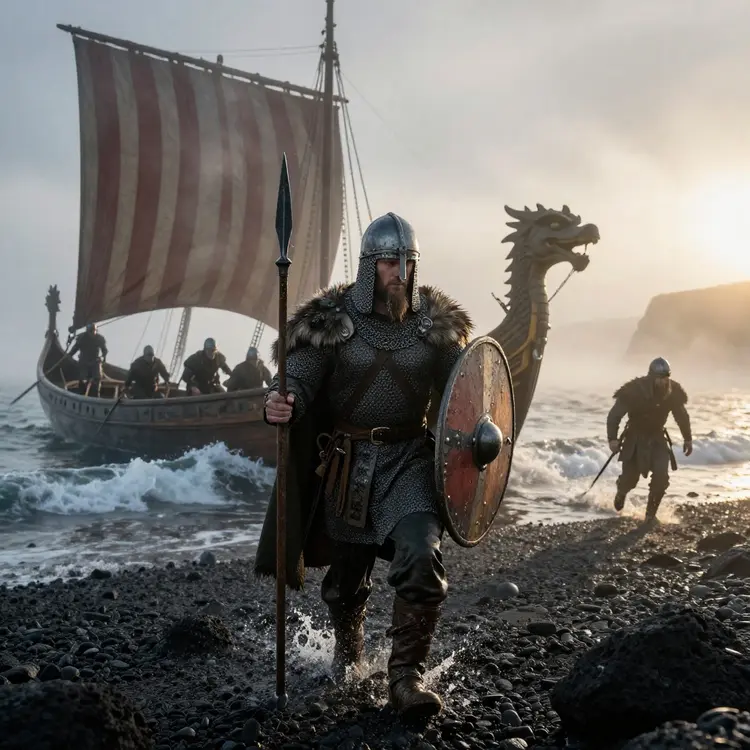
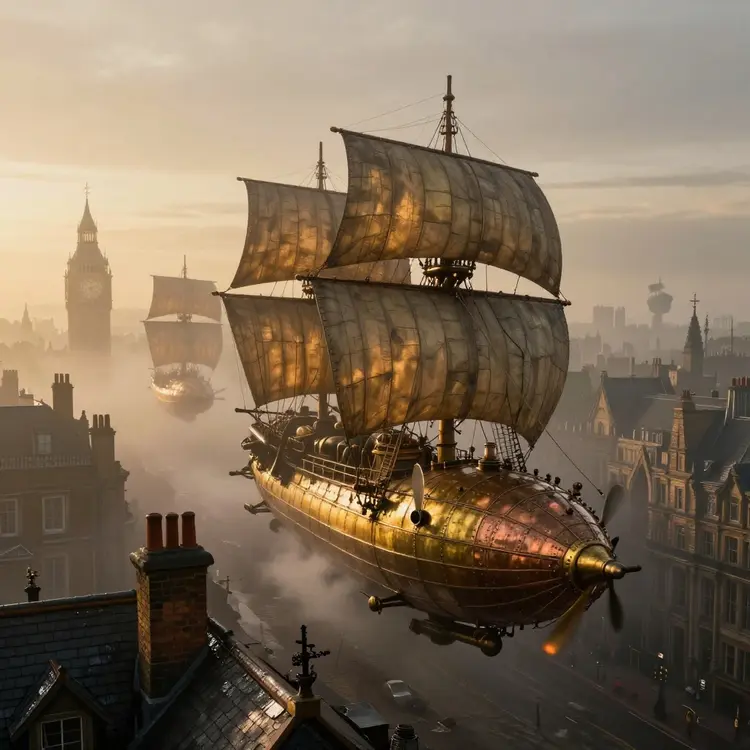
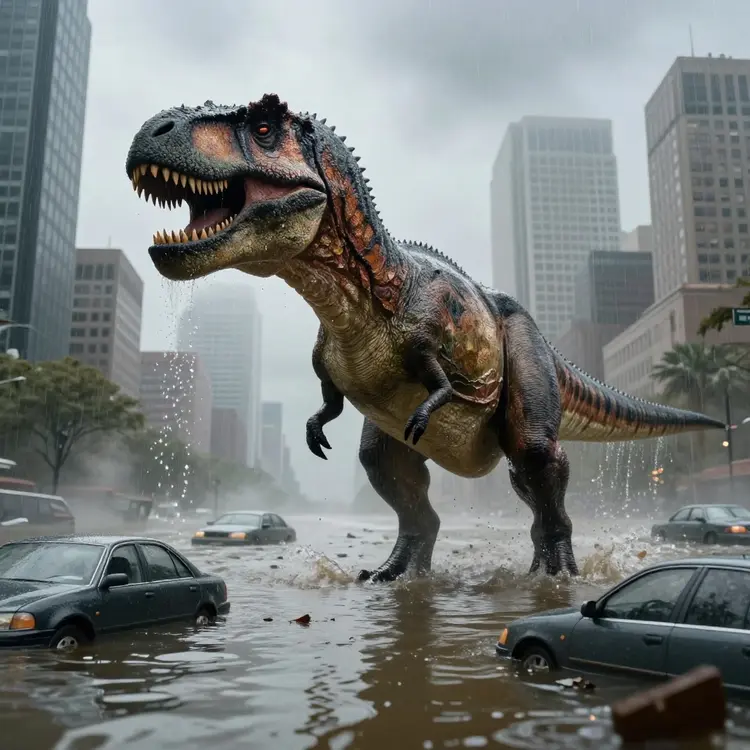
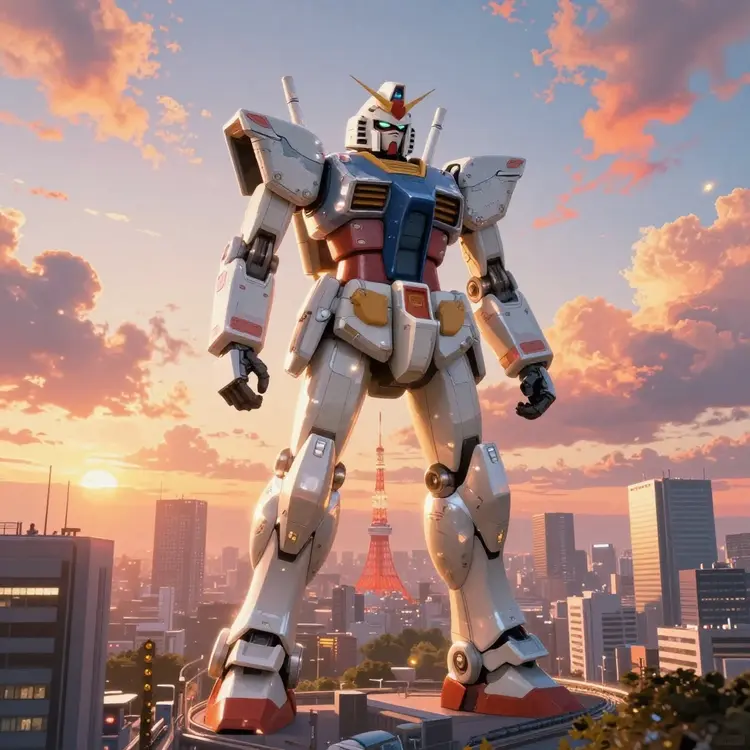
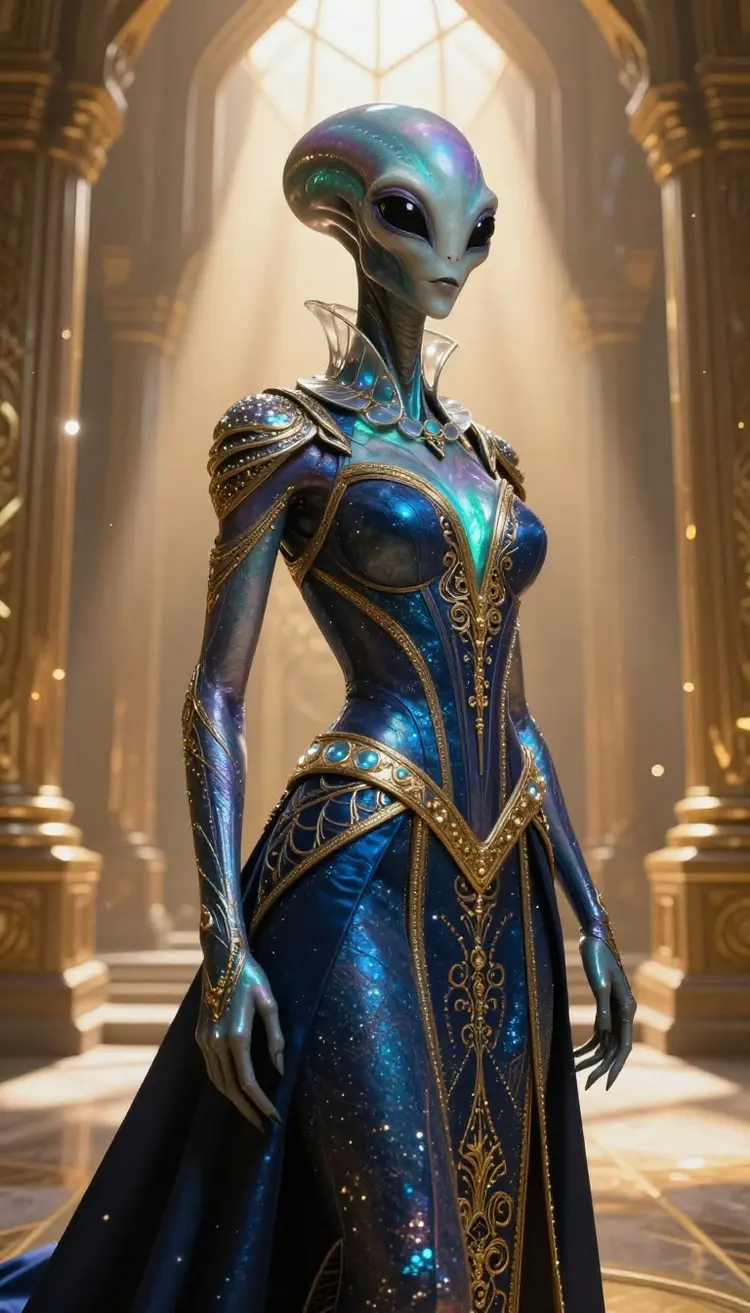
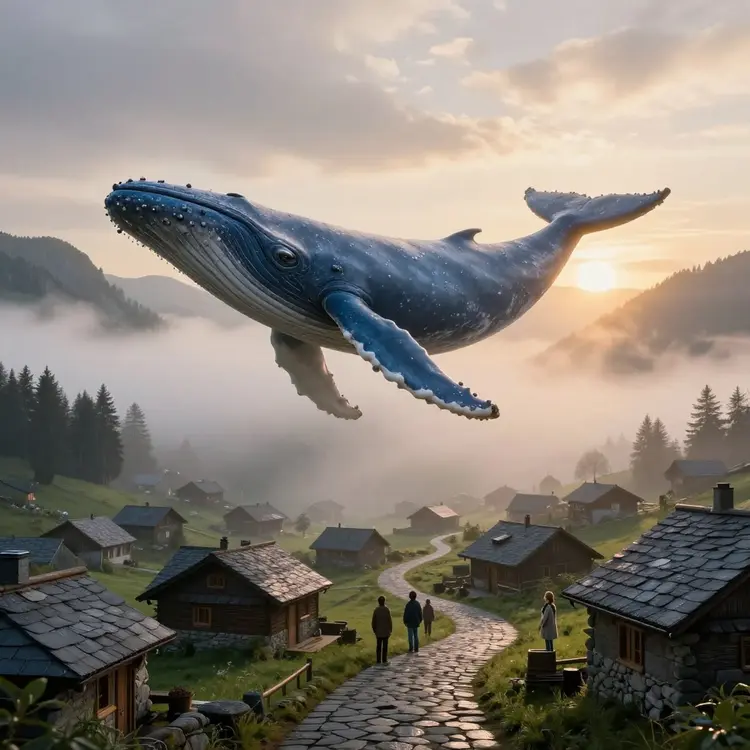
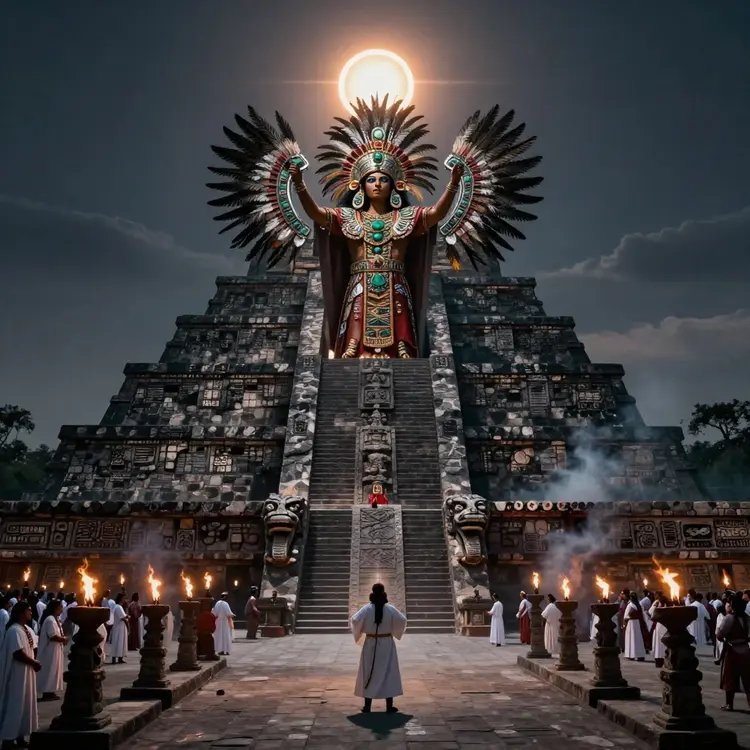
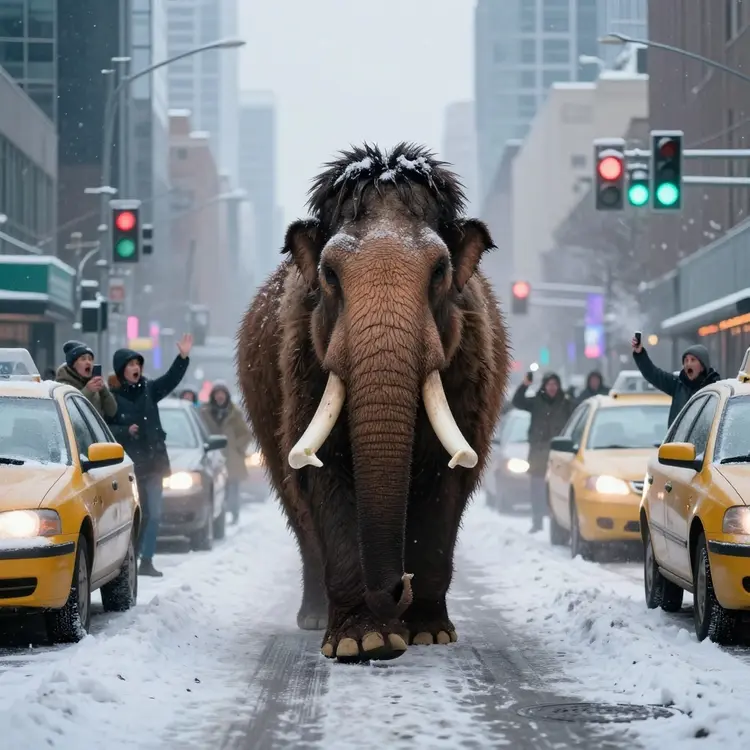
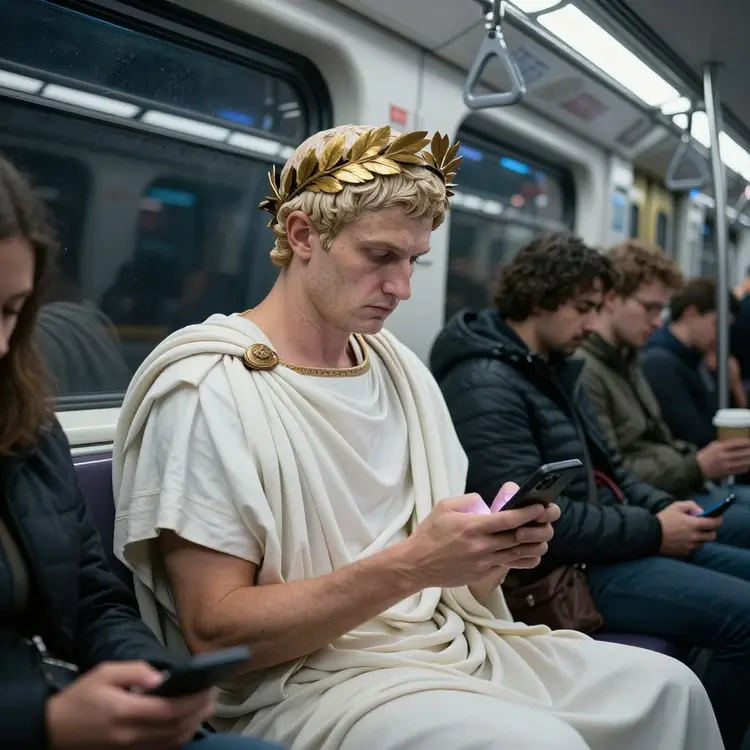
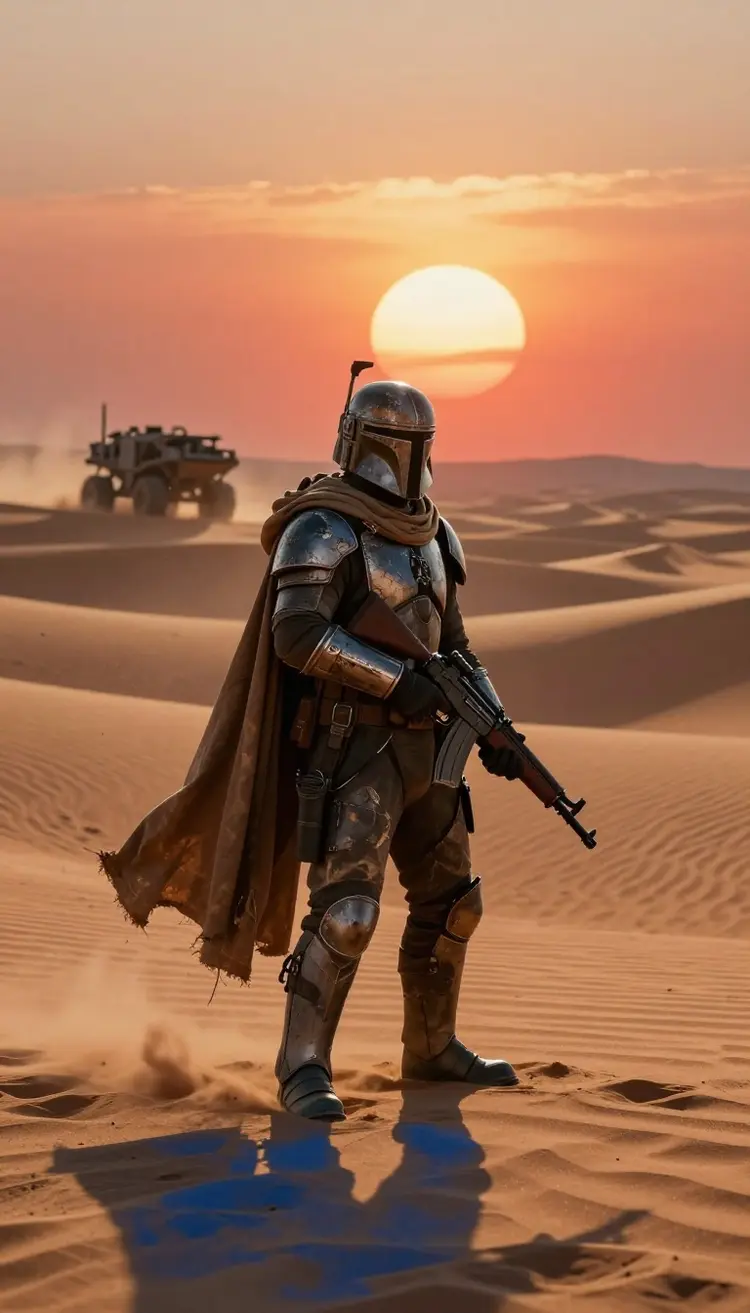
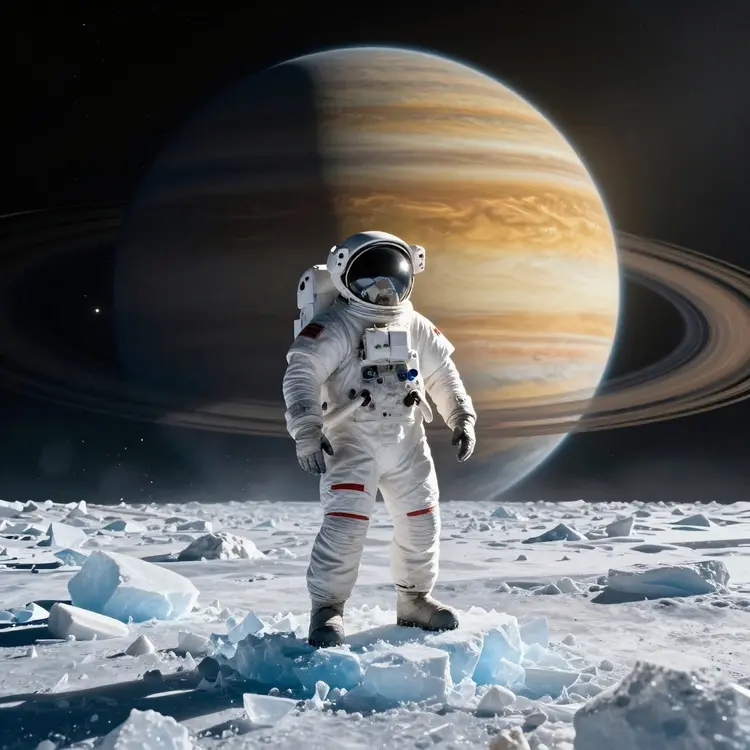
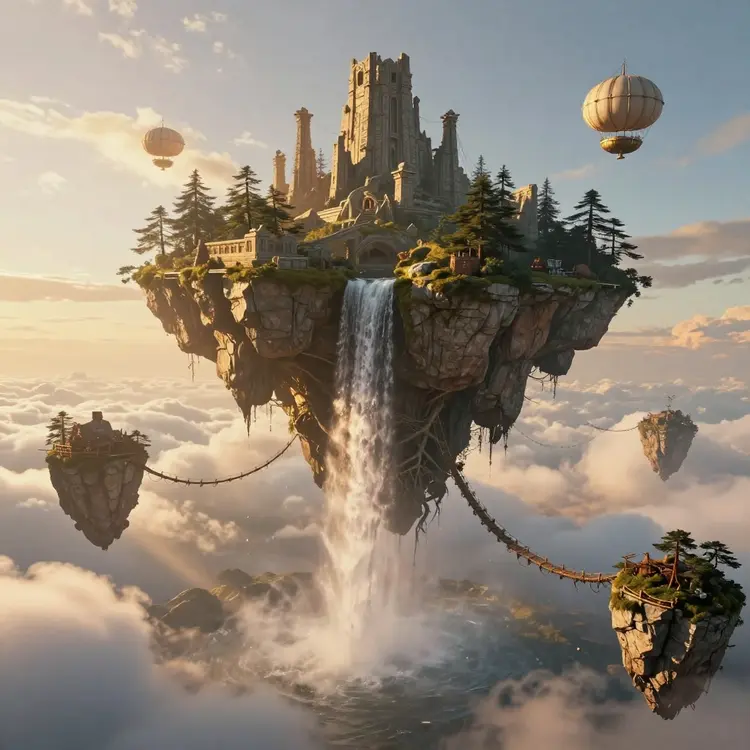
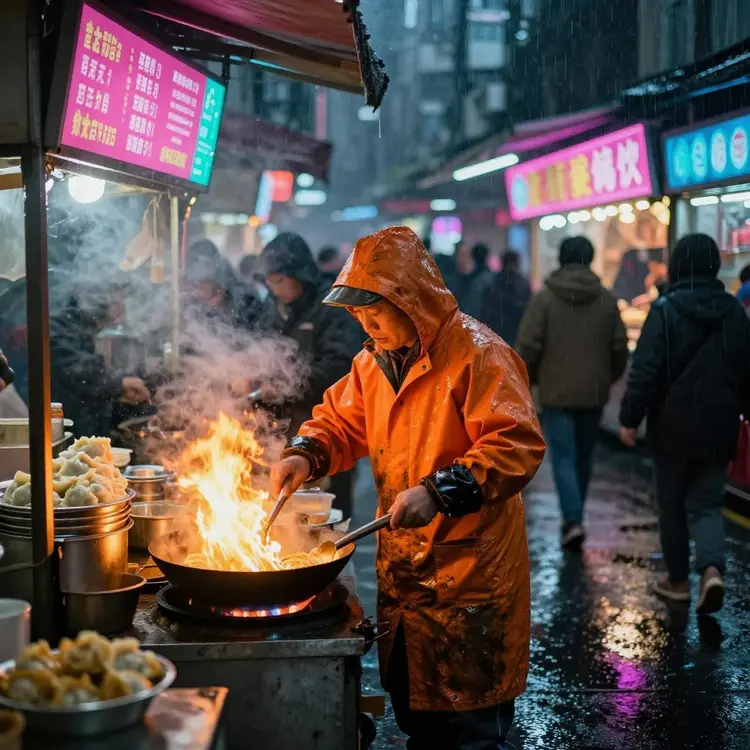
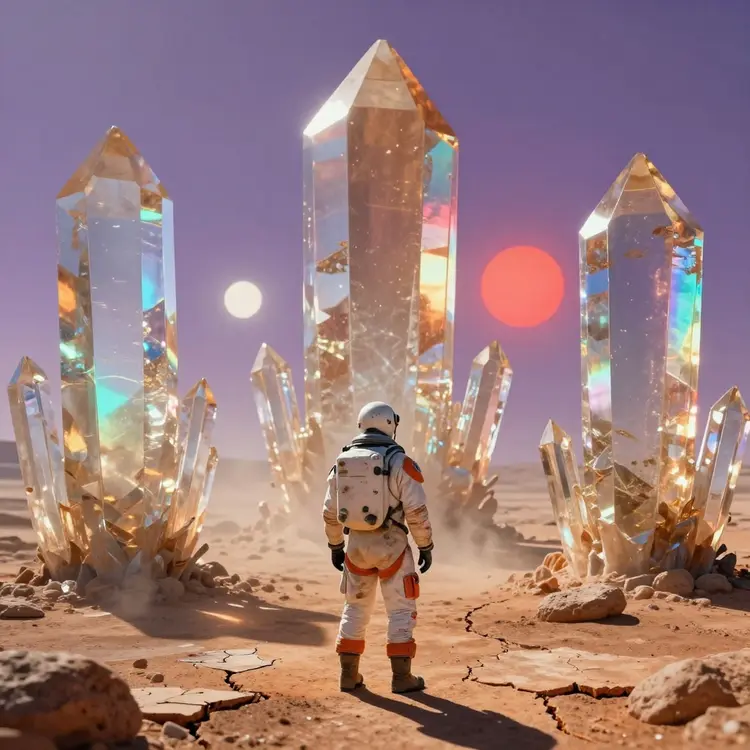
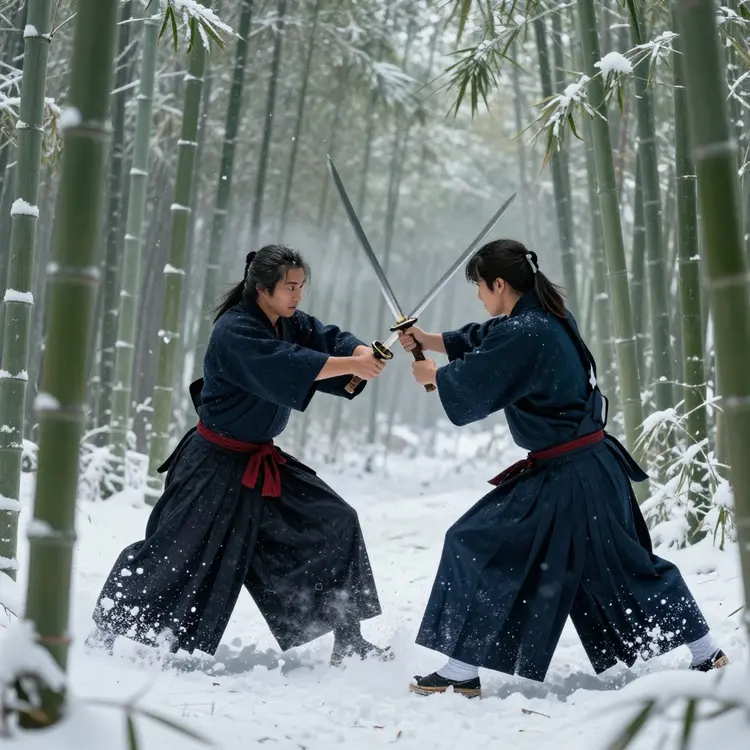
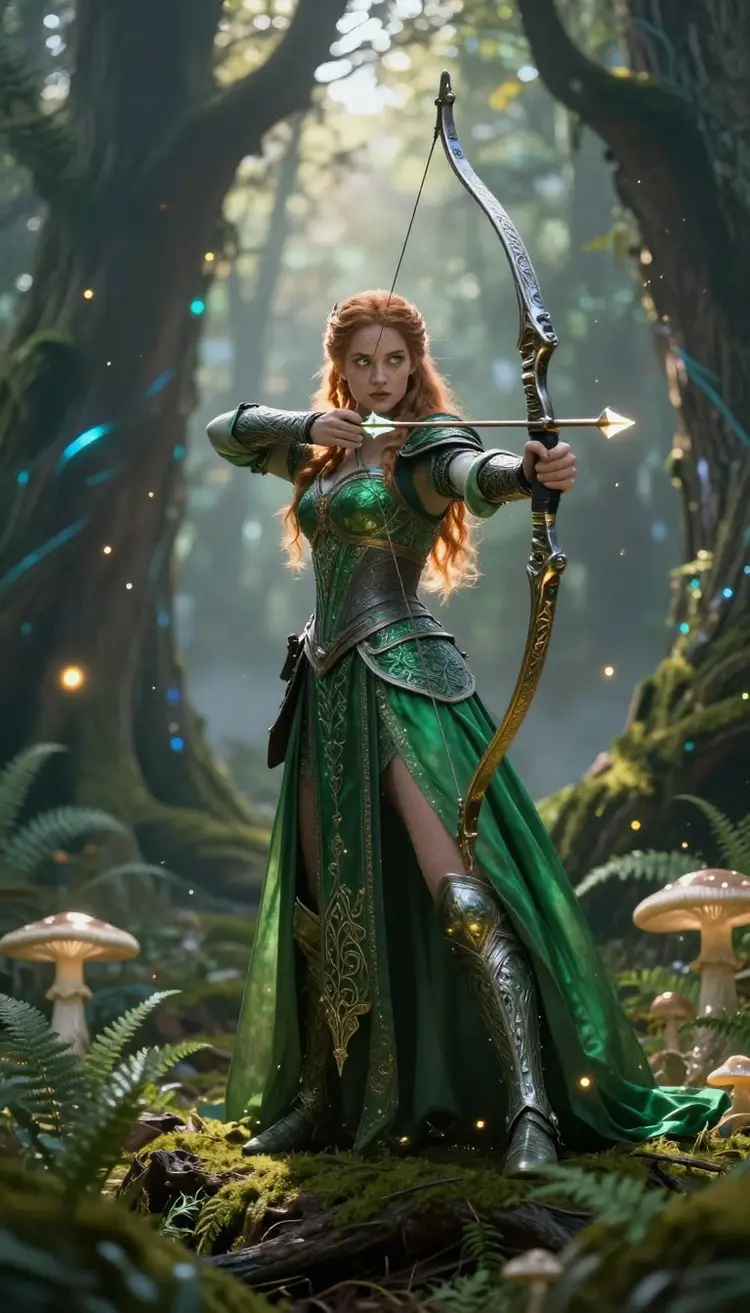
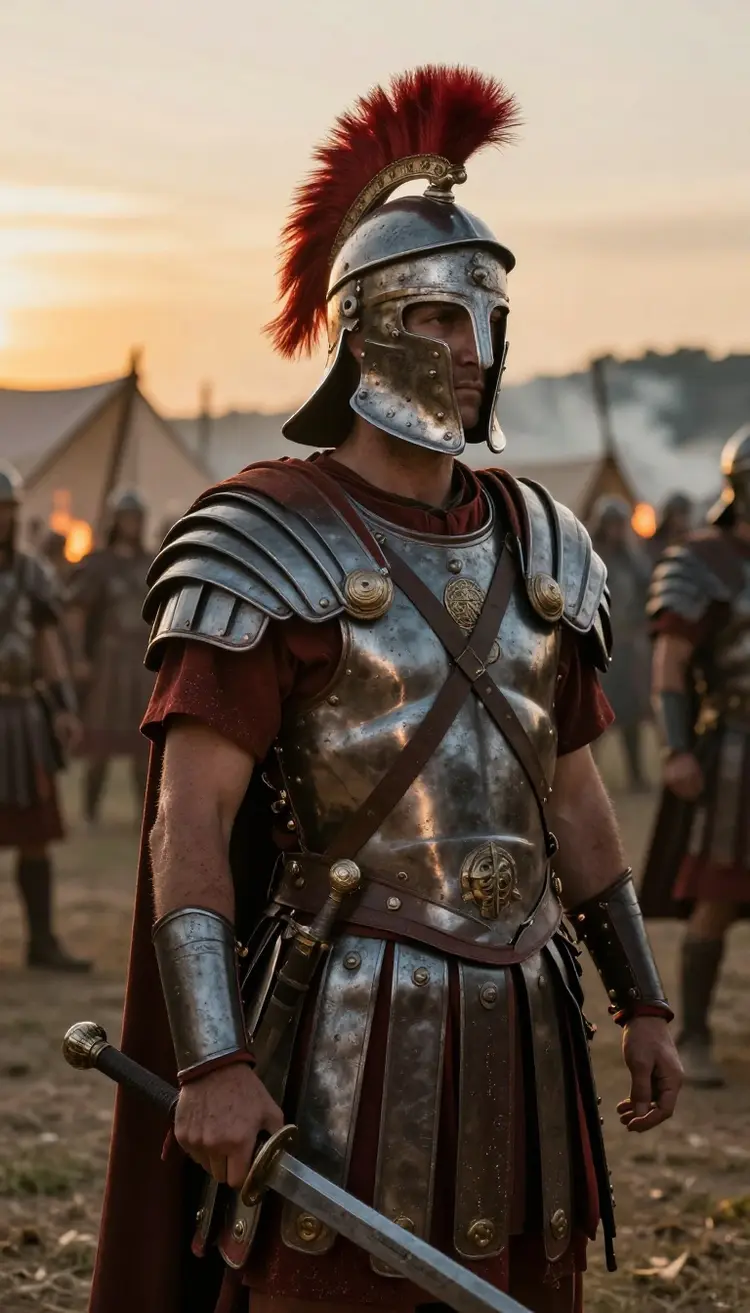
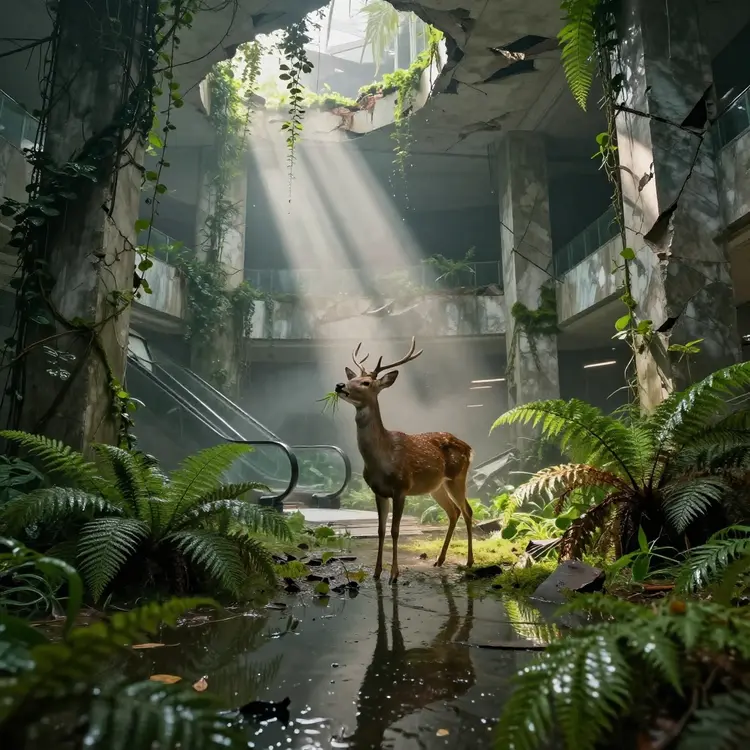
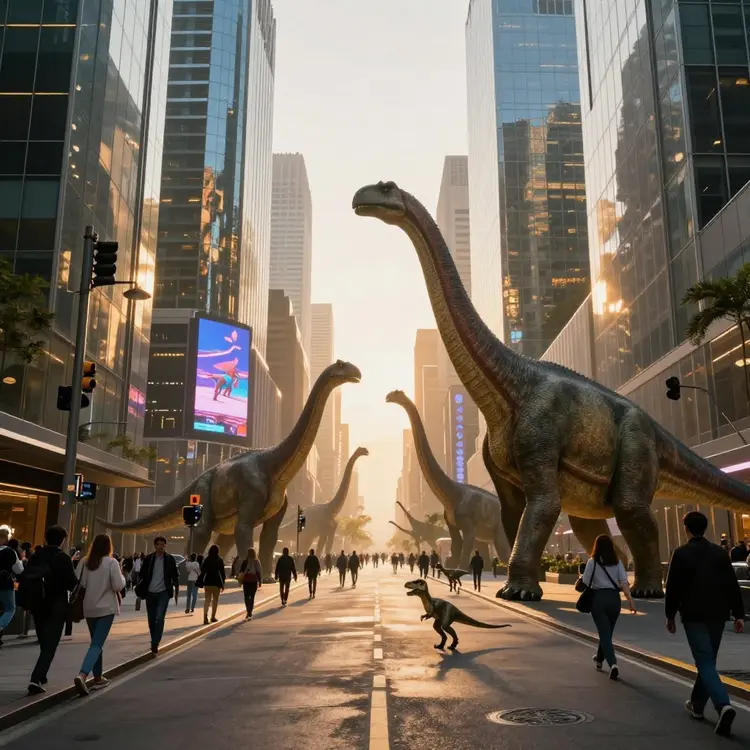
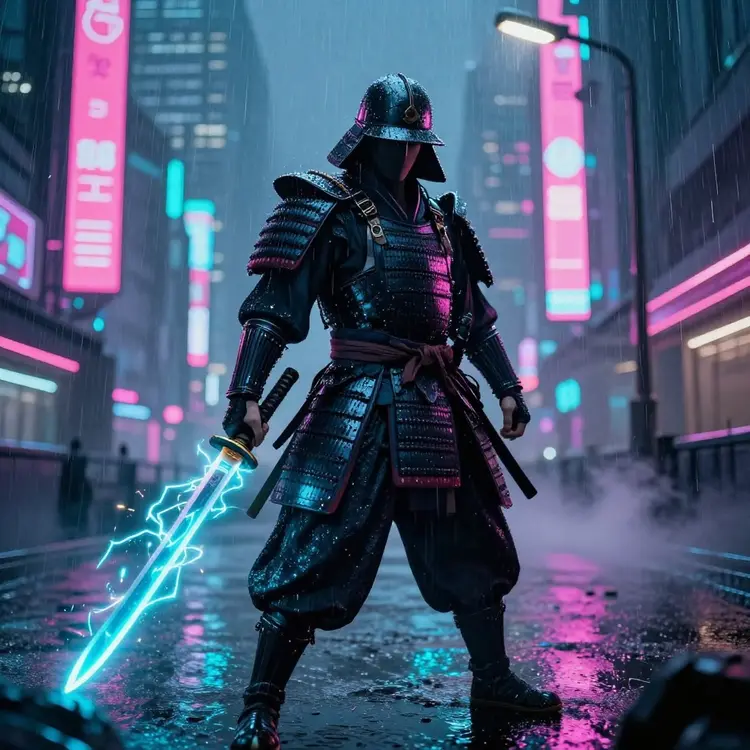
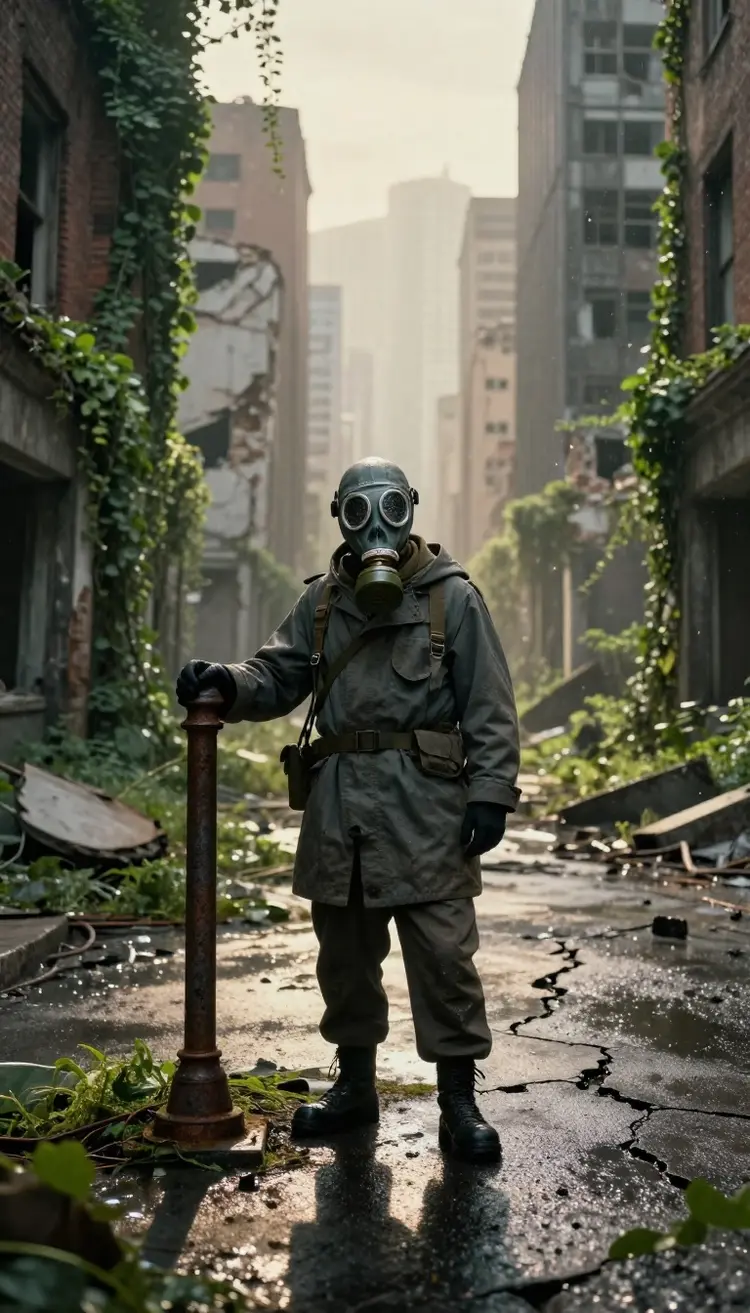
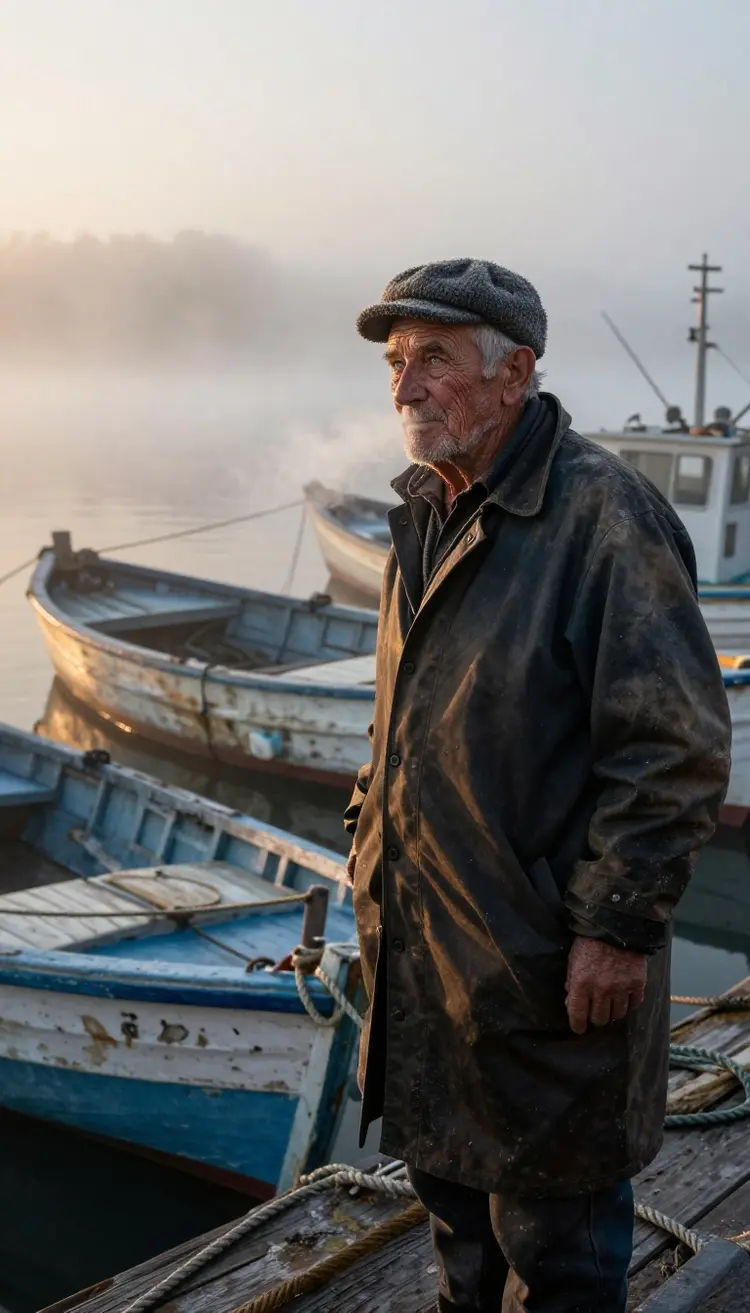
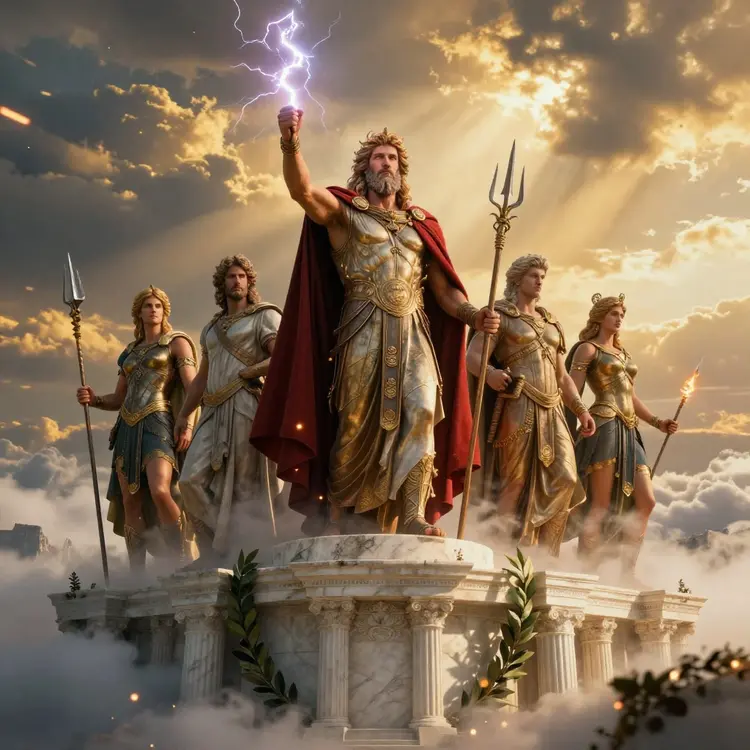
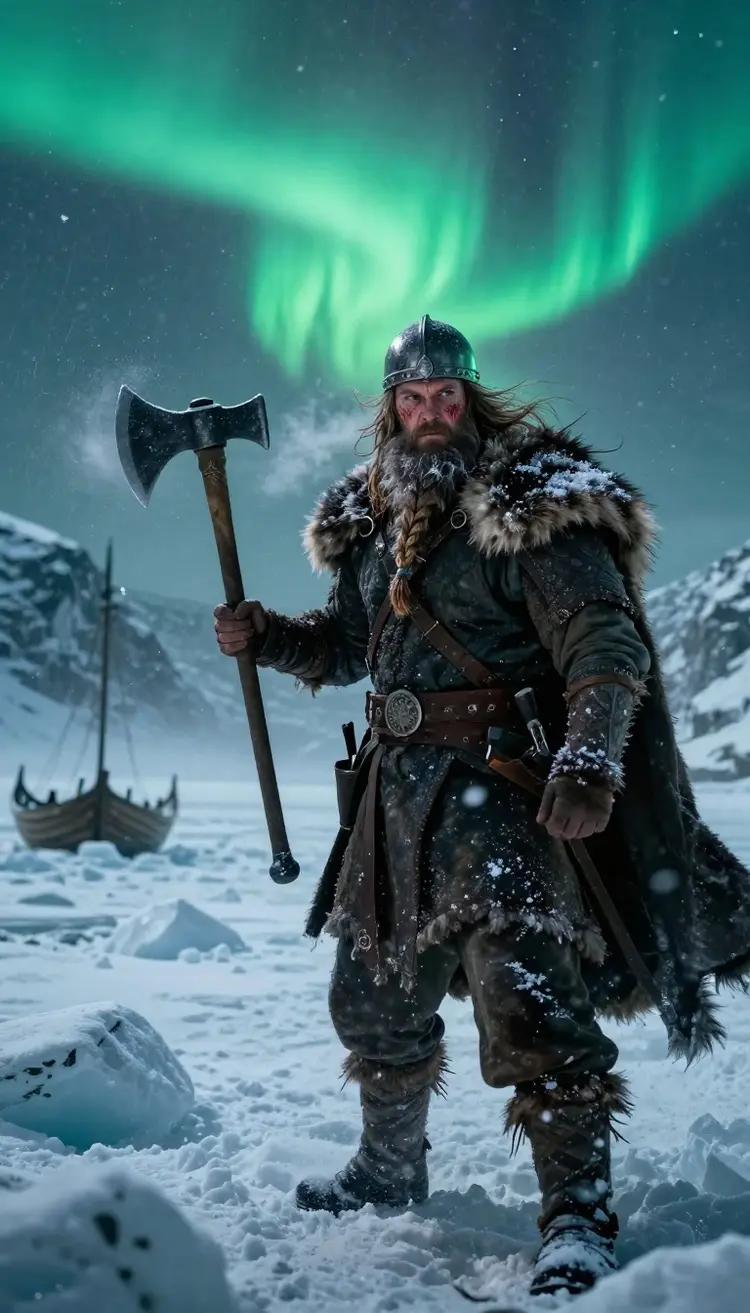
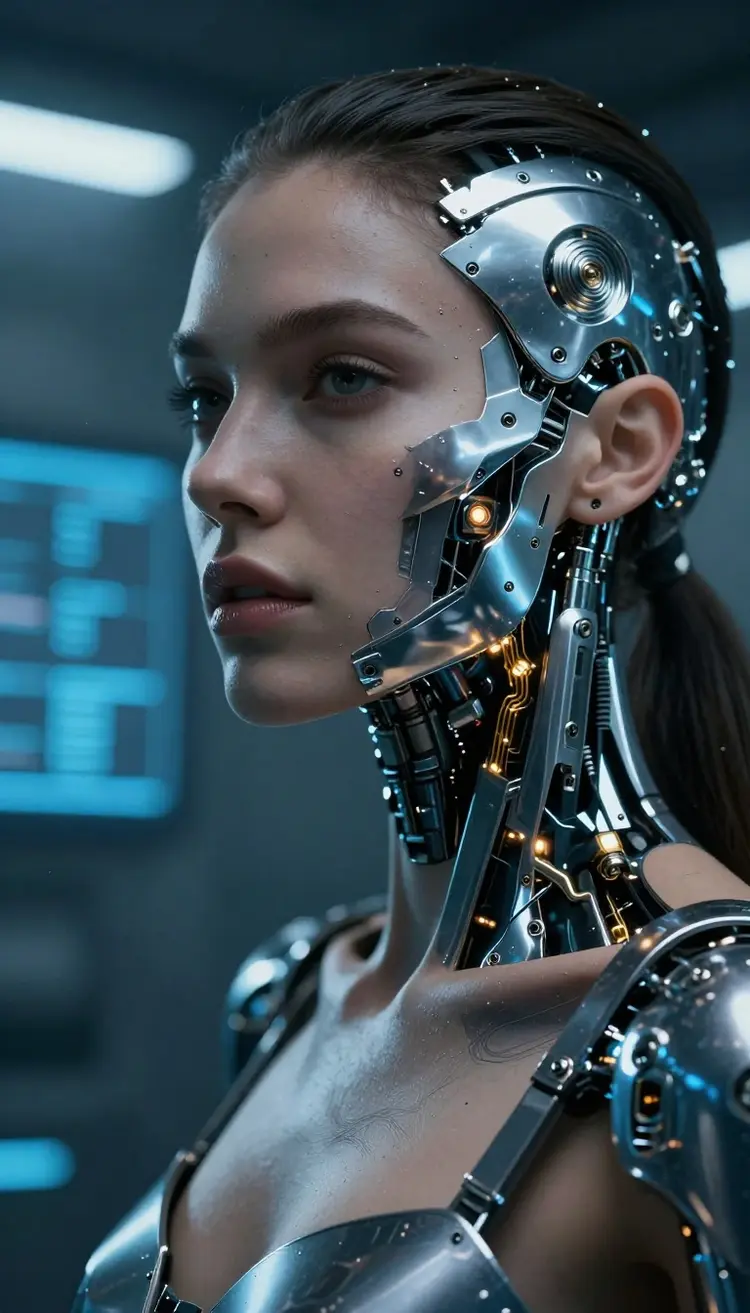
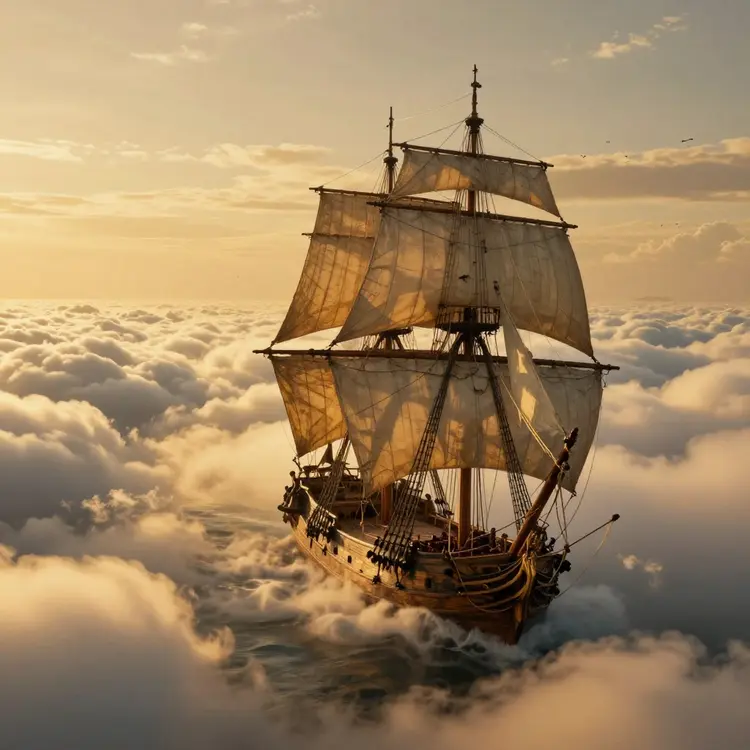
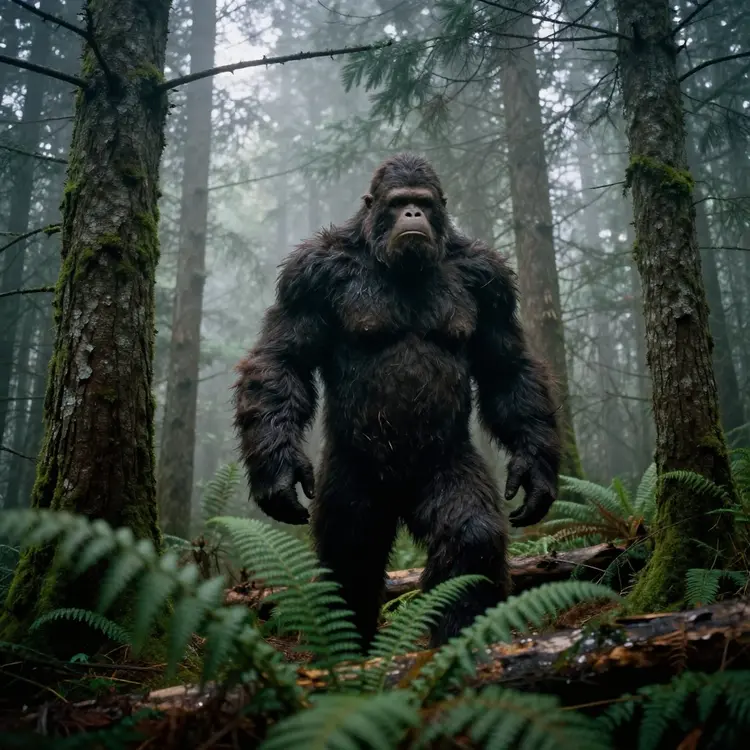
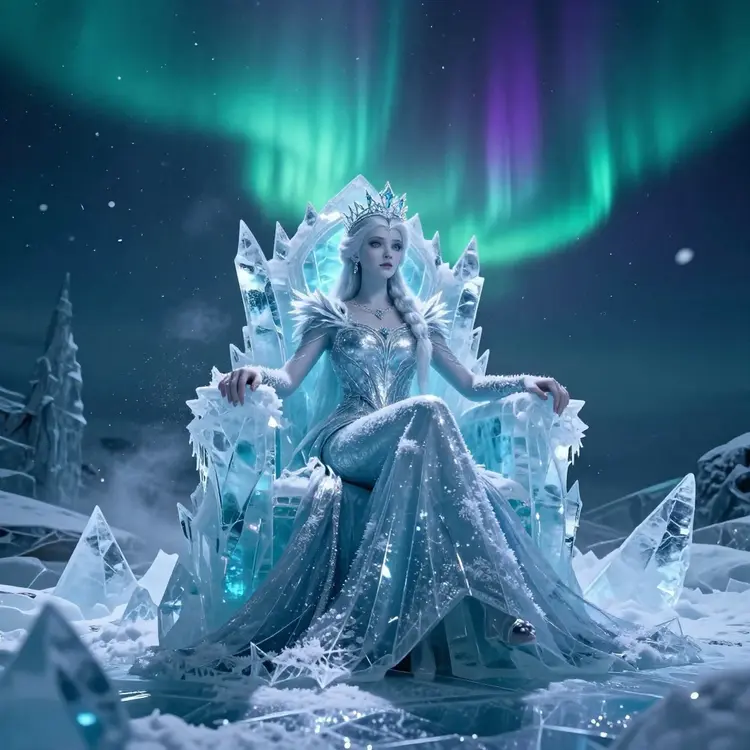
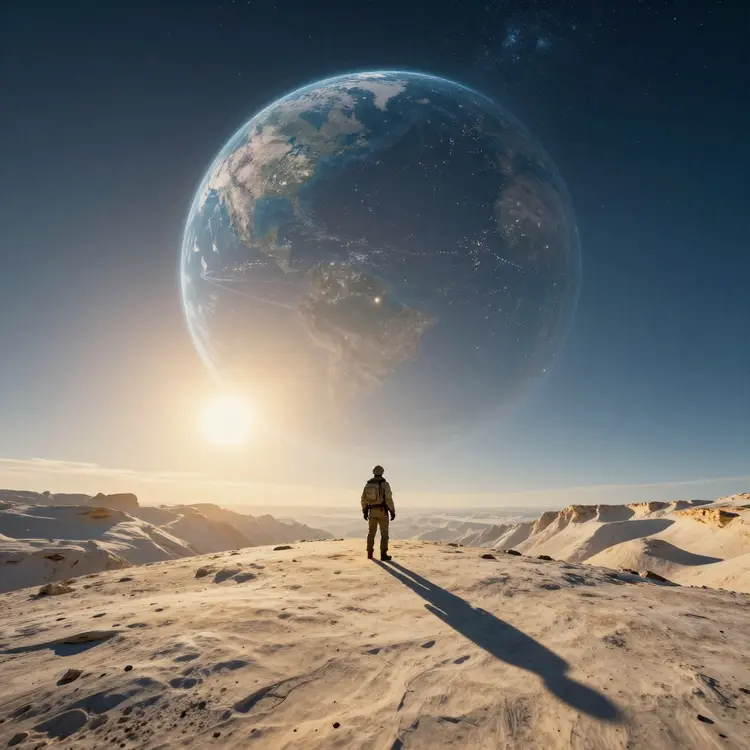
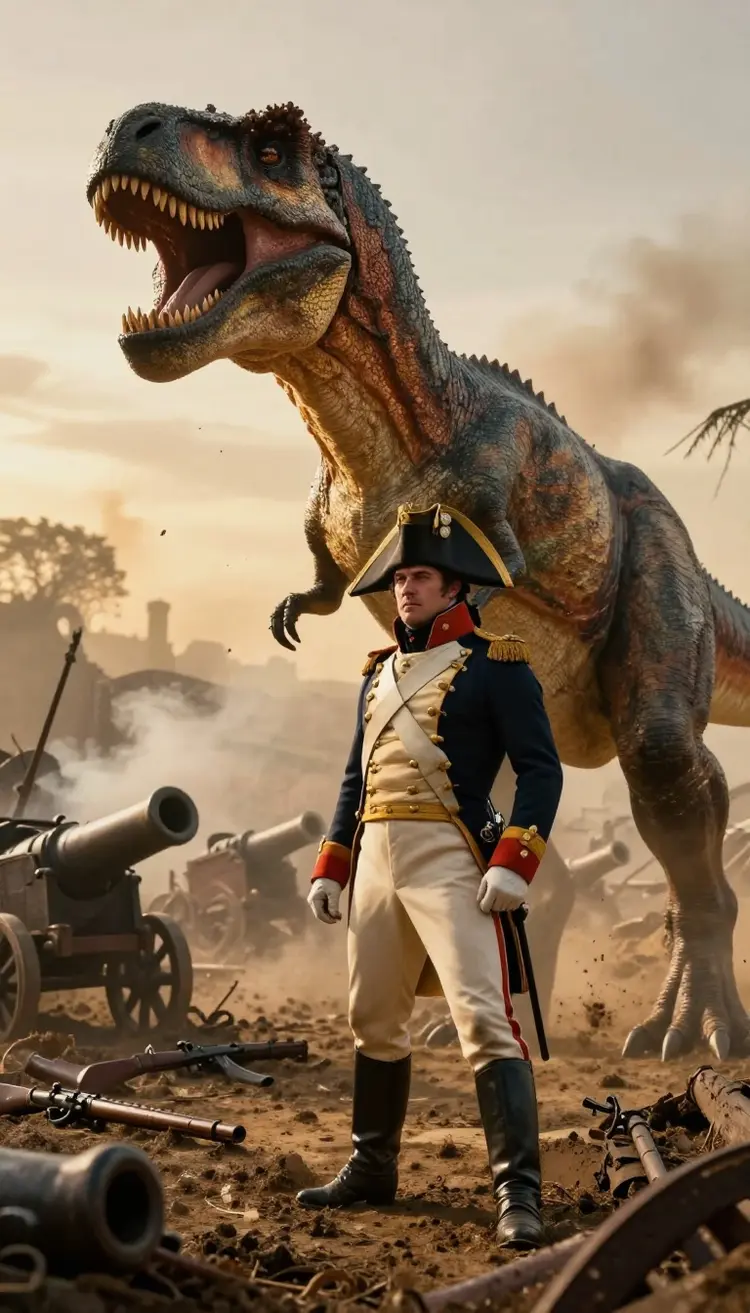
What is the AI image to video tool?
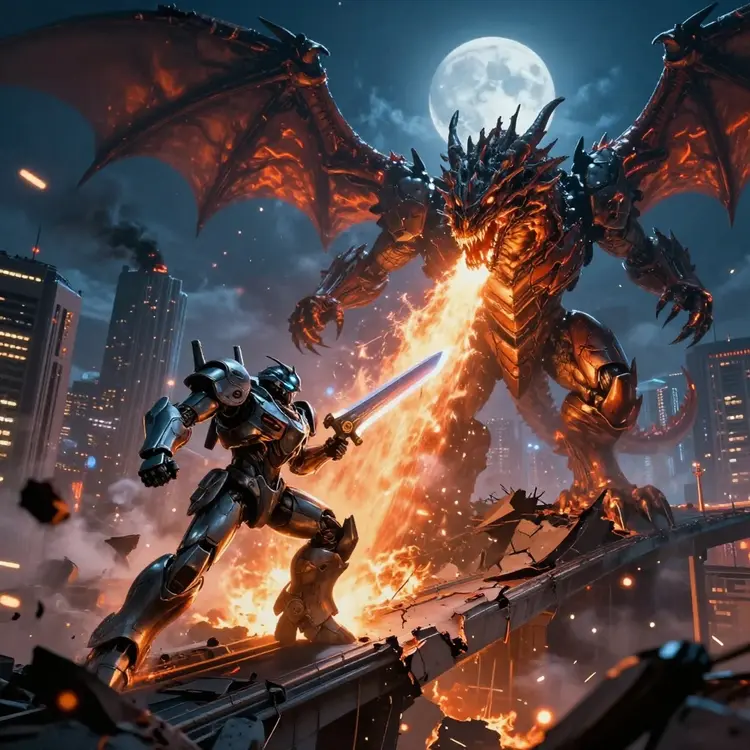
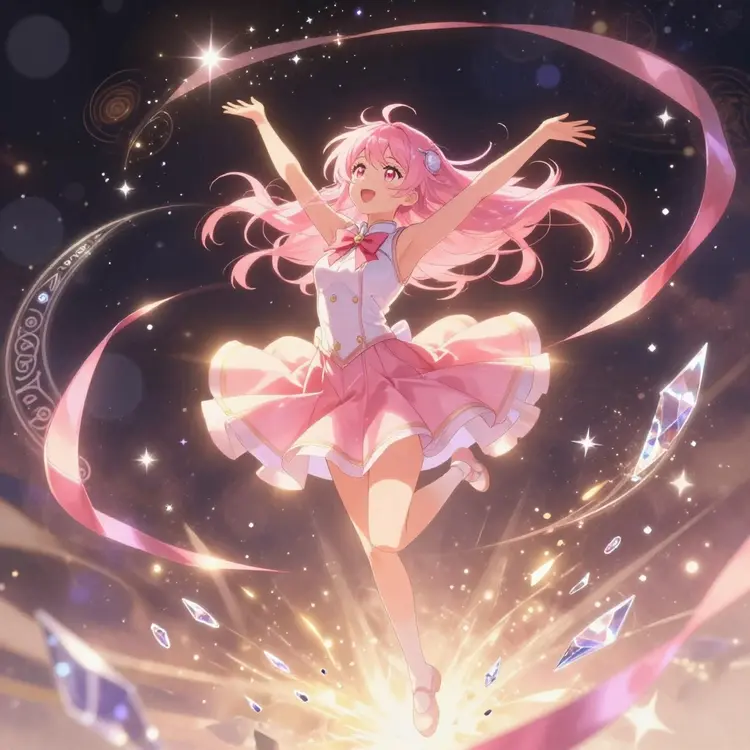
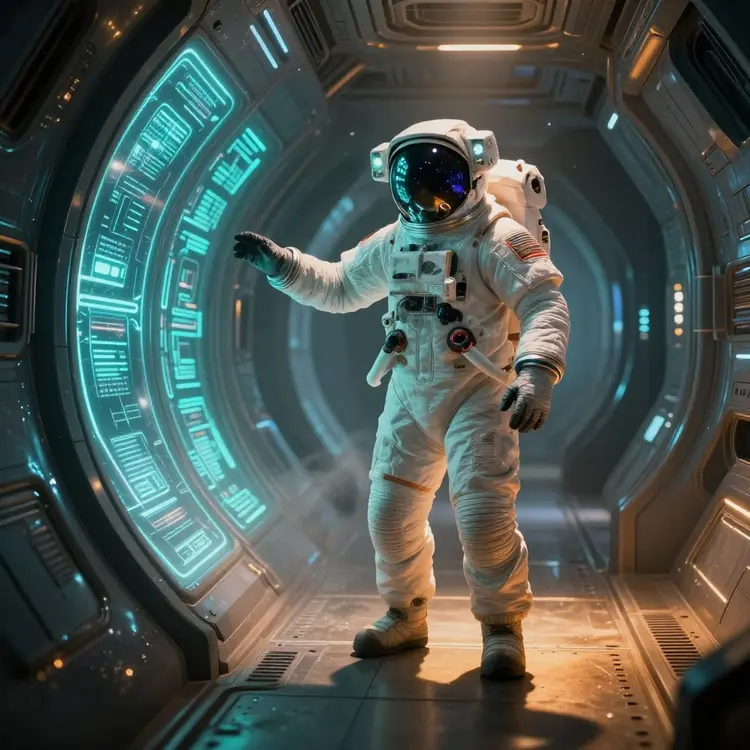
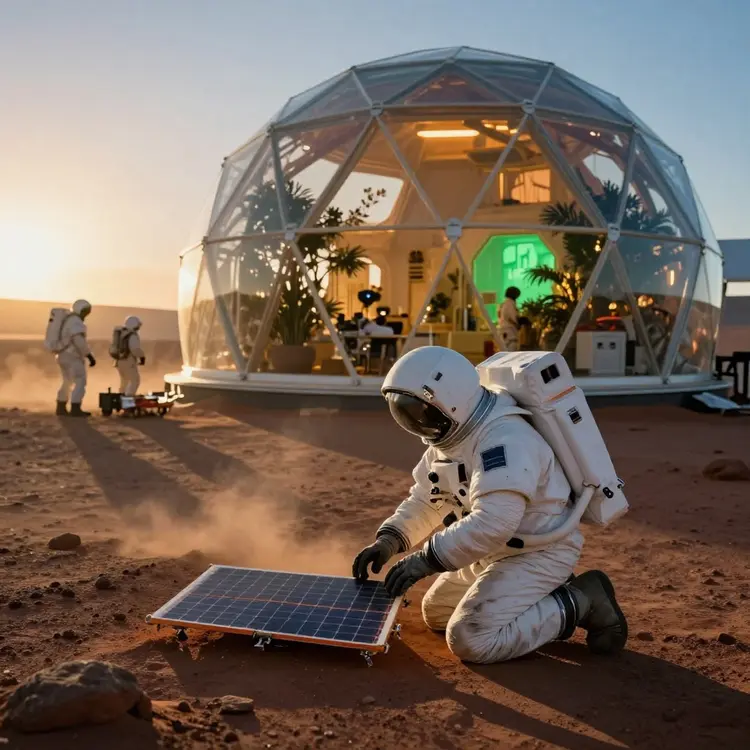
It is a tool on Picasso IA that turns a single still photo into a short video. You upload an image, describe the motion you want, and the AI image to video model adds depth, camera movement, and natural animation. It works on portraits, products, landscapes, and artwork, all in your browser with no editing software required.
How do I animate a photo into a video?
Sign in to Picasso IA, open the AI image to video tool, and upload your photo. Write a short note about the motion, such as a slow zoom or drifting clouds, then pick a model and set the length and aspect ratio. Press generate and your clip renders in under a minute, ready to download in full quality with no watermark.
Which photos work best for image to video?
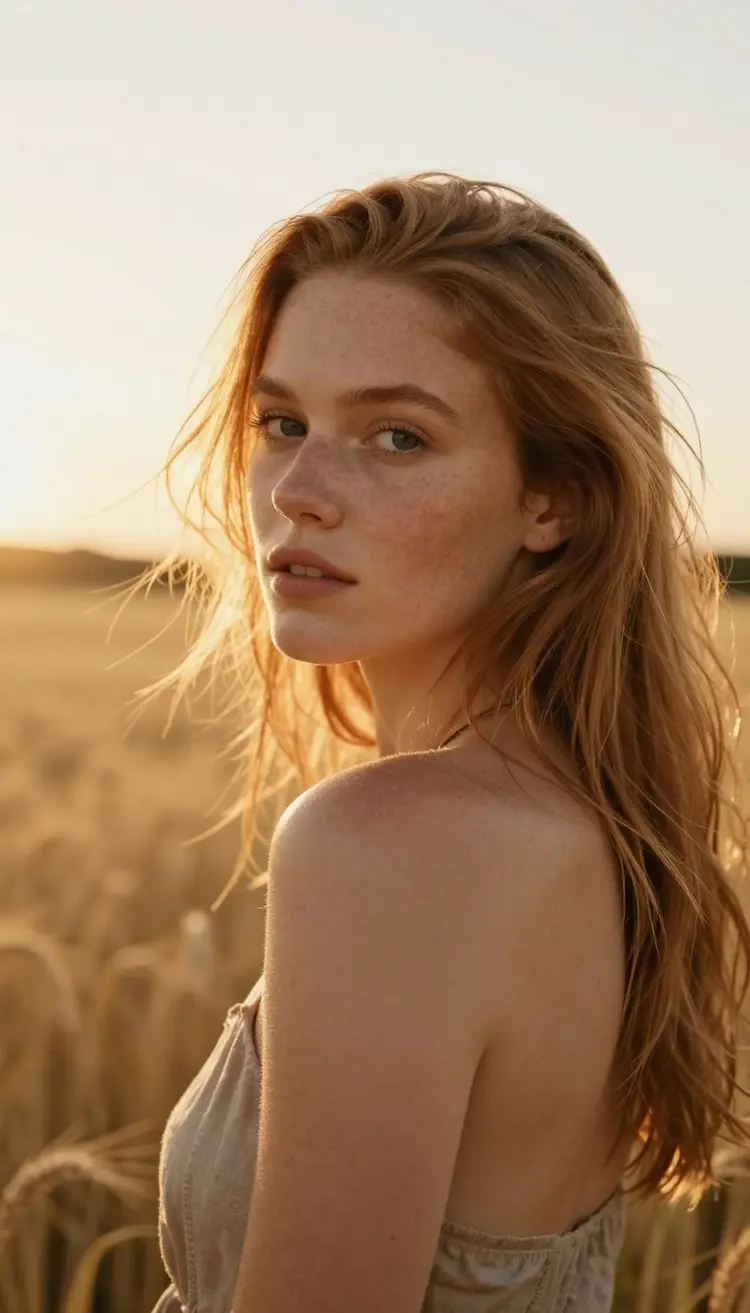
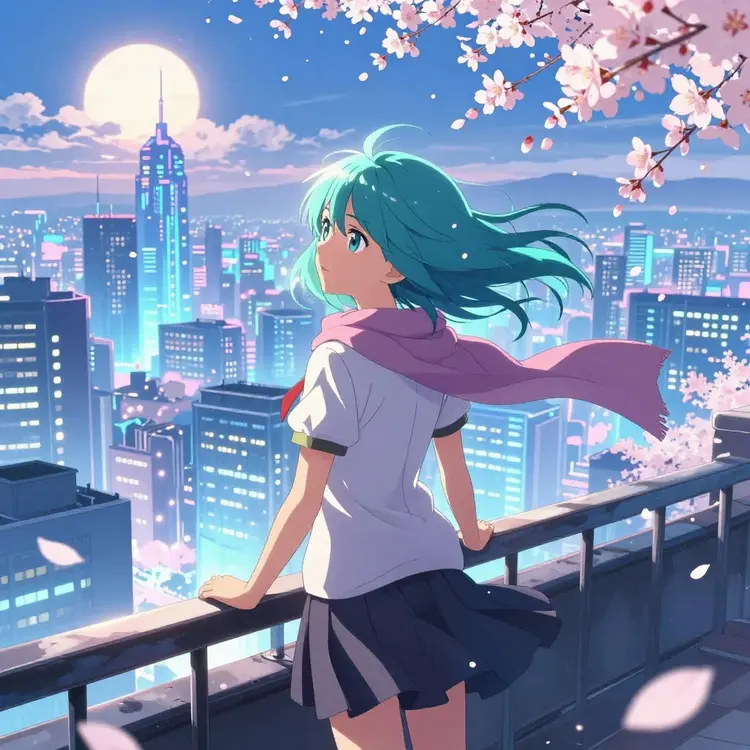
Sharp, well-lit photos give the cleanest animations. Clear subjects, like a single face, a product, or a defined landscape, hold up better than cluttered or blurry shots. Subtle motion settings usually look most convincing for portraits and products, while landscapes and art can take stronger movement. You can always lower the motion and rerun if a clip looks too busy.
Is the AI image to video tool free to use?
Yes, you can start for free. Animate a photo and see the result before committing to a plan. When you need more clips, longer renders, or higher resolution, paid plans scale with you and cover every other model on Picasso IA too. You get every tool in one account, no separate subscriptions, so nothing extra stacks up as you grow.
Do I need to install anything to use the AI image to video tool?
No. The AI image to video tool runs entirely in your web browser through Picasso IA, so there is nothing to download or set up. Sign in from a laptop, desktop, tablet, or phone, upload a photo, and start animating. Your clips and history sync to your account automatically, so you can begin on one device and finish on another. It also keeps your machine free of heavy video software and large model files.
How long are the clips and what resolution can I export?
Most clips run a few seconds, which is the sweet spot for social posts, loops, and intros. You choose the aspect ratio before generating, square for feeds, vertical for Reels and Stories, and wide for banners or video openers. Picasso IA lets you export up to 1080p with no watermark, and if you need it sharper or longer you can carry the result into the upscaler or video extender in the same account.
How is this different from other tools on Picasso IA?
The AI image to video tool focuses on bringing a single still photo to life with controllable motion, from a subtle loop to a full camera pan. Other models on Picasso IA generate video from text, edit existing footage, or upscale clips. Because everything sits in one account, you can animate a photo, then send the clip straight into another tool to extend, restyle, or sharpen it, choosing the right model for each step instead of paying for several apps.
Is my data private when I animate a photo?
Your uploads and generated clips are tied to your own Picasso IA account, and your photos and videos are not put on public display by default. You decide what to share and what to keep private. For commercial projects, review the licensing terms shown in your account so you know how each clip may be used. Best of all, you get every tool in one account, no separate subscriptions, free to start, so there is nothing extra to manage.
Still Have Questions?
Read the full FAQ for more on clip length, resolution, motion settings, and licensing, or message our team and we will help you animate your first photo.