AI Photo Editor

Edit any photo with a simple prompt. The AI photo editor on Picasso IA lets you retouch faces, remove objects, replace backgrounds, fix color and light, and restyle a whole image, all by typing what you want. No layers, no masks, no installs. Run it in your browser, get full-resolution results in seconds, and keep every tool in one account, free to start.

Sora
Veo
Nano Banana
Kling
Seedance
GPT Image
Lyria
ElevenLabs

Edit a Photo in 3 Steps

Upload Your Photo

Sign in to Picasso IA and open the AI photo editor. Drag in the picture you want to change, whether it is a portrait, a product shot, or an old family scan. Anything from a phone snap to a high-resolution file works, and your upload stays tied to your account so you can come back to it later.

Describe the Edit

Type what you want in plain language. Remove the person in the background, swap the sky for sunset, brighten the face, change the jacket to red, or restyle the whole shot as a watercolor. Pick a model and set the strength of the change, then point at the exact area when you only want one part touched.

Generate, Tweak, Save

Press generate and the edited photo arrives in seconds. Like it? Download it in full resolution. Want a different result? Adjust the prompt, run it again for a fresh take, and stack edits one after another. Every version stays saved in your account, ready to carry into another Picasso IA tool.

Edit Photos by Prompt

Edit Photos by Prompt

The AI photo editor on Picasso IA replaces fiddly tools with plain language. You describe the change and the model makes it, whether that is removing an object, swapping a background, or restyling the whole image. There is nothing to install and nothing to learn beyond typing what you want. Upload a photo, write a sentence, and get a clean, full-resolution edit in seconds, ready to download or refine further.

What the AI Photo Editor Does

The AI photo editor on Picasso IA turns a plain description into a finished edit. Instead of learning layers and masks, you upload a photo and type what you want changed. Remove a person, swap a background, brighten a face, fix the color, or restyle the whole shot. The model reads your request and applies it cleanly, so a fix that used to take a skilled retoucher now takes a sentence and a few seconds.

What the AI Photo Editor Does

Clean, Natural Results

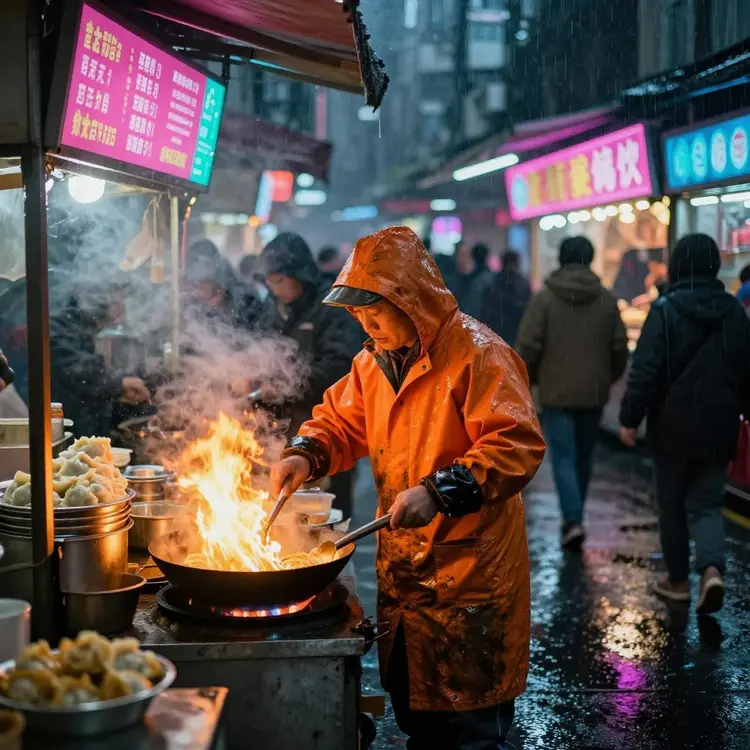
Good editing should not look edited. The models behind Picasso IA fill removed areas, blend new backgrounds, and smooth retouching so the final photo holds together. Edges stay sharp, lighting stays consistent, and skin keeps its texture instead of turning plastic. Whether you are tidying a listing photo or polishing a portrait, the AI photo editor aims for results that read as real, not obviously altered.

Clean, Natural Results

Trusted by Sellers, Photographers, and Marketers

Precise Control Over Every Edit

Precise Control Over Every Edit

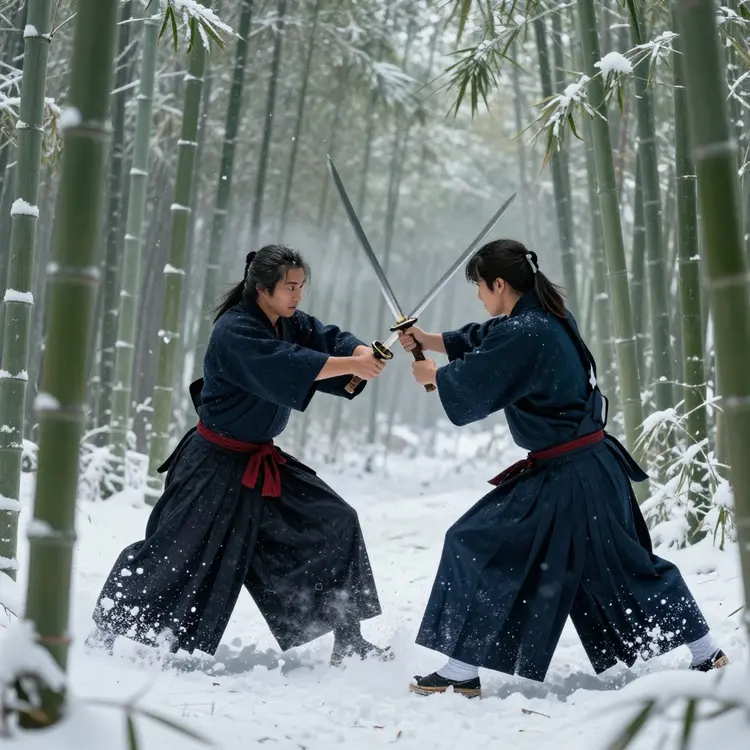
Sometimes you want the whole image changed, and sometimes just one spot. The AI photo editor lets you point at the exact area to remove, replace, or retouch, leaving the rest untouched. Set how strong the change should be, then rerun with a tweaked prompt for a different take. This balance of fast prompting and fine control means you keep what works and only change what you choose.
What Makes It Different

What Makes It Different

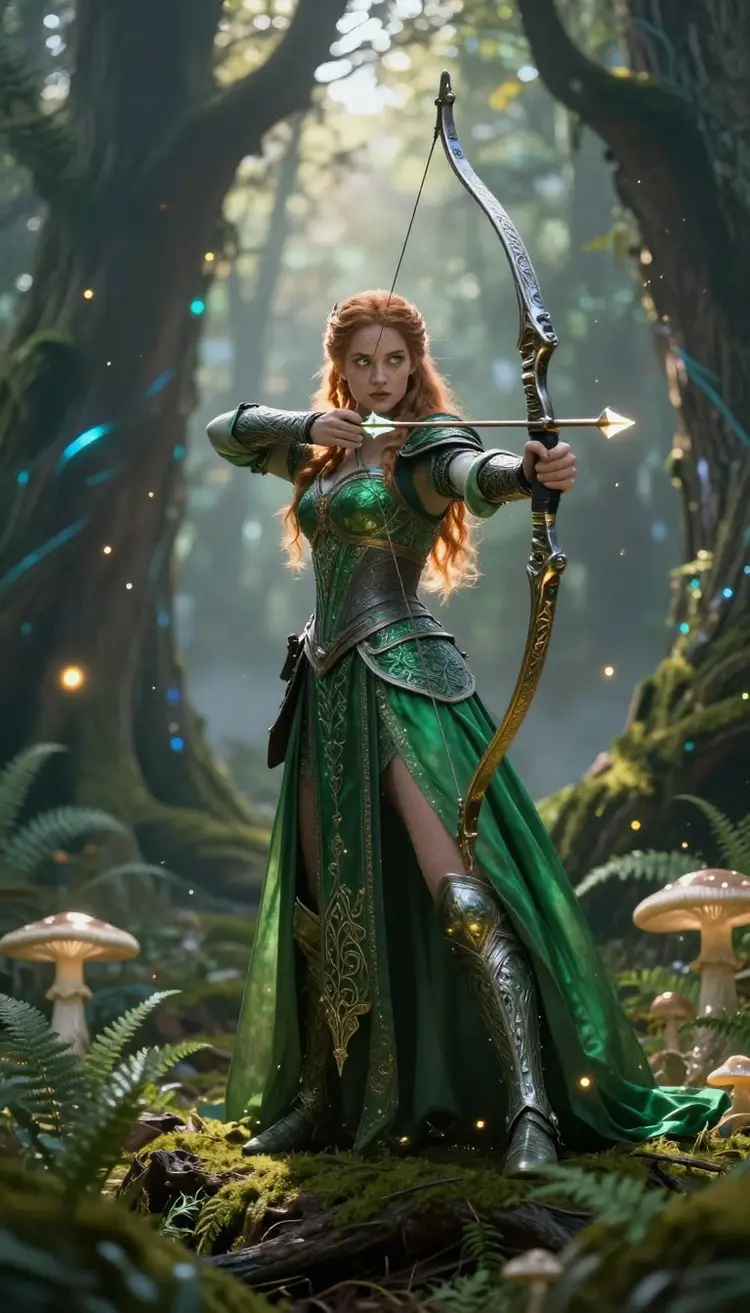
Many tools handle one task or hide the best features behind a plan. Picasso IA keeps retouching, object removal, background swaps, color fixes, and full restyles in one place, then surrounds them with over 100 models for image, video, 3D, chat, and audio. You work by typing in everyday language across six languages, and any result moves into the next tool without leaving your account.

Remove Anything in a Photo

Unwanted people, stray objects, signs, timestamps, and clutter can all go with a single prompt. The AI photo editor erases the element and fills the gap so the background looks like it was always clean. This is ideal for listing photos, travel shots ruined by crowds, and product images that need a pure backdrop. Point at what you want gone, generate, and download the tidied result.

Remove Anything in a Photo

How the AI Photo Editor on Picasso IA Compares

Photoroom

Photoroom

  • 100+ AI Models
  • One Account
  • Edit by Prompt
  • Full Resolution
  • Object Removal
  • Background Swap
  • Restyle Photos
  • Six Languages
  • Runs in Browser
  • Free to Start
Picasso IA

Picasso IA

  • 100+ AI Models
  • One Account
  • Edit by Prompt
  • Full Resolution
  • Object Removal
  • Background Swap
  • Restyle Photos
  • Six Languages
  • Runs in Browser
  • Free to Start
Canva

Canva

  • 100+ AI Models
  • One Account
  • Edit by Prompt
  • Full Resolution
  • Object Removal
  • Background Swap
  • Restyle Photos
  • Six Languages
  • Runs in Browser
  • Free to Start
Pixlr

Pixlr

  • 100+ AI Models
  • One Account
  • Edit by Prompt
  • Full Resolution
  • Object Removal
  • Background Swap
  • Restyle Photos
  • Six Languages
  • Runs in Browser
  • Free to Start
Swap and Replace Backgrounds

Swap and Replace Backgrounds

Backgrounds set the mood, and Picasso IA lets you change them in one step. Replace a busy room with a clean studio color, drop a subject into a new scene, or switch a flat sky for a dramatic sunset. The AI photo editor cuts the subject cleanly and blends the new backdrop with matching light, so portraits, product shots, and social images all sit naturally in their new setting.

How to Edit a Photo

Getting a polished result is quick. Sign in to Picasso IA, open the editor, and upload your image. Type the change you want, pick a model, and set how strong the edit should be. Point at one area when you only want part of the photo touched. Press generate and the edited version arrives in seconds, ready to download in full resolution or refine with another prompt.

How to Edit a Photo
How to Edit a Photo
How to Edit a Photo
How to Edit a Photo

Restyle Without Starting Over

Want a whole new look from the same photo? Restyle it as a painting, a film still, a clean product render, or a bold graphic, all from a prompt. The AI photo editor keeps your subject recognizable while reworking color, texture, and finish. This makes it easy to produce several on-brand variants of one image for campaigns, thumbnails, or social posts without reshooting or redrawing anything.

Restyle Without Starting Over
Fix Color, Light, and Detail

Fix Color, Light, and Detail

Dim indoor snaps, washed-out colors, and dull skies are common problems with a quick fix. The AI photo editor corrects exposure, balances tones, deepens color, and sharpens detail so a flat photo comes to life. Brighten a face, warm up cold light, or recover a hazy shot in seconds. For bigger jumps in size and clarity, send the result to the Picasso IA enhancer to upscale.

Retouch Without the Manual Work

Retouch Without the Manual Work

Retouching usually means hours of masking, cloning, and patience. The AI photo editor does the heavy lifting from a prompt. Even out skin, brighten eyes, smooth stray hairs, or remove blemishes while keeping the face natural. Because the work happens on the model side, you get clean results without specialist software, and you can undo, adjust, and rerun until the portrait looks right.

Built for Ecommerce and Listings

Sellers live or die by their photos, and clean shots sell more. With the AI photo editor you can remove clutter, drop in a white or branded background, even out lighting, and produce consistent images across a whole catalog. Because it runs in the browser and edits from a prompt, you can prep a batch of listing photos quickly without a studio, a tripod, or a separate retouching service.

Built for Ecommerce and Listings

Why Creators Choose Picasso IA

500K+

Active Users

100+

AI Models

1-Click

Per Edit

Full Res

Export Quality

6

Languages

Free

To Start

Repair Old and Damaged Photos

Repair Old and Damaged Photos

Family archives are full of faded, scratched, and creased prints. The AI photo editor restores them by repairing damage, sharpening faces, and recovering lost detail, with colorizing available when you want it. Scan an old photo, describe the fix, and bring a memory back to life. For the best print, carry the restored image into the Picasso IA enhancer and upscale it to a larger, sharper file.

Replace and Restyle With Ease

Backgrounds, skies, and entire looks are a prompt away. Swap a cluttered room for a clean studio gray, drop a sunset behind a skyline, or recolor a jacket to match a brand. Want a different mood? Restyle the same photo as a watercolor, a film still, or a sleek product render. The AI photo editor keeps the subject intact while everything around it changes to fit your idea.

Replace and Restyle With Ease

Compare It to Single-Purpose Tools

Most editing apps do one thing, so a full project means stitching several subscriptions together. The AI photo editor on Picasso IA combines removal, replacement, retouching, color work, and restyling in one place, then adds over 100 models for video, 3D, chat, and audio. You stop hopping between apps and paying for each, and you keep every result in a single account you can build on.

Compare It to Single-Purpose Tools
Get Started in Minutes

Get Started in Minutes

There is no setup curve. Sign in to Picasso IA, open the AI photo editor, and upload your first photo. Type a clear instruction like remove the background or brighten the portrait, choose a model, and generate. The result appears in seconds for you to download or refine. Because everything runs in the browser and the platform is free to start, you can test a real edit before you commit to anything.

Use Cases Across Real Work

Use Cases Across Real Work

Sellers clean product shots and drop in white backgrounds for listings. Agents clear clutter and fix dim interiors before a viewing goes live. Marketers retouch headshots and spin one image into several campaign looks. Families repair scratched scans and bring old photos back to life. The same AI photo editor covers casual snaps and client deliverables, so one tool fits a whole range of jobs.

Your Photos Stay Private

Edits happen in your account, and your uploads are tied to your login rather than shared publicly. You decide what to download and what to delete, and nothing you create is posted on your behalf. The AI photo editor is built so you can work on personal photos, client images, and product shots with confidence, knowing your library stays yours inside Picasso IA.

Your Photos Stay Private

How People Edit Photos on Picasso IA

I clean up my listing photos here. One prompt removes a messy background and brightens the colors, no manual masking. The AI photo editor saved me hours of fiddly retouching this season.

Priya Nair
Priya Nair

Etsy Shop Owner

Guests send me phone snaps with strangers in frame. I erase them in one pass and the fill looks real. Picasso IA turns rough shots into something I can put in a client album.

Sofia Marchetti
Sofia Marchetti

Wedding Planner

Listing photos make or break a viewing, so I run every shot through Picasso IA before it goes live. I clear parked cars from the driveway, swap a gray sky for blue, and warm up dim interior light, all from plain prompts. The AI photo editor handles in minutes what used to mean a separate retoucher and a two day wait.

Daniel Okoro
Daniel Okoro

Real Estate Agent

We juggle headshots, product shots, and social graphics for a dozen clients with no in-house designer. Picasso IA covers all of it from one login. I retouch a portrait, replace a background, then restyle the same image for a campaign without exporting to another app. Having the rest of the model library in the same place means a quick fix and a full redesign live side by side.

Marcus Bennett
Marcus Bennett

Small Agency Lead

One Prompt, Many Edits

One Prompt, Many Edits

You are not limited to a single change. Layer edits one after another, remove a person, then swap the sky, then restyle the result, building toward the final image step by step. Each pass keeps the previous work, so you refine rather than restart. The AI photo editor saves every version in your account, which means you can branch off in a new direction whenever an idea strikes.

Honest Limitations to Expect

AI editing is powerful, yet it is not magic. Very low-resolution or heavily blurred sources give the model less to work with, so results can vary. Complex scenes may need a second pass or a tighter prompt to land exactly right. Treat the editor as a fast first draft you refine, lean on the area selection for precise control, and rerun with small prompt changes until the photo matches your vision.

Honest Limitations to Expect

Edit on Any Device

Because the AI photo editor lives in the browser, you can use it on a laptop at your desk, a tablet on the couch, or a phone on the move. Your account, uploads, and history follow you across devices, so an edit you start on one screen is waiting on the next. There is no app to download and no powerful hardware required to get sharp, full-resolution results.

Edit on Any Device

How AI Photo Editors Stack Up

PlatformRatingFree PlanAI ModelsWhat Sets It Apart
9.6/10Yes100+

Picasso IA pairs prompt-based editing with over 100 models for image, video, 3D, chat, and audio. Retouch, replace, restyle, or fix any photo in plain language across six languages, then move the result straight into the next tool. Every tool sits in one account, free to start.

Photoroom

8.2/10No5

Photoroom nails fast background removal and tidy ecommerce shots. Great for sellers, but it stays narrow on retouching and restyling, and the best exports sit behind a paid plan.

Canva

8.4/10No20+

Canva is a friendly all-rounder for layouts and quick graphics. Its AI photo tools suit casual edits, yet deep retouching and model variety are not its focus, so detailed fixes need another app.

Pixlr

7.6/10No8

Pixlr offers a browser editor with familiar layers and filters at a low price. It suits manual tweakers, but its AI edits feel lighter than a full model library and prompt-driven changes are limited.

Fotor

7.4/10No10

Fotor bundles plenty of one-click effects and templates. It covers basic retouching, though serious object removal and restyle quality trail a real model lineup, and watermarks gate free output.

Picsart

7.9/10No15

Picsart is a creative playground with stickers, effects, and a big mobile community. Casual edits are fun and quick, but premium tools and clean exports require a paid subscription.

YouCam Perfect

7.3/10No6

YouCam Perfect specializes in selfie beauty and portrait retouching. It is strong for faces, yet it is built around one job and skips background swaps, product shots, and full restyles.

Adobe Express

8.0/10No12

Adobe Express brings tidy templates and brand-safe AI edits inside the Adobe world. It is reliable for marketing assets, but the most capable editing rides on a Creative Cloud plan.

Photoleap

7.2/10No8

Photoleap delivers playful generative edits and slick mobile effects. It is fun for experiments, though it leans toward phones and gates many edits and full-resolution saves behind a paid tier.

Pixelcut

7.1/10No5

Pixelcut targets sellers with one-tap background removal and clean product mockups. It speeds up store photos, but it stays focused on ecommerce and lacks broad restyle, retouch, and model choice.

From Quick Fix to Full Project

From Quick Fix to Full Project

A single edit rarely stays single. Once a photo looks right, you can animate it into a short clip, generate a matching banner, write the caption, or build a 3D version, all from the same login. The AI photo editor is the front door to a wider toolkit, so what begins as removing a background can grow into a finished campaign without ever leaving Picasso IA.

Everything in One Account

Everything in One Account

The real edge is having every tool together. After you edit a photo, you can upscale it, animate it into a short clip, generate a matching graphic, or draft copy for the post, all without switching apps or paying for a separate subscription. Picasso IA bundles the AI photo editor with over 100 models in one account, free to start, so a quick fix can grow into a finished project.

Tips for the Best Edits

Clear prompts get cleaner results. Name the subject, the change, and the area you mean, then start with the highest-quality source you have. Use the area selection for precise fixes and rerun with small wording tweaks rather than scrapping a result. When you need more size or sharpness, finish in the Picasso IA enhancer. A little iteration turns a good edit into the one you actually keep.

Tips for the Best Edits

Frequently Asked Questions
AI Photo Editor

What is the AI photo editor?

The AI photo editor on Picasso IA is a browser tool that edits photos from a plain prompt. Upload an image, describe the change, and the model retouches, removes, replaces, or restyles it in seconds, no layers or masks required.

How do I start editing photos?

Sign up on Picasso IA, open the AI photo editor, and upload a photo. Type the edit you want, pick a model, and press generate. Your result appears in seconds, ready to download in full resolution or refine with another prompt.

Is the AI photo editor free?

You can start for free. Picasso IA lets you try the AI photo editor and the wider model library without paying upfront, so you can run real edits first. Paid plans add more capacity and access when you need to do more.

Can I edit just one part of a photo?

Yes. Point at the exact area you want to change, and the AI photo editor edits only that region while leaving the rest of the image untouched. It is ideal for removing one object, retouching a face, or swapping a single element cleanly.

Do I need to install anything to use the AI photo editor?

No. The AI photo editor runs entirely in your web browser through Picasso IA, so there is nothing to download or set up. Sign in from a laptop, desktop, tablet, or phone, upload your image, and start editing. Your photos and history sync to your account, which means you can begin a fix on one device and finish it on another. It also keeps your machine free of heavy software and large files.

What kinds of edits can the AI photo editor handle?

Quite a range. You can remove unwanted people, objects, or text, swap and replace backgrounds, retouch faces and skin, change colors and lighting, replace a dull sky, and restyle a whole shot into a new look. Some changes apply to the entire image, and others target one area when you point at it. Because Picasso IA hosts many models, you pick the one that fits the job and run the edit from a plain prompt.

How is this different from other photo editors?

Most editors do one thing well or lock the good tools behind a subscription. Picasso IA puts prompt-based retouching, background swaps, object removal, color fixes, and full restyles in the same place, then surrounds them with over 100 models for video, 3D, chat, and audio. You edit by typing what you want instead of learning layers and masks, and every result can flow into another tool without leaving your account.

Can I export edited photos in full resolution?

Yes. Once you are happy with an edit, you can download the result in full resolution for print, web, or social. If you need a larger size or sharper detail, carry the photo into the Picasso IA enhancer to upscale it, then save again. Because each tool lives in one account, you move from a quick edit to a finished, high-resolution file without switching apps or paying for a separate service.

Still Have Questions?

Read the full FAQ for details on edits, formats, privacy, and pricing, or reach out and our team will help you get started.