AI Video Editor

The AI video editor on Picasso IA lets you trim, restyle, swap, and extend any clip straight from your browser. Upload footage, describe the change in plain language, and pick the model that fits the job. Restyle a flat phone video into a cinematic look, add seconds onto a scene that ends too soon, or paint a distraction out of frame, then download the result with no watermark.

Sora
Veo
Nano Banana
Kling
Seedance
GPT Image
Lyria
ElevenLabs

Edit a Video in 3 Steps

Upload Your Clip

Sign in to Picasso IA and open the AI video editor, then drag in the clip you want to change. Common formats like MP4 and MOV work straight away. Describe what you want done in plain language, whether that means a new look, a longer ending, a swapped background, or a different subject in the frame.

Pick a Model and Settings

Choose the editing model that fits the job, then set length, resolution, and aspect ratio. Restyle models repaint the footage, extend models add seconds onto the tail, and inpainting models swap objects or people. Square suits social, wide suits wide screens, and tall frames are built for phones.

Generate and Save

Run the edit, watch the preview, and adjust the prompt if a detail is off. Re-render as many takes as you need, then download the result with no watermark. Each version stays in your history, so you can branch from an earlier take or feed the finished clip into another tool without leaving your account.

One Account for Every Editing Model

One Account for Every Editing Model

Most tools lock you into a single approach to editing. Picasso IA brings restyle, extend, inpainting, and enhancement models together in one place, so the AI video editor matches the model to the task instead of forcing the task onto one model. You pay for a single account, not a stack of subscriptions, and new models join the lineup as they ship without a separate signup.

What an AI Video Editor Does

An AI video editor goes past cutting and arranging clips. It generates new pixels, so a plain text prompt can restyle a whole scene, extend a shot, or replace what sits inside the frame. On Picasso IA you upload a clip, describe the change, and the model handles the heavy work. The footage you shot becomes the starting point, and the edit follows your words instead of hours of manual masking.

What an AI Video Editor Does

Edit Straight From the Browser

There is nothing to install. The AI video editor runs in your web browser through Picasso IA, so a laptop, desktop, or tablet is all you need. Heavy rendering happens on the platform, which keeps your machine cool and free of large model files. Start an edit on one device and pick it up on another, since your clips and history sync to your account automatically.

Edit Straight From the Browser

Trusted by Editors, Marketers, and Filmmakers

Describe the Change in Plain Language

Describe the Change in Plain Language

You do not need timelines full of keyframes to make a creative edit. Type what you want in everyday words, name the look, the object, or the extension you have in mind, and the model interprets it. The interface speaks six languages, so you can write the prompt in your own. Clear, specific wording gets you closer on the first take, and refining a phrase steers the next render.

Restyle Any Clip in Minutes

Restyle Any Clip in Minutes

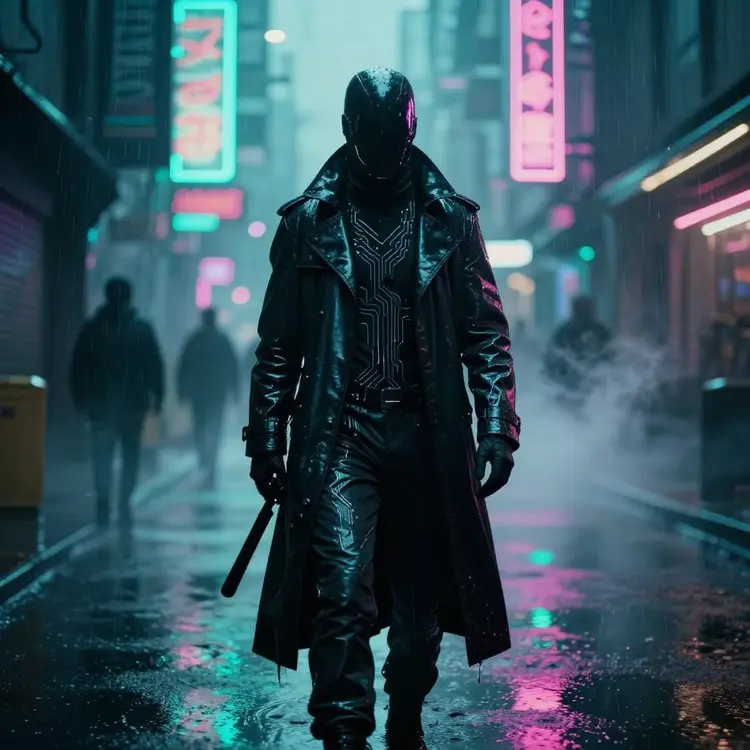
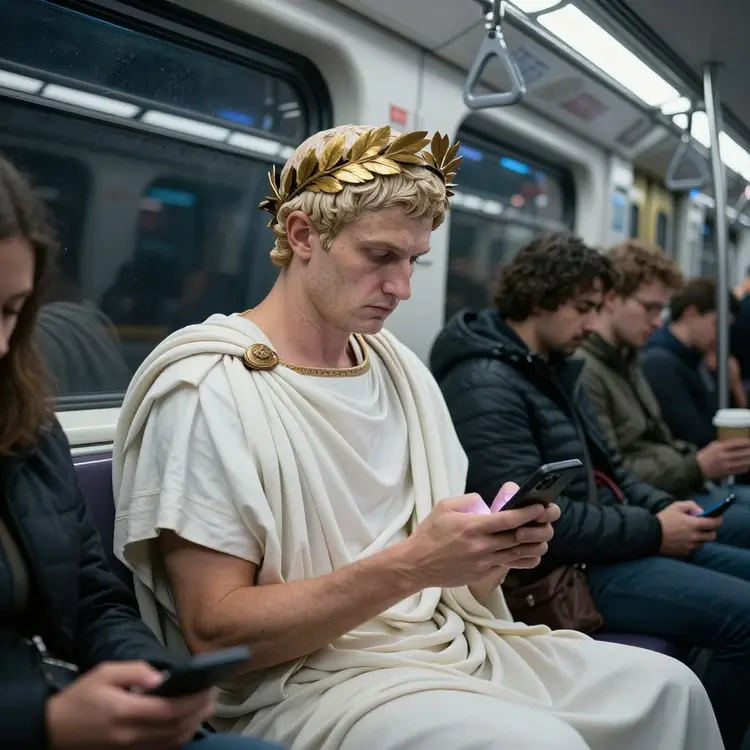
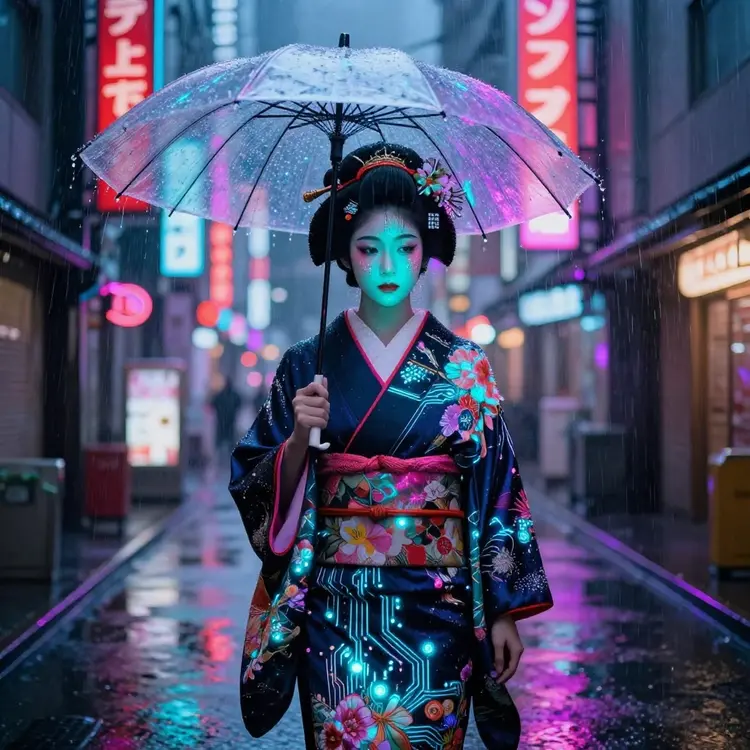
Restyle models repaint your footage while keeping the motion and timing intact. Turn a daytime street into a neon night scene, give a product clip a film look, or shift a vlog into a painterly style. You describe the target look, pick the model, and render a few takes until the mood lands. The original stays untouched in your history, so trying a bolder direction never costs you the safe version.

Quality That Holds Up

The AI video editor pairs models known for clean motion and faithful color with export options up to 1080p. Restyled clips keep their timing, extended scenes carry the original motion forward, and enhancement passes lift detail without smearing it. Render a few takes, compare them side by side in your history, and ship the one that holds up on a full screen rather than settling for a single attempt.

Quality That Holds Up

How the AI Video Editor Compares

Runway

Runway

  • 100+ AI Models
  • One Account
  • Restyle and Extend
  • No Watermark
  • Up to 1080p
  • Object Swap
  • Background Replace
  • Runs in Browser
  • Six Languages
  • Free to Start
Picasso IA

Picasso IA

  • 100+ AI Models
  • One Account
  • Restyle and Extend
  • No Watermark
  • Up to 1080p
  • Object Swap
  • Background Replace
  • Runs in Browser
  • Six Languages
  • Free to Start
Topaz

Topaz

  • 100+ AI Models
  • One Account
  • Restyle and Extend
  • No Watermark
  • Up to 1080p
  • Object Swap
  • Background Replace
  • Runs in Browser
  • Six Languages
  • Free to Start
CapCut

CapCut

  • 100+ AI Models
  • One Account
  • Restyle and Extend
  • No Watermark
  • Up to 1080p
  • Object Swap
  • Background Replace
  • Runs in Browser
  • Six Languages
  • Free to Start
From Edit to Image to Audio

From Edit to Image to Audio

An editing model is one piece of a bigger workflow. On Picasso IA you can pull a frame from your clip into the image tools, generate a matching thumbnail, or add a music track from the audio models, all in the same account. The AI video editor hands off to the next step without an export and reimport, which is where most multi-tool setups lose time.

Extend Scenes That End Too Soon

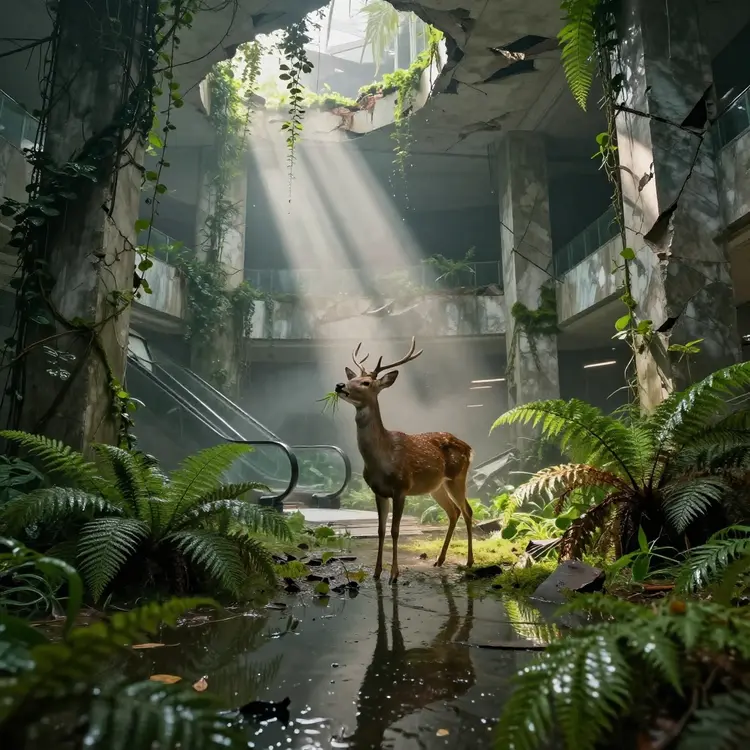
A clip that cuts a beat early breaks the flow of a reel. Extend models add fresh seconds onto the tail, carrying the motion and scene forward so the ending breathes. Run the extension once for a small buffer or chain several passes to build a longer sequence. The AI video editor previews each addition before you commit, which keeps the new frames consistent with the footage you started from.

Extend Scenes That End Too Soon

Restyle for Every Channel

A single clip rarely fits every platform. With the AI video editor you restyle one piece of footage into a few distinct looks, then export each at the right aspect ratio for its home. A bright, punchy cut for short-form, a moody version for a brand reel, and a clean square for the feed all come from the same source. No reshoot, no separate app, just a new prompt per look.

Restyle for Every Channel
Built for Small Teams and Solo Creators

Built for Small Teams and Solo Creators

Not everyone has an editing department. The AI video editor lets a one-person shop restyle, extend, and clean up footage that used to need a specialist. Plain-language prompts replace deep menu trees, drafts render in the browser, and a single account covers tasks that once spanned several paid tools. The result is a workflow a solo creator can actually keep up with on a real schedule.

Swap Objects and Subjects

Swap Objects and Subjects

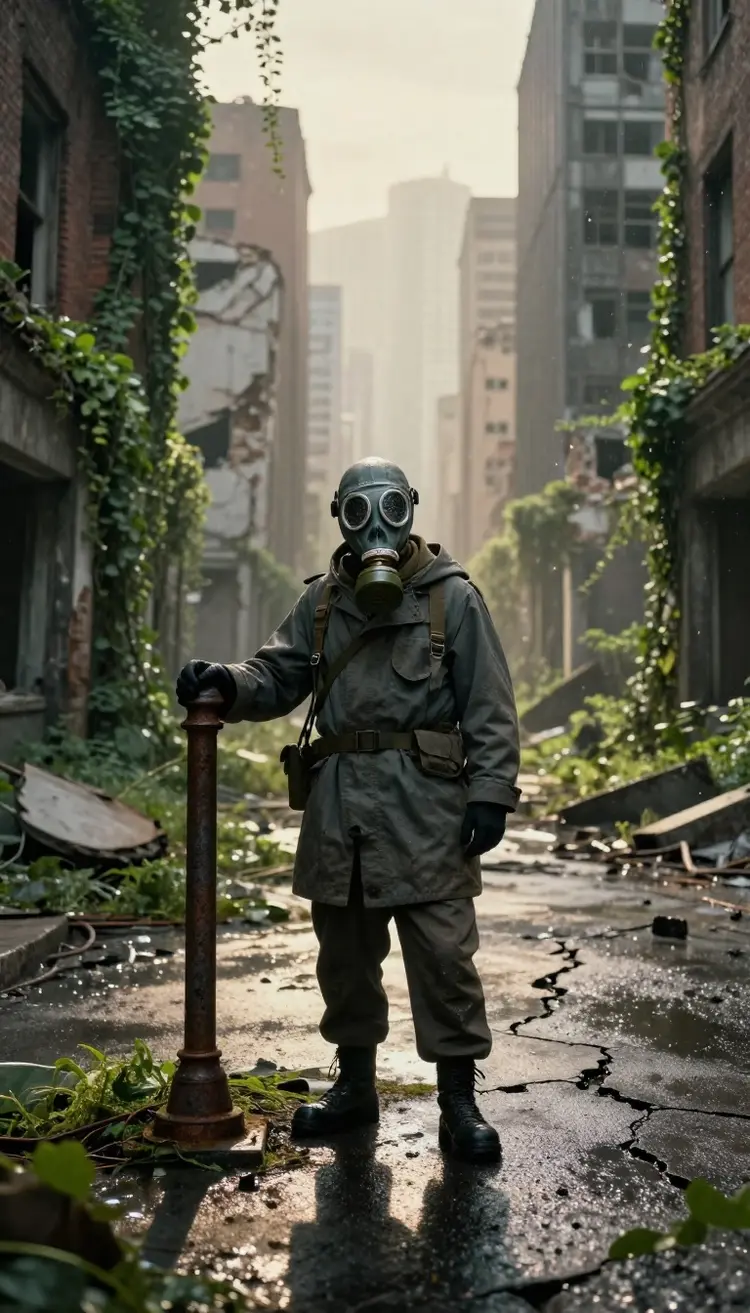
Point at a region of the frame and describe what should be there instead. Inpainting models can lift a background distraction, replace a product on a table, or change a subject without a reshoot. Complex motion makes the task harder, so a couple of takes sharpen the result. Because every editing model lives in one Picasso IA account, you can compare approaches without juggling separate apps or subscriptions.

Privacy and Your Footage

Your uploads and edits stay tied to your own Picasso IA account and history. You decide what to download, share, or delete, and finished clips export clean with no watermark stamped on them. Nothing you edit is put on public display by default. That privacy matters when the footage is a client deliverable, a personal memory, or a project you are not ready to show yet.

Privacy and Your Footage

Why Creators Edit Video Here

500K+

Active users

100+

AI models in one account

8M+

Edits processed

1080p

Max export resolution

6

Interface languages

None

Watermark on exports

Try It Free, Then Scale

Try It Free, Then Scale

You can open the AI video editor and run real edits on the free tier, with no install and no card up front. Trim a clip, test a restyle, or extend a short scene to see how the models handle your footage. When you need more renders, longer outputs, or higher resolution, the paid tiers raise the limits while keeping every model under the same single account.

Replace and Clean Up Backgrounds

A messy background pulls focus from the subject. The AI video editor can swap the scene behind a person, drop in a cleaner setting, or wipe out a stray object that wandered into the shot. Describe the new backdrop and the model keeps the foreground steady while the surroundings change. This turns a clip filmed in a cluttered room into something that reads like a deliberate set.

Replace and Clean Up Backgrounds

Formats and Aspect Ratios

The AI video editor accepts common inputs like MP4 and MOV and exports in the ratios each platform expects. Square works for feeds, tall frames fit short-form and stories, and wide formats suit wide screens and presentations. Set the ratio before you render so the model frames the edit correctly, instead of cropping a finished clip and losing the parts you wanted to keep.

Formats and Aspect Ratios
Iterate Without Losing Work

Iterate Without Losing Work

Good editing is rarely one shot. Every take you render stays in your history, so you can branch from an earlier version, compare two restyle directions, or roll back if a bold edit went too far. The AI video editor treats each render as a draft you can return to, which lowers the cost of experimenting and makes it easy to keep the best take while you chase a better one.

Boost Resolution and Detail

Boost Resolution and Detail

Old or compressed footage often looks soft on a big screen. Enhancement models sharpen detail and lift a clip toward higher resolution, up to 1080p depending on the model, so an archive video holds up next to fresh material. Run a restyle first for a new look, then a resolution pass to clean the edges. Both steps sit in the same account, so the handoff between them takes one click.

Match the Model to the Job

No single model is best at everything. A restyle model repaints a look, an extend model grows a scene, an inpainting model swaps what is in frame, and an enhancement model sharpens detail. The AI video editor lets you reach all of them from one account, so you choose the right tool per task rather than bending one model to a job it was never built for.

Match the Model to the Job

What Editors Say

I trim and restyle client clips between meetings now. The AI video editor on Picasso IA repaints a flat phone video into something that looks shot on a set, and the export carries no watermark.

Lena Hoffmann
Lena Hoffmann

Social Media Manager

My lesson clips kept ending too soon. Picasso IA extended each one by a few seconds so the outro lands cleanly. One login, no new tool to learn, no logo stamped on the corner.

Priya Nair
Priya Nair

Course Creator

I cut promos for three brands and used to bounce between four apps to restyle, extend, and clean up footage. Now the AI video editor on Picasso IA does all of it from one account. I describe the change in plain English, pick the model that fits, and render a few takes until the motion sits right. Pulling a still into the image tools without exporting saves me a full afternoon every week.

Marcus Bennett
Marcus Bennett

Video Producer

Clients hand me shaky vertical clips and expect cinema. With Picasso IA I restyle the color, extend the short ones, and swap a distracting background out of frame, all without a separate subscription for each task. The browser handles the heavy lifting, so my laptop stays cool while it renders. I queue several edits, grab coffee, and come back to clean takes I can hand over the same day.

Daniel Okafor
Daniel Okafor

Wedding Filmmaker

Speed Up a Real Workflow

Speed Up a Real Workflow

The time savings add up across a project. Restyle a clip, extend the tail, clean a background, and lift resolution without exporting between steps or paying four separate bills. The AI video editor keeps the whole sequence inside one account, so the handoffs that usually eat an afternoon happen in a click. That headroom is what lets a small team ship more videos without adding tools.

Where the AI Video Editor Helps Most

Marketers restyle ad creative for each channel, course creators extend lesson clips so outros land, and social teams clean up phone footage before it goes live. Filmmakers swap distractions out of frame and lift color on short scenes. Anyone with raw footage and a clear idea of the change can describe it and render, instead of booking a reshoot or learning a deep desktop suite from scratch.

Where the AI Video Editor Helps Most

Common Use Cases

Teams use the AI video editor to restyle ad creative for each channel, extend course clips so outros land, swap distracting backgrounds in interviews, and upscale archive footage for a rerelease. Social managers tidy phone videos before posting, and filmmakers test color directions on a short scene. The common thread is real footage plus a clear change, described in words and rendered in minutes.

Common Use Cases

AI Video Editor Comparison

PlatformRatingFree PlanAI ModelsWhat Sets It Apart
9.6/10Yes100+

Picasso IA brings top video editing models together with over 100 models for image, video, 3D, chat, and audio. Restyle, extend, swap, and trim a clip in plain language across six languages, then move any result into the next tool without leaving your account.

Runway

8.4/10No8

Runway pairs strong restyle and extend tools with a polished timeline that pros respect. The catch is the price, since the best models and longer exports sit behind higher plans and credit caps that fill up fast.

Topaz

8.2/10No3

Topaz is the go-to for sharpening and upscaling shaky footage. It nails restoration, yet it stays a desktop app focused on enhancement, so creative edits like restyling or object swaps live elsewhere.

CapCut

8.3/10No10+

CapCut is fast and free for everyday cuts on phone and desktop. Its AI features keep growing, though many outputs carry branding and the deepest generative tools are reserved for the paid tier.

Descript

8.0/10No5

Descript edits video by editing the transcript, which is brilliant for talking-head content. It is built around speech, so restyling visuals or extending scenes with new motion is outside its lane.

HeyGen

7.9/10No4

HeyGen turns scripts into avatar presenters with clean lip sync. It shines for spokesperson clips, but it centers on synthetic hosts rather than editing footage you already shot.

Synthesia

7.8/10No3

Synthesia is a solid pick for training and corporate avatar videos at scale. The studio is locked to its avatar library, so editing your own clips with restyle or extend is not the point.

Pika

7.7/10No4

Pika makes lively short clips and has handy extend and effect tools. It leans toward fresh generation over editing, and free exports come with a watermark you have to upgrade to drop.

Kapwing

7.4/10No12+

Kapwing offers a friendly browser editor with subtitles, trimming, and light AI helpers. It is great for quick social edits, yet the generative restyle and extend depth is thinner than a dedicated model suite.

Veed

7.3/10No10+

Veed is clean and team-friendly for captions, trims, and brand kits. The AI tools are growing, though heavier generative edits and watermark-free exports are gated behind its paid plans.

Why Plain-Language Editing Wins

Why Plain-Language Editing Wins

Traditional editing rewards deep tool knowledge. The AI video editor rewards a clear description instead, which opens creative edits to people who never learned a heavyweight suite. You still get fine control through model choice and settings, but the entry point is a sentence, not a menu maze. That shift is why a marketer or teacher can make changes that used to require a dedicated editor.

Honest Limits to Know

Honest Limits to Know

AI editing is powerful, yet it is not magic. Heavy motion, fast camera moves, and crowded scenes make object swaps and extensions harder, so a few takes pay off. Very long clips usually edit best in segments. The AI video editor shows each model's limits before you render, which keeps expectations grounded. Treat the first result as a draft, refine the prompt, and the second pass almost always lands closer.

Get Started in Minutes

Open Picasso IA, sign in, and launch the AI video editor. Upload a clip, type the change you want, pick a model, and render your first take. From there you can extend, restyle, swap, or enhance, all from the same account. There is no install and no learning curve to clear before you see a result, so the gap between an idea and a finished edit stays short.

Get Started in Minutes

AI Video Editor FAQ
AI Video Editor

What is an AI video editor?

An AI video editor is a tool that changes existing footage using models instead of manual frame work. On Picasso IA it can trim a clip, restyle the whole look, extend a scene, swap objects, replace backgrounds, and boost resolution, all from a plain text description. You upload a video, say what you want changed, and the model renders it.

Do I need to install anything?

No. The AI video editor runs entirely in your web browser through Picasso IA, so there is nothing to download or set up. Sign in from a laptop, desktop, or tablet, upload a clip, and start editing. The rendering happens on the platform, which keeps your machine free of heavy software and large model files, and your edits sync to your account so you can switch devices mid-project.

Is the AI video editor free to use?

Yes, you can start for free with no card up front. The free tier lets you upload real footage and test trimming, restyling, and extending so you can see how the models handle your clips. When you want more renders, longer outputs, or higher resolution, paid tiers raise the limits while keeping every model under one Picasso IA account, so there are no separate per-tool subscriptions to manage.

What kinds of edits can it handle?

The AI video editor covers restyling a clip into a new look, extending a scene that ends too soon, swapping objects or subjects in the frame, replacing backgrounds, trimming and tightening cuts, and boosting resolution toward 1080p. Each task uses the model best suited to it, and all of them sit in the same account, so you switch between edits without leaving the page or paying for another app.

Do exports include a watermark?

No. Clips you edit and download from Picasso IA come out clean, with no logo or stamp in the corner. That holds on the free tier too, so you can test the AI video editor and still use the result. Many rival tools brand free exports and only drop the mark on a paid plan, which is exactly the gap this avoids. Your finished video is yours to post, send to a client, or drop into a larger project.

What is the longest clip I can edit?

Length depends on the model you pick. Restyle and extend models usually work in chunks of a few seconds, and you can run them back to back to build a longer sequence. Trimming and resolution boosts handle longer source clips in one pass. The editor shows the limit for each model before you render, so you always know what to expect and can split a long video into segments when needed.

Can I swap a person or object in my footage?

Yes. Inpainting and editing models let you point at a region of the frame and describe what should be there instead, whether that means removing a background distraction, replacing a product, or changing a subject. Results vary with how complex the scene and motion are, so a few takes help. Because every model lives in one Picasso IA account, you can try a couple of approaches without paying for separate apps.

How is this different from a normal video editor?

A normal editor cuts and arranges footage you already have. The AI video editor also generates new pixels, so it can restyle a whole clip, extend a scene that ends too soon, or paint an object out of frame from a plain text prompt. You still trim and arrange, but the creative changes that once needed manual rotoscoping or a reshoot now take a description and a render.

Still Have Questions?

Read the full FAQ for details on models, clip length, formats, and pricing, or reach the team if something is still unclear.