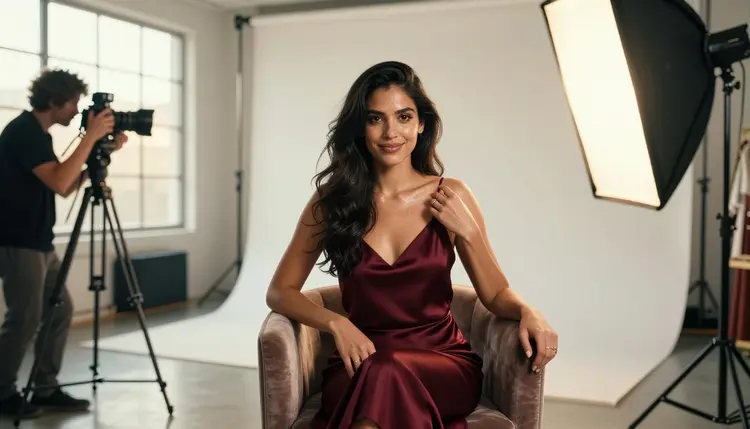
An AI image rarely comes out perfect on the first try. A hand looks wrong, the lighting sits flat, one garment needs to change, or the background pulls attention away from the subject, and most editing tools built for a general audience will not touch an image once it reads as adult content. Picasso Image Editor Pro does not have that problem. It is one of six models on Picasso IA confirmed to run with no content filter, and it is the one built specifically for fixing an image that already exists rather than generating a new one from a blank prompt.
This page walks through ten practical editing tricks worth knowing, the five step process behind every one of them, and the five other uncensored models that feed a base image into the editor in the first place. Every character shown here is a fictional adult, eighteen or older.
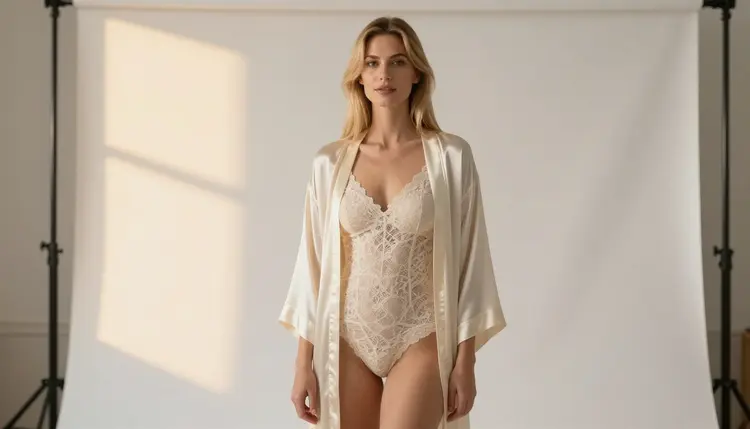
Generating an image and editing one are two different jobs, and most of the catalog's 488 models are built for the first, not the second. Picasso Image Editor Pro is built for the second. It takes an image that already exists, reads a written instruction describing a single change, and applies that change while leaving the rest of the frame alone. That is the whole idea behind an editing trick: instead of starting a new prompt from zero and hoping the next generation lands closer to what is needed, one short, targeted instruction moves an already close image the rest of the way.
The ten tricks below cover the changes that come up most often on adult and mature images specifically: a garment swap, a background rebuild, a lighting fix, a pose correction, a skin detail pass, and more. None of them need a full new prompt. Each one is a short instruction sent to an image that already exists, and each one follows the same rule as every other generation on Picasso IA: every subject is a fictional adult, never a real person without consent, and never anyone who could read as a minor.
Picasso Image Editor Pro does the editing, but five other models feed it a starting image or carry a finished edit into a different format, and all six are confirmed to generate adult content with no content filter, out of 488 models in the catalog.
| Model | Type | Best for | Try it |
|---|
| Picasso Image Editor Pro | Image editor | Every trick on this page: one targeted instruction at a time | Picasso Image Editor Pro |
| Seedream 4.5 | Image | A photoreal base image before an edit | Seedream 4.5 |
| Qwen Image 2 | Image | A base image with several elements that must survive editing | Qwen Image 2 |
| Recraft V4.1 Pro | Image | An illustrated or stylized base image | Recraft V4.1 Pro |
| Picasso Video | Video | Turning a finished edit into motion | Picasso Video |
| LTX 2.3 Pro | Video | Cinematic video from an edited scene | LTX 2.3 Pro |
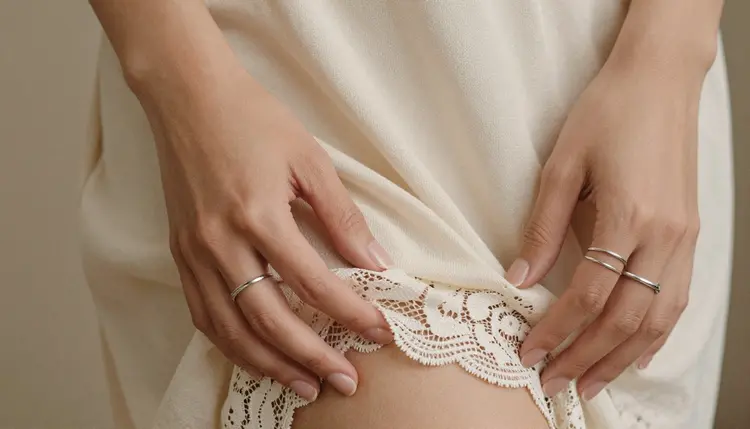
Four of the six work with still images and two generate video, and Picasso Image Editor Pro sits at the hinge between them. Nearly every trick below assumes a base image from one of the other three image models, then a pass through the editor to finish it. Most other models in the catalog apply a filter tuned for a general audience, and a mature editing instruction is exactly the kind of request that filter is built to catch, so staying inside these six keeps a whole editing session from stalling halfway through.
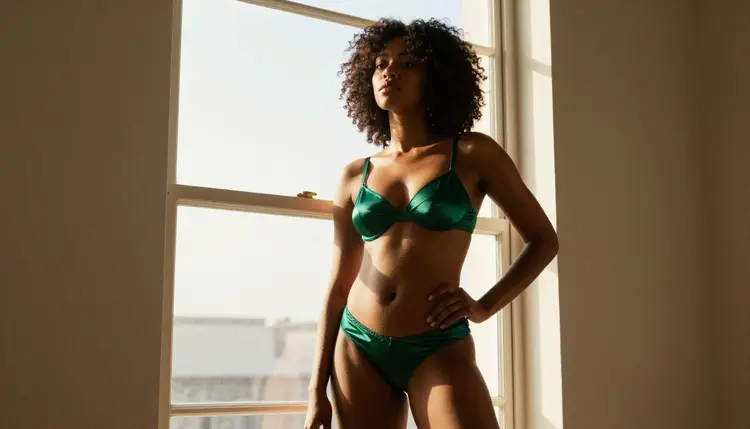
Every trick in the next section follows the same five step loop, whether the change is a small garment swap or a full color grade.
- Start From the Closest Base Image. Generate or upload a base image that already sits close to the final result, since Picasso Image Editor Pro changes what exists rather than starting over from a blank prompt.
- Open the Image in Picasso Image Editor Pro. Load the base image into the editor from the toolkit and confirm the output size before making a single change.
- Write One Instruction, Not Several. Describe one change, a garment, a light source, a background, or a pose, in one short sentence instead of stacking several requests into the same instruction.
- Compare the Edited Region to the Original. Zoom into the changed area and check it against the rest of the frame for matching skin tone, shadow direction, and fabric texture.
- Repeat the Instruction Style That Worked. Save the phrasing that produced a clean result, since the same short, specific instruction usually works again on a similar image.
With the process settled, here are ten specific tricks worth trying on an existing image, roughly in the order most editing sessions reach for them.
- Swap a single garment. Name the exact piece, a robe, a slip, a bodysuit, and the fabric it is made from, and Picasso Image Editor Pro changes only that layer, leaving the pose and the background untouched.
- Rebuild the background without touching the subject. A studio backdrop, a bedroom, an open window, described in one sentence, replaces the setting while the person in frame stays exactly as generated.
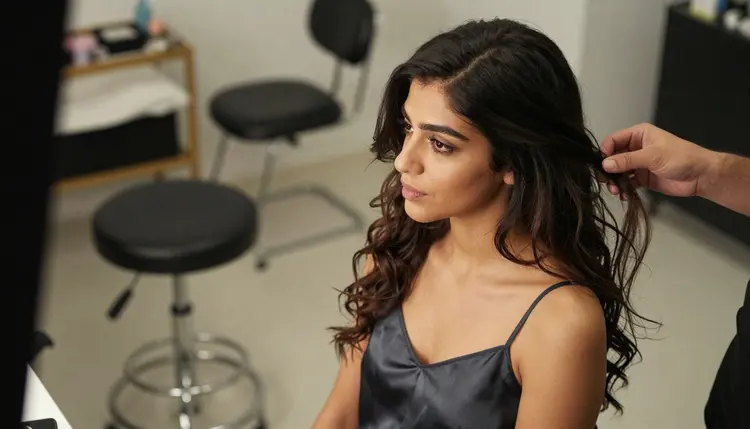
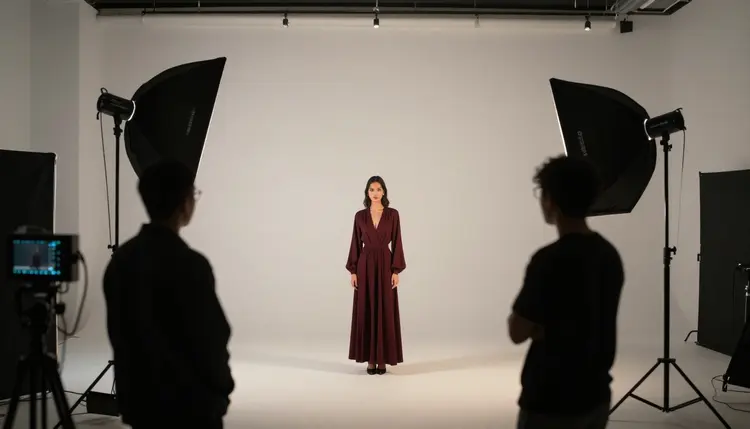
- Adjust a single light source. Naming where the light should come from, a window to the left, a lamp behind, moves shadows and highlights without needing to regenerate the whole image.
- Fix a hand or a finger. Hands are still the hardest shape for any image model, uncensored or not, and a short instruction pointing at the exact hand usually clears up an extra finger or a bent joint that survived the first generation.
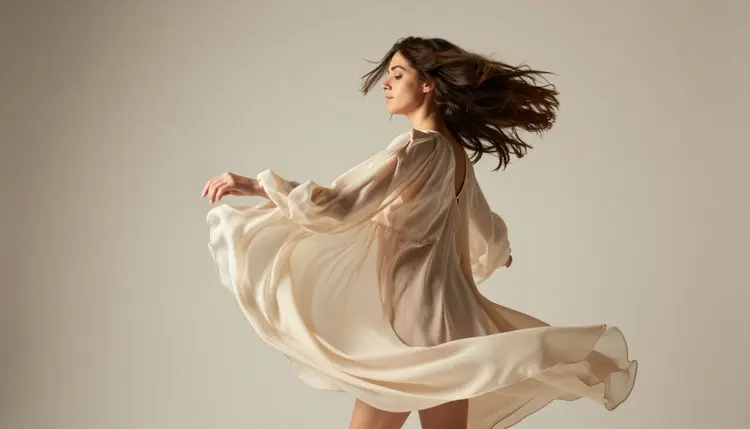
- Smooth a fabric texture. Lace, silk, and satin catch detail unevenly on a first pass, and naming the fabric again in the edit instruction sharpens the texture without changing the garment's shape.
- Adjust a pose by a small amount. A turned shoulder, a tilted head, or a shifted hand position, described as a small change rather than a new pose, keeps the rest of the composition intact.
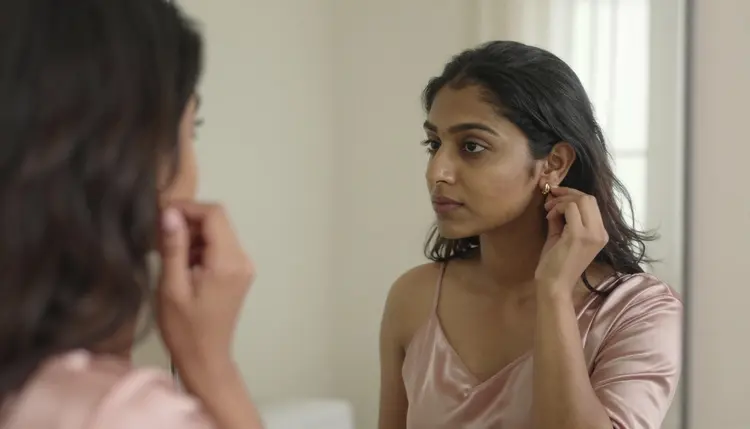
- Add or remove a single accessory. An earring, a robe tie, or a strand of hair across the shoulder is a one line instruction that Picasso Image Editor Pro treats as a small addition, not a new generation.
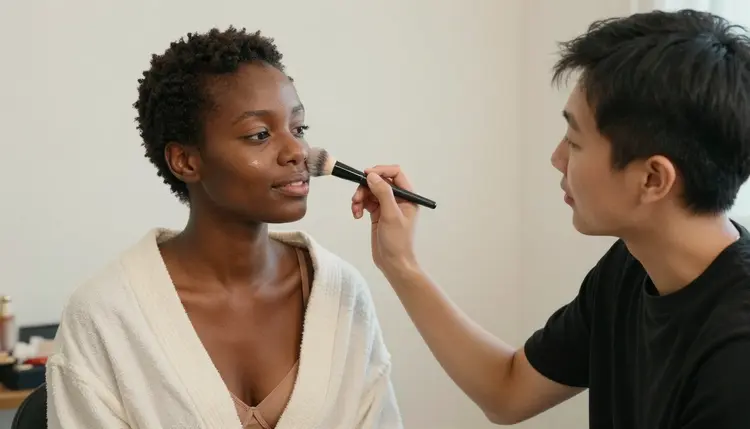
- Even out skin detail. A short instruction describing smoother, more natural skin evens out texture that came through inconsistent on the first pass, the same kind of touch a backstage makeup pass gives before a shoot.
- Color grade for a consistent look. Describing a warmer or cooler tone, or naming a specific palette, applies the same grade across a whole set of images so a series reads as one shoot instead of several unrelated generations.
- Carry a still into motion. Once an edited image is finished, sending it to Picasso Video or LTX 2.3 Pro turns a static result into a short clip without starting the visual design over from scratch.
Ten tricks is a starting list, not a ceiling. Once the five step loop feels natural, most of it transfers to any other targeted change an image still needs.
Every trick on this page works inside the same short set of rules that governs every adult generation on Picasso IA, and editing an image does not loosen any of them.
This content is for adults only, eighteen and older, and every character shown or edited here is a fictional adult. No real person's likeness goes through an edit without that person's explicit consent, no public figures, and nothing involving a minor or anyone made to look like one, regardless of the style or the source image.
An uncensored model is not a flawless one. Hands, jewelry, and other small, fine details remain some of the harder shapes for any image model to edit cleanly, filtered or not, so an edited region deserves a close look rather than trust on the first pass.
Uploaded images are treated privately by default. What gets uploaded for an edit is used to produce that edit, not published, shared, or added to a public gallery without a separate action from the account holder. Where a finished edit ends up afterward is the responsibility of the person who made it, since local law and each platform's own rules decide what is allowed posted.
An edited image is a finished piece on its own, but where it goes next can still change. A favorite result can move into Picasso Video or LTX 2.3 Pro and come out as a short clip instead of staying a still image, carrying the same wardrobe and lighting choices the edit already settled.
Every generation and every edit on Picasso IA spends credits, and a single edit through Picasso Image Editor Pro sits toward the lower end of what a generation costs, usually cheaper than starting an image from a blank prompt. A short video clip through Picasso Video or LTX 2.3 Pro costs more than a still edit, worth knowing before turning a whole set into motion. New accounts start with free credits, enough to try several of the ten tricks above and see which ones make the biggest difference on a real image before spending anything further. Current plans and exact prices live on the pricing page, kept there since they change more often than this page does.
Picasso Image Editor Pro and the five models that feed it are already inside the toolkit, next to the full catalog. Open an existing image, pick one trick from the list above, and see how far a single instruction moves it.
What is Picasso Image Editor Pro and why is it built for these tricks?
Picasso Image Editor Pro is one of six models on Picasso IA confirmed to run with no content filter, and it is the one built specifically for editing an image that already exists rather than generating a new one from a blank prompt. A short written instruction describing a single change, a garment, a light source, a background, is enough for it to apply that change while leaving the rest of the frame untouched.
Does Picasso Image Editor Pro really have no content filter on adult edits?
Yes. Picasso Image Editor Pro is confirmed filter free for adult content, one of only six models across the catalog with that status. An editing instruction describing mature wardrobe or an intimate scene runs the same way any other instruction does, without needing softer wording to get past a filter that is not there.
Can these tricks be used on a photo of a real person?
No. Every trick on this page is meant for fictional adult characters, eighteen or older, generated or already owned by the account holder. Editing a real person's photo without that person's explicit consent, or editing any image of a public figure, is refused and against the platform's rules, regardless of how the request is worded.
Which models should I use to create a base image before editing it?
Seedream 4.5 for a photoreal base image, Qwen Image 2 when the scene stacks several elements that all need to survive editing, and Recraft V4.1 Pro for an illustrated or stylized base image. All three are confirmed filter free, the same as Picasso Image Editor Pro, so a mature scene does not need softer wording at the generation stage either.
How many instructions can I send to Picasso Image Editor Pro in one edit?
One is the reliable number. A single instruction describing one change produces a cleaner result than stacking several requests together, and the five step process above is built around sending one instruction, checking the result, then sending the next one if another change is still needed.
What happens if an editing instruction gets refused?
A refusal on one of the six confirmed models is uncommon, but if it happens the app shows a Content Not Supported by This Model message rather than failing silently, and the fix is trying the instruction again with plainer, more specific wording instead of softening it with euphemisms.
Can an edited image be turned into a video afterward?
Yes. Picasso Video and LTX 2.3 Pro are both confirmed filter free and both generate video, so a finished edit from Picasso Image Editor Pro can move into either one and come out as a short clip carrying the same wardrobe and lighting choices the edit already settled.
Is an uploaded image kept private?
Yes. An image uploaded for editing is used to produce that edit and is not published, shared publicly, or added to any gallery without a separate action from the account holder, and this applies to every trick on this page regardless of what the edit shows.
How much does a single edit cost compared to a new generation?
A single edit through Picasso Image Editor Pro sits toward the lower end of what a generation costs on Picasso IA, usually cheaper than generating a brand new image from a blank prompt. A short video clip through Picasso Video or LTX 2.3 Pro costs more than a still edit, and new accounts start with free credits, with current prices kept on the pricing page.
What is the best way to write an editing instruction so the model understands it?
Name the exact thing that should change and nothing else: the garment and its fabric, the light source and its direction, or the single accessory to add or remove. A short, specific sentence like change the robe to emerald satin works better than a longer instruction that tries to change several things at once.