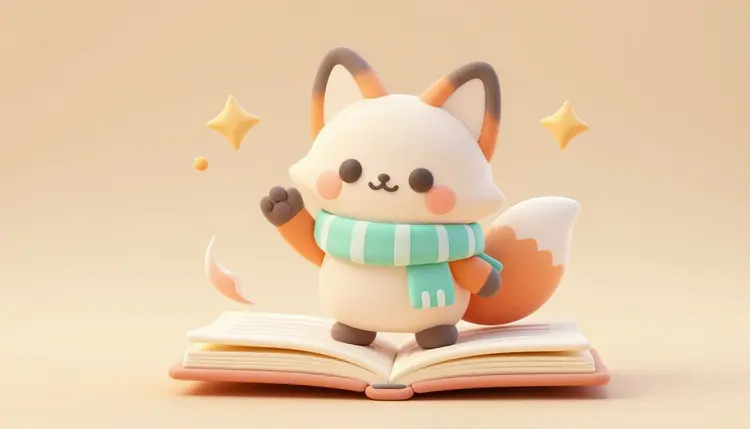
A cartoon your kid draws on a napkin can become a short animated clip before the bedtime story is even over. Picasso IA turns a still illustration, or a plain sentence describing a scene, into a few seconds of gentle motion: a wave, a bounce, a slow blink. It will not replace a real animation studio, and this page will not pretend it does. What it does well is turn one picture and one idea into something that actually moves, fast enough to hold a five-year-old's attention.
A static drawing asks a child to imagine the motion. An animated clip shows it to them, and that difference is most of the fun. For a parent, a teacher or a small studio making content for young viewers, AI animation shortens the distance between an idea and something a kid can actually watch, without a rigging tool, a frame-by-frame drawing session or a render farm.
The models behind this are built for exactly this kind of input: a subject, a simple action, and a short clip length. Picasso IA runs them behind one interface, including tools made specifically for illustrated art rather than photographs, so a hand-drawn style stays a hand-drawn style instead of drifting toward something photorealistic. The full catalog is worth a look if you want to see what else is in there, and new accounts start with free credits, enough to test a scene before committing to a series.
Every animation on this page starts as a still image, so the image is where the character actually gets designed. Text-to-image models such as FLUX, Seedream and nano banana handle a cartoon brief well: describe the character, the setting and the style in plain words, for example a round-cheeked fox in a striped scarf, flat colors, thick outlines, storybook illustration, and the model returns a sheet of options in seconds.
Two habits make this step easier later. First, settle on a style phrase, flat cartoon, storybook illustration, simple vector, and reuse the exact wording across every generation, because consistent prompt language produces a more consistent look than a new description each time. Second, generate the character alone on a plain background before you generate a full scene; a clean character sheet is what the animation models in the next section actually need as input. The effects page collects preset looks if picking style vocabulary from scratch feels harder than it should.
Not every clip needs the same tool. Some scenes need two illustrated poses stitched into motion, others need a static picture to just wave, and some barely need a starting image at all. This table matches the job to the model.
| Approach | What You Upload | Best For |
|---|
| Frame-to-frame animation (tooncrafter) | Two or more illustrated poses of the same character | Walk cycles, gesture loops, panel-to-panel transitions |
| Motion transfer (Wan 2.2 Animate) | One character image plus a reference clip of the motion | A wave, a dance move or a nod, without any rigging |
| Single-image gentle motion | One finished illustration | Subtle background movement, a breeze, a sparkle |
| Text-only scene generation | Just a written description | A brand-new short scene with no starting image at all |
| Touch-up editing (nano banana, qwen-image-edit) | The illustration plus a note of what to fix | Fixing proportions or color before anything gets animated |
Frame-to-frame animation is the one built specifically for drawn art: tooncrafter accepts up to ten illustrated frames and generates the motion between them, which is a very different job from animating a photograph and the reason it keeps the hand-drawn look instead of smoothing it into something else.
This is the path from a blank prompt box to a short clip you can actually show someone. None of it requires animation software or a drawing tablet, just a clear idea of the character and the one action you want them to do.
- Design the character. Open the Toolkit and generate the character alone on a plain background with a text-to-image model, keeping the style phrase fixed across every attempt.
- Clean up the sheet. Run the best result through an editing model to fix stray details, proportions or colors before anything moves; small errors get magnified once there is motion.
- Pick your animation path. Use tooncrafter if you drew two or more poses, Wan 2.2 Animate if you have a short reference clip of the motion, or a single-image animator for a subtler effect.
- Generate a short clip and watch it in full. Judge pacing and motion sanity, not just the first second, and rerun with a new seed if a limb bends the wrong way or the loop stutters.
- Add sound and export. Layer in gentle background music, trim to length, and save the final file at the resolution your platform needs.
A recognizable character across many short clips matters more for kids' content than for almost anything else on this site, since young viewers notice a mismatched color or a different face faster than adults do.
- Lock the Reference Image: reuse the same accepted character image as the input for every new animation instead of regenerating the character from scratch each time.
- Fix the Style Words: keep the same style phrase, flat cartoon or storybook illustration, in every prompt, since swapping vocabulary mid-series is the fastest way to drift.
- One Action Per Clip: ask for a single clear motion, a wave or a hop, rather than a whole sequence of events the model has to invent on its own.
- Plain Backgrounds First: animate the character against a simple background, then composite or regenerate the scene behind it once the motion itself looks right.
- Keep a Reference Folder: save the approved character sheet, palette and a couple of clean frames somewhere you can find them for the next episode.
Pro tip: when a motion-transfer clip comes back with an odd limb or a face that drifts mid-motion, do not try to fix it with a longer prompt. Shorten the reference clip to the single gesture you actually need and rerun; a shorter, simpler motion reference produces a cleaner result far more often than a longer, more detailed one.
Where AI Cartoon Animation Falls Short for Kids Content
An honest tool page says where the tool stops. For animating cartoons aimed at children, there are real limits worth planning around before you build a whole episode on top of them.
- Long, continuous scenes: these models are built for short clips, a handful of seconds each, not a two-minute continuous shot; a longer story is stitched together from several short clips, not generated as one.
- Complex multi-character interaction: two characters that need to touch, hand something to each other or react in sync are the hardest case; simpler single-character motion is far more reliable.
- Dialogue and lip sync: none of the models covered here read a script and sync mouth movement to it precisely; treat generated speech-like motion as approximate, not a substitute for real lip sync tools.
- Fine details under motion: small accessories, thin lines and tiny facial features can wobble or blur once the character starts moving, even when the still image looked perfect.
- Content review: a prompt that reads as harmless can still occasionally return a frame with an odd expression or an unintended detail; watch every clip in full before it reaches a child, every time.
None of this argues against the workflow. It argues for building an episode from several short, reviewed clips rather than betting one long generation will get everything right on the first try.
Can AI really turn my kid's drawing into a moving cartoon?
Yes, in the sense that matters for a short clip. Upload the drawing, or a clean redraw of it, as the starting image and an animation model like tooncrafter or Wan 2.2 Animate adds motion to it. What you get is a few seconds of movement built from that specific artwork, not a full episode with a plot, so plan on stitching several short clips together for anything longer than a single gesture.
What is the easiest way to animate a single cartoon image?
A single-image animation model is the simplest path: upload one finished illustration and describe the motion you want in a short prompt, a gentle sway, a blink, a breeze moving through hair or a scarf. There is no reference clip or second image to prepare, which makes it the fastest option when the goal is subtle movement rather than a specific gesture like a wave.
Which Picasso IA model is best for animating illustrated characters?
Tooncrafter is built specifically for drawn art: it takes several illustrated poses and generates smooth motion between them, which keeps the hand-drawn look intact. Wan 2.2 Animate is the better pick when you already have a reference video of the exact motion, a wave or a dance step, and want your character to copy it. Which one wins depends on what you are starting from, a set of poses or a motion reference.
Can I make my character wave or dance without knowing any animation software?
Yes. Motion transfer models read a short reference clip of the motion you want and apply it to your still character image, so no rigging, no keyframes and no timeline editor are involved. Find or record a short clip of the gesture, upload it alongside your character image, and the model handles the mapping between the two.
Is there a free way to try cartoon animation on Picasso IA?
New accounts start with free credits, which is enough to test a character design and a first short animation before spending anything. Past that, paid plans and their current credit allowances are listed on the pricing page, which is the only place worth trusting for numbers since plans change over time.
How long can an AI-animated cartoon clip actually be?
Short, by design. These models generate a handful of seconds per run, which is enough for one clear action, not a full scene with a beginning, middle and end. Longer content is built by generating several short clips, each carrying one action, and editing them together afterward rather than asking one generation to cover everything at once.
Can I keep the same character looking right across many different clips?
Mostly, with some discipline. Reuse the exact same accepted character image as the input for every new animation instead of regenerating the character each time, and keep your style wording identical across prompts. Small variation is still normal between generations, so treat the first version of a character as the one you lock in and build from, not a draft to keep reinventing.
Does the AI understand what content is appropriate for children on its own?
No, and that assumption is the one worth being careful about. The models generate what a prompt asks for reasonably well, but they do not know your specific audience or judge tone the way a person raising or teaching a child would. Review every generated clip in full, start to finish, before it reaches a young viewer, the same way you would check any other piece of content made for kids.
Can I add music or sound effects to the finished animation?
Yes, and it is worth doing since the animation models here focus on visual motion rather than audio. Generate or select background music separately, the background music workflow covers that path in detail, then layer it under the animated clip during export so the finished file has both picture and sound.
What do I do if the animation comes out with a strange hand or a garbled motion?
Rerun it first, with a new seed and the same inputs; a good amount of this kind of glitch is randomness rather than a real limit of the model. If it keeps happening, simplify the request: a shorter reference clip, a single clear action instead of several, or a cleaner starting illustration with the character isolated on a plain background usually fixes it. If a generation fails outright, support is the direct route to a human.
Your kid's character deserves to actually move, not just sit on a page. Open the Toolkit and turn the drawing into a first short clip in the next few minutes.