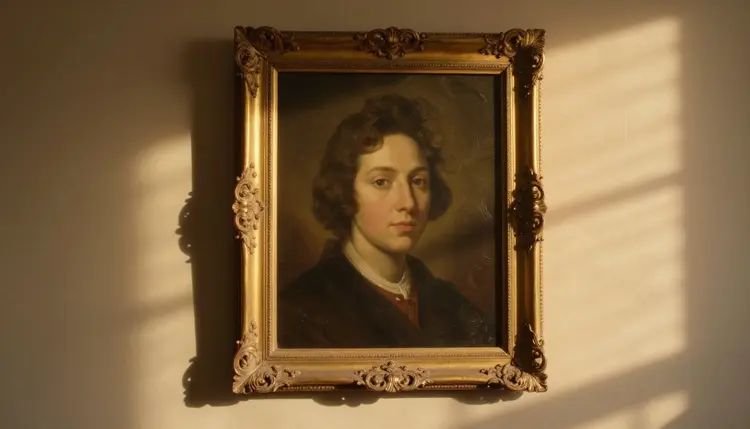
A photograph freezes a single instant, but it does not have to stay silent. Lipsync pairs a still portrait with an audio track, a generated voice or a recording of your own, and returns a short clip where the mouth moves in time with the words. The source can be a headshot, an old family photo or an illustrated character, as long as the mouth is visible and the image holds enough detail to work with.
Lipsync models animate a mouth they can actually see, so the single biggest factor in a clean result is the photo you start with. A front-facing shot, or close to it, gives the model a full view of both lip edges and the teeth line, which is what it tracks frame to frame. A photo taken at a steep angle hides one side of the mouth, and the model has to guess what it cannot see.
Resolution matters almost as much as angle. A crisp phone photo of a face fills a large share of the frame with detail the model can work with; a thumbnail pulled from an old scanned album gives it far less to hold onto, and the sync tends to soften as a result. Even lighting helps too, since a hard shadow cutting across the mouth reads to the model as an edge that should not move.
One more thing worth checking before you commit to a photo: nothing should be covering the mouth. A hand resting near the chin, a microphone, a scarf pulled up, or even a heavy beard that swallows the lip line all reduce how much the model has to animate, and the result usually looks stiffer for it.
Pro tip: crop the source photo so the face fills most of the frame before you run it. A tight, well-lit, front-facing crop consistently outperforms a wide shot where the face is a small part of the picture, because the model spends its detail budget on the mouth instead of the background.
The audio side of a talking photo comes from one of two places: a text-to-speech model that reads a script you type, or a real recording you upload. Picasso IA's catalog includes text-to-speech among its 488 models, so you can go from a written line to a spoken track without recording anything yourself.
Typing a script and letting a model voice it is fast and repeatable. It works well for anything the content of the message matters more than whose voice delivers it, a course introduction, a product walkthrough, an in-character line for a game. Recording your own voice and uploading it, by contrast, keeps the actual person's cadence, accent and warmth, which matters for anything personal, a birthday message for a grandparent, a video meant to sound like you specifically.
The honest rule sits between the two: when the audience could reasonably believe a specific real person is speaking their own words live, say plainly that the voice, the photo animation, or both were made with AI. That disclosure costs one sentence and protects the people watching from being misled about what they are seeing.
The technique earns its place on real, low-stakes messages that a still photo cannot carry on its own. A personalized greeting card built from a family photo, a founder's headshot introducing an online course, a museum-style illustration of a historical figure delivering a short scripted line for a school project, an illustrated mascot or game character speaking a line of dialogue: all of these use a photo the creator has the right to animate, paired with a script the creator wrote or approved.
The line moves the moment the photo belongs to someone else and the words are put in their mouth without their knowledge. Animating a public figure's photo to make them appear to say something they never said, using a stranger's photo pulled from social media, or presenting a synthetic clip as unedited footage of a real event are all uses this page will not pretend are fine. Lipsync is a production technique, not a way to manufacture evidence, and treating it that way is what keeps it usable for everyone else.
Not every photo animates equally well, and knowing where a given source sits before you spend credits saves a retry. The table below reflects how each type behaves in practice, not a guarantee for any individual image.
| Source photo type | What the model can see | Typical sync quality |
|---|
| Clear front-facing headshot | Full mouth, both lip edges, teeth line | Strong, consistent through the clip |
| Three-quarter angle portrait | Most of the mouth, one side foreshortened | Good, occasional softness on the far side |
| Old or low-resolution photo | Mouth outline present but low in detail | Usable, sync reads looser up close |
| Illustrated or painted character | Stylized mouth shape, no real teeth or texture | Good on simple, clear mouth lines |
The pattern across all four rows is the same one from the first section: the more clearly the model can see the mouth, the more convincingly it can move it.
The full process, from a photo on your phone to an exported clip, takes about ten minutes once you have a script. Most of that time goes into the audio, not the sync itself.
- Choose a clear front-facing photo. Pick the sharpest, best-lit, most front-facing image you have of the subject; this single decision affects the result more than anything downstream.
- Prepare or generate the voice audio. Write your script and generate it with a text-to-speech model, or record your own voice reading it, then trim the audio to just the lines you want spoken.
- Run the lipsync. In the Toolkit, upload the photo and the audio track to a lipsync model and generate the clip; a short line renders faster than a long one.
- Review the sync at full speed. Watch the result at normal playback, not frame by frame, since sync issues that look minor in slow motion can read as clearly off once the clip is playing at speed.
- Export and disclose if needed. Download the finished clip, and if the audience could mistake it for an unedited recording of a real person speaking live, add a plain note that it was made with AI.
Lipsync is good at one specific job, matching a mouth to an audio track, and it is worth being clear about where that job ends.
- Side profiles and obscured mouths: a photo where the mouth is turned away, in shadow, or blocked by a hand or object gives the model too little to track, and the sync usually looks unnatural or barely moves at all.
- Longer clips can drift: sync quality is strongest in the first few seconds and can loosen toward the end of an extended script, so a short, tight line performs more reliably than a long monologue.
- Only the mouth animates: this is a talking photo, not a full performance; the head, eyes and body stay largely still, so it suits a short spoken line rather than an acted scene.
- The voice needs its own preparation: the model syncs whatever audio you give it, but tone, pacing and emotion come from how you write the script or deliver the recording, not from the lipsync step.
- Disclosure is your responsibility: the output carries no automatic label saying it was AI-generated, so adding that context yourself is what keeps a talking photo honest rather than misleading.
None of these limits make the technique less useful for what it is actually for, a short, honest, spoken message from a photo that could not otherwise talk. Beyond lipsync, the model catalog covers image generation, upscaling and video, and consistent AI characters is worth a look if the illustrated figure in your photo needs to appear, and speak, more than once.
What do I actually need to make a photo talk?
Two things: a photo with a clearly visible mouth, and an audio track of the words you want spoken. The audio can come from a text-to-speech model or from a recording you make yourself. Once both are ready, a lipsync model combines them into a short video clip where the mouth moves in time with the audio. Nothing else is required, there is no separate script format or special camera needed, just a decent photo and a clean audio file.
Do I have to record my own voice, or can the AI generate one?
Either works, and the choice depends on what you are making. Text-to-speech generates a voice from typed text, which is fast and useful when the content matters more than whose voice says it. Recording your own voice keeps your actual cadence and tone, which matters for anything personal, like a message meant to sound like you. Picasso IA's catalog includes text-to-speech models, so both paths are available from the same account.
Can I use an old family photo for this?
Yes, with a caveat on quality. Older photos, especially scanned prints, often have lower resolution and softer detail around the mouth than a modern phone photo, so the sync tends to look a little looser than it would on a sharp, recent image. It still works, and for a birthday message or a memorial video the sentiment usually matters more than pixel-perfect sync. Choosing the clearest, most front-facing photo available from the batch makes a real difference.
Will a side profile or angled photo work?
Not well. Lipsync models need to see both edges of the mouth to animate it convincingly, and a steep side angle hides half of that information. A three-quarter angle can still produce a usable result, but a true profile shot usually looks stiff or barely animates at all. If you have a choice of photos, pick the one facing most directly toward the camera.
How long can a talking clip be before the sync starts to slip?
Short lines hold up best. Sync quality is typically strongest in the first few seconds of a clip and can loosen as the audio runs longer, so a single sentence or a short paragraph performs more reliably than an extended monologue. If you have a longer script, splitting it into a few shorter clips and running each separately usually keeps the sync tighter than asking one long clip to carry all of it.
Can I give a voice to an illustrated or historical character?
Yes, and this is one of the cleaner uses of the technique. An illustrated mascot, a game character, or a museum-style portrait of a historical figure delivering a short scripted line for a story or a school project all work well, since there is no real living person whose likeness is being borrowed without consent. Keep the script clearly presented as a dramatization rather than something the figure was recorded actually saying.
Is it okay to make someone else's photo talk?
Only with their knowledge and permission, and only saying words they actually approved. Using a photo of a real, identifiable person, especially a stranger or a public figure, to make them appear to say something they never said is not a legitimate use of this technique, regardless of how convincing the result looks. Stick to your own photo, photos of people who have agreed to it, or non-real subjects like illustrated characters.
Do I need to say a video was made with AI?
Whenever the audience could reasonably mistake the clip for an unedited recording of a real person speaking live, yes. A one-line disclosure, made with AI voice and lipsync, in the caption or the video itself is enough. It costs almost nothing to add and it is the difference between a fun, honest use of the technique and a clip that misleads someone about what they are watching.
What resolution photo should I use for the best result?
Higher generally helps, but a phone photo taken in good light is usually already good enough, resolution matters less than a clear, front-facing view of the mouth. A large, low-resolution image with a great angle will often outperform a small, sharp thumbnail cropped from far away, so prioritize framing and lighting first and treat resolution as the second factor.
Is Picasso IA free to try for talking photos?
New accounts receive free credits, enough to test a lipsync clip and a text-to-speech track before deciding whether the workflow is worth building into a routine. Beyond that, generation draws on the same credit system used across the catalog, and current plan pricing is listed on the pricing page. There is no separate tier just for talking photos; the same account covers lipsync, text-to-speech, and everything else in the catalog.
You already have a photo that deserves a voice, a headshot, an old family portrait, or a character you sketched. Open the Toolkit, pair it with a script, and hear it speak.