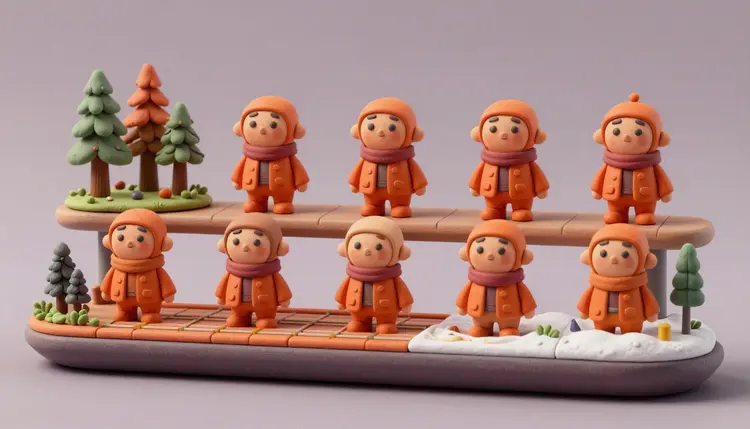
Ask an AI video model for the same woman in a red coat three times and you will get three different women in three different coats. A text prompt describes a person; it does not identify one. Reference-to-video models attack that problem from the other side: you hand them photos of your character, and they try to hold that face and outfit steady while the scene, the camera and the action change. This page covers how that works on Picasso IA, which models do it, and where it still slips.
A text-to-video model builds every clip from scratch. Each generation samples a new person who fits the words, so brown hair, green jacket, mid-thirties can come out as a hundred different people, and none of them is the one from your last clip. Fixing the seed number helps only when the prompt is also unchanged, which is exactly what you cannot do when the next shot needs a new location.
Reference-to-video flips the order of operations. The image carries the identity and the prompt carries everything else: where the character is, what they do, how the camera moves. Instead of describing a face and hoping, you show it. For a short film, a recurring mascot, a brand character or a series of social clips, that is the difference between a project and a pile of unrelated clips.
If you only need a consistent character in still images, the sibling workflow is consistent AI characters. Stills are the easier half. Video adds motion, angle changes and time, and every one of those is a chance for the face to wander.
Four models in the catalog take reference images as an input. They differ in how many references they accept and in what else they can do, so the right pick depends on whether you need one hero portrait, a full costume breakdown or a multi-shot script. These limits come from each model's input settings on Picasso IA; check the model page for current values, since they can change.
| Model | References accepted | Notable settings | Reach for it when |
|---|
| wan-video/wan-2.7-r2v | Reference images and short reference video clips | 720p or 1080p, single or multi shot, negative prompt, seed | You have a portrait or a short clip and want identity anchored |
| xai/grok-imagine-r2v | 1 to 7 images | 480p or 720p, 1 to 10 seconds, seven aspect ratios | You want quick tests from a few images |
| kwaivgi/kling-v3-omni-video | Up to 7 images, or 4 when a reference video is also used | Multi-shot with up to six scenes, native audio, start and end frames | You are scripting a sequence and want shots in one run |
| bytedance/seedance-2.5 | Up to 30 images | Native audio and dialogue, first and last frame, 480p or 720p | Face, outfit and props all need to stay fixed |
Two cautions on reading that table. A higher reference cap does not mean better faces, it means more room for a full brief: front view, side view, outfit, props. And grok-imagine-r2v treats its images as style and content references, not as starting frames, so it will not simply animate your photo. For that, the image-to-video models in the catalog are the better fit.
This is the walkthrough on Picasso IA, from raw references to a clip that matches the last one. Everything runs in the toolkit, so there is nothing to install.
- Gather clean reference images. Pick two to four images of one character: a clear front view, a three-quarter view and a full-body shot in the outfit you want. Same lighting family, no heavy filters, nobody else in frame.
- Choose a reference-to-video model. Seedance 2.5 for the biggest reference set, Kling v3 Omni Video for multi-shot scripts, Wan 2.7 R2V for portrait or clip anchoring, Grok Imagine R2V for fast tests.
- Attach the references and write the action only. Upload the images, then describe the scene, the movement and the camera. Do not re-describe the face; where the model supports it, refer to the images by number, as Kling and Seedance document.
- Generate a short test clip and judge the face. Check the face at the start, the middle and the end of the clip. If it drifts, add a closer reference or simplify the motion before you spend more credits.
- Reuse the identical set for every shot. Same references, same order, same seed where available. Change the location and the action, never the references, and cut the clips together afterwards.
Cost depends on the model, the resolution and the duration, so run the short test first. The pricing page explains how credits work, and new accounts get free credits to start.
Most consistency failures are reference failures. A single glamour shot gives the model one angle and one lighting setup to copy, so the moment the character turns or the light changes, it improvises. A better set is boring on purpose: a neutral front portrait, a three-quarter turn, and one full-body image where the outfit is fully visible.
If your character does not exist yet, create it first. Generate a handful of stills of a fictional character with an image model, pick the three that agree with each other, and use those as your references. That route also keeps you clear of a real person's likeness, which matters here: use faces you own, your own photos, or fictional characters you invented, and never a real, identifiable person who has not agreed to it.
Tip: keep the references consistent with each other before you ask a video model to be consistent with them. If your front view has a beard and your side view does not, the model will average the two and you will chase the result for an hour.
Keep the outfit simple while you learn the workflow. Solid colors, one hero accessory and clear silhouettes survive motion far better than small prints, layered jewelry or text on clothing. You can always add complexity once the base clip holds.
A sequence is just several clips that share a reference set. Plan it as a shot list before you generate anything: an establishing wide shot, a medium shot of the character acting, a close-up reaction. Generate each as its own clip with the same references, changing only the scene and camera lines of the prompt.
Kling v3 Omni Video can take this further inside a single run: its multi-shot mode accepts up to six scenes, each with its own prompt and duration, so cuts happen without leaving the model. Wan 2.7 R2V has a multi shot setting as well. When you run shots separately instead, keep a note of the prompt wording that worked, because consistent phrasing for the setting and lighting helps the character match the neighbors in the edit.
For planning the sequence itself, AI storyboards and AI short films and trailers cover the shot-list side. If you would rather start from a single photo, turning photos into videos is the simpler entry point.
This is a technique that reduces drift, not one that removes it. Expect to generate more than you keep, and know where the failures cluster:
- Distance: a face that is a few dozen pixels tall has little detail to hold, so wide shots drift more than close-ups; frame the character larger when identity matters.
- Profile and rear views: if no reference shows the side or back of the head, the model invents one, and that invention changes from clip to clip; add a side reference or avoid those angles.
- Costume details: small patterns, logos, text, layered accessories and exact seams blur or change between shots, while solid colors and strong shapes hold.
- Fast motion and occlusion: spins, running, hands crossing the face or hair whipping across it break the match for a few frames, and sometimes for the whole clip.
- Several characters at once: more people means the references compete, and features can swap between them; keep to one or two main characters per shot.
None of that means skip the workflow. It means plan shots your references can support, and use an upscaling or editing pass only for finishing, not for rescuing a face that has already changed.
Can AI video keep the same character across different clips?
Mostly, when you give the model reference images instead of only describing the person. Reference-to-video models anchor the face and outfit to your pictures while the scene changes. It is a strong reduction in drift, not a guarantee, so expect to check each clip and regenerate the ones where the face wandered.
What is reference-to-video?
It is a generation mode where you upload images (and on some models short video clips) of a character, object or style, then write a prompt for the new scene. The images carry what the subject looks like and the prompt carries what happens. It differs from image-to-video, where your picture becomes the first frame of the clip.
Which model accepts the most reference images?
Among the four covered here, Seedance 2.5 takes up to 30 images, Kling v3 Omni Video and Grok Imagine R2V take up to 7, and Wan 2.7 R2V takes images or short clips. More is not automatically better, three well chosen angles usually beat a pile of near duplicates, but a large cap helps when outfit and props must match.
How many reference images should I use?
Start with two to four: a front view, a three-quarter view and a full-body shot. Add a side view if the shot turns the head, and a prop close-up if an object must stay recognizable. Every extra image should show something new, otherwise it only adds noise the model has to reconcile.
Why does the face still change halfway through a clip?
Usually because of distance, speed or an angle your references never showed. A small face in a wide shot, a fast turn or a profile with no side reference all force the model to improvise. Try a closer framing, slower motion, or add a reference for the missing angle, then run a short test before a long clip.
Can I use a photo of a real person?
Only your own, or someone who has clearly agreed. Do not use the face of a real, identifiable person without their consent, and do not present a generated likeness as if it were a real recording of them. Fictional characters you invented are the safest choice for series and brand work.
Do I need to describe the face in the prompt too?
Not usually. Let the references define the face and spend the prompt on action, setting, light and camera. Re-describing features can pull against the images, for example asking for blue eyes when your reference has brown. Describe only what changes from shot to shot.
Can I keep consistent characters in a multi-shot video?
Yes, two ways. Kling v3 Omni Video can script up to six scenes in one run with your references attached, and Wan 2.7 R2V has a multi shot setting. Or generate clips one by one with the same reference set and edit them together, which gives you more control over each shot.
What about voice and dialogue consistency?
Face consistency and voice consistency are separate problems. Some models, such as Seedance 2.5 and Kling v3 Omni Video, can generate audio with the video, but a stable voice across many clips is not something a reference image gives you. For a series, plan on recording or generating narration separately and laying it over the cut.
How much does it cost to generate consistent character video?
Video costs more credits than images, and the amount depends on the model, resolution and clip length, so no honest single number exists. Short, lower-resolution tests are the cheap way to check a reference set before a final render. New accounts get free credits, and the pricing page has the current plans.
Ready to test a reference set? Open the toolkit, attach three images of your character and generate a five-second clip to see how well the face holds.