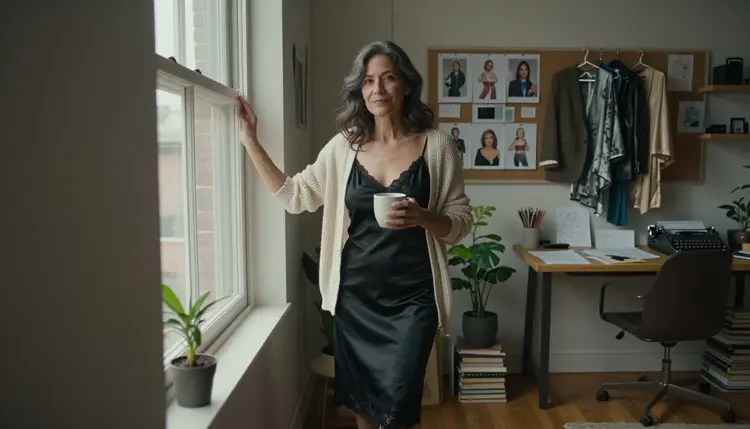
A dating sim lives or dies on its cast. Players pick a route because one face, one voice and one wardrobe made them curious, so the roster is the product. This guide shows how to build a flirty, mature roster of fictional adult characters with Picasso IA: a character select lineup, a set of mood portraits for each love interest, and a few suggestive event frames that stay on the tasteful side of the line.
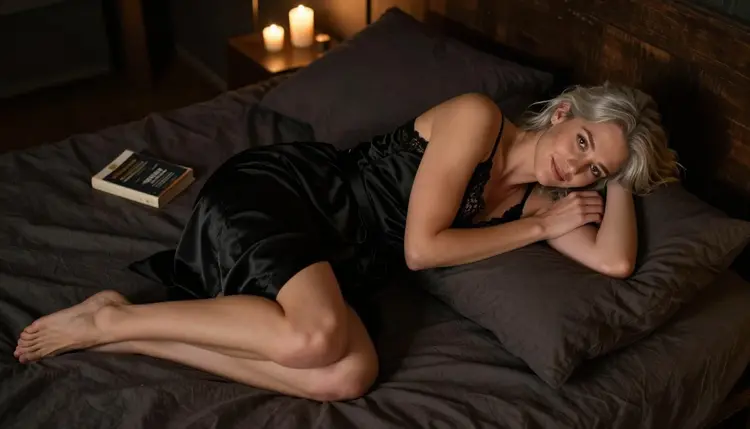
Everything here is for adults, about fictional adults. The pictures are provocative, never explicit: satin robes, lace trims, a camisole in a sunlit hallway, a candlelit bed seen from above. You describe the person, the wardrobe, the light and the lens, and you pick a model that accepts adult prompts. You work in the toolkit, in your browser, with nothing to install.
Before you open any tool, decide what the deliverable is. A roster is not one picture. It is a small system of pictures that all belong to the same game, and each love interest needs a few different shots so the player can feel the character change as the story moves.
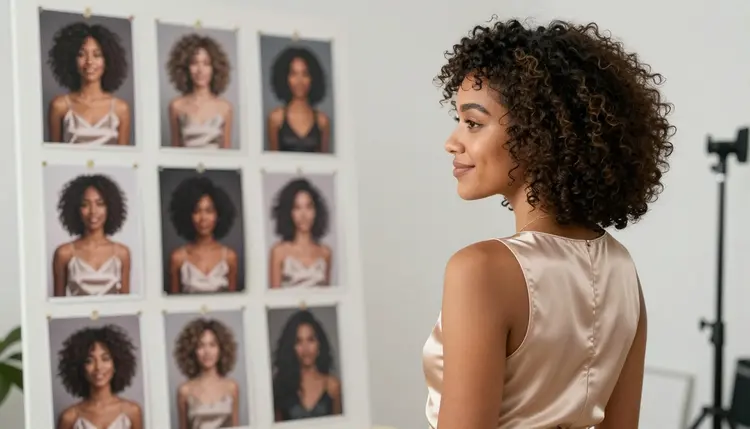
A practical minimum for each character is a portrait for the select screen, a close-up for the dialogue box, a wider environmental frame that shows where the character lives or works, and one or two event frames for the scenes the player unlocks. With four to six love interests that is a few dozen images, which is a lot of work by hand and a reasonable batch with a generator.
Decide the format early. Dating sims usually need a tall or square portrait for the select screen and a wide frame for backgrounds and event art. If you plan to place a character over a background, ask for a plain, soft backdrop so the cutout stays clean. If you want a full scene, ask for the setting in the prompt itself.
The hardest part is consistency. A reader forgives a change of pose, but not a change of face. Plan for that from the first image: write a short, fixed description of each character (age range, build, hair, skin, one or two signature details) and reuse it word for word in every prompt for that person. Also decide what makes the cast feel like a cast. Different ages, different heritage, different body types and different moods keep a roster from looking like one face repeated six times. A mature roster, with characters in their thirties and forties, also fits the tone of an adult dating sim better than a lineup of near identical faces.
Finally, choose a visual style for the whole game. Photographic portraits, painterly illustration and a clean flat design all work, but mixing them by accident looks like a mistake. Pick one, write it down, and put it at the start or the end of every prompt.
Picasso IA keeps a short list of models it has tested with adult prompts, repeatedly, and watched generate instead of reject. Those are the confirmed ones. Confirmed describes what the Picasso IA tests saw, not a promise from the model's maker, who can change a model at any time. The page what confirmed means explains how that label works. Here are the six, with what each is good for in a dating sim.
For a photographic roster, start with Seedream 4.5. Its catalog title says it creates 4K images from text, and that is enough resolution to crop a full select screen portrait and a tight dialogue close-up from the same frame. For an illustrated roster in a game-art look, Recraft V4.1 Pro is the better starting point: it is listed for print-ready images at 2K and is known in the catalog for design-led work, which suits clean sprites and cards.
Picasso Image Editor Pro is the tool you will use most after the first pass. It edits an image you already have, it carries the infinity tag in the catalog, and the free trial includes it. Use it to change a jacket color, fix a hand, soften a background or adjust the mood of a frame without regenerating the whole character.
The video models matter if your game has animated menus or short scenes. Picasso IA Video turns text or an image into a clip, which is the natural way to animate a finished portrait. LTX 2.3 Pro makes 4K video from text, and Seedance 2.5 Lite is listed for clips up to 10 seconds.
Some other models in the full catalog are worth a try and are untested. Qwen Image 2 is one of them, along with Picasso Video from Pruna, and the larger Seedance 2.5. Untested means exactly that: not confirmed either way. Try them with a harmless prompt first and see how they behave.
Here is the process from an empty document to a full cast. Do it for one character first, then repeat it for the others once you trust the method.
- Plan the set. List your love interests and write one line for each: age range, heritage, job, mood, and the wardrobe that sums them up. Add the shots you need per person, such as select portrait, close-up, environment and one event frame.
- Write the character description. Turn each line into a fixed paragraph with face, hair, build, signature detail and style. Keep it plain and specific, and say adult and fictional in the text. This block gets pasted into every prompt for that person.
- Generate the key image. Open the toolkit, choose a confirmed model such as Seedream 4.5, paste the character block and add one shot description. Run it a few times and keep the frame that best shows who this person is.
- Build the rest of the set. Reuse the same character block and change only the shot: new angle, new light, new setting. If the model accepts several inputs, attach the key image and call it @1 in the prompt so the face stays close to the original.
- Refine and export. Open the best frames in Picasso Image Editor Pro to fix details, match colors across the cast and clean the backgrounds, then export the finals at the size your game engine needs.
Good prompts for a roster are boring in the right way. They name the person, the wardrobe, the place, the light and the lens, and they say nothing vague. Below are examples of how a cast of fictional adults can be written so that every love interest reads as a different person.
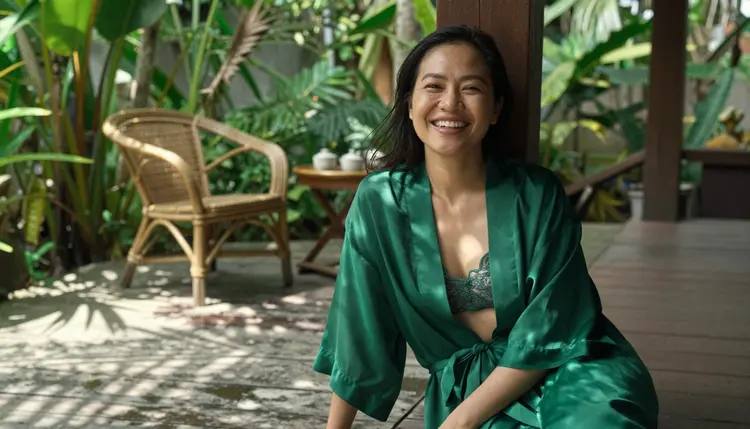
A Southeast Asian woman in her early thirties can be the tropical resort host. Write her in an emerald silk robe over a lined lace bralette, leaning on a veranda post, with dappled shade and a long portrait lens. The mood is relaxed and a little amused, and the setting does the storytelling for you.
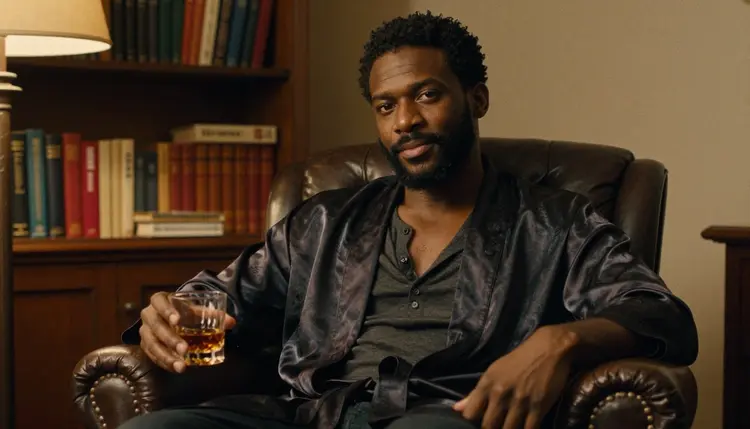
A Black man in his late thirties with natural curls can be the late shift bartender or the neighbor with the record collection. Put him in an open silk robe over a henley, in a leather armchair, with a glass in hand and a warm tungsten lamp as the only light. Ask for a medium shot, waist up, so the dialogue box has room.
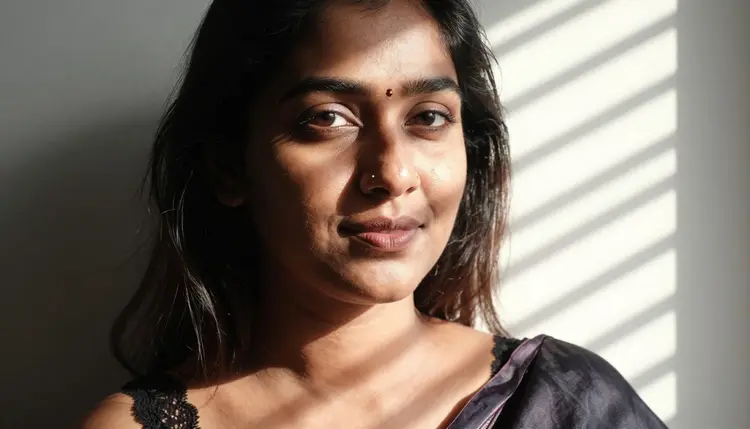
A South Asian woman in her mid thirties works well as the quiet, intense one. Try a tight close-up with hard morning sun through blinds, so stripes of light and shadow fall across her face. It is a strong dialogue portrait because the light carries the tension and the wardrobe can stay simple.
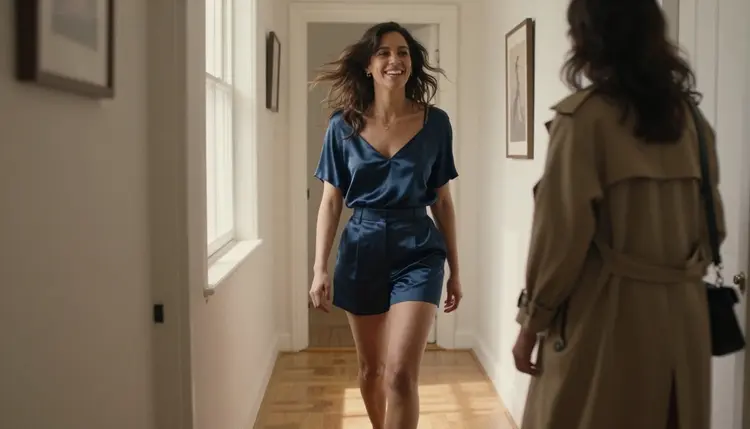
For movement, ask for a candid three-quarter walking shot. A mixed-heritage woman in her mid thirties in a navy satin camisole, laughing, barefoot in a sunlit hallway, with window light from the left. Candid frames break up a roster of posed portraits and tell the player that this person has a life outside the screen.
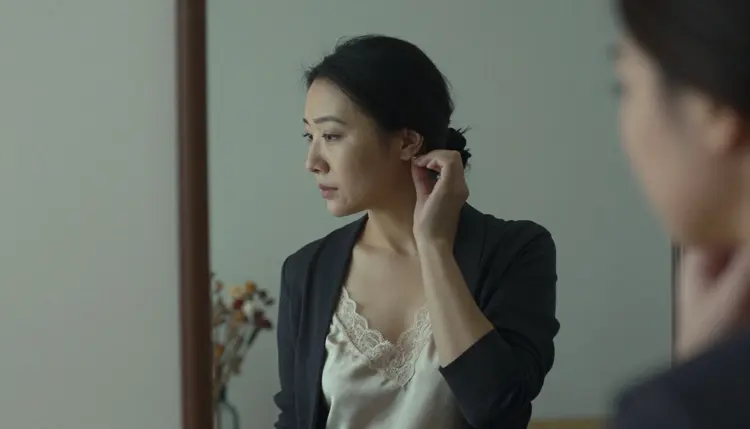
A reflection frame is an easy way to add depth. An East Asian woman in her early thirties in an ivory silk slip under a blazer, caught in a tall mirror on an overcast day, gives you two readings of the same person: the public one and the private one. That works nicely for a character with a hidden side.
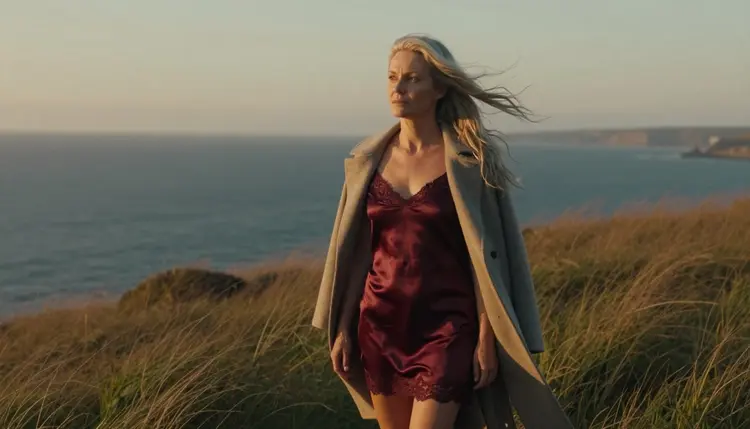
For the confident, mature lead, think big and low. A Nordic woman in her early forties in a burgundy satin slip dress with a wool coat, shot from a low angle on a coastal bluff at golden hour, backlit, with a long lens, reads as someone who owns the room. It also gives you a full-length frame for the select screen.
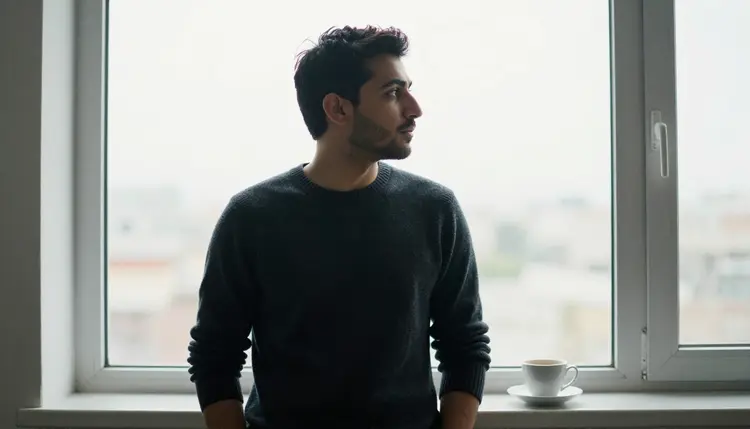
A profile silhouette against a bright window is a good way to introduce a character before the player learns their name. A Middle Eastern man in his early thirties in a knit sweater, backlit by overcast daylight, can sit in the teaser art or the route preview.
To keep the same fictional person across images, repeat the exact character block, keep the age range and heritage in every prompt, and change only the shot, the light and the setting. When a result drifts, do not rewrite the whole prompt. Change one thing at a time so you can see what moved the face.
Reference images help. In the toolkit, each attached image gets an @1, @2 badge and you can refer to it in the prompt, and Picasso IA translates that reference to the syntax each model understands. Only models that accept several inputs show the badges, so check the model before you rely on it.
When the stills are done, move to clips with care. Take a finished portrait into Picasso IA Video and ask for a small motion: a slow breath, a glance toward the camera, curtains moving behind her. For a longer or higher resolution scene from text, LTX 2.3 Pro is the one to try, and Seedance 2.5 Lite suits quick loops. Keep the motion modest and the framing stable, because small movements keep the character recognizable.
Keep your settings adult and everyday. Cafes, lofts, galleries, ferries, rooftops, bookshops and studios all work. Skip school settings and anything that could suggest a minor. Each love interest should be written clearly as an adult in their thirties or forties.
This is an 18+ project. Picasso IA's adult features are for adults, and a dating sim built with them is meant for an adult audience. If your game will reach a store or a platform, make sure that audience, and the age checks around it, match the place where you publish.
Every character is a fictional adult. Do not use a real person, a celebrity or anyone who could be identified, and do not describe anyone who could read as a minor. Write ages, wardrobe and settings so that no one in the roster could be taken for a minor. If a prompt makes you hesitate, rewrite it.
What you create is private by default. Generations are tied to your account and are not published or shown to others. What happens after that is up to you, so before you ship a roster, read the content rules of wherever it will live, whether that is a store page, a game portal or a community site. Check those rules every time, because they change, and Picasso IA cannot promise that any platform will accept a given picture.
If a model refuses a prompt, the app shows a message titled "Content Not Supported by This Model". It recommends models that accept adult prompts and carries your prompt over, so you do not retype anything. Switch to one of the confirmed models and try again.
A new account can try a few generations for free on a small set of selected models: Picasso IA Image, Picasso Image Editor Pro, Picasso IA Video and Seedance 2.5 Lite. That is enough to test the character block approach on one love interest before you commit to a full roster. It does not cover the whole catalog, so check the model page before you start.
Credits are spent per generation, and the cost varies by model and by options such as resolution or duration. Models with the infinity tag do not spend credits on the plans that include unlimited generation. The details live on the pricing page, which is the right place to check before a large batch.
The wider catalog is worth exploring once the confirmed models are working for you. Qwen Image 2 and the other untested image models can give a different feel to a roster, and Picasso Video from Pruna is another one to test for clips. Because they are untested, run a gentle prompt first and read the result before building a whole cast on them. The full catalog lists everything, and the model pages show the tasks and options.
If your cast needs more than portraits, these related guides cover neighboring projects. A companion app roster follows a similar plan with a different tone, and an original character reference sheet shows how to lock a single design before you generate scenes. If your characters come from a tabletop game, a D&D character is the closer match, and a webcomic page is the one to read if your dating sim will also have panels.
Can I make a full dating sim roster with Picasso IA?
Yes, you can build the portraits, close-ups and event frames for a cast of fictional adult characters in the toolkit. You write one fixed description per character, generate the key image, then change only the shot for each new frame. Picasso IA makes pictures and videos, not the game itself, so you still assemble the roster in your own engine.
Which model should I start with for photographic characters?
Start with Seedream 4.5. It is one of the confirmed models, and its catalog title says it creates 4K images from text. That gives you enough resolution to crop a select screen portrait and a dialogue close-up from one frame.
Which model is better for illustrated sprites?
Recraft V4.1 Pro is a good first try. It is a confirmed model, listed for print-ready images at 2K and strong on illustration and design. Ask for a clean background if you plan to cut the character out and place it over scenery in your game.
How do I keep the same character across many images?
Write a fixed character description and paste it into every prompt for that person, changing only the shot, the light and the setting. If the model accepts several inputs, attach your best frame as @1 and refer to it in the prompt. Make one change at a time when a result drifts.
Can I animate the characters for menus or short scenes?
Yes. Picasso IA Video takes text or an image and makes a clip, and LTX 2.3 Pro creates 4K video from text. Keep the movement small, such as a breath or a glance, so the character stays recognizable from the still.
What does confirmed mean for a model?
Confirmed means Picasso IA tested adult prompts against that exact model repeatedly and watched it generate instead of reject. It is not a published setting from the model's maker, who can change it at any time. You can read more on the page about what confirmed means.
Are the characters real people or minors?
No. Every character is a fictional adult, and the pages here never use a real or identifiable person or anyone who could read as a minor. Write your prompts the same way: state an adult age range and keep settings, wardrobe and mood clearly adult.
What happens if a model refuses my prompt?
The app shows a message titled "Content Not Supported by This Model". It recommends models that accept adult prompts and carries your prompt over, so you do not need to retype it. Pick one of the confirmed models from the list and run it again.
Are my images private?
Generations are private by default. What you create is tied to your account and is not published or shown to others. If you later place the images in a game, a store page or a community, check the rules of that place first, because Picasso IA cannot promise that any platform will accept a picture.
Is there a free way to try this before building a full roster?
A new account can try a few generations for free on selected models, including Picasso IA Image, Picasso Image Editor Pro, Picasso IA Video and Seedance 2.5 Lite. See the pricing page for how credits and unlimited models work, and test one character before you plan the whole cast.