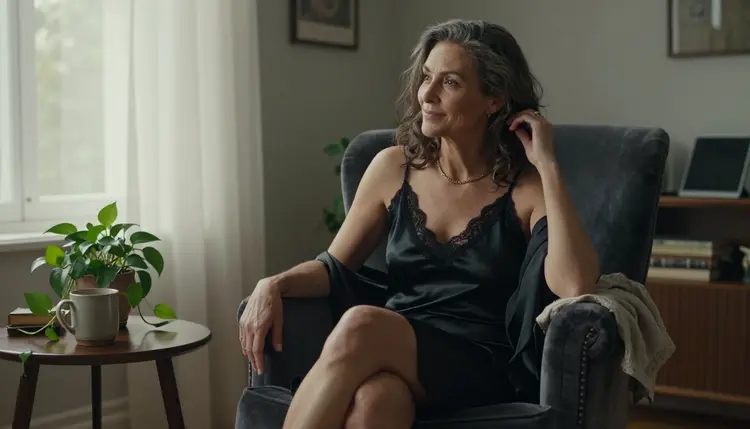
A companion app lives or dies on its cast. Before anyone writes a line of dialogue, the people who will test your prototype need to see who they are talking to: a face, a style, a mood, a few outfits that tell them what kind of person each character is. This page is about that visual side. You will plan a roster of fictional adult characters, generate their art with Picasso IA, and keep each one recognizable from card to card.
Picasso IA makes pictures and short video clips. It does not run the chat, the memory or the personality of a companion. The conversation belongs to whatever tool or app you build around it. What you get here is the roster: portraits, full-length frames, detail shots and clips that you can drop into a prototype, a pitch deck or an internal review. Everything stays flirty, romantic and suggestive rather than explicit, and every character is an adult.
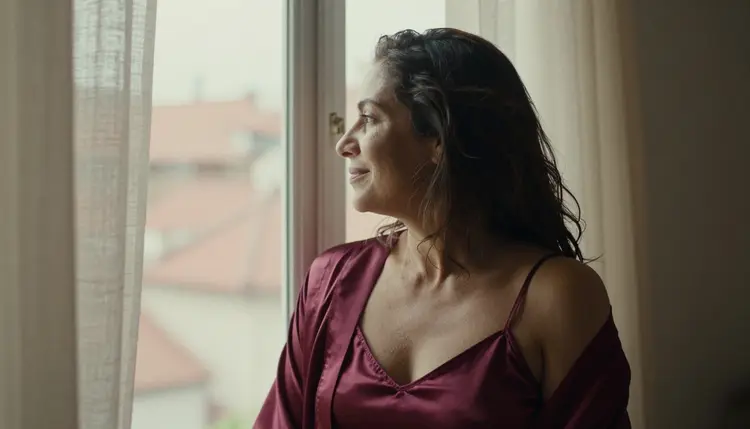
A roster is a deliverable with a shape. Decide the shape first, and the prompts become easy to write. For a prototype, a good starting point is six characters, each with a small set of images: one portrait that works as the profile picture, one wider frame that shows wardrobe and setting, one detail shot, and optionally a short clip. That is about four pieces per character and twenty-four pieces for the whole roster, which is enough to fill a character-select screen and a profile page without padding.
Write a one-paragraph character sheet for each person before you generate anything. It should name the heritage and the age range (always an adult, mid twenties or older), the hair, the skin tone and any freckles or laugh lines, the signature wardrobe, the colour palette, the home setting and the preferred light. A companion who is always shot in candlelight and burgundy satin feels like one person. A companion shot in random light with random clothes feels like five different strangers.
Then pick the formats. Profile avatars usually want a square or a tall crop, while a character-select screen or a landing banner wants a wide frame. Generate wide frames and crop them if you can, because it is easier to crop a wide image than to extend a narrow one. If your app also shows a short idle loop on the profile, plan one clip per character and keep the camera still so the loop feels calm.
Finally, decide what stays the same across the whole cast so the roster reads as one product. Keep the same photographic style (raw, natural light, film grain), the same level of wardrobe coverage, and the same lens language. Vary the people, not the look of the shoot. A visitor should be able to tell the characters apart by face and palette, and tell that they belong to the same app by style.
Picasso IA keeps a short list of models that it has tested with adult prompts and watched generate instead of reject. These are the confirmed ones. Confirmed describes what Picasso IA saw in its own repeated tests. It is not a published setting from the model's maker, who can change a model at any time. If you want the details, the full catalog shows every model with its description.
| Model | Best for | Format |
|---|
| Seedream 4.5 | Photoreal portraits and full-length frames | Text to image, 4K |
| Recraft V4.1 Pro | Illustrated or designed character cards | Print-ready images, 2K |
| Picasso Image Editor Pro | Changing outfit, background or detail on an existing image | Image editing, unlimited |
| LTX 2.3 Pro | Profile clips from a text description | Text to video, 4K |
| Picasso IA Video | Short loops from a prompt or from a finished still | Text or image to video, unlimited |
| Seedance 2.5 Lite | Quick clips for idle animations | Video, up to 10 seconds |
For a roster, two models do most of the work. Seedream 4.5 is the natural first stop for the key image of every character: it makes photoreal images from text at 4K, so a face holds up when the card is shown large on a retina screen. Picasso Image Editor Pro is the second, because a roster is built from variations. Once you have the key image of a character, the editor is where you change the jacket, swap the room, or fix a small detail without starting from zero. It carries the infinity tag in the catalog, which means it does not spend credits on the plans that include unlimited generation.
Recraft V4.1 Pro earns a place if your app has an illustrated look instead of a photographic one. It is built for print-ready images at 2K and is strong on illustration and design, so it suits a stylized card back or a poster for the whole cast. For motion, Picasso IA Video turns a prompt or a finished image into a clip, LTX 2.3 Pro makes 4K video from text, and Seedance 2.5 Lite is listed up to 10 seconds.
Models outside this list are untested. Flux, Nano Banana, Qwen Image 2, Seedream 5 and many others are worth a try if you want a different look, but Picasso IA has not confirmed them either way, so do not plan a whole roster around one. If a model declines a prompt, the app shows a message titled Content Not Supported by This Model, recommends models that accept adult prompts and carries your prompt over, so you do not retype it.
The work goes faster when you do it in the same order for every character. Here is the order that keeps a roster consistent, written for the toolkit, where you pick the model, type the prompt and attach reference images.
- Plan the cast. Write the character sheets and a shot list: portrait, wide frame, detail shot and, if you need it, a clip. Choose the shared look for the whole roster.
- Describe the first character. Turn the sheet into one clear prompt with heritage, age range, hair, wardrobe, room, light and lens. Say opaque fabric and name the garment.
- Generate the key image. Run the prompt on Seedream 4.5 and generate a few versions. Keep the one where the face is the one you want to live with.
- Build the rest of the set. Attach the key image as a reference, call it in the prompt with its @1 badge, and ask for a new angle or a new outfit. Repeat for every character in the roster.
- Refine and export. Use Picasso Image Editor Pro to fix small things, then download the finals and name the files by character and shot.
Do the first character completely before you start the second. The first one teaches you which words in the prompt matter, and you can reuse the structure for everyone else by swapping the details. Save your best prompts in a document next to the character sheets, because a prompt that worked once is the fastest way to a second image of the same person.
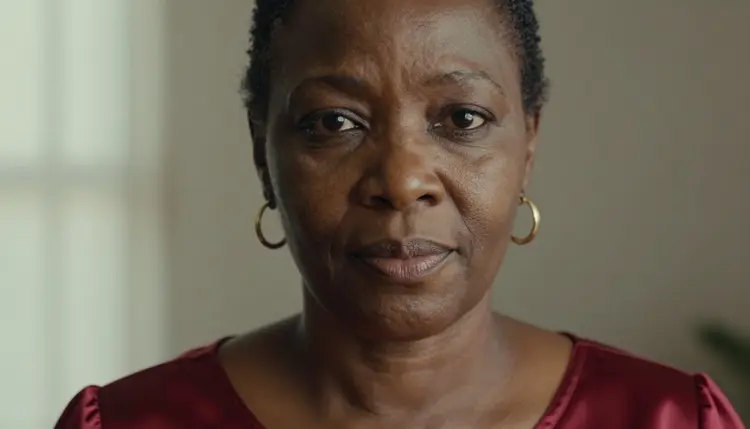
A good companion prompt reads like a short photo brief. Start with the shot type, then the person, then the clothes, then the place, then the light and the lens. A tight close-up portrait of a West African woman in her late thirties, wearing an opaque deep red satin top and gold hoop earrings, soft window light from the left, 24mm lens, film grain, is more useful than a long list of adjectives. The model knows what a 24mm close-up looks like. It does not know what you mean by beautiful.
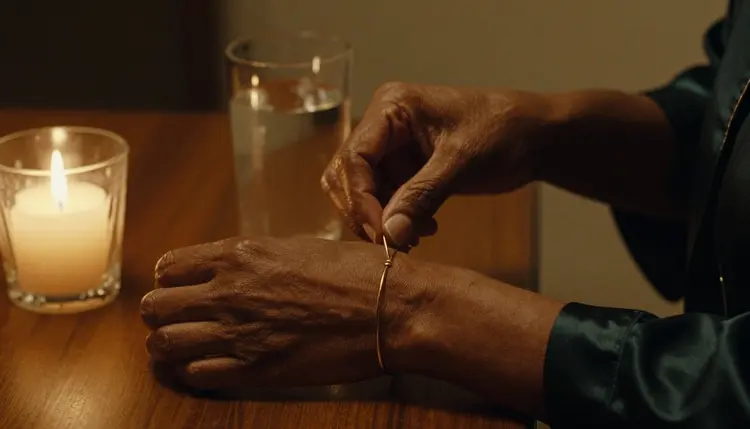
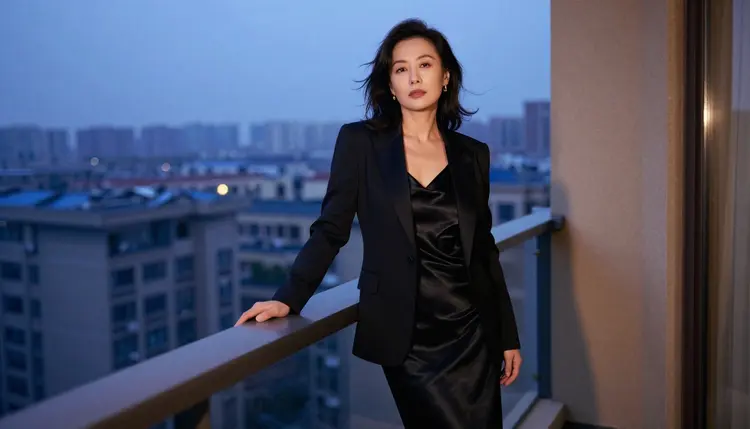
Give each character one piece of wardrobe that is theirs. The woman with the emerald silk robe and the gold bracelet keeps the bracelet in every image. The one in the navy satin slip dress and kimono robe is always seen near a mirror. A recurring object is the cheapest way to make a face recognizable, and it also helps you when the model changes a feature slightly from one render to the next.
Vary the camera, not the person. A roster that you can shoot in different frames gives you the material for the whole app: a low-angle full-length frame for the character-select screen, an over-the-shoulder frame for the moment a conversation begins, a detail shot of hands, fabric or jewelry for a card back, an overhead frame for a story scene, a mirror or window reflection for a quiet mood. Each of these is a line in the prompt, and each gives the same character a different presence.
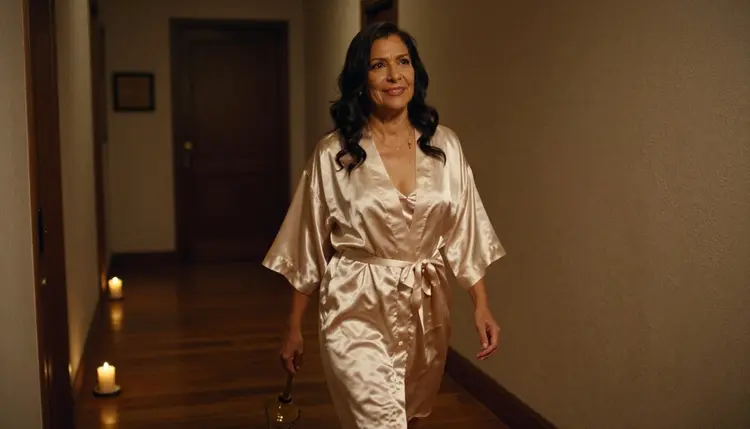
To keep the same fictional character across images, use the reference system in the toolkit. Attach the key image, and it gets an @1 badge. Write something like "the woman from @1, now in a champagne silk robe walking down a dim hallway, candle in hand, candlelight, 35mm lens" and Picasso IA translates the reference into the syntax of the model you chose. Only models that accept several inputs show the badges, so check the model before you rely on it. If the face drifts, go back to Picasso Image Editor Pro and edit the image itself instead of rewriting the prompt.
Keep the light consistent inside each character. If one character belongs to soft window light from the left, shoot her whole set that way and change only the wardrobe and the framing. If another belongs to candlelight or golden hour backlight, give her that for every shot. Light is half of what makes a face look like the same person, and the models follow it well when you name it plainly.
Stills can become clips when the roster needs motion. Open Picasso IA Video, attach the finished still and describe one small movement: she turns her head, the curtain moves, the candle flickers. LTX 2.3 Pro works from text for 4K clips, and Seedance 2.5 Lite is listed up to 10 seconds, which is plenty for an idle loop. One movement per clip keeps the face stable. If your companion is a chat character, the clip is the profile loop, not the conversation.
For related ideas, the pages on a dating sim character roster, a chat app avatar, a custom game companion and an original character reference sheet cover neighbouring versions of the same job, each with its own prompts and shot list.
This is a page for adults. Picasso IA is 18+ only, and the art you plan here is meant for adult audiences and adult apps. If your prototype will be seen by anyone else, treat the roster as adult material and handle it that way.
Every character is a fictional adult. Write characters with an adult age range, mature features and adult wardrobe, and never create a real or identifiable person: no celebrities, no coworkers, no ex-partners, no photo of someone you know as a starting point. Never create anyone who could read as a minor. If an image comes back with a face that is not clearly an adult, discard it and change the prompt. The rule is about how the image reads, not only about the number you typed.
Your generations are private by default. What you create is tied to your account and is not published or shown to other people. That is useful for a roster in development, because you can try dozens of faces and keep only the ones you like. If you later put the characters in an app, a store listing or a public site, check the rules of wherever you publish, since each place sets its own limits on adult content and on how it must be labeled.
A new account can try a few generations for free on selected Picasso IA models: Picasso IA Image, Picasso Image Editor Pro, Picasso IA Video and Seedance 2.5 Lite. It is a small free trial on selected models, not on the whole catalog, so use it for a single test character before you commit to a full roster. Details of plans and what each generation costs are on the pricing page. Credits vary by model and by options such as resolution or duration, and models with the infinity tag do not spend credits on the plans that include unlimited generation.
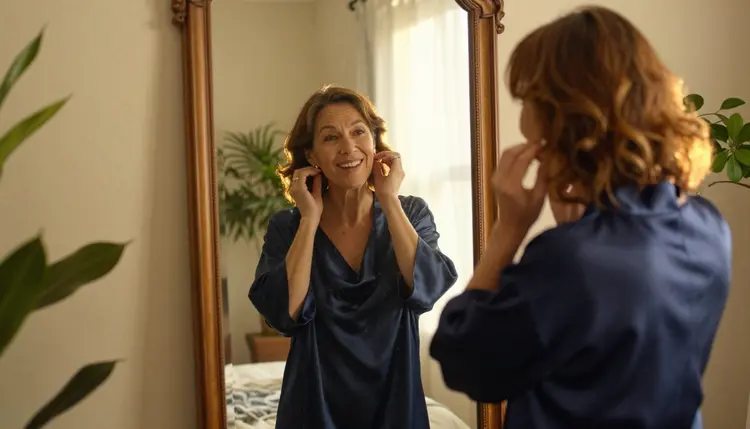
Once the first character works, look through the full catalog for models that suit the rest of the cast. Untested models are worth a try when you want a different feel: one for a painterly look, one for stronger lighting, one for a different skin rendering. Treat each as an experiment, run the same prompt on two or three, and compare the faces. If a model gives you a character you like, add it to your notes with the settings that produced it.
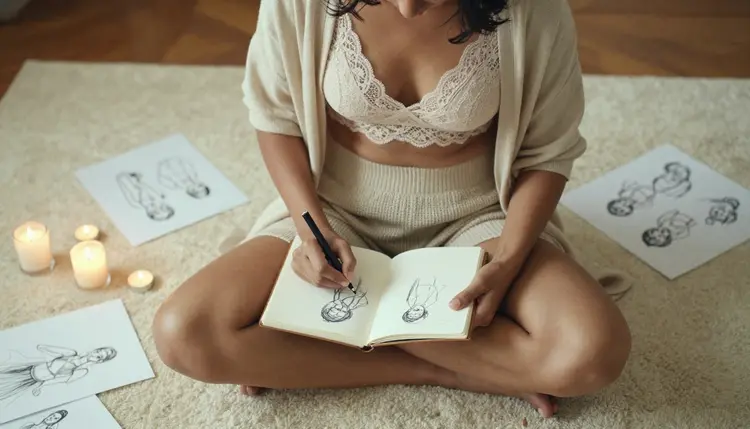
A practical way to test is to use one character as a benchmark. Pick the character with the most complicated brief, say the freckled woman in a cream lace bralette under an open linen shirt in dappled shade, and run her prompt on every model you want to try. Freckles, lace texture and shifting shade are hard cases, so the result tells you quickly whether the model can handle the details of the rest of the cast.
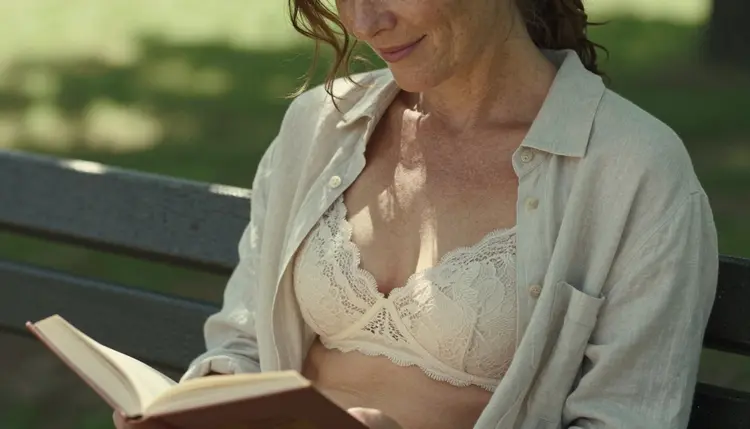
Keep a short log as you go: character, model, prompt, reference image, result. When the roster is finished, that log is your production file. If you need to add a seventh character three weeks later, you will want the same style, and the log is how you get it back. Add the beach terrace character in a black one-piece swimsuit and a wrap skirt, the same golden hour backlight and the same 35mm lens, and she fits next to the rest.
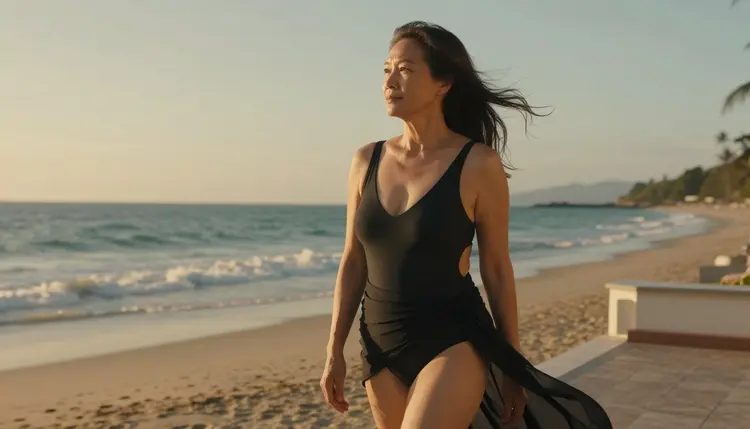
When you are ready, open the toolkit, choose Seedream 4.5, and write the first character sheet into a prompt.
Does Picasso IA build the chat and personality of the companion?
No. Picasso IA makes images and short video clips. The conversation, memory and personality belong to the app or tool you build around it. Here you create the faces, wardrobe, settings and clips that show who each character is.
Which models are confirmed for adult prompts?
Six: Seedream 4.5, Recraft V4.1 Pro, Picasso Image Editor Pro, LTX 2.3 Pro, Picasso IA Video and Seedance 2.5 Lite. Confirmed means Picasso IA tested them repeatedly with adult prompts and saw them generate.
Is a confirmed model guaranteed to accept every prompt?
No. Confirmed reflects what Picasso IA observed in its own tests, not a setting published by the model's maker, who can change it at any time. If a prompt is declined, the app shows a message and suggests models that accept adult prompts.
How do I keep the same character in every image?
Attach the key image as a reference in the toolkit. It gets an @1 badge that you can call in the prompt. Keep the same recurring object, palette and light in each prompt, and use Picasso Image Editor Pro to correct small drifts instead of starting over.
Can I make a clip of a character from a still?
Yes. Picasso IA Video accepts text or an image, so you can attach a finished still and describe one small movement. Seedance 2.5 Lite is listed up to 10 seconds. One movement per clip keeps the face steady.
Can I base a character on a real person?
No. Characters are fictional adults only. Do not use a real or identifiable person, a celebrity or a photo of someone you know, and do not create anyone who could read as a minor. Picasso IA is 18+ only, and the characters you design should be invented from scratch.
Are my generations public?
No. They are private by default, tied to your account and not published or shown to others. You choose what you share and where. If you publish the roster in an app or a site, check the rules of that place first.
Is there a free way to test a roster?
A new account has a small free trial on selected models: Picasso IA Image, Picasso Image Editor Pro, Picasso IA Video and Seedance 2.5 Lite. It does not cover the whole catalog. Use it for one test character, then read the pricing page for how credits work.
What size should the roster images be?
It depends on the model. Seedream 4.5 makes 4K images from text and Recraft V4.1 Pro makes print-ready images at 2K. Generate wide frames when you can, since they are easy to crop into avatars and cards.
Where can I look for ideas for similar projects?
Try a dating sim character roster or a custom game companion. Both follow a similar plan with different shot lists. You can also browse the full catalog for untested models that might give your cast a different look.