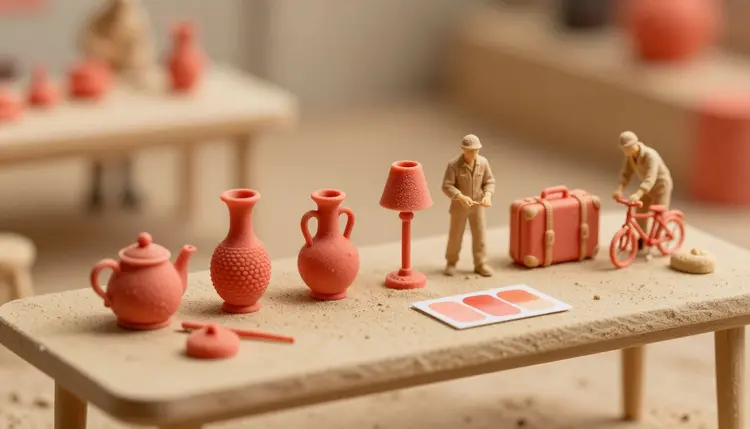
Every image generator can make one good picture. The trouble starts with the second, the tenth and the fortieth, when the coral turns salmon, the lighting changes mood and the mascot grows a different nose. Brand consistency is mostly a filing problem: write down what your look is, keep the proof next to it, and hand both to the model each time.
A text-to-image model has no memory of your last request. Each generation starts fresh from the words you give it, so two prompts that differ by a single adjective can return two different art directions. Add a model switch, or a new person on the team writing prompts from scratch, and the drift gets worse. The images are not bad. They just do not look like they came from the same place.
Human teams solve this with a brand book: a palette, a type of lighting, a set of dos and don'ts, and a folder of approved examples. The same idea works here, translated into what a model can actually read. That means reference images it can look at and a block of prompt text it can follow. Picasso IA has no style-training feature, where you upload a gallery and get a custom model back. What you get instead is a method, and it needs nothing but the models already in the full catalog.
Your style kit is two things kept together in one folder. The first is three to six reference images that carry the look: a hero shot you love, a close-up of your texture or material, a picture that shows your color palette in context. Pick images that agree with each other, because mixed signals produce mixed results.
The second is a prompt template, one paragraph you copy and paste before the subject changes. Write it like a brief to a photographer: the palette in plain color words, the lighting, the lens feel, the background, the mood, and a short list of things to avoid. Then keep a fixed slot at the end that reads SUBJECT: and nothing else. Only that slot changes between images.
Models differ in how they take references. google/nano-banana-pro accepts up to 14 reference images next to your prompt, so it can carry a whole kit. picassoia/picassoia-image-editor-pro accepts up to three and lets you point at them as image 1, image 2 and image 3 inside the prompt. recraft-ai/recraft-v4.1 works from text alone, so there the template does all the work, and it accepts long prompts, which suits a detailed brand paragraph.
You do not need one method for everything. Match the approach to what has to stay fixed.
| Approach | What it keeps fixed | Model to try | Where it can drift |
|---|
| References plus template | Palette, lighting, overall look | nano-banana-pro | Small details such as trim or texture |
| Restyle an existing image | Composition and subject | picassoia-image-editor-pro | Fine print and thin lines |
| Template only, from text | Wording, layout, on-image text | recraft-v4.1 | Exact colors, because there is no image to match |
| Edit with a locked seed | One asset across variants | picassoia-image-editor-pro | Only repeats for the same inputs |
| Character sheet as reference | Face, outfit, proportions | nano-banana-pro | Unusual angles and distant shots |
The pattern in the table is simple. When the look matters most, lead with references. When an exact layout matters most, lead with the template. When you already have a finished image and need five more formats of it, edit instead of generating from zero. Many campaigns use two of these at once: references and template for the hero image, edits for the resizes. The same logic applies to static ad creatives and to social media posts, where one look has to survive many formats.
Run this once for the kit and then repeat only steps three to five for every new asset. Start in the toolkit, where all the image models are available in one place.
- Collect three to six references. Choose images that already look like your brand: past campaign shots, product photos, or a first generation you were happy with. Throw out any that contradict the rest.
- Write the prompt template. Describe palette, light, lens feel, background and mood in plain words, add what to avoid, and end with an empty SUBJECT slot. Save it in a text file next to the references.
- Run a first test on nano-banana-pro. Attach the references, paste the template, fill the slot, and compare the result against your folder. Change the template, not the subject, until the look matches.
- Generate the campaign set. Keep references and template identical, change only the subject line, and generate everything in one sitting so the settings stay constant too.
- Adjust single assets with the editor. When one image is nearly right, open picassoia-image-editor-pro and fix the one thing, such as a background color, instead of regenerating and risking a new look.
Colors are the first thing to fail, so describe them the way a person would: coral, sand, a deep navy, a warm off-white. Hex codes can go in as well, but treat them as a hint and check the result by eye, since a model reads words more reliably than numbers. Put the palette in the template every time and look at the output against a swatch of your real colors.
Recurring characters need a reference sheet: one image of the character from the front and a second from the side, in the outfit you want. Feed those in with every request, and describe the character in the same sentence each time. For the full method with faces and mascots, see the page on consistent AI characters. Only use characters you invented, or your own face. A real, identifiable person who has not agreed to it is off limits.
Keep a log, not just a folder. For every asset you approve, paste the exact prompt, the model name and the reference images beside it. Three weeks later, that note is the difference between matching last month's banner and guessing.
Text inside images is its own case. recraft-v4.1 is built to place readable words in a design, which helps for labels and headlines, but always read every letter before publishing. If your logo has to appear, add the real file afterward in a design tool, because a model will redraw it slightly differently each time.
This method gets you close and keeps you close. It does not give you the guarantee that a trained custom model or a brand designer's final file would. Here is where it stops being useful:
- Exact colors: a model approximates a palette and does not match a Pantone swatch, so anything printed or tightly color-managed needs a correction pass in design software.
- Logos and wordmarks: generated logos come out slightly different on every run, so use generation for the scene and place your real logo file on top.
- Long campaigns: over dozens of images, small variations pile up, which is why you should compare new images against your first approved one, not against the last.
- Model switches: the same template on a different model gives a different interpretation, so pick one model per campaign and stay on it.
- Fine product detail: stitching, labels and small hardware change between generations, so when the product itself must be exact, use a real photo as the base and only change the scene around it.
None of this makes the approach pointless. It makes it a tool for mood, palette and format, with a human making the last call on the details.
Can I train Picasso IA on my brand style?
No. Picasso IA does not have a brand-style training feature where you upload a gallery and get a personal model. What you do instead is keep a folder of reference images and a saved prompt template, and send both with every request. It takes a little discipline, but it works across the models in the catalog, with nothing to train and no setup that could go stale.
What is a prompt template, exactly?
A prompt template is one reusable paragraph that describes your look: palette, lighting, lens feel, background, mood and a short list of things to avoid. It ends with a blank subject slot. For each new image you paste it in and change only that slot. Store it in a text file next to your references, and everyone on the team can produce images that match without rewriting the style from memory.
How many reference images should I use?
Three to six is a sensible range for a style kit, and they should agree with each other. nano-banana-pro accepts up to 14 and picassoia-image-editor-pro accepts up to three, so the model you choose sets the ceiling. More is not automatically better: a crowd of mixed references blurs the signal, while a few consistent ones give the model a clear target to follow.
Which model is best for keeping a consistent style?
It depends on the job. nano-banana-pro is a good first choice when you want to lean on many references. picassoia-image-editor-pro suits changes to an existing image, since it keeps the composition and lets you address up to three references by number. recraft-v4.1 suits text-led layouts with readable words. Test your template on one model, and once it works, stay with it for the whole campaign.
Will my brand colors come out exactly right?
Close, but not guaranteed. Models approximate color from words and images, so a coral in your guidelines may come back a shade warmer or cooler. Name colors plainly in the template, include references that show them, and compare each result against a real swatch. If a color has to be exact for print or packaging, correct it in design software afterward.
Can I keep the same character across many images?
Yes, with care. Make a reference sheet of the character, with a front view and a side view in the outfit you want, attach it to every request, and describe the character in the same words each time. Expect small slips in unusual angles or tiny details. Use characters you created or your own likeness, never a real person who has not agreed to it.
Can the model put my logo in the image?
You can try, but do not rely on it. A generated logo is a fresh drawing each run, so spacing, letterforms and proportions shift. A safer routine is to generate the scene with an empty area where the logo belongs, then place your real logo file in a design tool. recraft-v4.1 can render short readable text, which is fine for a headline but still needs a proofread.
How do I resize one approved image for other formats?
Use the editor model. Upload the approved image to picassoia-image-editor-pro, choose a new aspect ratio such as 1:1, 9:16 or 16:9, and describe the change in a sentence. The model reworks the layout from the original, so the look carries over better than it would from a new prompt. Check the edges of each result, because extending a scene can introduce small oddities.
Do I need to stay on one model for the whole campaign?
It is the safer choice. The same template on different models gets different readings of the same words, so lighting and finish can change even when your wording does not. If you must switch, treat it as a new test: run the template, compare the output to your approved references, and adjust the wording until the match is close enough to publish.
How much does it cost to run a consistent campaign?
Generation uses credits, and the cost depends on the model and the settings you pick, such as resolution. New accounts get free credits, which is enough to test a style kit on a few images before you commit to a model. Current plans and credit packs are on the pricing page, which is the only place to trust for numbers.
Your style is only as consistent as the folder behind it. Open the Picasso IA toolkit, attach your first three references and run the template once to see how close it gets.