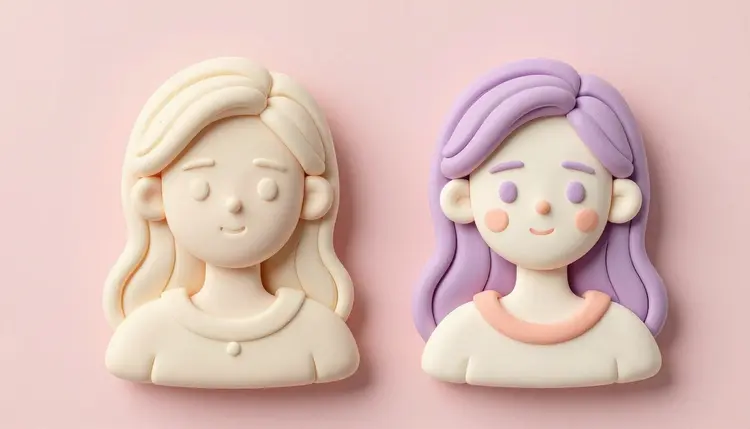
Every camera roll has a photo that would look better as a cartoon: a selfie for a profile picture, a family shot for a birthday card, a product photo that needs a friendlier tone. Turning a real photo into cartoon art used to mean commissioning an illustrator or spending an evening tracing lines by hand. An AI image editor now does the restyle in under a minute, starting from the photo already sitting on your phone.
A cartoon version of a real photo is a different job than generating a cartoon character from a text description. The starting point already exists: a specific face, a specific pet, a specific room, and the tool has to keep that subject recognizable while changing everything about how it is drawn, the linework, the shading, the palette. That is an image-editing task, not a text-to-image one, and Picasso IA hosts models built specifically for it.
The most direct option is Cartoonify, a model made for exactly this conversion: hand it a photo and it returns a cartoon-style version with simplified lines and flat colors, keeping the aspect ratio of your source image if you want. Alongside it sit general editors like nano banana and FLUX Kontext, plus a LoRA tuned specifically for anime conversion, so a single photo can be pushed through several different cartoon languages before you settle on one. New accounts get free credits, enough to compare a handful of styles before spending anything, and the full catalog is worth a browse if you want to see what else sits next to these tools.
"Cartoon" covers a wide range of looks, and naming the style precisely changes the result more than any other part of the prompt. A face rendered as flat-color cartoon reads nothing like the same face rendered as cel-shaded anime or as bold comic-book ink, and each of these has a model or a prompt pattern that reaches it fastest.
| Style | How to reach it | Best for |
|---|
| Classic flat cartoon | Cartoonify, no extra prompt needed | Avatars, quick social posts |
| Cel-shaded anime | The photo-to-anime LoRA, prompt cues like clean line art and vibrant colors | Profile pictures, fan art |
| Bold comic-book ink | FLUX Kontext or nano banana with thick outlines, halftone shading | Posters, panels, prints |
| Soft painterly illustration | nano banana or Seedream with soft brushwork, muted palette | Storybook pages, gifts |
| Sticker-flat vector | Cartoonify plus a background removal pass | Stickers, chat badges |
Two habits make this faster. Generate the same photo through two or three models before picking a direction, since a style that looks flat on one engine can look lively on another with the same words. And when a look almost works but not quite, change one word in the style description rather than rewriting the whole prompt; small edits keep the parts that were already working. The effects page collects a range of preset looks if you want to skim finished examples before typing your own description.
This is the path from a real photo to a cartoon file worth keeping, using the Picasso IA toolkit. It assumes nothing more than one clear photo and a few minutes.
- Pick a clean source photo. Even lighting, a clear face or subject, and nothing important cropped off at the edge; a busy or dark original limits every model downstream.
- Run it through Cartoonify first. This gives you a fast baseline cartoon in the model's default style, useful as a reference point before you branch out.
- Try a second style on the same photo. Switch to the photo-to-anime LoRA for a cel-shaded look, or to nano banana with a comic-ink prompt, and compare the results side by side.
- Refine the winner with a follow-up edit. Feed the best result back into an editing model and change one detail at a time: outline thickness, color palette, background.
- Export or isolate the final file. Upscale if the lines look soft on a large screen, or strip the background if you need the character alone for a sticker or a badge.
The gap between a cartoon that looks like the person and a cartoon that looks like a stranger comes down to how the model treats the source photo. Reference-based editors keep the input image as the anchor and change the drawing style around it, so a distinctive nose, a hairstyle or a pair of glasses tends to survive the restyle. A model asked to generate a cartoon from a text description alone has no such anchor and will happily invent a plausible but wrong face.
This is also why the source photo matters more than the prompt wording. A front-facing shot with even light gives the model clean information to preserve; a photo shot from an odd angle or in heavy shadow gives it less to work with, and the cartoon drifts further from the original as a result.
Pro tip: if a cartoon result loses a specific detail you care about, a scar, a particular haircut, a piece of jewelry, name it directly in the follow-up prompt rather than regenerating from scratch. A targeted instruction like keep the round glasses from the original photo usually recovers it in one pass.
Profile pictures are the obvious case: a cartoon avatar reads as more personal than a stock icon and takes less effort than commissioning one. Birthday cards, holiday messages and personalized gifts follow the same pattern, a photo of the recipient restyled into something that feels made for the occasion rather than pulled from a folder.
Businesses use the same conversion for a friendlier brand voice: a cartoon version of a product photo softens a listing image for a younger audience, and a cartoon mascot built from a real object or pet gives a small brand a recognizable face without hiring an illustrator. Anyone drawing the same cartoon subject across several images, a mascot, a recurring social character, benefits from the reference-locking approach covered on the consistent AI characters page, which keeps one restyled face steady across a whole set instead of drifting frame to frame. If you are weighing a multi-model catalog against a single design tool with built-in cartoon filters, the Picasso IA vs Freepik AI comparison covers where each approach wins.
An honest page names where the tool stops being reliable. For photo-to-cartoon conversion, five spots come up often:
- Text and logos: any lettering visible in the source photo, a t-shirt slogan, a sign in the background, tends to come out garbled in the cartoon version, so plan to fix or crop it separately.
- Small accessories: thin jewelry, delicate glasses frames and fine patterns sometimes simplify away entirely once the model flattens the image into cartoon shapes.
- Group photos: a cartoon conversion of several people at once holds each face less precisely than a solo portrait, since the model is balancing attention across everyone in frame.
- Exact style matching: getting two separate photos to land in the identical cartoon style takes a few tries, since small prompt or lighting differences nudge the output.
- Legal likeness of other people: a recognizable cartoon of someone else still depicts them, and using it publicly without consent raises the same concerns a real photo would.
None of these rules out the tool. They are the reasons a finished set still deserves one more look before you post or print it.
Is there a free way to turn a photo into a cartoon?
New Picasso IA accounts start with free credits, and a single cartoon conversion is one of the cheaper generations in the catalog since it is a still image rather than video. That is enough to test Cartoonify and a second style on the same photo and see which one earns a place in your feed. Paid plans cover heavier use once the free credits run out, and current pricing lives on the pricing page rather than here, since it changes.
Which model should I use to cartoonify a photo?
Start with Cartoonify if you want a fast, dependable baseline cartoon with no prompt writing required. Reach for the photo-to-anime LoRA when you specifically want a cel-shaded anime look, and use nano banana or FLUX Kontext when you need a more custom style, a specific color palette, or a comic-ink finish that the dedicated app does not offer. Running the same photo through two of these takes under a minute and usually settles the question faster than reading about it.
Will the cartoon still look like me?
Mostly, yes, when the source photo is clear and front-facing. These are editing models that treat your photo as the anchor rather than a loose suggestion, so a distinctive haircut, face shape or accessory tends to carry through the restyle. Odd angles, heavy shadow or a very stylized target look reduce how much of the likeness survives, so a plain, well-lit photo is the single biggest thing you control.
Can I turn a photo into anime style specifically, not just generic cartoon?
Yes, there is a model built for exactly that: a photo-to-anime LoRA that applies cel shading and clean manga-style line art to an uploaded photo. It offers a fast preview mode and a slower, more detailed mode, plus prompt cues like manga line work or vibrant cel-shaded colors if you want to nudge the result further in one direction.
Can I turn a group photo into a cartoon?
Yes, though each face gets slightly less individual attention than a solo portrait does, since the model is rendering everyone in the frame at once. For a family photo or a small group this usually still works well; for a large crowd, cropping to the people who matter most before converting tends to produce a cleaner result than feeding in the whole scene.
How do I keep several cartoon images in the same consistent style?
Reuse the same model, the same style prompt words and, where the tool supports it, the same settings across every photo in the set. Small wording changes between runs are the most common reason two images that should match end up looking like they came from different artists. If the cartoon is a recurring character rather than a one-off, the reference-locking approach on the consistent AI characters page keeps that identity steady across many outputs.
Can I remove the background from a cartoon photo for a sticker?
Yes. Convert the photo to cartoon style first, then run the result through a dedicated background removal model to isolate the character on a transparent background. That order works better than removing the background first, since the cartoon conversion sometimes changes the edges of the subject slightly.
What resolution do I get, and can I print it?
Output resolution depends on the model and the settings chosen, and most cartoon and anime models here export at resolutions well suited to social posts and standard prints. If you need a larger, crisper file for a poster or a large print, running the result through an upscaling model afterward sharpens the lines before you send it to print.
Does this work on pets, not just people?
Yes, and pets are one of the more forgiving subjects for this conversion since there is no exact human likeness to protect. A clear photo of your pet, front-facing with even lighting, tends to produce clean, expressive cartoon or anime results, and the same models used for people work here without changes.
How much does it cost to turn a photo into a cartoon?
Cost is paid in credits, and the exact amount depends on which model and settings you choose, so any specific number here would go stale within weeks. A still-image conversion sits at the inexpensive end of the catalog compared to video or 3D generation. New accounts include free credits to try it first, and current plan pricing is on the pricing page, which stays accurate as prices change.
That photo has been sitting in a folder long enough. Open the Picasso IA toolkit and see what it looks like as a cartoon in the next few minutes.