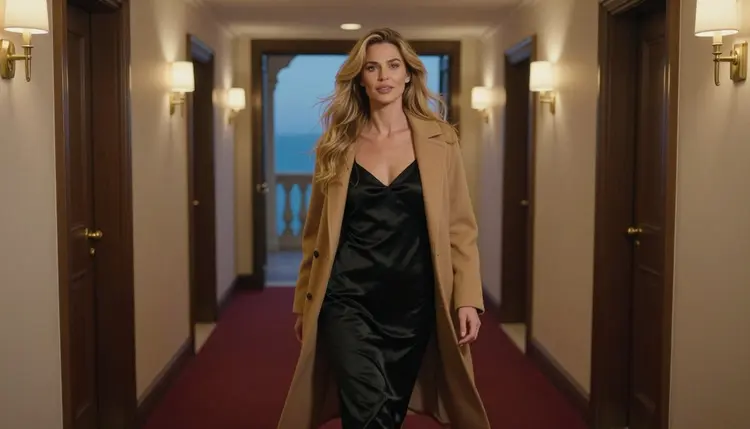
A thirty second clip is long for AI video. Most generators give you a few seconds at a time, so the way to reach half a minute is to plan the clip as one long take and build it from linked pieces. This guide walks through that plan for a glamour scene: one adult woman moving through a quiet hotel corridor and out onto a balcony at blue hour, in a satin slip and a long coat. The wording, the order of the steps and the fixes below are the same for any suggestive, adults-only scene you want to stretch to the same length.
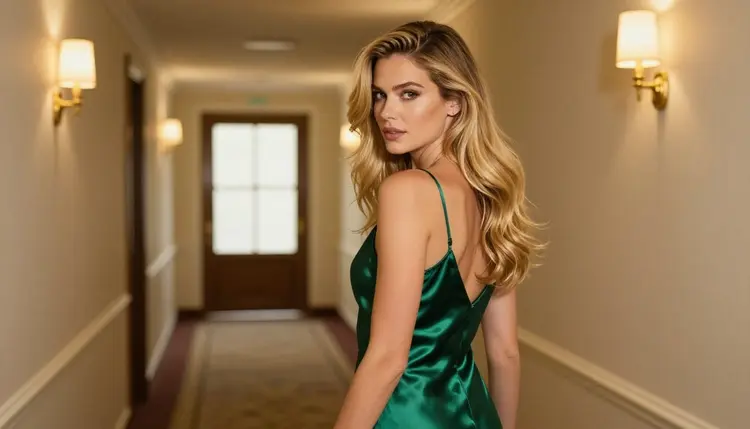
A short clip shows one gesture. A thirty second clip has to show a small story: she steps out of a door, walks the corridor, pauses at the balcony, looks out at the city. The pull of that kind of shot comes from continuity. The same woman, the same dress, the same light and the same lens from the first second to the last. When any of those change between pieces, the viewer sees a cut, and the feeling of one unbroken take is gone.
AI video models are strong at short moments and weaker at holding a scene together over time. A model that is asked for a long, busy scene in one prompt tends to drift: the dress changes shade, the corridor loses its sconces, the hair changes length. The fix is not a longer prompt. It is a shorter job per clip, a fixed look carried from one piece to the next, and a clear idea of where each piece starts and ends.
There are two honest routes to thirty seconds on Picasso IA. The first is a model that is listed for long clips. Seedance 2.5 from ByteDance is listed for thirty second videos, but it is an untested model for adult prompts, so treat it as worth a try and not as a sure thing. The second route uses the confirmed models and chains several clips. Seedance 2.5 Lite is listed up to ten seconds, so three connected clips of that length make half a minute. The rest of this guide is about that second route, because it is the one you control.
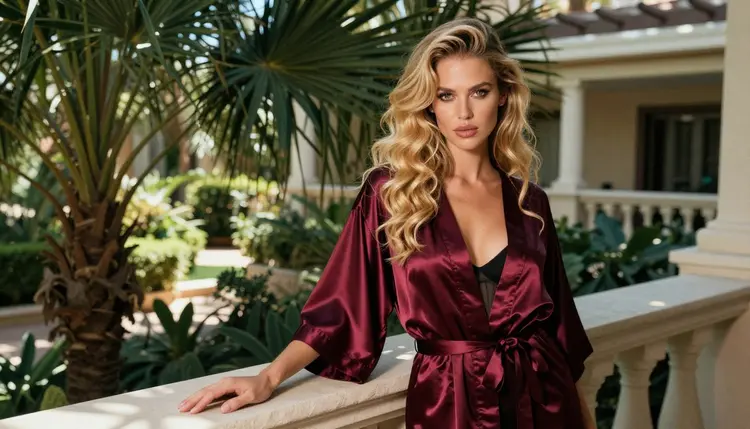
Picasso IA keeps a short list of models that were tested repeatedly with adult prompts and generated instead of rejecting them. Confirmed means exactly that: it is the result of our own tests, not a published setting of the model's maker, who can change it at any time. For video there are three confirmed models, and for the still frames that start a clip there are three more. You can read how the label works on the page about what confirmed means.
Picasso IA Video turns text or an existing image into a clip, and it carries the unlimited tag in the catalog, so it suits the many small tries that chaining needs. Seedance 2.5 Lite also carries the unlimited tag and is listed up to ten seconds. LTX 2.3 Pro makes 4K video from text. Do not assume an exact length for it; check the model page before you plan around a number. The clip length of Picasso IA Video depends on the resolution you pick, so read its page and choose the setting first, then count your pieces.
Among the other models in the catalog, one is named in this guide: Seedance 2.5, listed for thirty second videos. It is untested for adult prompts. If you try it and the app shows the message "Content Not Supported by This Model", the app recommends models that accept adult prompts and carries your prompt over, so you do not retype anything. Seedance 2.5 and Seedance 2.5 Lite are different models, and only the Lite one is confirmed.
For a wider comparison of video tools, see the top video generators list. For a broader overview of making stills and clips in one place, the page on the NSFW image and video generator covers it.
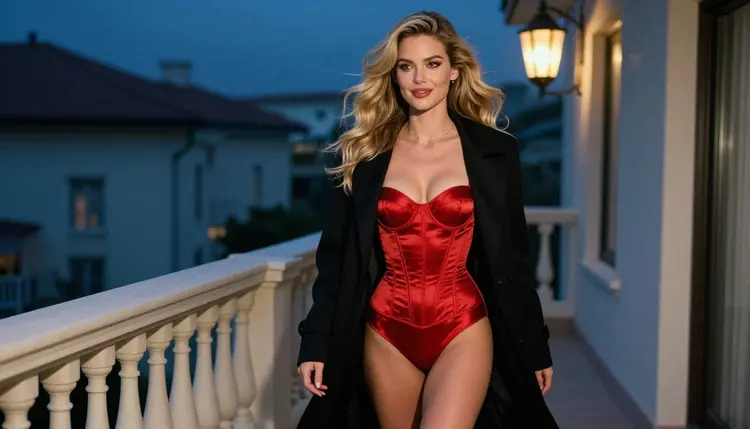
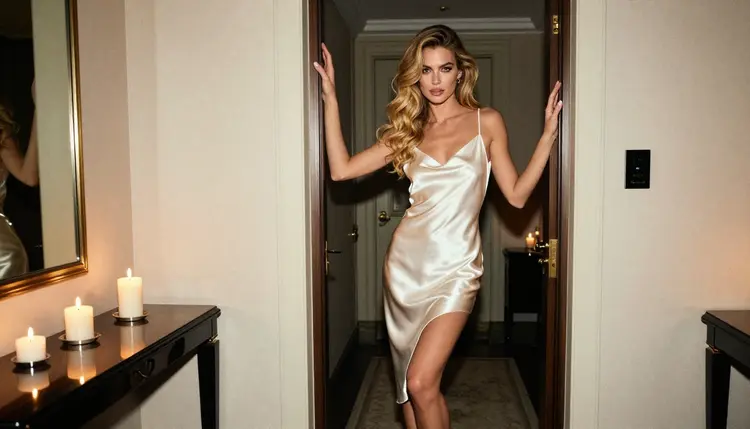
The plan is simple: write the scene as three beats, make a still that fixes the look, animate beat one, then continue from where it ended. Open the toolkit in your browser and work through these in order.
- Split the take into beats. Write three short beats of about ten seconds each: she leaves the door, she walks the corridor, she stops at the balcony and looks out.
- Fix the look with one still. Make a single image of the woman in her outfit and light with Seedream 4.5, and keep it as your reference for every clip.
- Animate the first beat. Use Picasso IA Video in image to video mode with your still and a prompt that describes only that beat.
- Continue from the last frame. Save a still of the final frame of each clip, then use it as the start image of the next one with the next beat as the prompt.
- Join and review. Place the three clips one after another in any video editor, trim the overlap at each join, and watch the whole take for changes in dress, light or hair.
The words you choose matter more as the clip gets longer. A good clip prompt names six things in a fixed order: who, what she wears, where she is, the light, the camera and the single movement. Everything else is left out. Fewer moving parts means less drift.
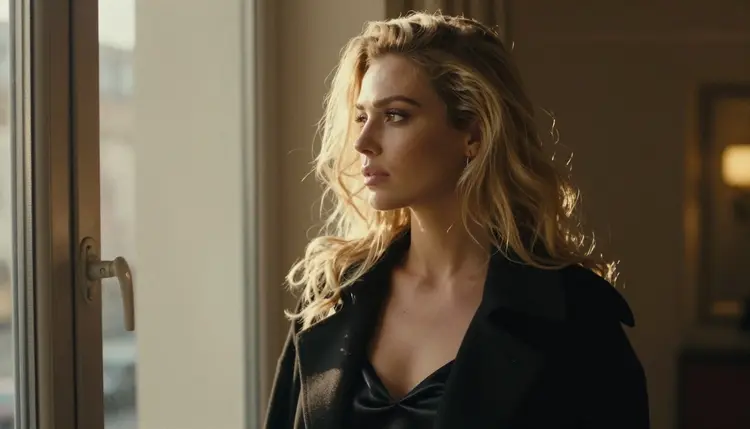
Start with the character and the wardrobe, and repeat them word for word in every clip. A first prompt might read: a 29 year old woman with long wavy golden-blonde hair and polished glamour makeup, in an opaque black satin slip dress and a long camel wool coat over her shoulders, black high heels. The second clip uses the same sentence again. Copying the sentence is the cheapest consistency tool you have, because the model reads the same description each time and the picture stays close.
Add the place and the light next. For the corridor beat: quiet luxury hotel corridor, cream walls, burgundy runner carpet, brass sconces, cool blue-hour ambient light mixed with warm sconce pools. For the balcony beat, keep the same light and swap the place: hotel balcony railing, deep blue evening sky, the city soft behind her. The light words are what stop a long take from looking like three unrelated clips, so keep them identical across the pieces and change only the place.
Then give the camera one job. Fixed cameras survive chaining best. Try: eye level, slow dolly forward at walking pace, shallow depth of field, fine film grain. A single slow move is easier for a model to hold than a push in, a pan and a tilt at once. If you want a different angle for the final beat, make it a deliberate choice for that clip and mention it in the prompt.
Finally describe the movement as one verb phrase. Walking toward the camera, chin lifted, one hand resting on the coat lapel. Stopping at the railing and turning her head toward the city. Looking out over the balcony, coat moving slightly in the wind. Short and concrete beats long and poetic. Describe what you would see, not what it should feel like.
Before and after phrasing shows the difference. A loose prompt says: a woman in a hotel looking beautiful and moving around in a cinematic way. A tight one says: one woman in a black satin slip and camel coat, hotel corridor with brass sconces, blue-hour light, eye level, slow dolly forward, she walks toward the camera with her chin lifted. The loose version leaves every choice to the model. The tight one leaves only the motion to the model.
When you use image to video, the still does most of the work. Your prompt does not need to describe the dress again in full, but it helps to keep the key words. Where a model accepts several inputs, the toolkit gives each attached image an @1 or @2 badge and you can refer to it in the prompt; Picasso IA translates that reference to the syntax the model understands. Attach the master still and the last frame of the previous clip, and say which one controls the look and which one controls the position.
If a still needs a small fix before you animate it, such as a strap that sits wrong or a color that is off, open Picasso IA Image Editor Pro and correct it there. Editing a frame costs less than regenerating a whole clip from a flawed start.
The same few problems turn up in nearly every long take. Each of them has a plain fix.
The dress changes color between clips. The prompt for the later clip described the outfit in different words, or left it out. Copy the first outfit sentence exactly, and attach the master still as a reference. If the color still shifts, correct the start frame in the image editor and run the clip again.
The light jumps at the join. One clip says blue hour and the next says evening, or the word for the lamp changes. Keep a short light line that you paste into every prompt. Cool blue-hour ambient light with warm sconce pools is a good template, and it should appear in beat one, two and three without edits.
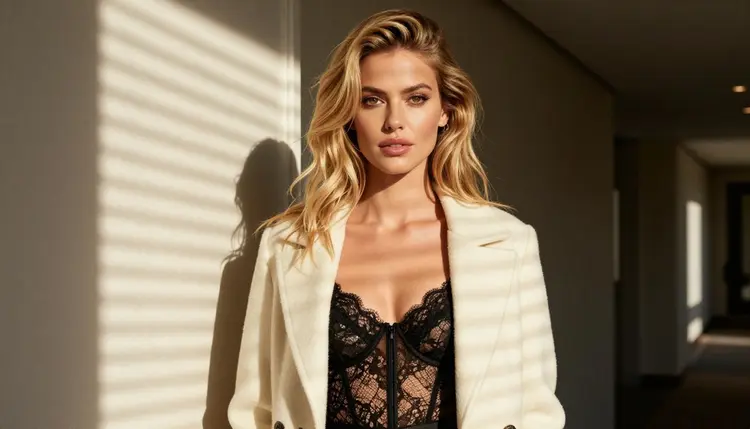
The movement stops dead at the end of a clip. Many models settle into a still pose in the last second. Ask for a movement that continues past the end, such as walking toward the camera, and plan your trim so the join falls while she is still moving. Cut a few frames off the end of each piece and the next clip starts with motion already in progress.
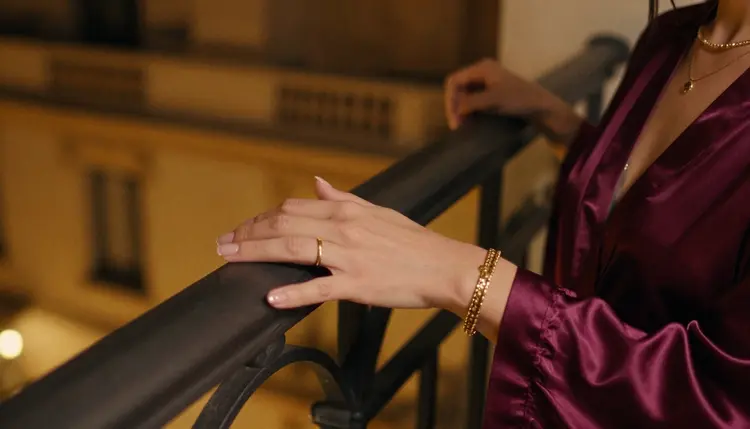
The hands or the fabric look wrong. Hands are hard for every model. Keep them simple: one hand on the lapel, one hand on the railing, or tuck them out of frame. Avoid the prompt wording that asks for fine finger action. For a detail shot, ask for exactly one hand resting on a satin sleeve and nothing else.
The camera does too much. A prompt that asks for a dolly, a pan and a zoom in ten seconds produces a wobbling result. Use one slow move per clip. If you want a change of view, build it into a new beat and make it the first shot of the next clip.
The clip starts from the wrong frame. If the next clip does not begin where the last one ended, you probably attached the master still instead of the last frame. For the continuation, the last frame decides where she stands, and the master still only decides how she looks. Keep both, and name them in the prompt.
The story is too busy. Thirty seconds is long enough for three small actions, not seven. If your outline has more than three beats, cut it. A calm corridor walk and a pause at a balcony reads as elegant. A scene with too many events reads as a montage.
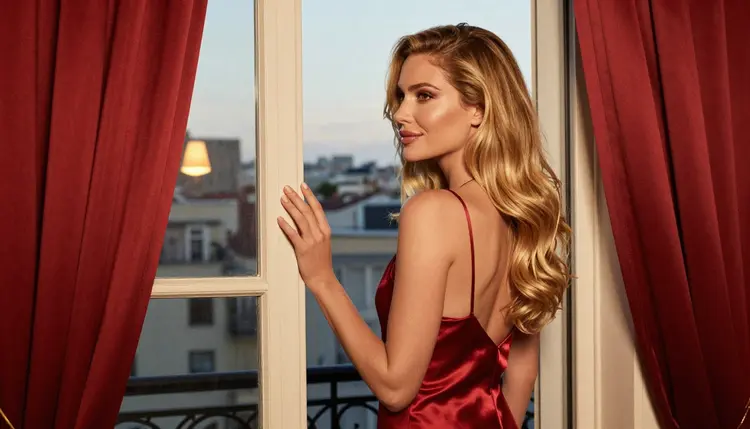
For more advanced planning, such as drawing the frames of a sequence before you animate any of them, the guide on how to make a video storyboard with AI fits well next to this one. If you want to add a soundtrack to the finished take, read how to make an NSFW AI video with sound. And for a closer look at starting from a picture, see how to turn an image into a video.
Picasso IA is for adults only. You must be 18 or older to use the adult features, and every scene in this guide assumes that. Nothing here is meant for anyone who is not an adult.
Every character you create must be a fictional adult. Do not use a real or identifiable person, a celebrity or a likeness of someone you know, and never write a prompt that describes or hints at anyone who could read as a minor. The examples in this guide show one woman who reads clearly as a mature adult, and your own scenes should do the same.
What you create is private by default: it is tied to your account and is not published or shown to others. New accounts get a small free trial on selected models, which includes Picasso IA Video and Seedance 2.5 Lite, so you can test a chain of clips before you commit to anything. Credits for each generation vary by model and by options such as resolution and duration, and the details sit on the pricing page.
Can I really make a thirty second NSFW AI video?
Yes, with a plan. Seedance 2.5 is listed for thirty second videos but is untested for adult prompts. With the confirmed models, you chain several clips of up to ten seconds each, using the last frame of one as the start of the next, and join them in an editor.
Which model is best for a long clip?
For chaining, Picasso IA Video is the main tool because it works from text or an image and carries the unlimited tag. Seedance 2.5 Lite is listed up to ten seconds, so three pieces reach half a minute.
Is Seedance 2.5 uncensored?
It is untested. Picasso IA has not confirmed it either way, so it is worth a try but not a sure thing. If a prompt is not accepted, the app shows a message and suggests models that accept adult prompts, carrying your prompt over so you do not retype it.
How do I keep the same woman in every clip?
Repeat the same character and wardrobe sentence in every prompt, start from one master still, and use the last frame of each clip as the next start image. Where a model takes several inputs, attach the images and refer to them with their @1 and @2 badges.
What should the prompt for each clip include?
Name who she is, what she wears, where she is, the light, the camera and one movement, in that order. Keep the first four identical across clips and change only the place and the movement. Short, concrete words work better than a long description of mood.
How long should each piece be?
Use the longest length the model lists and plan three beats. Seedance 2.5 Lite is listed up to ten seconds. The clip length of Picasso IA Video depends on the resolution, so check the model page and pick the setting before you plan the beats.
How do I hide the joins between clips?
Keep the light line, the camera move and the wardrobe the same, and let the movement continue past the end of each piece. Then trim a few frames at each join in your editor so the next clip starts with motion already under way.
Can I add sound to the finished clip?
Add it in a video editor after you join the pieces, or read the guide on making an NSFW AI video with sound. Plan the timing of the sound against the joined take and not against each short piece.
Are my clips private?
Yes. What you create is private by default, tied to your account and not published or shown to others. The adult features are for people aged 18 or older, and every character must be a fictional adult, never a real person and never anyone who could read as a minor.
Do I have to pay to try this?
A new account can try a small free trial on selected models, and Picasso IA Video and Seedance 2.5 Lite are on that list. Credits for other models vary by model and options, so see the pricing page for the details before you plan a long chain.