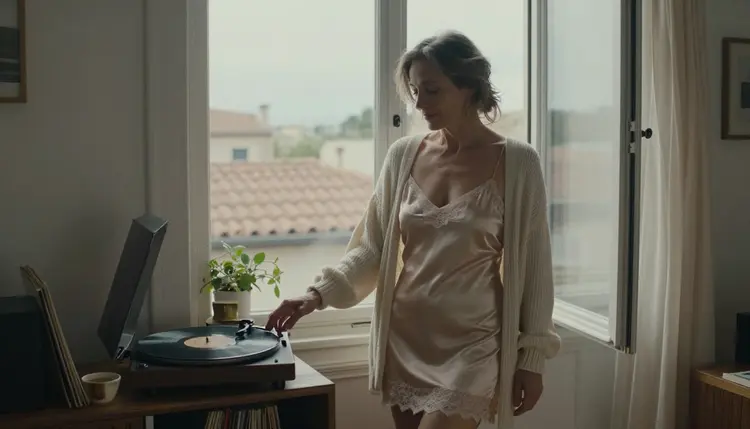
Most AI video clips made from adult prompts are silent. You get motion, light and fabric, and then nothing to hear. This guide shows how to build a flirty, suggestive 18+ clip where sound is part of the scene: a record player, an open window, a linen curtain moving in the breeze. It also shows how to get audio into the final file when the model itself does not make any.
The honest part comes first. None of the six models Picasso IA lists as confirmed for adult prompts is described in its catalog as generating audio. Some catalog models do mention audio in their titles, but they are untested for adult content. So there are two routes, and you pick one in the first step. Everything here is for adults, about fictional characters, and private by default.
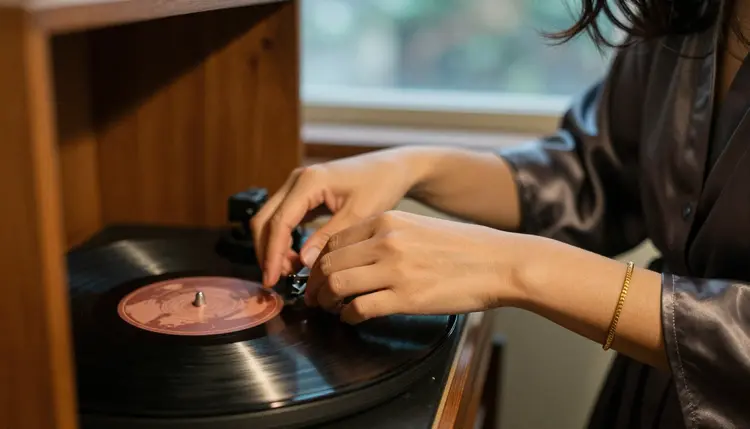
A silent clip reads as a moving photograph. Sound turns it into a scene: the needle landing on vinyl, wind in a curtain, a floorboard that creaks under bare feet. In a suggestive adult clip you never have to show more to make it feel more intimate. You give the viewer something to hear, and the imagination does the rest. That is why every scene in this guide is built around an object that makes noise: a turntable, a window, a mug set down on a counter, a candle in a draft.
There are two routes to a clip with sound. Route one: generate the picture with a confirmed model, then add the audio yourself afterwards in any video editor or audio app you already use. Route two: try a catalog model whose title says it makes audio together with the video. Those models are untested for adult prompts, so a prompt may go through or may be stopped, and the app tells you when it stops one.
What changes in the result is control. With route one you decide every sound you hear, and the picture comes from models Picasso IA has tested repeatedly with adult prompts. With route two you get a single file with the audio already inside, but you accept the uncertainty. Most people start with route one because it works with every confirmed model, and keep route two for a scene they want to compare. A scene that implies sound helps both routes: the model has a visible source to animate, and you have a clear sync point when you edit.
Picasso IA keeps a short list of models it has tested with adult prompts, again and again, and watched generate instead of reject. What confirmed means explains the label. It is the app's own testing, not a published setting from the model's maker, who can change it at any time. For video there are three confirmed models, and you can run all of them from the toolkit.
| Model | Best for | Format |
|---|
| Picasso IA Video | Fast tests and animating a still | Text or image to video, unlimited tag |
| Seedance 2.5 Lite | Short scenes with one clear action | Video up to 10 seconds, unlimited tag |
| LTX 2.3 Pro | A sharper picture with more detail | 4K video from text |
None of the three lists audio in its catalog title, so treat each clip as picture first and add the sound in step five. For the start frame, two confirmed image models help. Seedream 4.5 makes 4K images from text, and Picasso Image Editor Pro edits an image you already have. Build the frame with the turntable and the window, fix details in the editor, then animate it with Picasso IA Video. The page turn a NSFW image into video walks through that handoff.
Now the audio models, all of them untested. According to their catalog titles, Sora 2 is text to video with synced audio, Gemini Omni 1.1 generates video with audio, and Grok Imagine Video 1.5 is image to video with audio. Veo 3.1 is listed as text to 1080p video, so open its page to see what it returns. Untested means worth a try and not confirmed either way. If one of them stops your prompt, the app shows a message titled "Content Not Supported by This Model", recommends models that accept adult prompts and carries your prompt over, so you do not retype it. For a longer read on one of them, see Sora 2 NSFW video.
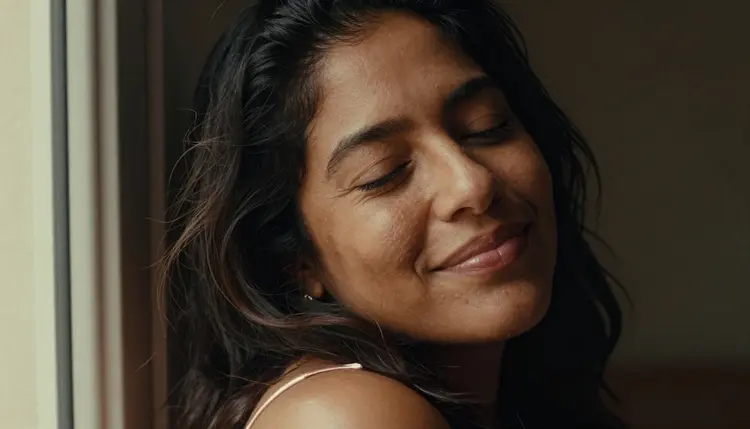
The steps below take you from an idea to a clip you can hear. They work for both routes, and the only difference is where the audio comes from in the last step.
- Pick the Sound Route. Decide if you want the audio inside the generation (an untested audio model) or added afterwards (a confirmed model plus your editor). If you are unsure, start with a confirmed model.
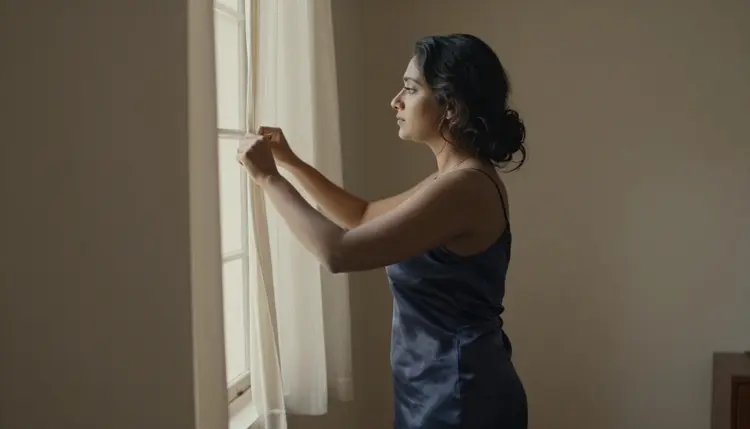
- Build the Scene Around a Sound Source. Choose one object that makes noise, such as a record player, an open window or a candle, and one adult character in opaque wardrobe like a satin slip dress or a silk robe.
- Write the Prompt. Name the subject, the wardrobe, the light, one action and one camera move. Keep the sound cue as a short sentence at the end, and keep the language suggestive and never explicit.
- Generate and Review. Pick the model in the toolkit, run the clip and watch it twice. Check that the action reads clearly and that the motion is smooth. Generate again with one change if it does not.
- Add or Check the Audio. With an audio model, listen to the result. With a confirmed model, lay a music bed and one small sound under the clip in your editor, cut on the action and export.
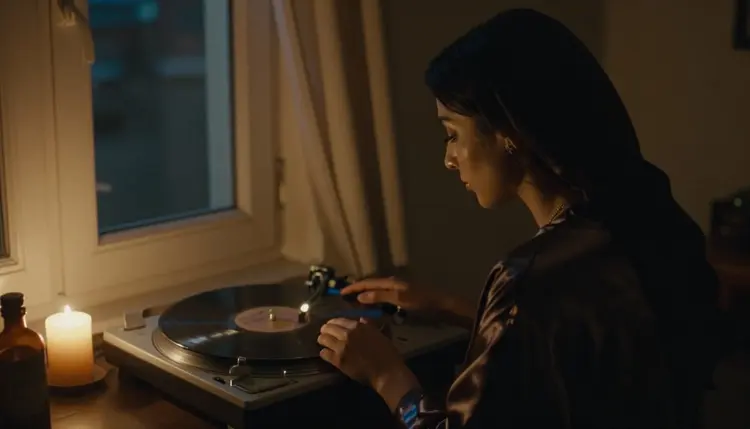
The core of the technique is simple: give the model a picture that has a sound in it. Compare two prompts. Weak: "a woman in a room with music". Better: "A woman in her mid thirties in a burgundy satin slip dress lowers the tonearm onto a walnut record player, warm tungsten lamp light, slow push in, 85mm f/1.8, film grain". The second one has a visible action, a source of sound, a wardrobe, a light and a lens, so the clip has something to move and you have a moment to sync.
Keep one subject, one sound source and one motion per prompt. A woman at an open window with a record player behind her is enough. Add a hallway, a mug, a mirror and a candle and the model spreads its attention, and you end up with four sounds to place in the edit. If you want a longer story, make several short clips and join them later. The page on making a video storyboard shows how to plan that sequence.
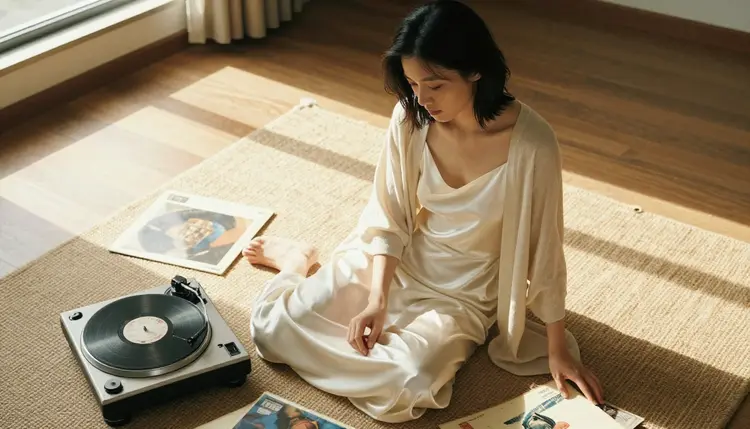
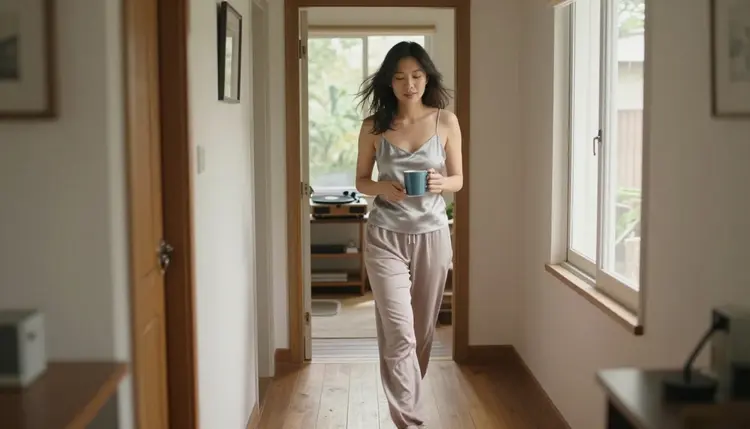
Wardrobe and light carry the mood. Opaque satin, silk and linen move well on video. Try a cream cardigan over a champagne slip dress, a dark silk robe, a satin camisole. Pair them with golden hour backlight, soft window light from the left, warm lamp light or candlelight. For a close shot, a lens line such as "85mm f/1.8" helps. For an over-the-shoulder frame, "135mm f/2" does. The camera should move slowly: a push in, a gentle sway, a slow pan toward the window.
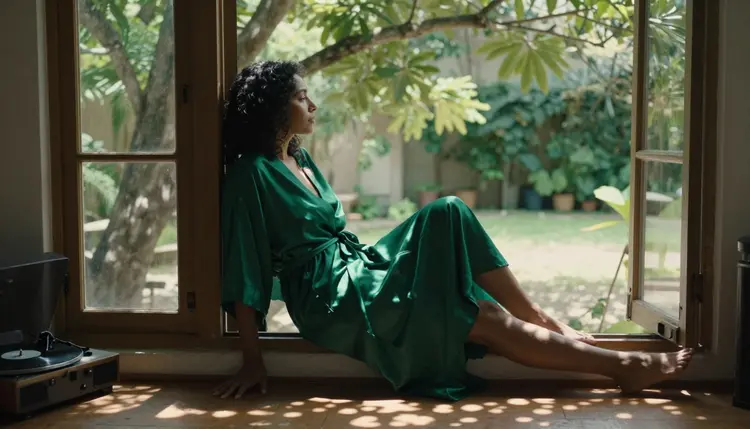
If the model is an audio model, add one sentence of sound after the picture. For example: "Audio: soft vinyl crackle, a slow jazz bed, the curtain brushing the sill". Keep it to two or three sounds. With a confirmed model, leave that sentence out, because the clip will carry no audio and the words would only compete with the picture. Save them as notes for your edit instead.
Reference images help when the face or the room has to stay the same. In the toolkit, each image you attach gets an @1, @2 badge, and you can write "@1 sways beside the window" in the prompt. Picasso IA translates that reference to the syntax the model understands. Only models that accept several inputs show the badges, so check the model page first. For one-shot prompts that go from text to clip, see prompt to video in one try.
Once you have the clip, sound design is three layers at most. A room tone or soft music bed sets the mood. One foley sound sits on the action: the needle drop, the curtain, footsteps on wood. If you want a third layer, add a distant sound from outside the window. Put the loudest sound on the action itself, because that is the moment the viewer's eye is on. When you join several clips, run one continuous track across them, and the cuts disappear.
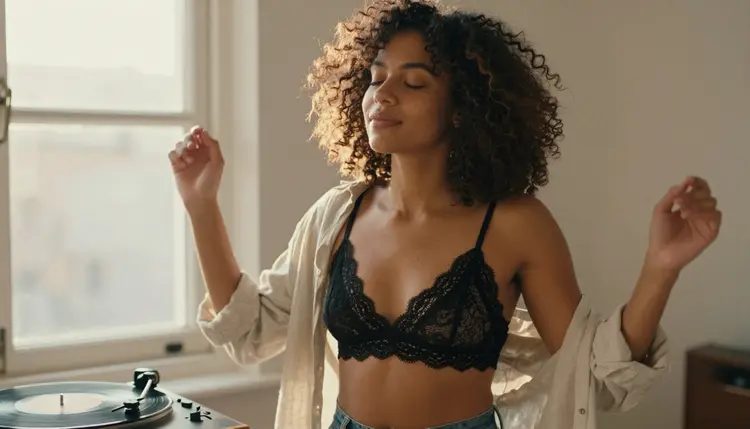
Asking a confirmed model for sound. The catalog titles of the three confirmed video models do not list audio. If you write sound words and expect a track, you will be disappointed. Fix: use route one, keep the prompt about the picture, and add the audio in your editor.
Too many sound sources. A turntable, a rainy window, a ringing phone and a kettle make a messy clip and a messy mix. Fix: one source in the picture, one on the track.
No visible source of sound. A prompt that says "music" and shows an empty room gives the model nothing to animate. Fix: show the record player, the speaker, the open window, the hand on the tonearm.
Vague wardrobe and light. "Nice outfit, good lighting" returns a flat clip. Fix: name the fabric, the colour, the light direction and the lens, as in the prompt above.
A clip that tries to do too much. One action per clip reads better than three. Seedance 2.5 Lite is listed up to 10 seconds, which is enough for the needle to land and the character to turn. Fix: split the story into short clips.
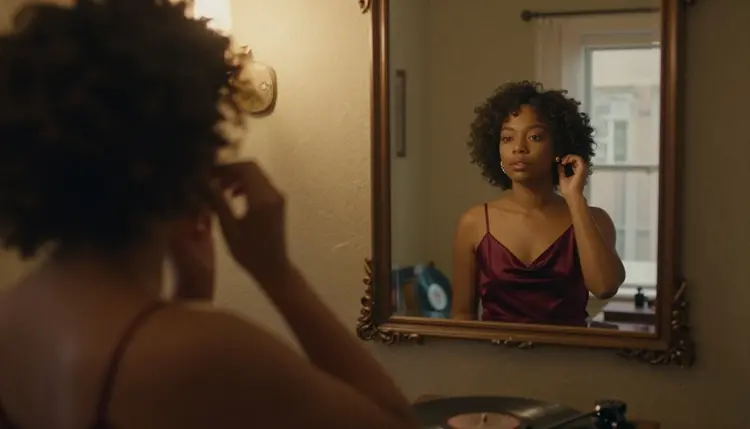
A track that fights the mood. A bright pop song under a candlelit shot feels wrong. Fix: match the music to the light. Warm lamp light suits slow jazz or soft piano, and a silhouette against a window suits ambience and little else.
Retyping after a refusal. When an untested model stops a prompt, you do not need to rewrite from scratch. The app carries your prompt over to a model that accepts adult prompts. Fix: pick one of the recommended models and read the result before changing words. The list of top video generators with sound can help you compare options.
This is an 18+ page. You need to be an adult to use these models, and the clips are meant for adults. Nothing here is for anyone under 18, and the scenes stay suggestive: wardrobe, light, mood and implied intimacy, never explicit.
Every character is a fictional adult. Do not use a real or identifiable person, and never describe anyone who could read as a minor. Write "a woman in her mid thirties" and not a word that hints at youth. Prompts that break this line are not welcome, and no model setting changes that.
What you create is private by default: it is tied to your account and not published or shown to others. Be careful with the audio you add, too, and only use music and sounds you have the right to use. A new account can try a few generations in a small free trial on selected models, and the details of plans and unlimited generation live on the pricing page.
Can Picasso IA make an NSFW AI video with sound?
Not with the confirmed models alone. The three confirmed video models are not described as generating audio in the catalog, so the common route is to generate the clip and add sound in your own editor. Some untested catalog models mention audio in their titles, and you can try them from the toolkit.
Which confirmed model should I start with?
Start with Picasso IA Video. It makes video from text or from an image, and it carries the unlimited tag in the catalog. If you want a short scene up to 10 seconds, try Seedance 2.5 Lite, and for 4K video from text, try LTX 2.3 Pro. You can read what confirmed means before you choose.
Which catalog models mention audio?
By their catalog titles, Sora 2 is text to video with synced audio, Gemini Omni 1.1 generates video with audio, and Grok Imagine Video 1.5 is image to video with audio. All of them are untested for adult prompts. Check each model page for the current details, and browse the full catalog for more.
What happens if a model refuses my prompt?
The app shows a message titled "Content Not Supported by This Model". It recommends models that accept adult prompts and carries your prompt over, so you do not have to type it again. Pick a recommended model and run the same scene.
How do I add music or ambience afterwards?
Export the clip, open it in any editor you like and lay a music bed under it. Add one small sound on the main action, such as the needle drop or the curtain, and cut on that moment. If you join several clips, run the same track across all of them and trim it to the final length.
Can I start from an image instead of text?
Yes. Picasso IA Video accepts an image as the start of the clip. Build the frame with Seedream 4.5, or fix details with Picasso Image Editor Pro, then animate it. The guide on turning an image into video covers the handoff step by step.
How long can the clip be?
Seedance 2.5 Lite is listed up to 10 seconds in the catalog. For the other models, open the model page and read what it offers, because limits can change. For a longer piece, make several short clips and join them in your editor under a single track.
Do I need to write sound words in the prompt?
Only for an audio model, and only a short sentence of two or three sounds. For a confirmed model, put the effort into the picture: the source of the sound, the wardrobe, the light and one clear action. The words you hold back become your notes for the edit.
Can I try this for free?
A new account can try a few generations in a small free trial on selected models, and models with the infinity tag do not spend credits on the plans that include unlimited generation. Costs vary by model and by options such as resolution or duration, so look at the pricing page for the details.
Are the characters real people, and is the content private?
No real people. Every character is a fictional adult, never a real or identifiable person and never anyone who could read as a minor, and the page is for readers aged 18 and over. What you generate is private by default and stays tied to your account. Open the toolkit when you are ready to start.