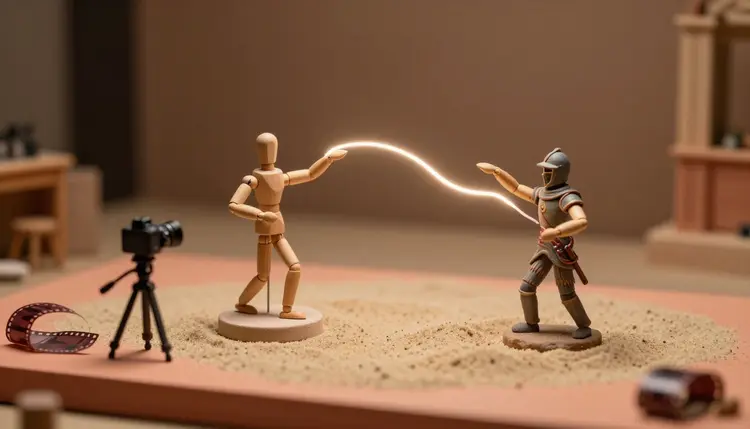
Describing a movement in a prompt only gets you so far. You can write "she spins and points at the camera" and the model will invent a spin, its own timing, its own idea of pointing. Motion control flips that: you film the movement once, hand the model that clip plus a picture of a character, and the character performs your exact timing, weight and gestures. It is the closest thing to puppeteering with your own body that a browser offers.
Text prompts are good at what a scene looks like and weak at how something moves. Timing, rhythm, a hesitation before a step, the way a shoulder drops on a laugh: these are hard to put in words and trivial to perform. A reference video carries all of it at once, so you stop negotiating with a prompt and start directing with your own body.
It also solves the consistency problem. The character comes from one fixed image, the movement comes from one fixed clip, so you can redo the same performance on five different characters, or five different takes on one character, and change only the thing you meant to change. That makes it useful for mascots, game characters, illustrated avatars and any figure you want to keep recognizable across several clips.
The tools live in the toolkit on Picasso IA, next to the other 121 text-to-video models and the rest of the 502-model catalog, so the character image can come from an image model in the same place. New accounts get free credits to try a first transfer before you decide whether it fits your project.
Four models on Picasso IA take a character image plus a reference video and return a clip where the character moves like the footage. They differ in what you can control, so pick by the job and not by the version number.
| Model | What you give it | Worth knowing |
|---|
| kwaivgi/kling-v3-motion-control | Character image, reference video, optional prompt | Standard 720p or Professional 1080p; image orientation caps the clip at 10 seconds, video orientation allows up to 30 |
| kwaivgi/kling-v2.6-motion-control | Character image, reference video, optional prompt | Standard and Professional modes; keeps or drops the reference sound; reference clips run 3 to 30 seconds depending on orientation |
| wan-video/wan-2.2-animate-animation | Character image, reference video | 720 or 480 resolution, a fast mode, a seed to repeat a result, and an experimental option to merge the original audio |
| prunaai/p-video-animate | Photo, source video, optional instruction text | Carries the source motion and audio onto the subject, 720p or 1080p, with a turbo mode for faster drafts |
A practical order: start with a Standard or 720 run to check that the motion landed, then repeat the keeper at the higher setting. The cost of a run depends on the model and the settings you pick, and the pricing page is the only place to read current numbers.
The reference clip decides more than the model does. A clear full view of the performer, steady camera, plain background and one person in frame gives the model the least to misread. The character image works the same way: the body should be visible, with arms and legs separated enough that the model can tell where a limb starts.
Only use footage you filmed yourself or have the right to use, and only characters you own or invented. The model copies movement, but putting a real, identifiable person's likeness into a clip without their consent is a line this page does not cross, and the platforms you publish on have their own rules, so check each one's current requirements before posting.
Film the reference like a locked-off shot: phone on a stack of books, performer centered, whole body in view, and a first frame in roughly the same pose as the character image. A matching start pose removes most of the strange first-second morphing.
If you do not have a character yet, generate one first. Image models in the toolkit make a clean full-body figure on a plain background, and the page on consistent AI characters shows how to keep the same figure across several images before you animate it.
This is the workflow from a phone clip and an idea to a finished transfer. Budget a few test runs before the one you keep.
- Film the reference. Record five to ten seconds of the movement, full body, steady camera, good light, one performer. Keep it short, because every extra second is one more place for the model to drift.
- Prepare the character. Use a clear image of your own or fictional character, front facing or three quarter view, with the full body visible. Generate one with an image model in the toolkit if you need it.
- Open a motion control model. In the toolkit, choose kwaivgi/kling-v3-motion-control, or wan-video/wan-2.2-animate-animation if you want a seed and a lower-resolution draft, then attach the image and the video.
- Set orientation and quality. On the Kling models, choose image orientation to keep the character facing the way the picture does, or video orientation to follow the performer and allow longer clips. Start in Standard mode.
- Review, adjust, repeat. Watch for limbs that merge, hands that blur and slides in the feet. Fix the footage or the image first, then rerun the keeper at the higher setting.
Most bad results trace back to the inputs, not the model. The first is a mismatched start pose: the character stands with arms down and the performer opens on a jump, so the first second is the model reconciling the two. The second is a busy reference, with other people, mirrors or a moving camera in the background, which gives the model more than one motion to follow.
Third is cropping. A reference that cuts off the feet, or a character image that stops at the chest, forces the model to invent the missing half, and invented halves rarely match. Fourth is length. A thirty second clip is possible on the Kling models in video orientation, but a short, clean take you repeat is easier to judge than one long take you hope will hold together.
The last one is expecting the prompt to carry the movement. On these models the prompt is for the scene around the character, such as an added prop or a lighting note, while the footage carries the motion. If the movement is wrong, change the footage, not the sentence.
Motion transfer is strong on a single body doing readable, medium-speed actions. It gets shaky in a handful of specific situations, and knowing them saves credits.
- Occlusion: when the performer's arm crosses the body, or one hand passes behind the head, the model has to guess what is hidden, and the character often grows an extra limb or loses one for a few frames.
- Fast hands: quick finger motion, a snap, a rapid wave or fast gesturing tends to blur into smears, so slow the performance down or accept a softer result.
- Proportion mismatch: a performer with long legs driving a short, round mascot gives limbs nowhere to go, so pick a reference close to the character's build or choose a character with human proportions.
- Camera movement: footage with pans, zooms or handheld shake mixes camera motion into the body motion, so lock the camera and add movement later in an editor.
- Crowded frames: two performers or a person next to a mirror confuse which body to follow, so keep one subject per take.
None of these is a dead end, and each has a fix in the footage. But a transfer is only as good as what the model can see, so when the result looks wrong, look at your own reference clip first.
What is an AI motion control video?
It is a clip where a character image performs the movement of a separate reference video. You supply a picture of the character and a short clip of someone moving, and the model maps the timing, posture and gestures from the clip onto the picture. The character looks like your image, the movement comes from your footage.
Which models do motion control on Picasso IA?
Four are listed in the catalog for this job: kwaivgi/kling-v3-motion-control, kwaivgi/kling-v2.6-motion-control, wan-video/wan-2.2-animate-animation and prunaai/p-video-animate. All take a character image and a reference video. They differ in resolution options, clip length, audio handling and extra controls such as a seed or turbo mode, so test your footage on two of them.
Do I need to film the reference video myself?
You need footage you have the right to use. Filming yourself or someone who agreed to it is the cleanest route, since you control the framing, speed and start pose. Do not use clips of a real person without their consent, and do not borrow video from someone else's channel unless its license allows reuse.
How long can the clip be?
It depends on the model and the settings. On the Kling motion control models, image orientation limits the output to 10 seconds, while video orientation allows reference clips up to 30 seconds. For the other models, check the model page in the toolkit for the current limits. In practice, short takes are easier to get right and easier to repeat.
Can I animate a photo of a real person?
Only if that person is you, or someone who gave clear permission. A motion control clip can put a real face in front of an audience, and that can mislead people or hurt someone. Fictional characters, illustrated mascots and your own images are the safe default, and each platform you post on has its own rules to check.
Does the original sound carry over?
Some models can keep it. The Kling motion control models have a keep original sound option, Wan 2.2 Animate has an experimental merge audio setting that may not line up perfectly, and P Video Animate carries the source audio with the video by default. If the sound matters, listen to the result before you publish, or add a track separately afterward.
Why do the hands look wrong?
Hands are the hardest part for every model here. Fast finger movement, crossed arms and hands in front of the face hide or blur the information the model needs. Slow the performance down, keep the hands in clear view against a plain background, and repeat the take. Some artifacts will stay, so check the final frames before you use a clip.
Can the character be an animal or a cartoon?
It can be a drawn character, a mascot or a stylized figure, as long as the body is readable and has limbs the movement can map onto. Human-shaped characters transfer best. Characters with very different proportions from the performer, such as a short round mascot or a four-legged animal, often produce stretched or merged limbs.
Is it better than plain image-to-video?
They solve different problems. Plain image-to-video lets the model invent the movement from your prompt, which is quicker when you do not care about exact timing. Motion control is for when the movement itself matters: a specific gesture, a dance step or a performance you want to repeat on several characters. Our page on turning photos into videos covers the prompt-led route.
How much does it cost?
Generation costs credits, and the amount depends on the model, the resolution and the clip length. Standard and lower resolution settings are the cheaper way to test a transfer. New accounts get free credits, and the current plan details are on the pricing page, so you can check what a few test runs would use before you commit.
Pick one character and one short clip, and try your first transfer in the Picasso IA toolkit today.