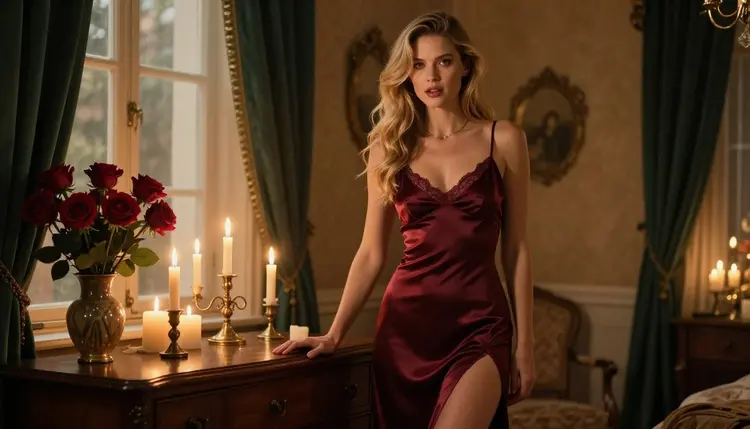
A character who only poses is a picture. A character who speaks to the camera, lips moving, eyes holding yours, starts to feel like a person you are watching. This guide shows how to get that effect with Picasso IA: which models to start with, what to type, how to prepare the source frame and how to fix the clips that go wrong. Everything here is about fictional adult characters, glamour wardrobe and candlelit mood, never anything explicit.
You do not need a studio, an actor or any software on your computer. The whole process runs in the browser, inside the toolkit. You build a still frame of your character, turn it into a short clip, and ask for the mouth, the head and the eyes to move as if she were talking. If you still need a character to animate, start with how to build an NSFW character from scratch and come back with a finished portrait.
A still image tells the viewer what a character looks like. A talking clip tells them how she behaves. The small things carry most of the effect: a breath before the first word, a glance away on a hesitation, a half smile at the end of a sentence. Those micro movements are what make a flirty line land, and they are also what separates a convincing clip from a mask that opens and closes.
Lip sync is the part of that effect people notice first. When the mouth shape follows the sound, the brain accepts the face as a speaker. When it does not, the clip feels off even if every frame looks beautiful. So the real goal is not only to make the lips move, it is to make the whole face behave like someone mid-sentence: jaw, cheeks, brows and a little head motion.
There are two ways to get there inside the catalog. The first is prompt-driven: you describe a woman speaking to camera and the video model animates the mouth on its own, with no audio file involved. The second is audio-driven: you give a model a voice track and a portrait and it matches the mouth to the sound. The first route is available on the confirmed models below. The second belongs to a few catalog models that are untested for adult prompts, and later sections explain how to try them honestly.
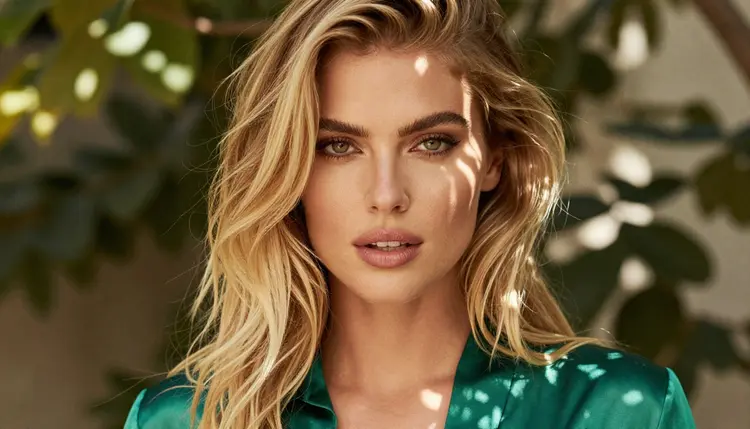
Keep the scale small. A good talking clip is a single close-up or medium shot, one character, one light source, one idea. Dialogue scenes with several people, fast camera moves and costume changes all pull attention away from the mouth, and the mouth is the whole point here.
Picasso IA marks a model as confirmed when adult prompts were tested against that exact model repeatedly and it generated instead of rejecting them. That is Picasso IA's own testing, not a published setting from the model's maker, and it can change. What confirmed means has the full explanation. For talking clips, three confirmed video models are worth knowing.
| Model | Best for | Format |
|---|
| Picasso IA Video | Turning a portrait or a text description into a talking-style clip | Text or image to video, marked unlimited |
| Seedance 2.5 Lite | Short speaking takes from a still frame | Listed up to 10 seconds, marked unlimited |
| LTX 2.3 Pro | Close-ups where you want the highest resolution | 4K video from text |
Picasso IA Video is the easiest place to begin. It accepts a text description or an image, and the unlimited tag means it does not spend credits on the plans that include unlimited generation, so you can run many takes of the same line. Seedance 2.5 Lite is also marked unlimited and suits short takes, since the catalog lists it up to 10 seconds. LTX 2.3 Pro works from text and outputs 4K, which pays off on tight close-ups where lips and teeth fill the frame.
For the source still, the confirmed image models do the work: Seedream 4.5 for photoreal portraits and Picasso Image Editor Pro for fixing the frame before you animate it.
Now the untested ones. Three catalog models are built around sound and photos: Wan 2.2 S2V, described as audio-synced video, Ovi I2V, described as video with audio from any photo, and Audio To Video, described as animating images with any sound. All three are untested for adult prompts. Picasso IA has not confirmed them either way, so they are worth a try but not a promise. If one of them returns the message titled "Content Not Supported by This Model", the app suggests models that accept adult prompts and carries your prompt over, so nothing needs retyping.
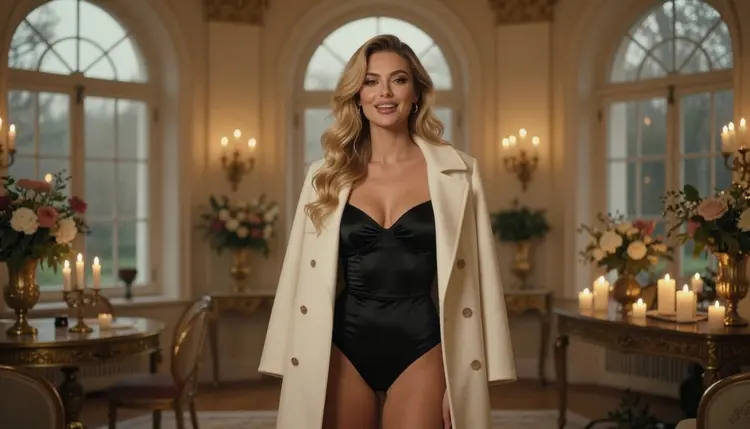
Work in this order and change one thing per attempt. That way you always know which change improved or broke the clip.
- Prepare the source frame. Make a portrait in Seedream 4.5 with the face large in the frame, the mouth relaxed and slightly parted, and one clean light source.
- Choose the model. Open the toolkit, pick Picasso IA Video for a first test, and attach your portrait as the starting image.
- Write the speaking prompt. Describe a woman speaking to camera, say where her eyes go, and add one small gesture such as a tilt of the head.
- Generate several short takes. Run the same prompt a few times and compare the mouth, the blinks and the head motion before you change any wording.
- Add the voice and trim. Keep the best take, cut it to the line you want and lay your own voice track over it in any video editor.
The prompt for a talking clip has four jobs: say that she is speaking, fix the framing, control the eyes, and keep everything else quiet. Here is the weak version and the stronger version side by side.
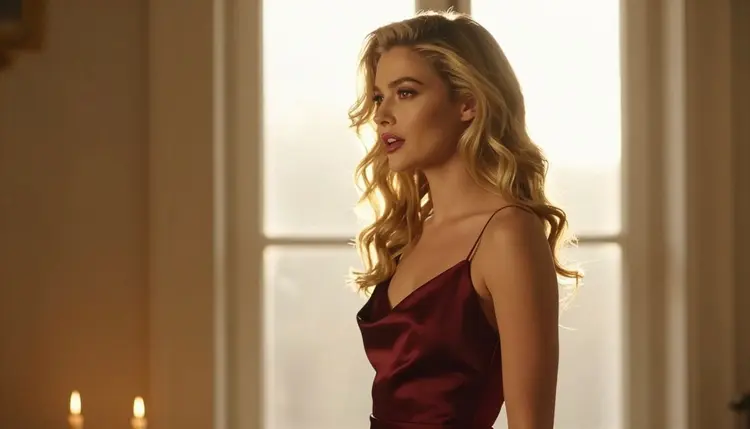
The weak prompt reads: a beautiful woman talking. It gives the model no framing, no light and no behavior, so the result is usually a generic face with a nervous jaw. The stronger prompt reads: close-up of a woman in a burgundy satin slip dress, speaking calmly to camera, lips forming words, small head tilt, eyes returning to the lens after each phrase, candlelight on the left, shallow depth of field, static camera. Every phrase there closes a decision the model would otherwise make for you.
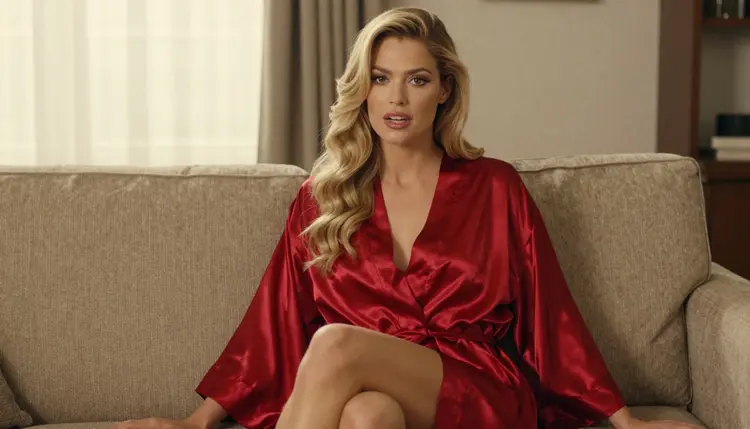
A few details matter more than the rest.
Say speaking, not smiling. Words like "lips forming words" and "mid-sentence" tell the model the mouth should open and close in a speech rhythm. "Smiling" and "laughing" lock the mouth into one expression.
Name the eye behavior. A speaker looks at the camera, glances away to think and returns. Write it: "glances down for a moment, then back to the lens". Without it, eyes either stare or drift.
Keep the camera still. Add "static camera" or "locked-off shot". A moving camera competes with the mouth for the model's effort, and lip shapes get sloppier.
Use one gesture only. A tilt of the head, a hand brushing hair behind an ear, a slow blink. Two or three gestures in a short clip make the face jitter.
Anchor the wardrobe. Describe the outfit the way it appears in your still: satin robe, lace-lined bodysuit, black corset top. If the prompt and the still disagree, the model may redraw the clothes mid-clip.
When you start from an image, repeat only what must stay true and let the picture carry the rest. Long descriptions of the face can pull the model away from the portrait you made.
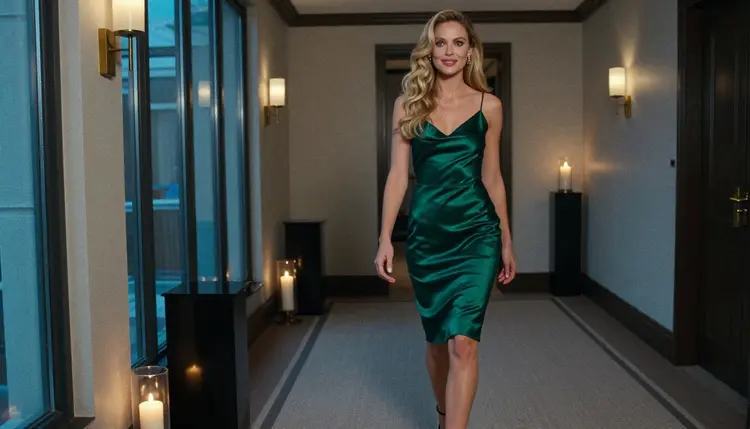
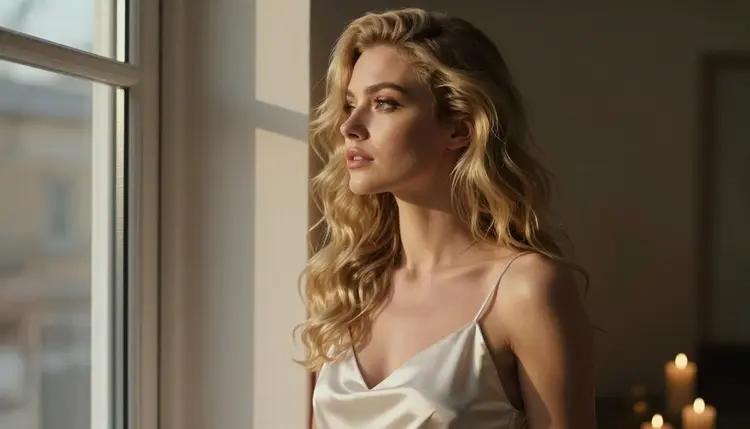
The light helps the mouth read. Candlelight from one side, golden backlight or soft window light all give the lips a visible edge. Flat, even light hides the shape of the lips and makes lip sync look weaker than it is. This is why the pictures on this page use side light and candle glow: they are the easiest conditions for a model to animate convincingly.
If your idea is a longer scene with the character moving through a room, read how to animate an NSFW character with a reference video for the motion side, and keep the talking takes short.
Most failed talking clips come from the same handful of causes. Each has a quick fix.
The mouth barely moves. The prompt probably describes a pose instead of an action. Rewrite it with a speaking verb, "speaking softly to camera, lips forming words", and drop words like "serene" or "frozen".
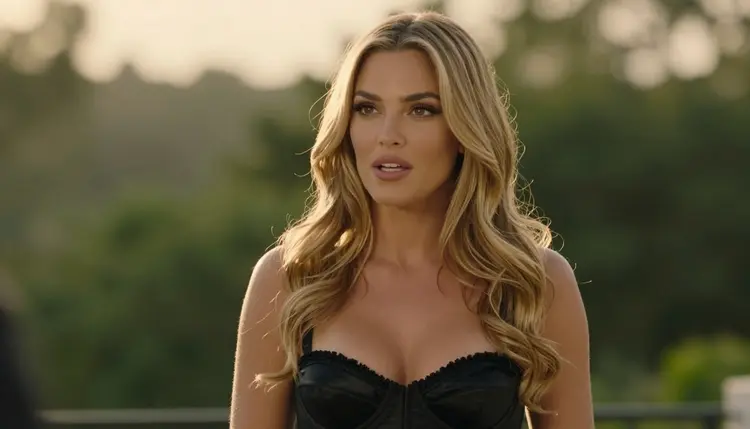
The face drifts away from your character. Between the still and the clip, the model lost the likeness. Use a sharper source portrait, shorten the prompt and avoid extreme head turns. For a character you reuse over many clips, a consistent NSFW character setup keeps the same face from one frame to the next.
The teeth look wrong. Teeth are hard at any resolution. Ask for "lips softly parted" rather than a wide open mouth, keep the shot slightly farther from the face, or try LTX 2.3 Pro for 4K detail on a tight shot.
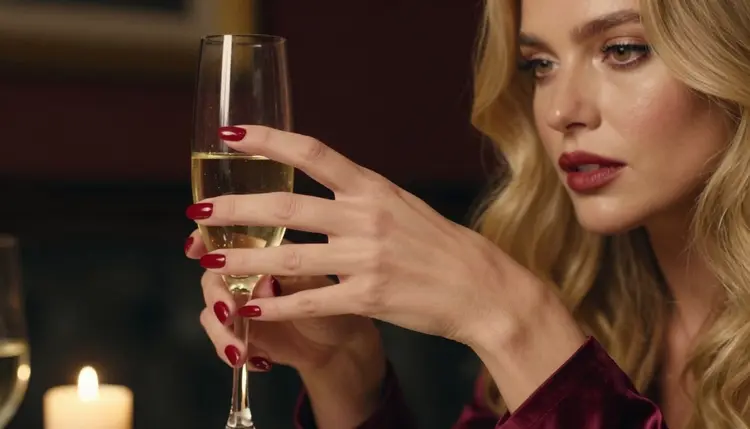
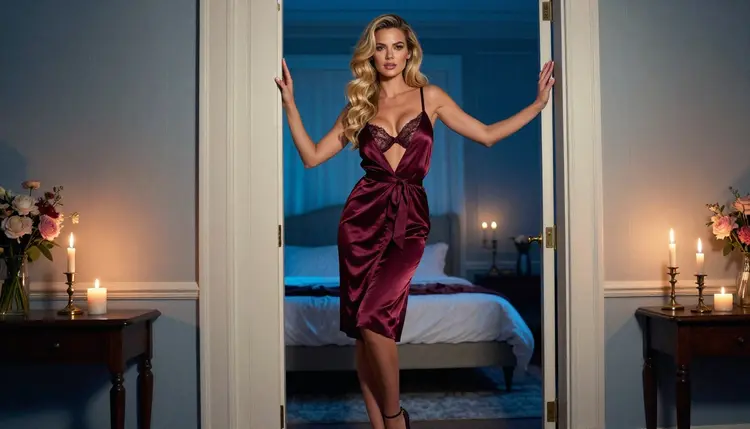
The hands cause trouble. Hands near the mouth are a common source of artifacts. Keep them out of frame or use one hand resting on a glass or a doorframe, as in the pictures here. Exactly one hand, never two, near the face.
The outfit changes mid-clip. Match the prompt to the still and keep fabric simple. Satin, lace and solid colors survive better than busy patterns.
The clip loops oddly or ends mid-gesture. Keep each take short and finish on a pause, such as "ends with a small smile, then still". If you need a longer line, cut two takes together in your editor on a blink or a head turn, where the join hides.
The audio does not fit the mouth. Remember that the confirmed models animate speech without a sound file. When you add your own voice afterwards, match the length of the line to the take, trim the silence at the start and slide the audio by a few frames until the rhythm feels right. For real audio-driven sync, try one of the untested models above and treat the result as an experiment.
A model refuses the prompt. Read the message, take the suggested model and keep your wording. If a prompt you wrote for one model keeps failing, move to Picasso IA Video, Seedance 2.5 Lite or LTX 2.3 Pro, which are the confirmed ones, and see the full catalog for other options to test.
Changing outfits between takes is a separate job from lip sync. When the character needs a new look, do it on the still first, with how to change hair and outfit on an NSFW AI character, and then animate the new frame.
This section is the short version of what applies to every page of the NSFW section, and it matters more with talking clips, because a voice and a face together feel more real than a still.
Adults only. Picasso IA's NSFW tools are for people aged 18 and over, and the mood of every example here is mature: glamour, boudoir, candlelight, satin and lace, never anything explicit.
Fictional adults only. Every character is an invented adult. Never use a real or identifiable person, never a celebrity, never a photo of someone you know, and never a character who could read as a minor. A talking clip of a real person's face is not what this tool is for.
Private by default. What you generate is tied to your account and not published or shown to others. What you do with a clip afterwards is your decision, and you are responsible for keeping it within the law and the rules of wherever you share it.
New accounts get a small free trial on selected models, including Picasso IA Video and Seedance 2.5 Lite, so you can run a first talking test before choosing a plan. Details are on the pricing page.
Can Picasso IA make an NSFW AI character talk with lip sync?
You can prompt a still frame or a description into a short clip where the character speaks to camera, using confirmed models such as Picasso IA Video. Matching the mouth to a specific audio file is the job of a few catalog models that are untested for adult prompts.
Which model should I try first?
Start with Picasso IA Video. It takes text or an image, it is confirmed for adult prompts and it is marked unlimited, so you can run many takes without watching credits on the plans that include unlimited generation.
Do I need an audio file?
No. The prompt-driven route needs only a portrait and a description of her speaking. Audio-driven models such as Audio To Video use a sound file, but they are untested for adult prompts, so treat them as an experiment.
How long can a talking clip be?
It depends on the model. Seedance 2.5 Lite is listed up to 10 seconds in the catalog. Short takes of a few seconds usually keep the face steadier, and you can join takes in an editor.
Why does my character's face change during the clip?
The model is redrawing the face from a weak or busy source. Use a sharp portrait with the face large in the frame, shorten the prompt and avoid fast head turns. A consistent character setup also helps.
Can I use a photo of a real person?
No. Characters must be fictional adults only. Never use a real or identifiable person or anyone who could read as a minor. Picasso IA is for invented characters, and a talking clip makes this rule more important, not less.
What does Content Not Supported by This Model mean?
It is the message the app shows when a model does not accept your prompt. It recommends models that accept adult prompts and carries your prompt over, so you pick one and generate again without retyping.
Are the untested lip-sync models allowed?
They are in the catalog and worth a try: Wan 2.2 S2V, Ovi I2V and Audio To Video. Picasso IA has not confirmed them for adult prompts either way, so results may vary.
Are my talking clips private?
Yes, generations are private by default. They are tied to your account and not published or shown to others. Only you decide what happens to a clip after you download it.
How do I keep the same character across several talking clips?
Reuse the same source portrait and the same wardrobe wording. For a stronger setup, follow how to train a LoRA for a fictional NSFW character or build a turnaround sheet first.