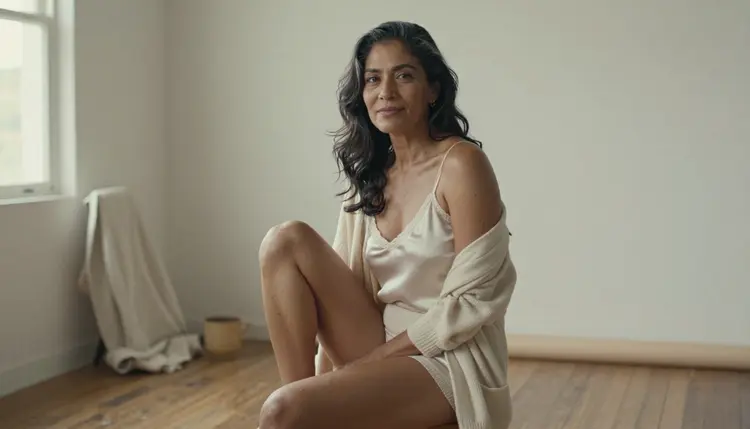
An AI photo gives itself away in about a second. The skin is too even, the light has no source, the fabric looks poured on, and the whole frame has a gloss that no camera produces. This guide is about removing those tells from adult, suggestive pictures: boudoir, lingerie, swimwear and glamour portraits of fictional grown-ups, made with Picasso IA.
The short version is simple. Describe a real camera, a real window and a real person with real skin, then clean up what is left. None of it needs a hidden setting. It needs better wording, a calmer pose and one or two refinement passes in the toolkit.
Most of the plastic look comes from the prompt, not from the model. When you write "beautiful woman, perfect skin, ultra detailed, glamour lighting", you are asking for the average of thousands of retouched advertising images. That average is smooth, symmetrical, evenly lit and slightly glowing, so that is what you get back.
A real photograph has the opposite properties. Skin shows pores, fine lines, small freckles and uneven tone. Hair has flyaway strands. The light comes from a place you can point at: a window, a lamp, a doorway. Shadows have a direction and a soft edge. Fabric creases where the body bends it. The room behind the subject has scuffs, objects and depth. The lens has a focal length, so perspective and blur follow rules that people recognize without knowing why.
Viewers read all of these cues without thinking. When several are missing at once, the picture feels wrong even if no single error is obvious. The fix is to put the cues back one at a time, in the order of the steps below. A low camera, a bare wall and plain window light do more for realism than any pile of quality keywords.
Three confirmed image models matter for this technique. "Confirmed" means Picasso IA tested adult prompts against that exact model repeatedly and watched it generate instead of reject. It is not a published setting of the model's maker, who can change it at any time, and what confirmed means is explained on its own page.
Seedream 4.5 is the main tool for this guide. It creates 4K images from text, and a larger canvas gives skin texture, fabric weave and loose hair more pixels to live in. Write the prompt as a photographer's brief and generate several frames before judging the model.
Recraft V4.1 Pro produces print-ready images at 2K and is listed for illustration and design. It fits posters, covers and styled editorial looks more than a documentary skin close-up, so reach for it when the picture will sit inside a layout. Picasso Image Editor Pro edits an existing image, carries the infinity tag in the catalog, and is included in the small free trial on selected models. It is the natural place for the cleanup pass.
Everything else in the full catalog is untested: worth a try, not confirmed either way, and never described here as filtered or filter-free. If you try one and Picasso IA shows the message "Content Not Supported by This Model", the app recommends models that accept adult prompts and carries your prompt over, so you do not retype anything.
These five steps work in order. Each one removes a different tell, and you can stop as soon as the picture reads as a photograph.
- Pick the camera and the light. Name a lens, an aperture and one light source before anything else, for example 85mm f/1.8 with soft window light.
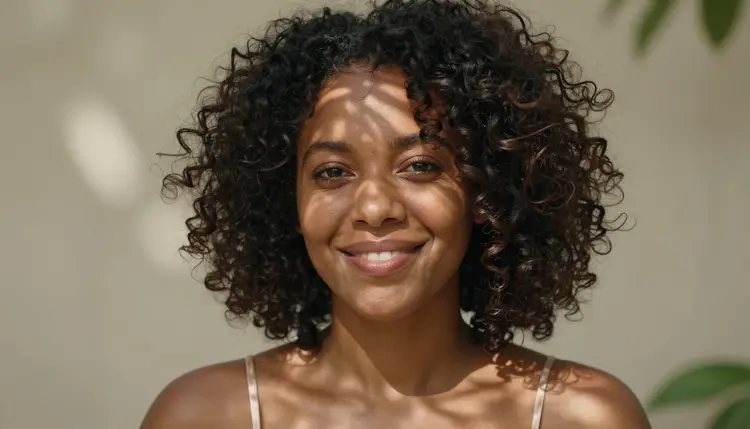
- Describe real skin and hair. Add pores, laugh lines, freckles, flyaway hairs and unretouched skin texture, and state an adult age such as mid thirties or older.
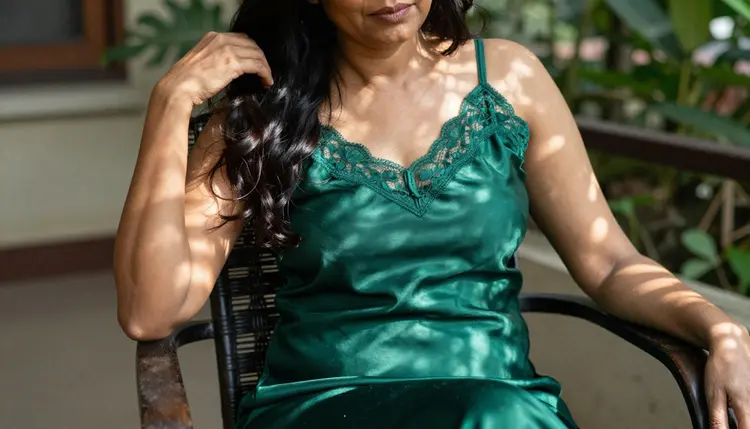
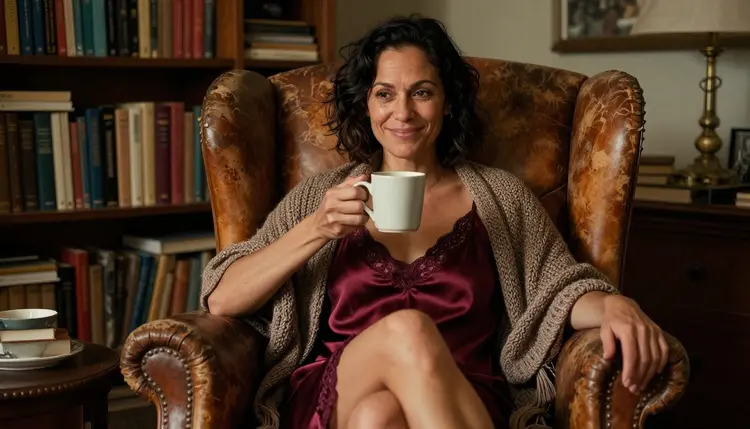
- Keep the pose and wardrobe simple. Choose one ordinary pose and one opaque garment, such as a satin slip under a knit cardigan, and give the room two or three plain objects.
- Generate and compare frames. Run the prompt in Seedream 4.5, keep the frame that looks most like a photograph, and change only one thing per run.
- Refine in the editor. Open the best frame in Picasso Image Editor Pro and ask for small corrections, such as softer highlights, visible skin texture or a calmer expression.
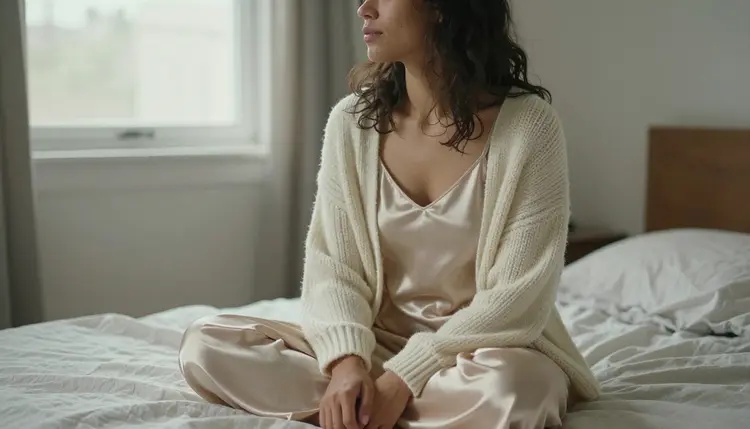
Start with a before and after. The "before" prompt is what most people type: "beautiful woman in lingerie, perfect skin, ultra detailed 8K, glamour lighting, best quality". The "after" prompt reads like a shot list: "Raw 8K film photograph of a mixed-heritage woman in her mid thirties with laugh lines, seated on the edge of an unmade bed in a champagne satin slip under a chunky cream cardigan, knees together, soft overcast window light, 50mm f/1.8, visible skin pores, flyaway hairs, Kodak Portra 400 film grain, unretouched." The second prompt gives the model a place, a light, a lens and a person to draw, and nothing in it asks for shine.
Light. Name one source and say what kind it is. Overcast window light is flat and forgiving. Dappled shade lays moving shapes across skin and hair. Blue hour gives cool shadows, and a warm lamp inside the room adds contrast. Tungsten lamp light falls off into amber. Hard morning sun through blinds draws stripes across a wall or a shoulder. Skip "studio lighting", "cinematic lighting" and "perfect lighting", because those phrases pull the image toward the glossy advertising look you are trying to leave.
Lens and camera height. A 24mm or 35mm lens used close feels candid and documentary. An 85mm to 135mm lens compresses the scene and blurs the background in a way that reads as portrait photography. A 100mm macro suits details such as hands, jewelry and freckles. Add a camera height as well: low and near the floor, eye level, or overhead. A single unusual angle often does more than a paragraph of adjectives.
Skin and hair. Write the texture you want to see: visible pores, laugh lines, faint freckles, small creases at the knuckles, flyaway hairs, unsmoothed skin. Avoid "flawless", "porcelain", "airbrushed" and "perfect". Set the age of every adult in the frame as mid thirties, late thirties or older. Mature faces carry more natural detail, and the age statement keeps the character an adult with no room for doubt.
Grain and finish. One finish phrase is enough: "raw photograph", a film stock name such as Kodak Portra 400, and a single mention of grain. Stacking five finish terms adds noise without adding realism. For a deeper treatment of film stocks and color, see NSFW Film Photo Look AI Generator.
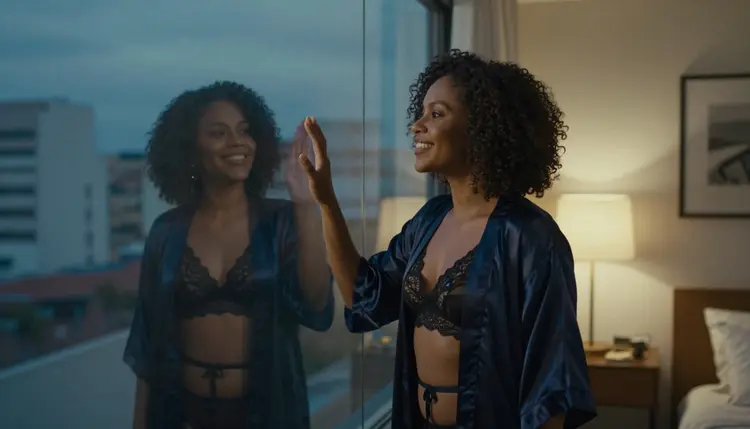
Wardrobe. Layering reads as real. A satin slip under a cardigan, a robe loosely tied over a bralette, an open linen shirt over a slip: each garment has seams, hems and straps that sit on the body. Choose opaque fabrics and say what the trim is, such as a lace neckline or a lace hem. If you want a full set, the guides to boudoir photos with Seedream 4.5, lingerie photos with Seedream 4.5 and swimsuit photos with Seedream 4.5 go deeper on each.
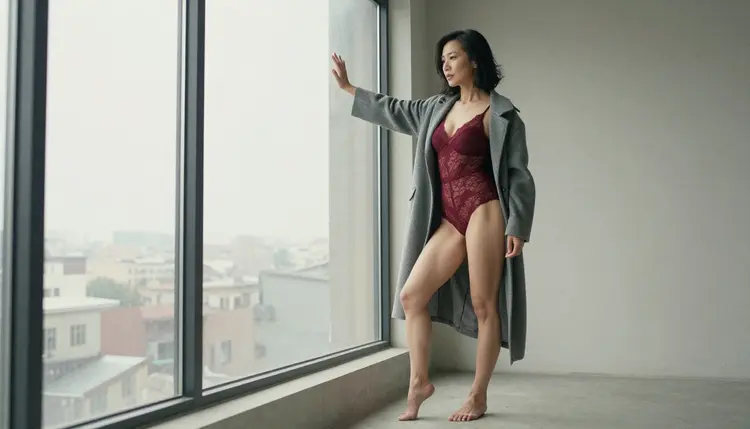
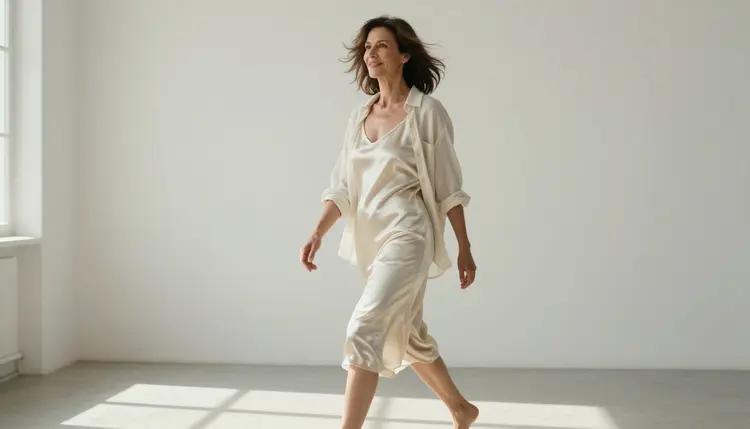
Pose. Real people are not centered and symmetrical. Put the weight on one leg, rest a hand on a window frame, turn the head toward the light, look slightly off camera. A candid beat, such as a glance back mid stride or a hand adjusting hair, beats a straight-on pose every time. Keep knees together and the pose relaxed, which also keeps the frame suggestive rather than explicit.
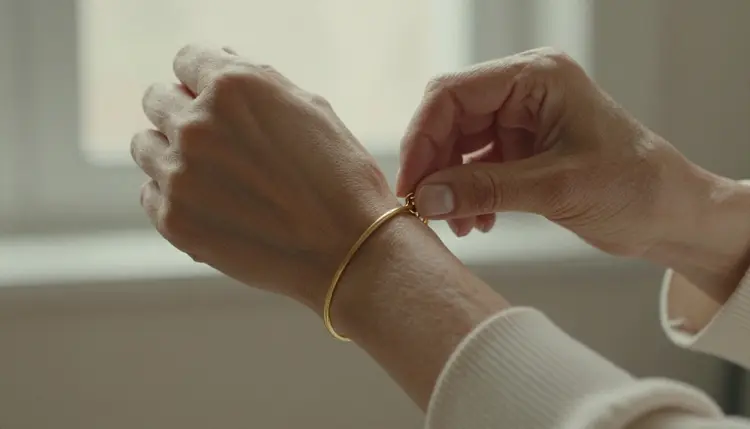
Hands and small objects. Hands are where AI images break most often. Give them a simple job: fastening a bracelet, holding a mug, adjusting a strap. Say how many hands are visible, for example "exactly two hands visible", or choose a framing where hands stay out of the picture. A detail shot of a wrist and a thin gold bracelet is easier to get right than a full pose with both hands tangled in fabric.
Resolution and zoom. Generate at the highest size the model offers, then zoom to 100 percent and check the places where fakes show: eyes, teeth, fingers, hairlines, fabric edges. If one of them fails, do not rewrite the whole prompt. Keep the frame and fix that area in the editor.
Reference images. In the toolkit, each attached image gets an @1, @2 badge, and you can refer to it inside the prompt. Picasso IA translates that reference into the syntax each model understands, and only models that accept several inputs show the badges. Attach your best frame and write "keep the face and light from @1" when you want a variation. For keeping one character across many frames, read how to create an AI girlfriend image with a consistent face.
Too many quality keywords. "Ultra detailed, 8K, HDR, best quality, sharp focus, award-winning" sounds like instructions but behaves like a request for retouched stock imagery. Fix: keep one resolution word and spend the rest of the prompt on place, light and person.
Perfect skin words. Every synonym for smooth skin removes texture. Fix: replace them with pores, laugh lines, freckles and unretouched skin, and check that the result still looks like the same adult in daylight.
Three light sources at once. "Golden hour, neon accents and studio softbox" gives the model no physical scene to follow. Fix: pick one source, and add a second only as a faint contrast, such as a warm lamp behind a cool blue-hour window.
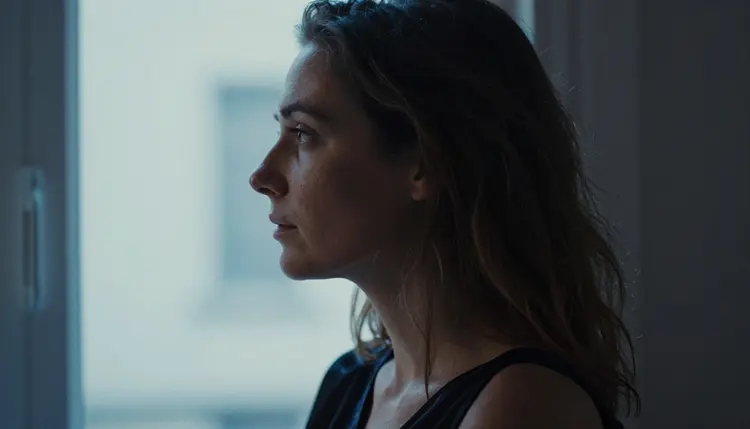
A centered, symmetrical pose. A subject facing the camera in the middle of the frame, shoulders level, is the most common giveaway. Fix: turn her three quarters, move her off center, tilt the head, and let the light cross the frame from one side.
An empty background. A gradient behind the subject looks like a render. Fix: add two or three plain objects such as an unmade bed, a cane chair, a book-lined shelf or a concrete floor, and name the wall.
Over-editing. Running the same image through many edits stacks softness and color shifts. Fix: make one edit per request, compare it with the previous frame, and go back a step when the face starts to drift.
Changing everything between runs. If you rewrite the prompt completely each time, you learn nothing. Fix: change one variable, for instance the lens or the light, and keep the rest identical until you see which change helped.
Too much grain. Heavy noise can hide the problem without solving it, and it makes small details harder to judge. Fix: ask for fine grain once and let the real texture of skin and fabric do the work.
Wanting a different style entirely. Sometimes the better move is to stop chasing realism. If a frame is good but the mood calls for illustration, restyle NSFW photos to anime with the editor instead of forcing photographic detail.
This page is for adults only. Everything described here is 18+, and you should use it only if you are an adult yourself and the law where you live allows adult material.
Every character is a fictional adult. Never use a real or identifiable person, and never create anyone who could read as a minor. State an adult age in the prompt, keep wardrobe opaque and poses relaxed, and discard any frame where the character could read as a minor.
What you create is private by default: it is tied to your account and not published or shown to others. Each generation costs credits that vary by model and by options such as resolution, and a small free trial on selected models lets you try the workflow first. Plans and details live on the pricing page.
Why do NSFW AI photos look fake?
Because the prompt usually asks for the average of retouched advertising images: smooth skin, even light, centered pose, empty background. Real photographs have pores, a visible light source, an imperfect pose and a lived-in room. Put those back in the prompt and the fakeness drops quickly.
Which model is best for realistic NSFW AI photos?
Seedream 4.5 is the confirmed photoreal choice for text to image at 4K, and Picasso Image Editor Pro is the confirmed editor for refining the result. Other catalog models are untested, so treat them as worth a try rather than a guarantee.
Should I write 8K and ultra detailed in the prompt?
One resolution word is fine, but a string of quality keywords tends to push the image toward glossy stock photography. Spend those words on light, lens and skin instead, and describe the scene the way a photographer would brief an assistant.
How do I fix plastic-looking skin?
Remove words like perfect, flawless and airbrushed, then add pores, laugh lines, freckles and unretouched skin texture. If a frame is otherwise good, open it in Picasso Image Editor Pro and ask for visible skin texture and softer highlights.
Does film grain really help?
A little, yes. A stock name such as Kodak Portra 400 and one mention of fine grain gives the frame a photographic finish. Too much grain only hides problems, so keep it light and judge the picture at full size. More on color and stock choices is in the film photo look guide.
How do I get hands right?
Give the hands a simple job, such as fastening a bracelet or holding a mug, and say how many hands are visible. Another option is a framing where hands stay out of the picture. If a hand still fails, fix that area in the editor instead of rerunning everything.
Can I fix an image I already made?
Yes. Open it in Picasso Image Editor Pro and describe one small change per request. It is included in the small free trial on selected models, and the infinity tag in the catalog marks it as unlimited on the plans that include unlimited generation.
Can I use these tips for video?
The same ideas carry over: name one light source, keep the pose relaxed and describe real texture. The video side has its own guides, starting with how to make NSFW AI videos from text, and Picasso IA Video is a confirmed model for text or image to video.
Who can appear in these images?
Only fictional adults. Never a real or identifiable person, and never anyone who could read as a minor. Every page in this section is 18+ and written for adults, and you should state an adult age in the prompt so the character stays clearly grown up.
Are my images private, and can I try this without paying?
Generations are private by default and tied to your account, not published or shown to others. A new account can try a few generations free on selected Picasso IA models, and the pricing page explains plans and credits. Start in the toolkit.