You have a photo you like. The pose works, the wardrobe works, the face works, but the light is flat, or too cold, or it comes from the wrong side. Relighting is the fix: you keep the picture and change only how it is lit. This guide shows how to do it with AI, step by step, using a single scene lit three ways: soft window light, golden hour and warm lamp light. Everything here is for adults and about fictional characters.
The approach is simple. You attach the photo, you describe the new light in plain words, and the model redraws the image with the same subject under that light. The wording does most of the work, so most of this page is about what to type.
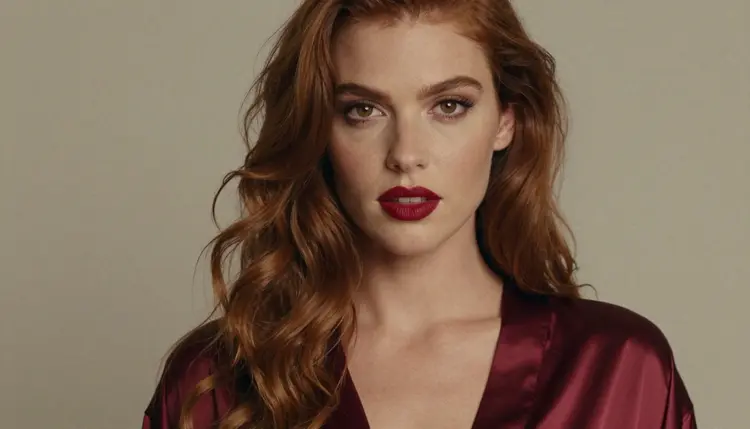
Light is the first thing a viewer reads in a boudoir or glamour picture, before the wardrobe and before the pose. The same woman in the same burgundy slip looks different under a white overhead bulb, under a window at ten in the morning and under a brass lamp at night. The first reads as a snapshot. The second reads as calm and clean. The third reads as private and warm. Nothing about the person changed, only the direction, the color and the softness of the light.
That is why relighting is worth learning as its own skill. Regenerating a whole picture from scratch to get a better mood often loses the face, the outfit or the framing you liked. Relighting an existing frame keeps those and moves only the light. It is also faster to iterate: you can make three versions of one frame and pick the one that fits the set.
Three properties of light matter, and you can name all of them in a prompt. Direction is where the light comes from: left, right, behind, above, low. Color is its temperature: cool daylight, neutral studio white, amber tungsten, orange sunset. Softness is how gentle the shadows are: a big window or an overcast sky gives soft edges, a bare bulb or a narrow sun beam through blinds gives hard ones. When a relight looks wrong, one of these three is usually off.
The same scene is the best way to learn them. Take one frame, say a woman seated near a window in a satin robe, and light it three times. Window light from the left is soft, cool to neutral and quiet. Golden hour is low, warm and slightly harder, with long shadows and a glow on the skin. Lamp light is the warmest and the most local: it lights what is near the lamp and lets the rest fall into shadow. Keeping the scene constant makes the differences easy to see.
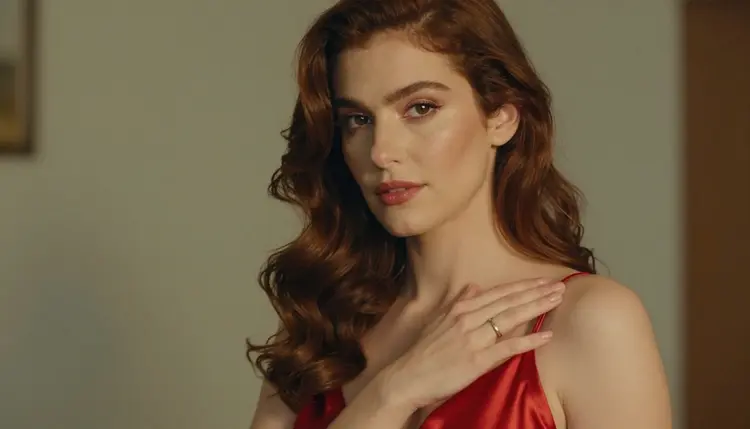
For editing an existing photo, the confirmed choice is Picasso Image Editor Pro. It edits a picture you attach, and it is marked unlimited with the infinity tag in the catalog, which makes it comfortable for trying several lighting versions of one frame. A small free trial on selected models includes it, and details are on the pricing page. "Confirmed" here means Picasso IA tested adult prompts against that exact model repeatedly and watched it generate instead of reject. It is not a published setting of the model's maker, who can change it at any time. The policy page what confirmed means explains the term.
If you do not have a starting photo, or you want to rebuild the whole scene with a different light, text to image works too. Seedream 4.5 and Recraft V4.1 Pro are both confirmed. You write the scene again, this time with the new light in the prompt.
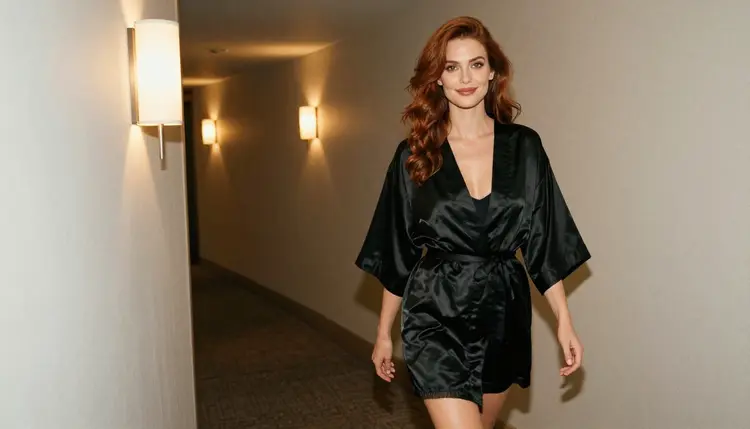
One more model in the catalog is built for this job by name: Qwen Image Edit Plus LoRA Relight, listed as an AI scene relight tool. It is untested. That means worth a try, not confirmed either way. If you want to compare it with Picasso Image Editor Pro on the same frame, the model page is here. Treat the result as an experiment and judge it by the picture.
When a model does not accept a prompt, the app shows a message titled "Content Not Supported by This Model". It recommends models that accept adult prompts and carries your prompt over, so you do not retype anything. You can browse everything in the full catalog and start any of this in the toolkit.
The steps below work the same for window light, golden hour or lamp light. Only the words in step three change.
- Pick the right source photo. Choose a frame where the face and the outfit are already what you want and the framing is final. Relighting changes light, so a photo with a good pose and bad light is the ideal input.
- Open the editor and attach it. In the toolkit, select Picasso Image Editor Pro and add your photo. Keep the original file untouched so you can return to it.
- Describe the new light, and only the light. Write direction, color and softness: "soft window light from the left, cool and neutral, gentle shadows". Add that the person, outfit and framing stay the same.
- Generate and compare. Run the edit, then run it again with a second light, for example golden hour or a warm lamp. Put the versions side by side and look at the face first.
- Refine one thing at a time. If the result is close, change a single word: warmer, softer, lower, from behind. Save the version that matches the rest of your set.
This is the core of the technique. A relight prompt has three parts: what must stay, what the light is, and what the light does to the picture. Writing them in that order keeps the model from changing the wrong things.
Start with the keep clause. Something like "keep the same woman, the same burgundy satin slip, the same pose and the same framing" tells the editor that this is a lighting change and not a new picture. Without it, models may drift on the face or the fabric. With it, the result usually stays much closer to the source.
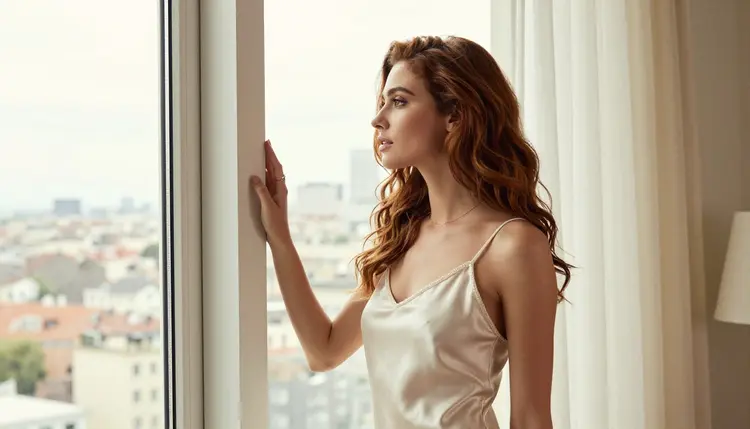
Then write the light. Here are three versions of one frame, each written the way you would type it.
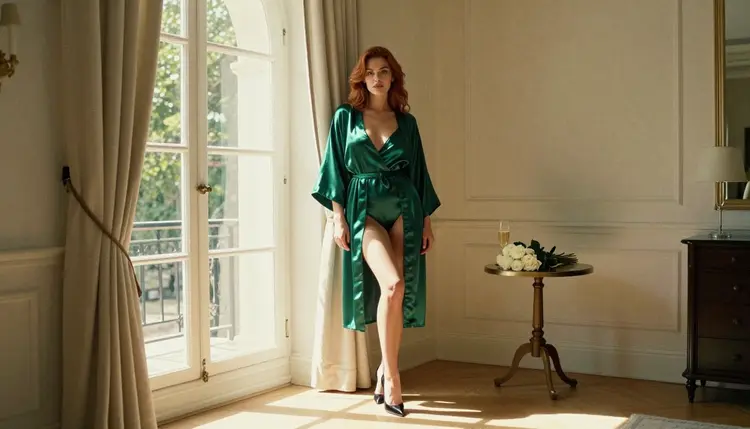
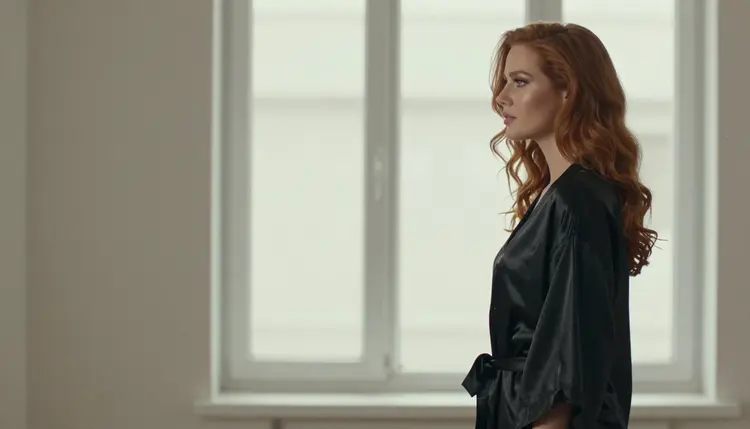
Window light. "Soft window light from the left, large window, neutral to slightly cool color, gentle shadows on the right side of the face, light falling on the shoulder and the satin." The effect is clean and quiet. Windows are large sources, so the shadows are soft and the fabric shows its folds without glare. This is the easiest light to get right and a safe first try.
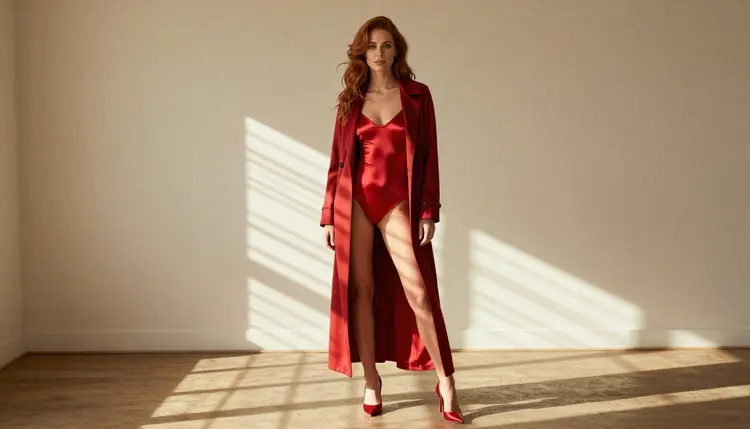
Golden hour. "Late-afternoon side light, low warm sun, amber color, long soft shadows, a glow on the skin and the hair, the background slightly warmer than the subject." The effect is warm and a little cinematic. Name the side the sun comes from, because a low sun without a direction gives flat orange.
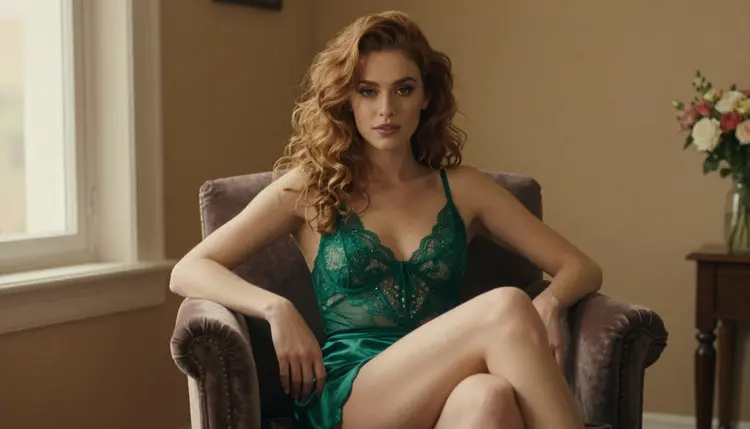
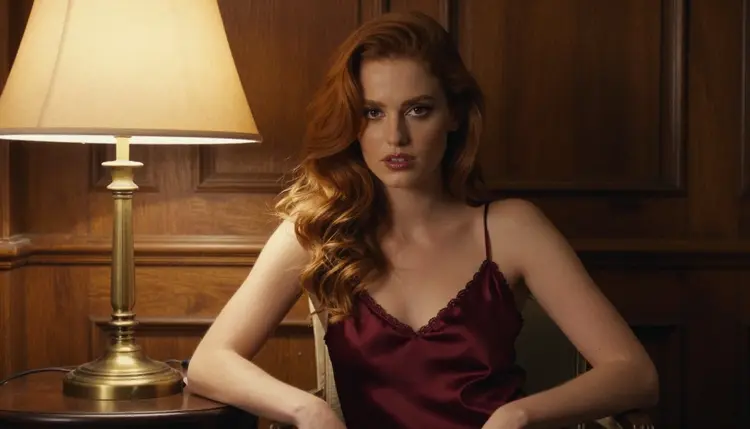
Lamp light. "Warm tungsten lamp light from a brass lamp on the left, amber color, the face and the satin lit near the lamp, the rest of the room falling into soft shadow." The effect is private and close. A single lamp makes a pool of light, so the picture gets a clear bright area and a dark edge. If you want the room to stay visible, say "a little warm fill from the room" and the shadows will not go black.
Each of these also pairs well with camera language. Lens words such as "35mm", "50mm" or "100mm macro" shape the look of the whole frame, and Raw photography words such as "film grain" and "natural light" keep the result photographic. Add one or two, not ten. A long list of adjectives gives the model more ways to wander.
A few more habits help. Describe the light as you would tell a photographer on set: where it stands, how big it is, what color it is. Say "diffused" for soft, "hard" for sharp shadows, "backlit" when the light is behind the person and makes a rim around the hair and shoulders. For a silhouette, say "profile against a bright window, face in shadow, rim light on the outline". And if you want to try a second light on the same photo, change the light sentence and leave the keep clause exactly as it was. Identical keep clauses make the comparison fair.
If you use a model that accepts several inputs, each attached image gets an @1, @2 badge in the toolkit and you can refer to it in the prompt, for example "keep the person from @1, take the light from @2". Only models that accept several inputs show the badges, and Picasso IA translates the reference to the syntax each model understands. For a single-photo relight you do not need it.
Most failed relights come from a short list of causes. Each has a quick fix.
Asking for too much at once. A prompt that changes the light, the room, the outfit and the pose is no longer a relight. Change the light only, then do a second pass for anything else. For wardrobe and detail changes, the guide on editing a photo without losing detail covers that second pass.
No direction. "Warm light" alone leaves the model to guess. Say "warm light from the right, low". Direction is the single most useful word you can add.
Mixing sources by accident. If the prompt says window light and also lamp light, the model will try to do both and the shadows will point two ways. Pick one main source. If you want a second one, make it clearly weaker: "main light from the window, a faint warm lamp in the background".
Colors that fight the skin. Strong orange or green tints on the whole frame make skin look painted. Use "warm" and "amber" for tungsten and golden hour, "neutral" for studio light, and avoid colored gels unless that is the point of the shot. If the face turns orange, ask for "natural skin tones" and lower the warmth by a word: "soft amber" instead of "deep orange".
Losing the face. If the face changes between versions, the keep clause is too weak or the prompt is too long. Shorten the light description and repeat "the same woman, the same face". If it still drifts, go back to the original photo and run again from there instead of editing the edit. Each pass from a previous result adds small changes that pile up.
Judging on a small preview. Light problems hide at thumbnail size: banding in gradients, blotchy shadows, a halo around the hair. Open the image at full size before you decide, and look at the edges of the hair, the fabric folds and the area where light meets shadow.
When you have one frame lit well and need more in the same style, planning a photo set before you generate helps you keep the light consistent, and the realistic photo generator guide covers building frames from text. For a film-style finish after the light is right, see the film photo look guide. If the relit frame is going to become a short moving clip, the looping photo guide is the next step, and you can turn a still into video with Picasso IA Video.
Picasso IA is for adults only. Every person on this page and in every generation here is meant to be a fictional adult, and the whole section is 18+. If you are under age, this is not for you.
Use fictional adults only. Never relight or edit a photo of a real or identifiable person, and never a photo of anyone who could read as a minor. Your source photo should be an AI picture or an original shoot of an adult model who agreed to it. Celebrities, ex-partners, coworkers and anyone you know are not acceptable subjects, whatever the light.
What you create is private by default: it is tied to your account and not published or shown to others. You choose whether to share anything. You can try Picasso Image Editor Pro with a small free trial on selected models, and the plans for longer use are on the pricing page.
What does relighting a photo mean?
It means changing how an existing picture is lit while keeping the person, outfit, pose and framing. You describe the new light, such as soft window light or warm lamp light, and the model redraws the frame with it.
Which Picasso IA model should I use to relight a photo?
Picasso Image Editor Pro is the confirmed choice for editing a photo you already have. It is marked unlimited in the catalog, so you can test several lights on one frame. Find it on its model page.
Is there a model made for relighting?
The catalog lists Qwen Image Edit Plus LoRA Relight as an AI scene relight tool. It is untested, so it is worth a try but not confirmed either way. You can compare it with the confirmed editor on the same photo.
Can I relight with text only, without a source photo?
Yes. Seedream 4.5 and Recraft V4.1 Pro, both confirmed, can build the scene from a prompt. Write the scene again and put the light in the sentence: direction, color and softness. Results will differ from the original frame.
What should I type to get window light?
Try "soft window light from the left, large window, neutral color, gentle shadows". Add "keep the same woman, outfit, pose and framing" so only the light changes. Switch the side of the window to change the mood.
Why does my golden hour look flat orange?
Usually the prompt has warmth but no direction. Add "low side light from the right" and "long soft shadows", and lower the strength with "soft amber" instead of "deep orange".
How do I stop the face from changing between versions?
Keep the keep clause identical in every prompt, shorten the light description and always start from the original photo, not from a previous edit. Small changes pile up when you edit an edit.
What happens if a model refuses my prompt?
The app shows a message titled "Content Not Supported by This Model", recommends models that accept adult prompts and carries your prompt over, so you do not retype it. Check what confirmed means for how models are tested.
Can I use a photo of a real person?
No. Use fictional adults only, never a real or identifiable person and never anyone who could read as a minor. The section is 18+ and meant for AI characters and original adult models.
Are my relit photos private, and is there a free way to try?
Yes to private: generations are tied to your account and not published or shown to others. A new account gets a small free trial on selected models, including Picasso Image Editor Pro, and the details are on the pricing page.