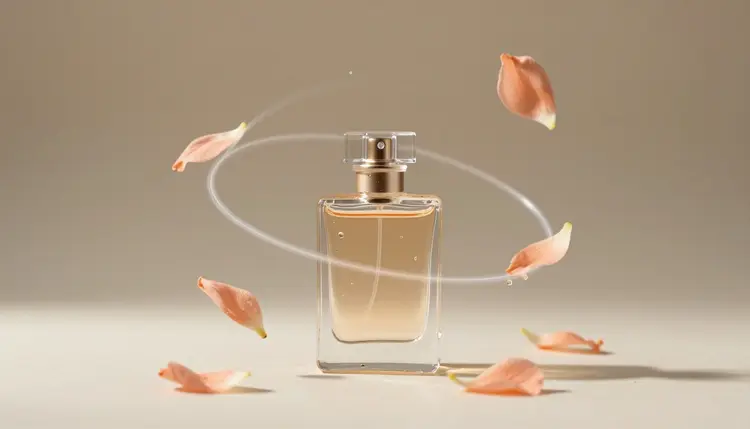
Bullet time is the shot where the action freezes and the camera keeps moving, swinging around a splash, a jump or a falling petal as if time had paused. It used to take a ring of dozens of synchronized cameras. With AI you describe the orbit, or start from a single photo, and a video model invents the rest. It will not match a film rig, but it gets closer than you might expect.
The original effect needed a rig: a curved rail of cameras, all firing at the same instant, stitched into one smooth move. Nobody builds that for a product teaser or a birthday cake. A video model flips the problem. Instead of capturing the scene from many angles, you hand it one frame or one description and ask the camera to travel while the subject holds still, which is the whole illusion.
That makes it a good fit for short, scroll-stopping clips: a perfume bottle with petals hanging around it, a sneaker caught mid-jump, a coffee splash, your own dog leaping for a ball. Picasso IA runs 502 models behind one interface, 121 of them in text-to-video, so you can send the same orbit prompt to more than one engine and keep whichever one understood it; the full catalog lists them all. New accounts get free credits, enough to find out whether your subject orbits well before you spend anything.
The most common failure is a clip where the subject moves and the camera stays put, which is the opposite of bullet time. A model reads your prompt as a scene description, so the camera instruction has to be as explicit as the subject. Say what is frozen, say what the camera does, and say how far it travels.
Wording that tends to help is plain and physical: the camera orbits slowly around the subject in one smooth arc, at a constant distance, while everything else stays frozen in mid-air. Name the frozen details one by one, droplets suspended, petals hanging, fabric caught mid-flutter, because the model will otherwise let them drift. Keep to one move per clip. An orbit with a zoom and a pan stacked on top is where the geometry starts to come apart, and a quarter or half circle usually reads cleaner than a full revolution.
Kling v3 Video and Veo 3.1 also accept a negative prompt, so you can list what you do not want: camera shake, cuts, extra people, a zoom. It will not guarantee obedience, but it narrows the guesses.
None of these models has a setting called orbit. The camera move lives entirely in your words, so the useful differences are what each model lets you feed in and how long a clip it makes.
| Model | What you can feed it | Clip length | Worth knowing for orbits |
|---|
| Kling v3 Video | Text, or a start image with an optional end image | Up to 15 seconds, 720p or 1080p | Start and end frames can anchor the arc; multi-shot scripting allows up to 6 scenes |
| Ray 3.2 | Text, or a start image and an end image | 5 or 10 seconds | Anchor frames only work with the 5 second option; a loop setting repeats the arc |
| Veo 3.1 | Text, a start image, or a start and end pair | 4, 6 or 8 seconds | Up to 3 reference images keep the subject consistent, at 16:9 and 8 seconds only |
| Text only, any model | A written scene and camera move | Depends on the model | Fastest to try, least control over what the subject looks like |
| Photo first, any model | One photo of the subject you own | Depends on the model | The subject stays yours; the model invents the sides it cannot see |
One technique is worth trying when you want the arc to end at a specific angle. Make two stills of the same subject, one from the front and one from the side, with an image model, then use them as the start and end frames. The video model has to travel between the two, which is a stricter instruction than any sentence. It works best on simple objects, and it fails when the two stills do not quite match.
This is the shortest path from a single frozen frame to an orbit clip. Plan on a few takes, because the first one is rarely the keeper.
- Pick or make the frozen moment. Upload a photo of a subject you own, or generate a still with a text-to-image model, shot head-on with empty space around the subject so the camera has room to turn.
- Open the toolkit and choose a video model. Pick Kling v3 Video, Ray 3.2 or Veo 3.1 in the toolkit and attach your still as the start image.
- Write one orbit sentence. Describe the frozen details first, then the camera: a slow arc around the subject at a constant distance, with nothing else moving.
- Generate two or three takes. Re-run the same prompt, then try it on a second model, and compare how each one handles the back and sides of the subject.
- Trim to the cleanest arc. Keep the stretch where the subject looks right, usually the early part of the move, and cut before the geometry starts to wobble.
If you want to animate a photo without the orbit, the photos to videos page covers the plain version of the same workflow.
Simple, hard-edged, clearly lit objects do best: bottles, shoes, fruit, jewelry on a stand, a single figure on a plain floor. The reason is predictable backs. A bottle looks much the same from behind, so the model's guess costs you nothing, while a jacket with a pocket layout or a face with a haircut it has never seen gives the guess room to go wrong.
Tip: freeze the background too. Put the subject on a plain, evenly lit surface, because a busy background has to be rebuilt from every new angle, and that is where warped walls and sliding shadows come from.
If the clip is for selling something, remember that the model made up the side it could not see. Compare the generated back and sides with the real item before you post, and cut the arc where it stops matching; the product demo videos page goes deeper on keeping a product clip honest. For people and pets, use your own or fictional characters, never a real identifiable person without their permission. An orbit also makes a strong insert between other shots, so it pairs well with AI b-roll, and the effects page holds one-click presets if you would rather start from a ready-made look.
An honest page says where the effect stops working. For orbit clips there are five places:
- Invented geometry: the model only sees one side of your subject, so the back, the far side of a face or the underside of a shoe is a guess. On a plain bottle the guess is fine; on a sneaker with laces it often is not.
- Motion blur: real bullet time is sharp everywhere. Video models tend to smear anything in suspended motion, so droplets, hair and fabric come out streaked or soft, especially during the fastest part of the arc.
- Not truly frozen: petals, splashes and strands of hair creep, drift or loop in place instead of holding still. That can look dreamy, but it is not a freeze.
- Short arcs: clips run from 4 to 15 seconds depending on the model, and a full 360 degree turn in that time is where drift and warping pile up. Plan a quarter or half orbit.
- Identity drift: faces, logos and printed text change as the viewing angle changes. Never count on a label or a line of lettering surviving the turn.
None of this makes the technique useless. For social clips, concept shots and mood previews it is quick and cheap to try. For an exact, measurable freeze, with a real subject seen from every side, a physical multi-camera rig is still the answer.
What is a bullet time video?
It is a shot where the action appears frozen while the camera moves around it, popularized by films that used rings of cameras firing together. The viewer sees a splash, a jump or a punch hanging in the air as the angle sweeps past. AI versions fake it: a video model generates the camera move around a mostly still subject instead of stitching real photos from many cameras.
Can AI make a bullet time shot from a single photo?
Yes, with limits. Kling v3 Video, Ray 3.2 and Veo 3.1 all accept a start image, and you describe the orbit in the prompt. The model keeps what it can see and invents the sides it cannot, so the result is a convincing impression rather than a true multi-angle capture. Simple subjects like bottles and fruit hold up far better than faces or detailed clothing.
Which AI model is best for orbiting the camera around a subject?
There is no single best, which is why a catalog helps. Kling v3 Video allows the longest clips and anchoring with start and end frames, Ray 3.2 offers a loop option and 5 or 10 second clips, and Veo 3.1 can hold a subject consistent with reference images. Run the same orbit prompt on two of them and keep the take where the back of the subject looks right.
Why does the subject move but the camera stay still?
Because the prompt described the scene and not the camera. Add an explicit sentence such as the camera orbits slowly around the subject in one smooth arc at a constant distance, and state that everything else is frozen. Remove other camera words like zoom or pan, since stacked moves confuse the model. If it still ignores you, try another model or anchor the move with start and end frames.
How long can a bullet time clip be?
It depends on the model. Veo 3.1 offers 4, 6 or 8 seconds, Ray 3.2 offers 5 or 10 seconds, and Kling v3 Video goes up to 15 seconds. Longer is not better for this effect: a quarter or half orbit in 5 seconds usually looks cleaner than a slow full revolution, where invented geometry has more time to wobble. Short, clean arcs also loop and edit more easily.
Why do the droplets or fabric look blurry in my orbit shot?
Video models generate motion, and they tend to treat suspended objects as moving ones, which softens or streaks them. Describe each frozen element specifically, ask for sharp focus and sharp details, and use a shorter, slower arc. A start image with crisp, well-lit detail helps as well. Some blur at the fastest part of the move is normal, and cutting before it is a perfectly good edit.
Can I orbit the camera around a person?
Only your own likeness or a fictional character, never a real identifiable person without their permission. Technically, people are among the harder subjects: the model has to invent the back of the head, the profile and the clothing from behind, and faces can shift as the angle changes. If you try it, use a clear, evenly lit photo and a gentle partial arc instead of a full turn.
Can I use bullet time clips for product videos?
Yes, as a short hero shot, as long as the clip stays truthful about the item. The model invents any side the photo does not show, so check the generated back and edges against the real product and cut where they diverge. Also check the current requirements of the platform you post to, since rules for product media differ and change.
Does it cost anything to try?
New accounts get free credits. Each generation costs credits, and the amount depends on the model and the settings you choose, such as duration and resolution, so any number written here would go stale. Short clips at lower resolution are the sensible way to test an orbit prompt. For current plans, see the pricing page.
How do I make the orbit end at a specific angle?
Generate two stills of the same subject from the two angles you want, using an image model, then load them as the start and end frames in a model that supports both, such as Kling v3 Video, Ray 3.2 or Veo 3.1. The video model travels between them. It works best on simple objects, and when the stills do not match closely you will see the subject morph along the way.
Ready to try an orbit of your own? Open the Picasso IA toolkit, pick a video model and send your first frozen moment around the camera.