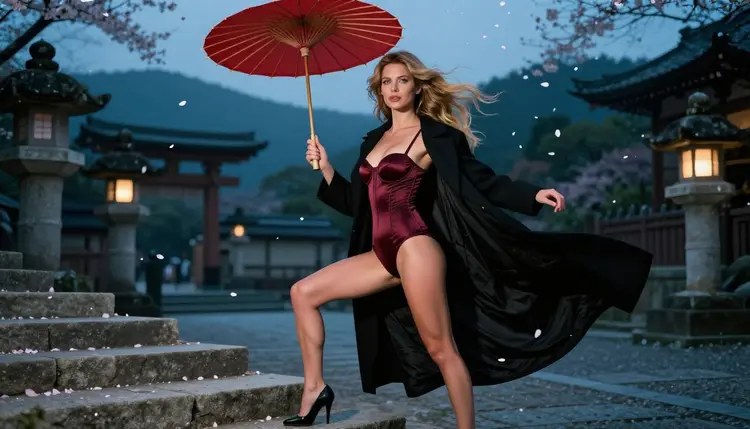
A manga chapter cover has one job: make a reader stop on a single frame and want to turn the page. It is a poster for the chapter, built around a pose, a costume, a prop and a mood. You can build that frame as a photograph instead of a drawing, and that is what this guide covers. The scene is shot on film, the character is a fictional adult, and the manga feeling comes from the wardrobe, the dramatic light and the set. There are no panels, no speech bubbles and no lettering anywhere in the picture.
Picasso IA runs in your browser, so there is nothing to install. You describe the scene in the toolkit, pick a model and generate. This page walks through the whole project: what a cover needs, which models fit, five steps from idea to finished set, prompt examples with real wardrobe and lens details, and the rules that apply to every adult project here. If you are working on a related cover, the guides for a fanfiction cover and a comic variant cover follow the same logic.
Start with the deliverable. A chapter cover is usually one hero frame, plus a few supporting images that you can use as a title spread, a teaser or a social post. Plan for one wide hero frame, one tight portrait, a few wardrobe and prop details, and a couple of full-length poses. That gives you a small set that feels like it belongs to one chapter rather than a pile of unrelated pictures.
Decide the format before you write a prompt. A wide 16:9 frame works for a web banner, a chapter header or a video thumbnail. If your cover will run tall, as most printed covers do, plan the composition so the character sits in the center third and the sides can be cropped without losing the pose. Leave quiet space above or beside the character, because you will add the chapter title and any text later in a layout app. The generated image itself stays clean, with no letters in it.
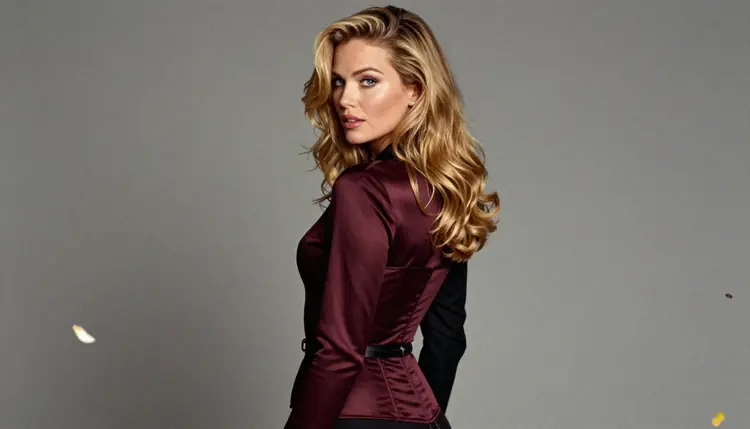
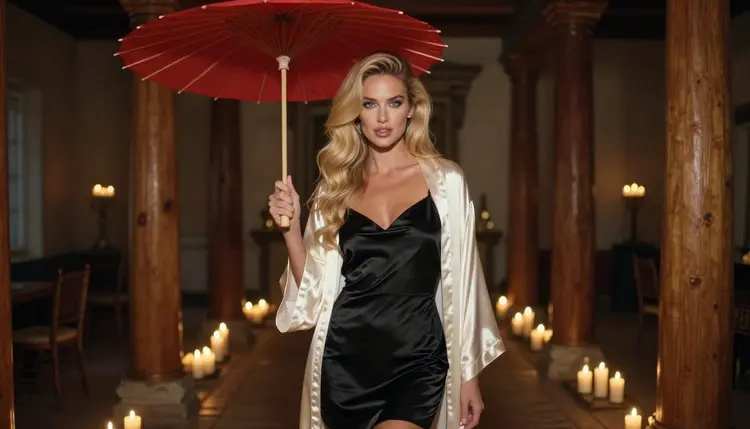
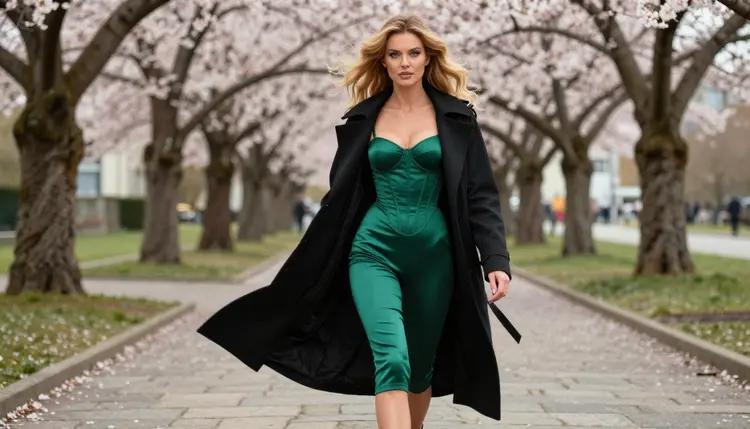
Consistency is what makes a set look like a chapter and not a collection. Keep four things fixed from image to image: the character description, the main costume colors, the prop, and the time of day. In this project the character is the same woman in every frame, and the costume pieces repeat: a burgundy or emerald satin corset bodysuit, a long black coat, a red silk scarf and a red parasol. The cherry blossom petals in the air tie the scenes together the way a recurring motif ties a manga volume together.
Think about what you want the reader to feel. A chapter cover for a melancholy arc wants cool blue-hour light, a still pose and a lot of empty air. A cover for a flirty, romantic arc wants warm candlelight, a glance over the shoulder and a closer crop. Pick the mood first, then choose the light, and let the wardrobe follow. The mood is the story you are telling in one frame.
Picasso IA keeps an honest list of the models it has tested with adult prompts. A model is called confirmed when Picasso IA ran adult prompts against that exact model repeatedly and watched it generate instead of reject. It is not a published setting of the model's maker, and the maker can change it at any time. The page on what confirmed means explains the term in full. For a chapter cover these are the models to start with.
For the cover itself, Seedream 4.5 is the natural first choice. It turns a text description into a photoreal 4K image, which suits a film-style hero frame with a coat, a parasol and falling petals. Recraft V4.1 Pro is worth a run when you want a more designed, graphic finish, since its catalog entry describes print-ready images at 2K. Once you have a frame you like, Picasso Image Editor Pro handles the cleanup: a stray detail, a color that drifted, a prop that came out wrong. It carries the unlimited tag in the catalog, which means it does not spend credits on the plans that include unlimited generation.
For motion, Picasso IA Video turns a text description or a finished still into a clip, and Seedance 2.5 Lite is listed for clips up to 10 seconds. LTX 2.3 Pro makes 4K video from text. A drifting petal shot or a slow push toward the character works well as a teaser for the chapter.
Models outside that list are untested. Seedream 5, Nano Banana, Flux and many others in the full catalog may be worth a try, and untested means exactly that: not confirmed either way. If a model refuses a prompt, the app shows a message titled "Content Not Supported by This Model", recommends models that accept adult prompts and carries your prompt over, so you do not retype anything.
Here is the order that keeps a cover project from turning into guesswork. Each step builds on the one before it, and the whole thing fits in one sitting.
- Plan the set. Write down the mood, the format and the shot list: one hero frame, one close-up, two or three details, two full-length poses. Choose the colors and the prop before you open the toolkit.
- Write the character and scene description. Describe one fictional adult, her hair, her makeup, her costume, the set and the light, in one block of text that you will reuse for every image.
- Generate the key image. Run the hero frame with Seedream 4.5 in the toolkit, compare a few results, and keep the one whose pose and color say the most about the chapter.
- Build the rest of the set. Reuse the same description and change only the shot type, the lens and the light. Attach the key image as a reference when the model accepts it, and refer to it in the prompt with its @1 badge.
- Refine and export. Open the best frames in Picasso Image Editor Pro, fix small problems, then download the files and add your title in a layout app.
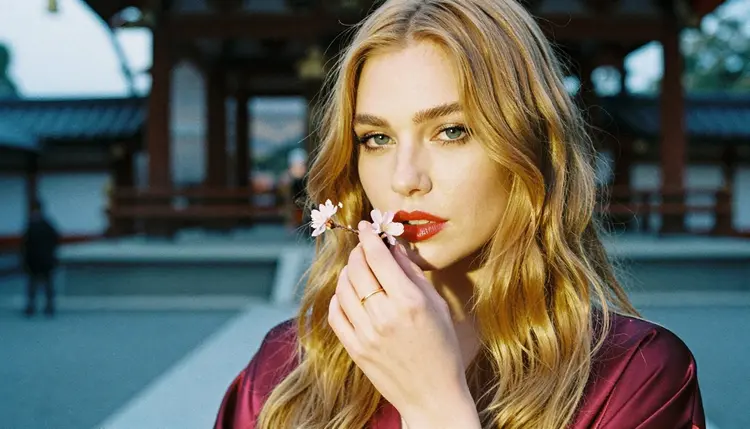
A good cover prompt reads like a short shot description. Say who is in the frame, what she wears, where she stands, what the light does and which lens shot it. Here is a hero frame in that style: a 32-year-old woman with long honey-blonde beach waves in a burgundy satin corset bodysuit and a flowing black coat, holding a red parasol in a shrine courtyard at blue hour, cherry blossom petals drifting past, 100mm macro f/2.8, fine film grain, raw 8K photography. Every part of that sentence gives the model something to do: wardrobe, prop, place, light, lens and finish.
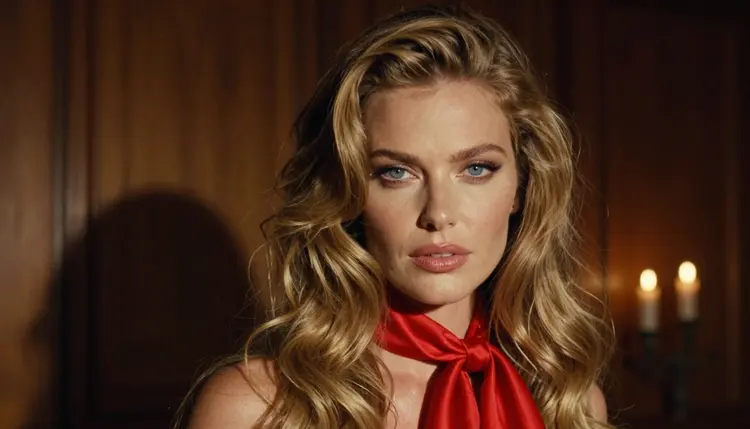
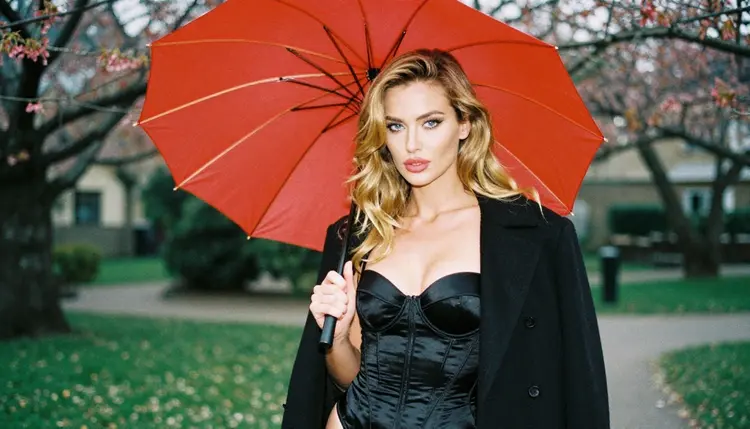
Vary the shot, not the character. A close-up with a red silk scarf at her neck and candlelight uses a 24mm lens and reads as quiet and intimate. A waist-up shot in a black satin corset bodysuit and coat with the parasol in daylight uses a 70mm lens and reads as confident. A detail of one hand holding a cherry blossom branch, with a gold ring and a burgundy satin sleeve at blue hour, shows the prop and costs you nothing in consistency because no face is needed. Keep exactly one hand in frame when you write a detail shot, which also keeps the anatomy clean.
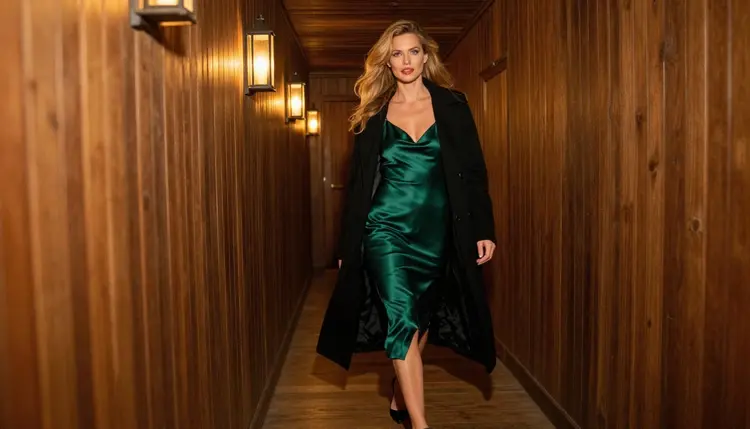
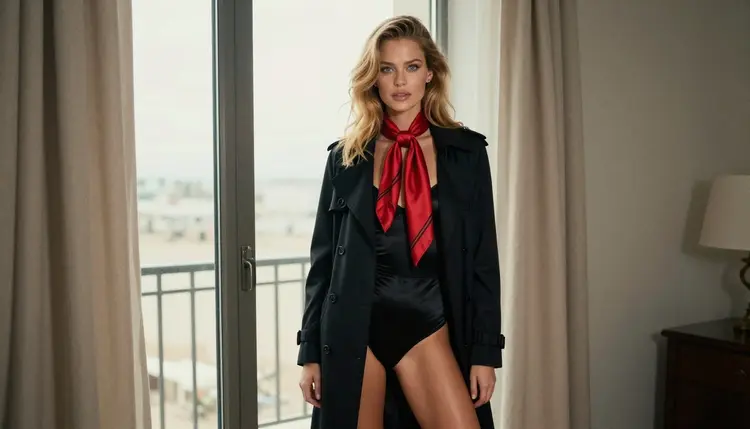
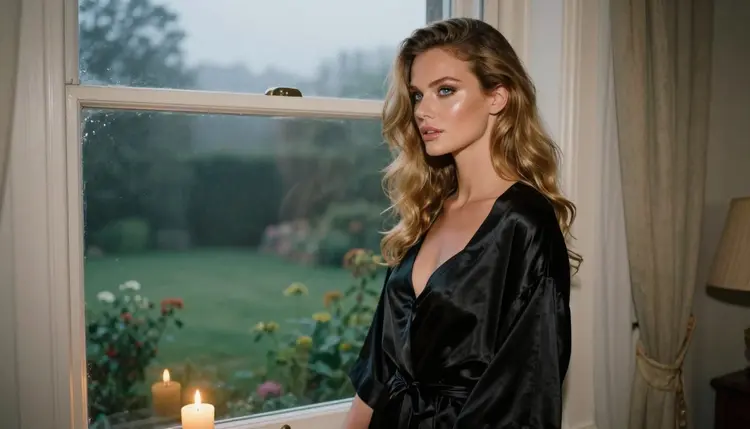
Walking shots add movement. An emerald satin slip dress under a black coat, a candlelit corridor and an 85mm lens give a candid, in-motion frame that feels like a page turn. A standing frame at a tall window in a black satin bodysuit under an open trench coat, with soft overcast window light from the side and a 50mm lens, gives you a calm, direct portrait that works as a chapter opener.
To keep the same fictional character across images, copy the description block word for word and paste it in every prompt. Do not rewrite it, shorten it or add adjectives from one image to the next. Change the wardrobe color if the story needs it, but leave the hair, the eyes and the makeup lines as they are. When you attach a reference image, use the @1 badge to point at it, and Picasso IA translates the reference into the syntax each model understands. Only models that accept several inputs show the badges.
Keep the manga mood in the objects. A red parasol, a long coat in the wind, falling petals, a candle on a windowsill and a misty garden at twilight all say dramatic chapter opener without a single drawn line. Avoid asking for panels, speech bubbles or text of any kind in the prompt. Models rarely draw clean lettering, and you will place your own title later anyway.
When the stills are done, you can move some of them. Feed a finished frame to Picasso IA Video and describe a small motion: petals falling, the coat lifting in a breeze, a slow push in. For a text-only clip, LTX 2.3 Pro makes 4K video from a written scene. Short loops work well as teasers for a chapter release.
This is an 18+ project and an 18+ tool. Picasso IA adult content is for adults only, and that applies to the person generating as much as to the pictures. If you are not an adult where you live, this section of the site is not for you.
Every character in a cover is a fictional adult. Never use a real or identifiable person, never a celebrity, and never describe anyone who could read as a minor. Write woman or man, give an adult age, and keep the wardrobe in the range of lingerie, satin, coats and costume pieces. Some manga art styles draw characters with ambiguous ages, and this project does not follow that route: the character here is a grown woman, photographed as one.
What you generate is private by default. It is tied to your account and not published or shown to others. What you do with the files afterward is your decision, so check the rules of wherever you publish before you upload a cover. Stores, social networks and print services each set their own limits on adult images, and they can change.
Picasso IA also does not promise that any outside platform will accept a given image. Read its current guidelines, choose a venue that allows adult artwork and consider adding age gates or content labels where that venue asks for them. If you plan to print a cover, confirm with the printer that adult imagery is accepted before you order.
A new account can try a few generations for free on selected models: Picasso IA Image, Picasso IA Editor Pro, Picasso IA Video and Seedance 2.5 Lite. It is a small free trial on selected models, not the whole catalog, so check the pricing page for the current details. Credits vary by model and by options such as resolution or duration, and the models with the infinity tag do not spend credits on the plans that include unlimited generation.
A sensible way to use the trial is to test the pipeline end to end on a single chapter. Generate the hero frame, edit it with Picasso Image Editor Pro, then animate it with Picasso IA Video or Seedance 2.5 Lite. If the result is close to what you wanted, run the rest of the set on the model you prefer.
After that, branch out. The catalog holds hundreds of models, and the untested ones are worth a try for different looks: a softer render, a different handling of fabric, a stronger sense of depth. Treat them as experiments and compare them to Seedream 4.5 on the same description. Related projects that use the same method include a podcast cover, an album cover concept and a spicy romance book cover. If your story is for listening, the guide to an audiobook cover is a close cousin, and character-driven projects like a D&D character or an anniversary surprise reuse the same fixed description trick.
Can I make a manga chapter cover without drawing anything?
Yes. You describe the scene in words, and a model like Seedream 4.5 turns it into a photoreal image. The manga feeling comes from wardrobe, props, light and the set, not from ink lines. You then add your chapter title in a layout app.
Does the image include panels or speech bubbles?
No, and you should not ask for them. The cover is a single photographic frame with no lettering of any kind. Models rarely draw clean text, so it is better to add the title and any credits afterward in a layout or design tool.
Which model should I start with?
Start with Seedream 4.5 for the hero frame. It creates 4K images from text and is on the confirmed list. Then use Picasso Image Editor Pro to refine details before you export.
How do I keep the same character in every image?
Write one description block and reuse it word for word. Fix the hair, the eyes, the makeup and the main costume colors, and change only the shot type, the lens and the light. Attaching a reference image with the @1 badge helps when the model accepts several inputs.
Can I turn the cover into a short clip?
Yes. Picasso IA Video creates a clip from text or from an image, and Seedance 2.5 Lite is listed for clips up to 10 seconds. Describe a small motion, such as petals falling or a coat moving in the wind.
What does confirmed mean for a model?
It means Picasso IA tested adult prompts against that exact model repeatedly and watched it generate instead of reject. It is not a published setting of the model's maker, who can change it at any time. Read the full explanation.
Is this content for adults only?
Yes. The section is 18+ only, and every character is a fictional adult. Nothing here uses a real or identifiable person, and no one who could read as a minor is ever described. Prompts stay provocative and never explicit.
Are my images private?
Generations are private by default. They are tied to your account and are not published or shown to others. Where you share the files afterward is up to you, so check the rules of each platform before you post a cover.
Can I print the cover?
You can export the image and take it to a printer, but Picasso IA cannot promise that a print service accepts adult artwork. Ask the printer about its content rules before ordering. Recraft V4.1 Pro lists print-ready images at 2K if you want a design-oriented option.
How much does it cost to try?
A new account gets a small free trial on selected models, and the pricing details are on the pricing page. Costs vary by model and by options such as resolution or duration, and models with the infinity tag do not spend credits on plans that include unlimited generation.