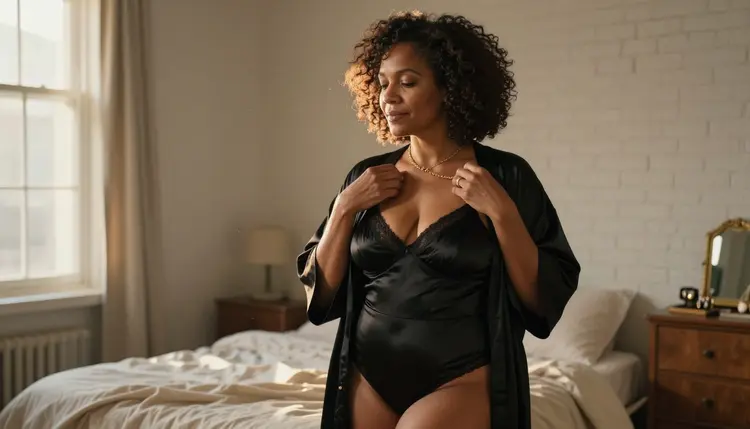
A good positive prompt tells the model what to draw. A negative prompt tells it what to leave out, and on boudoir and lingerie pictures that second list does a lot of quiet work. Hands with six fingers, a strap that melts into skin, plastic-looking fabric, a watermark in the corner, a face that drifts between two people: these are the faults that spoil an otherwise good frame, and most of them can be pushed away with a few plain words.
This guide shows how to write that list for adult, glamour-style images on Picasso IA. It covers which models to try, a five-step routine you can repeat, the wording that works, the mistakes that make results worse, and where the limits are. Everything here is for fictional adult characters, and the examples stay on the provocative side of the line: wardrobe, light, mood, jewelry, hands.
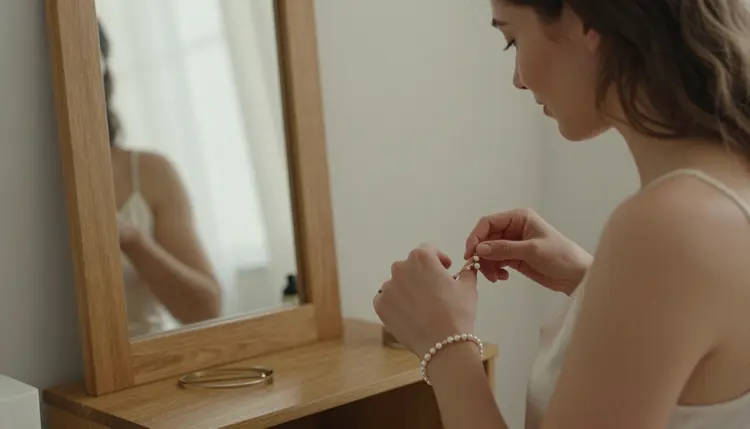
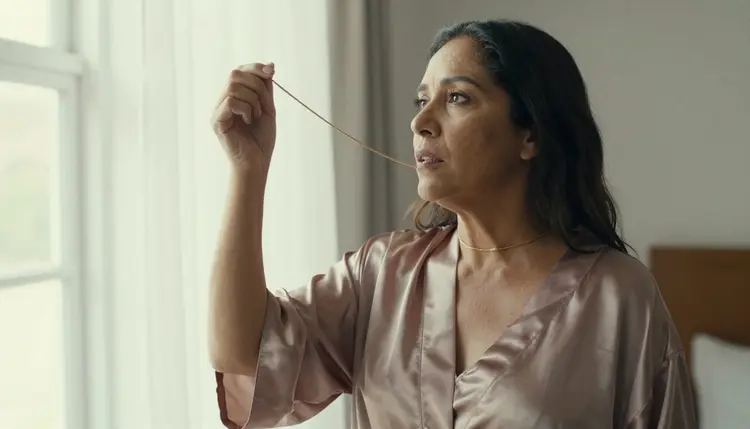
Image models fill every gap you leave. If your prompt says "woman in a satin robe fastening a necklace" and nothing else, the model decides what the hands look like, how sharp the fabric is, whether there is text on the wall and how smooth the skin should be. Most of the time it decides well. Some of the time it adds an extra finger, a second clasp that leads nowhere, or a soft, waxy finish that looks more like plastic than silk.
A negative prompt closes those gaps from the other side. Instead of hoping the model avoids a fault, you name the fault. The model then steers away from it while it builds the picture. The effect is not magic and it is not total, but on close-up shots of hands, straps, earrings and fabric edges it is often the difference between a keeper and a retry.
Three ideas make negative prompts work:
Name what you can see. A negative list is a repair list. If the last render had warped fingers, write warped fingers. If it had a grey haze over the shadows, write washed-out shadows. Lists copied from a random forum tend to carry words that have nothing to do with your picture.
Keep the positive prompt in charge. The positive prompt carries the scene, the wardrobe, the pose and the light. The negative list only removes faults. If you find yourself describing the picture inside the negative field, move that text back to the positive prompt and phrase it as something you want.
Short beats long. Eight to twelve well chosen terms usually do more than forty. A very long negative list can flatten the picture, because it pushes the model away from so many things that there is little left to aim at.
If you are still building the positive side, start with how to write an NSFW prompt that works and come back here once your base prompt gives you pictures you roughly like.
Picasso IA keeps a short list of models that its own tests found to accept adult prompts. In the app that list is called confirmed, and the page on what confirmed means explains the term: Picasso IA tested adult prompts against that exact model many times and saw it generate instead of reject. It is not a setting published by the model's maker, and makers can change their rules at any time.
For still images, three confirmed models are the natural place to practise negative prompts:
One practical point before you start. Not every model exposes a separate negative prompt field. Some model forms in the toolkit show one, others only give you a single prompt box. Open the form of the model you picked and look. If there is no negative field, you can still apply everything in this guide by writing the same ideas as positive statements, which the section on wording below explains.
Picasso Image Editor Pro works on an existing picture, so the way you think about "negative" changes there. Instead of listing faults to avoid, you describe what to keep and what to fix: keep the pose and the light, fix the left hand. The page on fixing hands and faces with Picasso Image Editor Pro goes through that workflow in detail.
Other models in the full catalog are untested. That means Picasso IA has not confirmed them either way, so treat them as worth a try and nothing more. Qwen Image 2 is one of them, and its page on dense detailed prompts is the place to start if you want to experiment with it. If a model does not accept a prompt, the app shows a message titled "Content Not Supported by This Model", recommends models that accept adult prompts and carries your prompt over, so nothing has to be retyped.
Use this routine every time. It keeps the negative list short and tied to real faults, which is what makes it useful.
- Write the positive prompt first. Describe the scene in full: who, wardrobe, pose, setting, light and lens. Do not touch the negative field yet.
- Run one clean test. Generate with the negative field empty so you can see the model's natural habits and the exact faults it produces.
- List only the faults you see. Write each fault as a short noun phrase: extra fingers, blurry fabric, harsh flash, text on the wall. Ignore faults that did not appear.
- Add the list and change nothing else. Keep the same positive prompt and the same settings, so any difference comes from the negative terms alone.
- Compare, trim and keep the winner. Remove any term that changed nothing, add a term for any fault that remains, and save the final list as a reusable base.
Negative terms fall into four groups. You rarely need all four in one prompt. Pick the groups that match the faults in your test render.
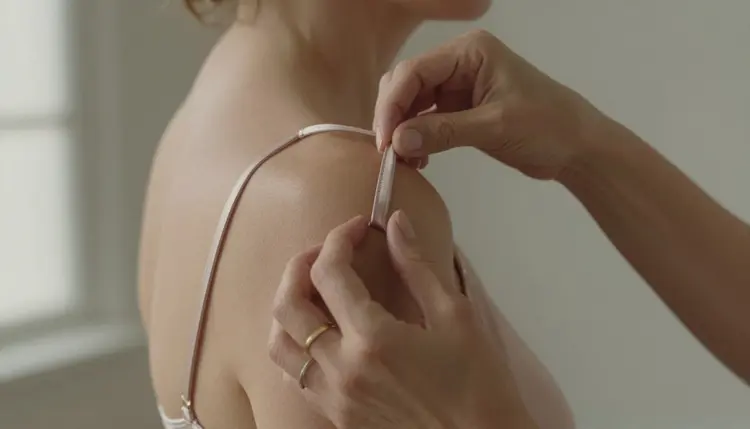
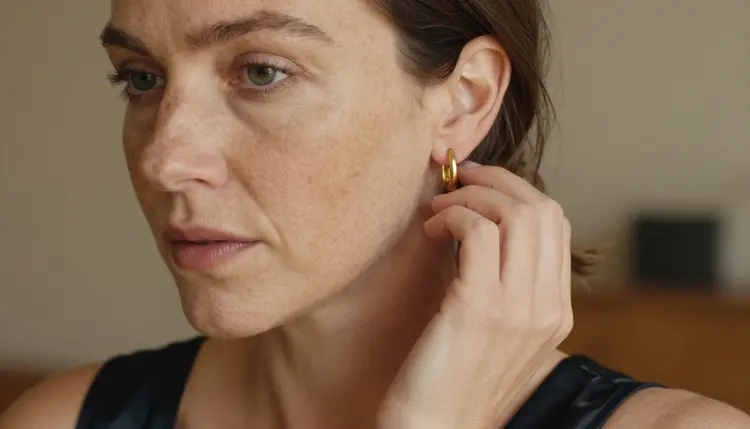
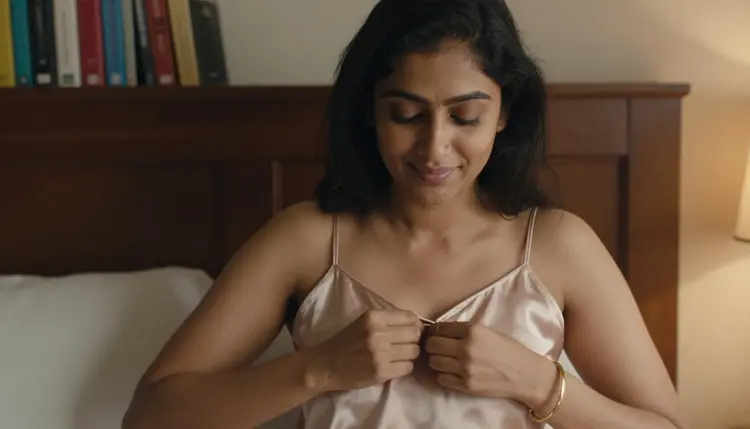
Hands and anatomy. This is the group most boudoir shots need, because jewelry, straps and fabric put hands in the middle of the frame. Useful terms: extra fingers, fused fingers, missing fingers, warped hands, twisted wrist, extra limbs, distorted proportions. For a picture where a woman fastens a gold bracelet, "warped hands, extra fingers" costs nothing and removes the most common failure.
Face and skin. Faces drift when the model is unsure. Terms such as distorted face, asymmetrical eyes, plastic skin, waxy skin, over-smoothed skin and uncanny expression push the result toward natural texture. If skin still looks flat, the guide on getting sharper skin detail pairs well with a short negative list.
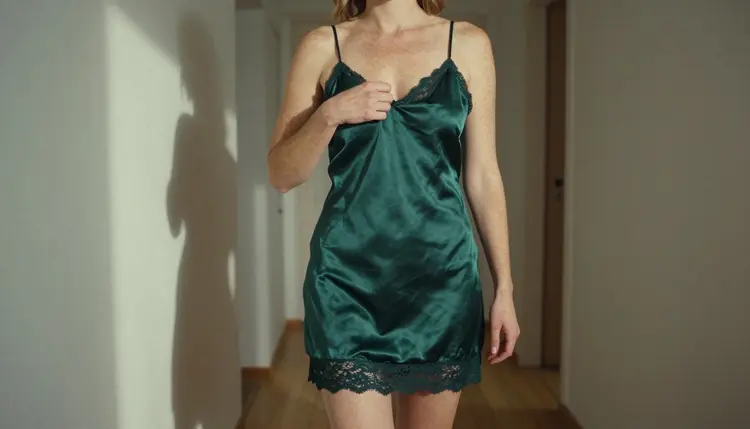
Fabric and objects. Satin, lace and chains are hard to draw. Useful terms: melted straps, merged fabric, warped lace, duplicate clasp, broken chain, floating jewelry, mismatched earrings. These are very specific on purpose, because a specific fault gets a specific correction.
Image quality and clutter. Terms such as blurry, low resolution, grainy noise, heavy compression, watermark, logo, caption, text, border and cropped head handle the technical side. Keep this group small. Film grain is often wanted in a photographic look, so do not ban "grain" if your positive prompt asks for it.
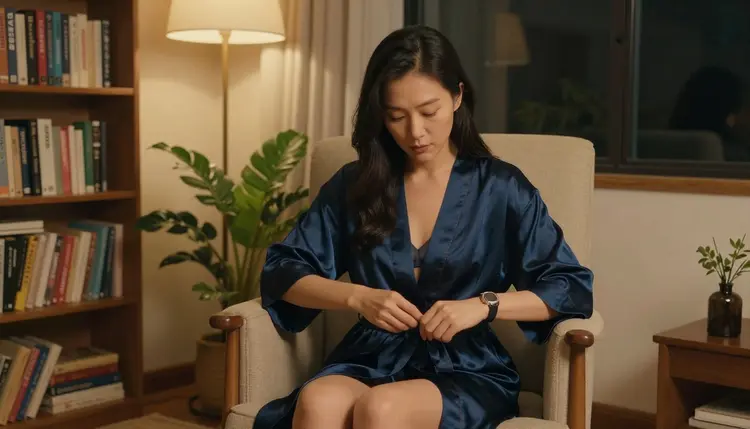
Here is how a full pair looks in practice. The positive prompt is: "Woman in her mid thirties in a black satin robe over a lace bodysuit, fastening a thin gold necklace, late-afternoon side light, 85mm lens, soft film grain, relaxed bedroom setting". The negative prompt is: "extra fingers, fused fingers, warped hands, melted straps, plastic skin, distorted face, watermark, text, cropped". Nine terms, each tied to a fault that this kind of frame produces.
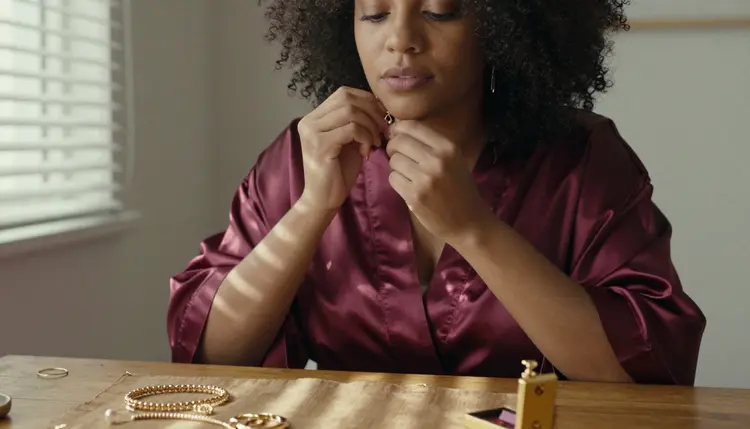
Before and after in words. Imagine the first test render shows the right hand with six fingers and a necklace clasp that appears twice. The negative field is empty. You add "extra fingers, duplicate clasp, warped hands" and run the same seed and settings again. Now the hand has five fingers, but the light looks a little flatter than before. That is a sign the list may be slightly too heavy, so you drop "warped hands", keep the two precise terms and run it a third time. The result keeps the original light and still has clean hands.
That small loop of test, add, compare and trim is the whole method. It is slow only the first time. Once you have a list that works for a type of shot, you reuse it as a starting point.
When there is no negative field. If the model form has a single prompt box, turn each negative term into a positive phrase and put it at the end of the prompt. "No extra fingers" becomes "hands with five clearly separated fingers". "No plastic skin" becomes "natural skin texture with fine pores". "No watermark" becomes "clean image without text or logos". Positive phrasing works because the model reads the words you give it, and a sentence that says "no" can still plant the very thing you are trying to remove.
Most failed negative prompts break in one of the same few ways. Each has a quick fix.
Pasting a giant list. A block of fifty terms copied from somewhere else tells the model to avoid things that were never going to appear. The picture often loses contrast and life. Fix: start from empty, add only the faults you saw, and keep the list under a dozen terms.
Contradicting the positive prompt. If your positive prompt asks for film grain and your negative list bans grain, the model has to choose. The same goes for "soft focus" against "blurry", or "dark moody light" against "dark". Fix: read both fields side by side and delete the clash from the negative side.
Writing a scene in the negative field. Putting "bright room, no lamp, daytime" in the negative field is a muddle. Fix: describe the room you want in the positive prompt, for example "dim bedroom lit by one warm lamp", and use the negative field only for faults.
Changing too much at once. If you edit the pose, the light and the negative list in one go, you cannot tell which change helped. Fix: change one thing per run. This is the reason step four of the routine says change nothing else.
Expecting a negative prompt to repair a weak base. If the positive prompt is vague, no negative list will rescue it. Fix: sharpen the base first with the help of lighting and mood wording and then add negatives for what is left.
Using the same list for every model. Models react differently. A list that cleans up hands in one model may do nothing in another. Fix: keep a short base list, then adjust it per model after one test render.
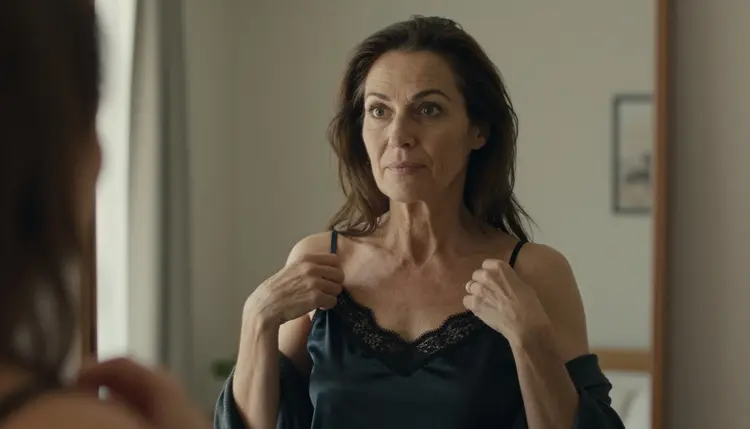
For editing instead of generating, the common mistake is the opposite one: being too broad. "Make it better" gives the editor nothing to work on. Say what to keep ("same pose, same light, same robe") and what to change ("clean the left hand, remove the text in the corner"). Narrow instructions give narrow, predictable changes.
If you want ready-made wording to adapt for the positive side, 25 NSFW prompt examples to copy lists complete prompts that you can pair with the negative groups above. Video is a separate job with its own vocabulary for camera and motion, and writing an NSFW video prompt with camera and motion language covers it.
Adult content on Picasso IA is for adults only. You must be 18 or older to use the NSFW tools, and the content is meant for private creative use by mature users.
Every character you create must be a fictional adult. Do not describe or aim for a real or identifiable person, and do not describe anyone who could read as a minor. A negative prompt is a tool for cleaner pictures, not a way around this rule, and nothing in this guide changes it.
What you generate is private by default. It is tied to your account and not published or shown to others. A small free trial on selected models lets a new account try a few generations, and the pricing page explains plans and how credits work. Credits per generation vary by model and by options such as resolution or duration.
What is a negative prompt in an AI image generator?
A negative prompt is a short list of things you do not want in the picture, such as extra fingers, blur, text or a watermark. The model uses it as a guide to steer away from those faults while it builds the image from your main prompt.
Does every model have a negative prompt field?
No. Some model forms show a separate negative field and some give you a single prompt box. Open the model form in the toolkit and look before you plan your prompt. If there is no field, rewrite each negative term as a positive phrase at the end of the main prompt.
How many negative terms should I use?
Eight to twelve is a good range for most shots. Add a term only when you have seen the fault in a test render. Long lists copied from elsewhere often flatten contrast and detail, so start small and add one fault at a time.
Which negative terms fix bad hands?
Extra fingers, fused fingers, missing fingers, warped hands and twisted wrist cover most hand problems. Pair them with a positive phrase such as hands with five clearly separated fingers. For a hand that is already wrong in a finished picture, the editor workflow in the hands and faces guide is usually faster than another full render.
Can negative prompts remove plastic-looking skin?
They can help. Terms like plastic skin, waxy skin and over-smoothed skin push the model away from that finish, and a positive phrase such as natural skin texture with fine pores pulls it the right way. Light also matters a lot, so check your wording against the lighting and mood guide.
Should I ban the word blurry if I want a soft look?
Be careful. If you want soft focus or a shallow depth of field, banning blur can fight your own prompt. Ban blurry when the whole picture is out of focus, and describe the soft background in the positive prompt as shallow depth of field with a sharp subject.
Which Picasso IA models can I use for these images?
Seedream 4.5, Recraft V4.1 Pro and Picasso Image Editor Pro are the three confirmed image models used in this guide. Other models in the full catalog are untested, which means worth a try but not confirmed either way. The page on what confirmed means explains the difference.
What happens if a model refuses my prompt?
The app shows a message titled "Content Not Supported by This Model". It recommends models that accept adult prompts and carries your prompt over, so you do not have to retype it. Changing the negative list is not a way to get past a refusal, so switch to a recommended model instead.
Is it allowed to use a real person as the subject?
No. Every picture must show a fictional adult. Do not use the name, face or likeness of a real person, and never describe anyone who could read as a minor. The tools are 18+ only, and these limits apply to every prompt, including its negative part.
Are my generations public?
No. Generations are private by default and tied to your account. They are not published or shown to other people. You can try a few generations in a small free trial on selected models, and the pricing page has the details on plans.