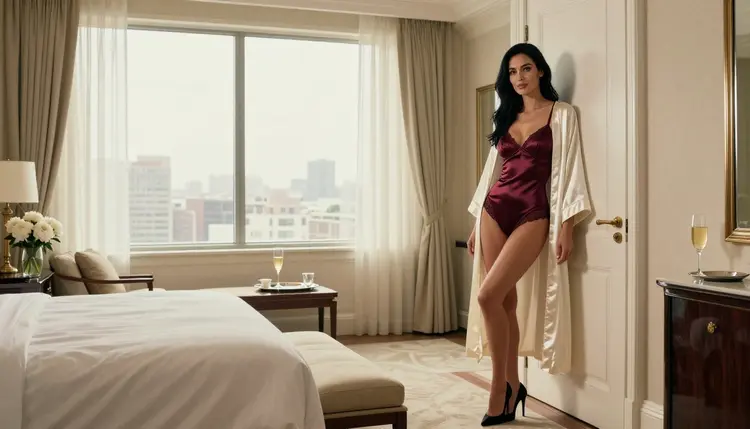
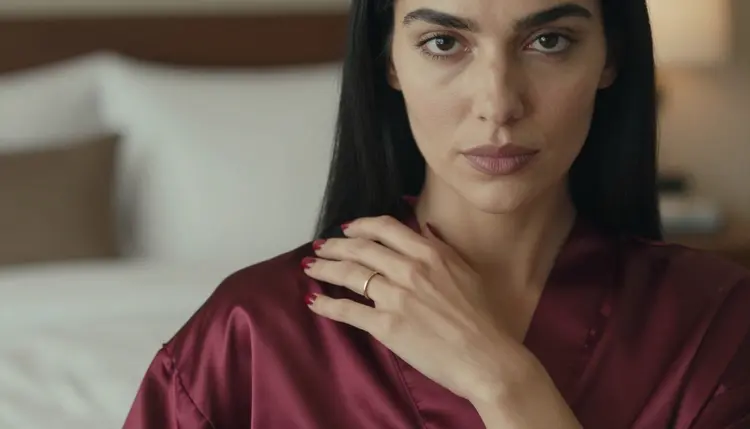
You have a picture you like, but the frame is too tight. The shoulder touches the edge, the bedroom is cut off, the window is half a window. Outpainting fixes that by adding new canvas around the picture and filling it so the scene keeps going. This guide shows how to do it with adult, glamour-style images made in the toolkit, with wording you can copy and adjust.
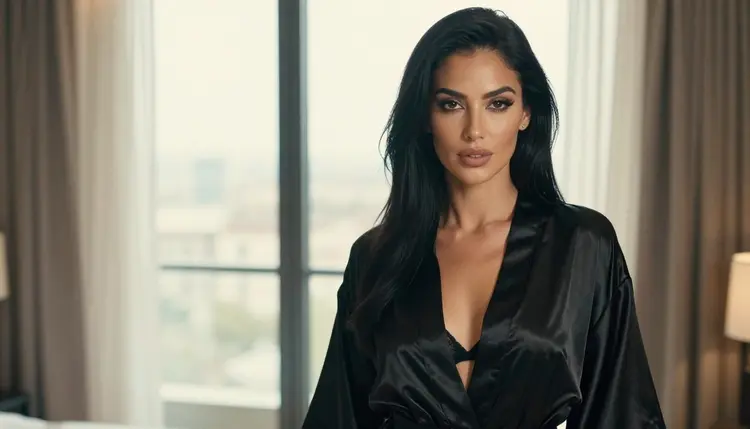
Everything here is for fictional adult characters and boudoir-style scenes: lingerie, satin robes, hotel suites, warm light. Provocative, never explicit, and private by default.
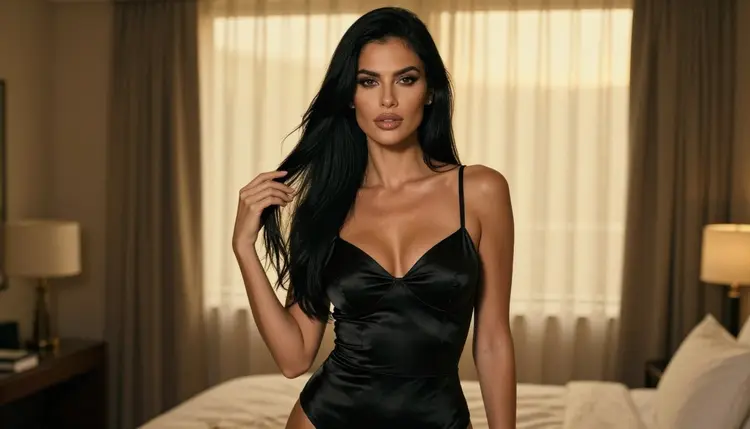
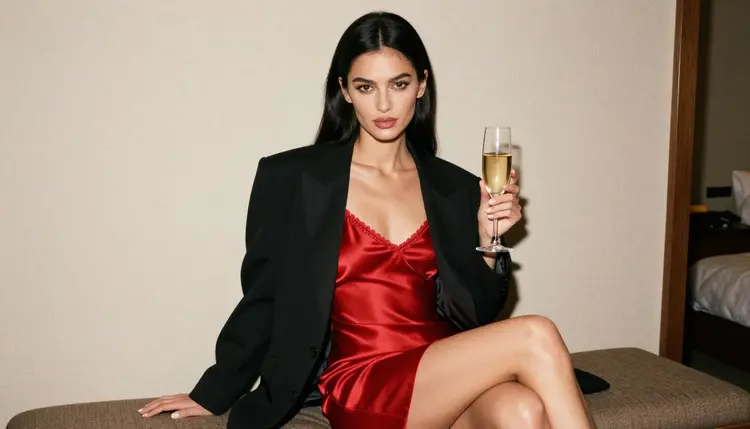
A tight crop is the most common problem with a good generation. You get the right face, the right light and the right wardrobe, but the composition feels cramped. If you generate again from scratch, you lose all of that. The same woman, the same burgundy satin, the same golden hour: gone, replaced by a new roll of the dice.
Outpainting keeps what works. The original pixels stay in place and the model only invents the new strip of canvas around them, using the picture itself as the guide. The result is a wider frame where the lamp on the left continues into a nightstand, the curtain carries on to the ceiling and the bed gets its missing corner.
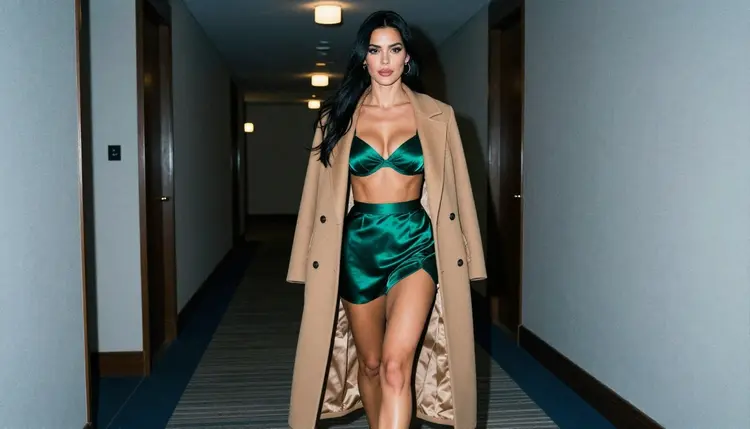
There are three situations where this pays off. The first is changing the shape of the image: a square or portrait picture that needs to become a wide 16:9 panorama for a header, a wallpaper or a slideshow. The second is rescuing a composition: someone leaning too close to the edge, a hand cut off at the frame line, a window that should show the whole city. The third is setting a scene: a hotel corridor that gets longer, a bedroom that gets more floor and more candles.
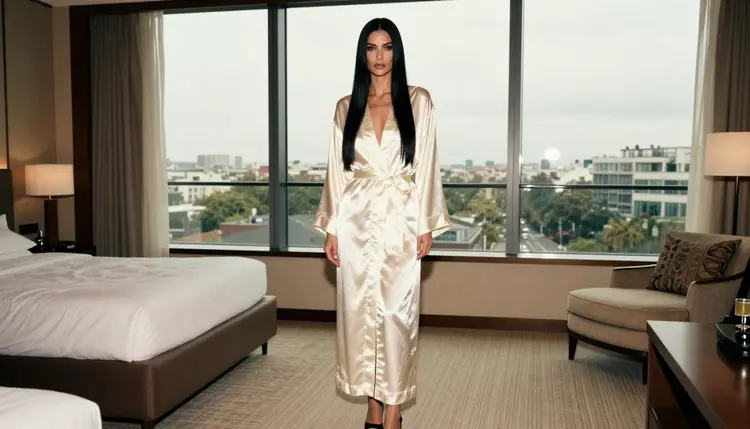
Outpainting is not the same as inpainting. Inpainting changes something inside the frame, such as a fabric colour or a background object, and you can read how in Inpaint a NSFW AI Image. Outpainting changes the frame itself. Many finished pictures use both: extend first, then fix small details inside the new area.
For adult material, the first thing to check is whether the model will accept the prompt at all. Picasso IA tests adult prompts against specific models and keeps a short list of confirmed ones. Confirmed means the app watched the model generate instead of reject, repeatedly. It is not a published setting of the model's maker, who can change it at any time. The page what confirmed means explains it in full.
For extending a picture, the main confirmed tool is Picasso Image Editor Pro, which edits an existing image and carries the unlimited tag in the catalog. Two confirmed text-to-image models help when you want to rebuild a scene at a new size from a prompt: Seedream 4.5 and Recraft V4.1 Pro.
| Model | Best for | Format |
|---|
| Picasso Image Editor Pro | Extending and editing a picture you already have | Image edit, unlimited tag |
| Seedream 4.5 | Photoreal scenes regenerated at a wider size | Text to image, 4K |
| Recraft V4.1 Pro | Print-ready, design-led compositions | Text to image, 2K |
The catalog also holds two models built around this exact job, and both are untested for adult prompts. Expand Image is listed as AI outpainting, and Reframe Image is listed as a way to change the aspect ratio without cropping. They are worth a try, and nothing more than that is claimed here: if one stops a prompt, switch to a confirmed tool. You can browse everything else in the full catalog.
Before you start, pick the picture and decide which edges need more room. The steps below work the same way for a portrait that should become a panorama and for a close frame that needs breathing space.
- Pick the source image. Choose a picture with sharp edges and clear light, because the model reads the border to decide what comes next. Open the toolkit and attach it to Picasso Image Editor Pro.
- Name the new size. Say where the extra space goes and how wide the result should be, for example "extend to a wide 16:9 frame, more room on the left and right".
- Describe the new area. Write what lives in the extra canvas: furniture, window, floor, curtains, light. Keep the same light direction and colours as the original.
- Generate and compare. Run it, then put the result next to the original. The old part should look untouched and the seam between old and new should be invisible.
- Repeat or refine. If one side looks weak, extend again in that direction only, or fix a small detail with an edit. Save the version you like.
The model sees your original picture and your sentence. The better the sentence matches what the picture already shows, the cleaner the seam. Think like a set designer: you are not asking for a new picture, you are asking for more of the same room.
Start with continuity. Name the light, the time of day and the colour of the materials already in the frame. A weak instruction reads "make it wider". A strong one reads: "extend the hotel suite to the left and right, same golden hour light from the window, cream walls, dark wood floor, the bed continues on the right".
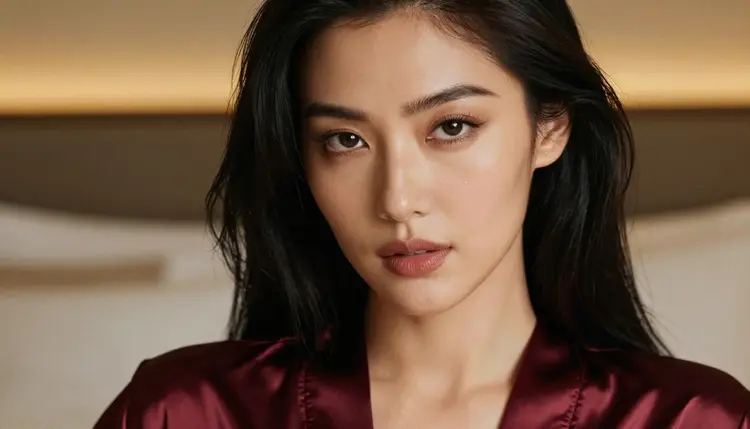
Then give direction. Outpainting can go left, right, up, down or all four sides, and each choice changes the story. Extending upward adds ceiling, a chandelier or tall curtains. Extending downward adds floor, rug and shoes. Extending sideways adds the room. If you do not say where, the model guesses, and it often guesses evenly on all sides, which is not always what you want.
Next, protect the subject. When the woman is already well placed, add a line such as "keep the woman and her satin robe exactly as they are, only add background". That keeps the model from redrawing her face or the fabric folds. For identity across several images, see How to Create an AI Girlfriend Image With a Consistent Face.
Some wording pairs that work well for wide hotel and bedroom frames:
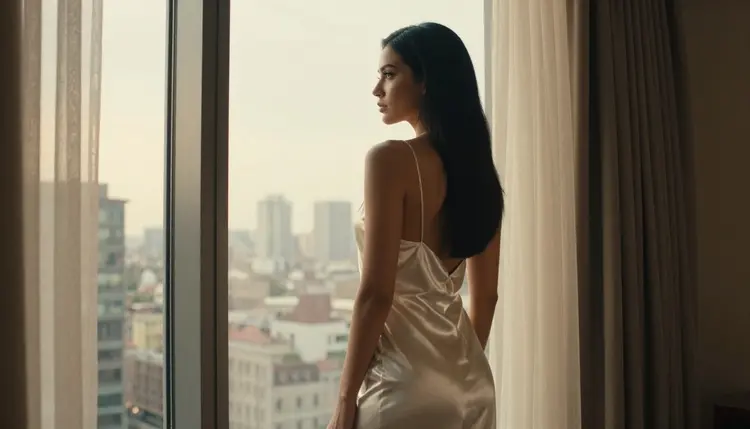
Weak and strong. "Add more background" becomes "continue the marble floor and the long curtain to the right, soft overcast daylight, no new people". "Make it bigger" becomes "extend to a panoramic bedroom with a window wall on the left and a velvet chair on the right".
Lens language helps. A phrase such as "24mm wide angle, the room opens up around her" tells the model that the new area should feel like a wider lens, not like a stretched copy of the edge. For a close portrait, "85mm, shallow depth of field, soft blurred background" keeps the extra canvas out of focus and the face sharp.
Say what to avoid. Add short exclusions: no extra furniture in the foreground, no second person, no text, no mirror. A mirror is a common failure because the model has to invent a reflection of someone it has already drawn.
Match the mood. If the original is warm and low, say so again in the prompt: candles, lamp light, satin, warm shadows. If it is cool blue hour, say that. The seam disappears when the colour temperature matches on both sides.
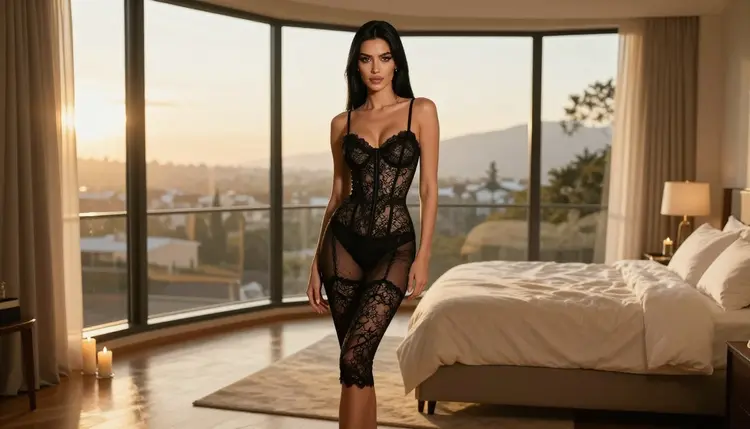
A visible seam. The new area is brighter or a different colour than the original. Fix it by naming the light in your wording and by asking for the same colour palette. If a line is still visible, run a second pass over the seam only.
A repeated pattern. The edge of the picture gets copied sideways, like a stretched curtain. Fix it by listing new objects in the extra space: a lamp, a door, a plant, a bench. Variety breaks the repetition.
Warped hands and faces. Faces and hands sit near the edge in tight crops, and the model can redraw them. Fix it by telling the model to keep the subject unchanged, and by extending only in the direction away from the hands or the face.
Too much, too fast. Asking for a huge extension in one step often drifts away from the original. Fix it with two modest extensions, one after the other, checking the result each time.
The wrong shape. A result that is almost 16:9 but not quite leaves black or blank bars. Name the exact ratio in your text and check the output size before you keep it. If you want a different ratio without cropping at all, Reframe Image is the catalog model made for that, though it is untested.
The model refuses. If an untested model rejects a prompt, the app shows a message titled "Content Not Supported by This Model". It recommends models that accept adult prompts and carries your prompt over, so you do not retype anything. Switch to a confirmed model and carry on.
Finishing detail is soft. After extending, the new area can look a little less sharp than the original. Run the final picture through the upscale workflow in Upscale a NSFW AI Image for Free to even out the texture, or compare a before and after in NSFW Image Editor: Before and After.
When you want to start fresh instead of extending, NSFW Image: Best AI Generator walks through the options for building a new picture from a prompt. And once your wide frame is ready, you can bring it to life with Turn a NSFW Image Into Video, since a panoramic bedroom gives the camera more room to move.
This is for adults only. Picasso IA is an 18+ product, and the guides in this section are written for adult readers. If you are not an adult, this page is not for you.
Every character is a fictional adult. Never use a real or identifiable person, and never describe or hint at anyone who could read as a minor. Outpainting does not change that: the extra canvas must not add anyone who breaks these rules, and a picture of a real person does not belong here.
What you create is private by default. Generations are tied to your account and are not published or shown to others. A new account can try a small free trial on selected models, and the pricing page explains how credits work for everything else.
What is outpainting in AI images?
Outpainting adds new canvas around an existing picture and fills it so the scene continues. The original area stays as it is, and the model invents only the new edges. It is the way to turn a tight frame into a wider one without starting over.
Which model should I use to extend an NSFW image?
Start with Picasso Image Editor Pro, the confirmed editing model that works on a picture you already have. Seedream 4.5 and Recraft V4.1 Pro are confirmed too, for rebuilding a scene from a prompt at a new size.
What does confirmed mean here?
Picasso IA tested adult prompts against that exact model many times and saw it generate instead of reject. It is not a published setting of the model's maker, who can change it at any time. Models that are not on the list are untested, not filtered.
Can I use Expand Image and Reframe Image?
Yes, they are in the catalog, and you can try them. Both are untested for adult prompts, so results may vary. If one stops a prompt, switch to a confirmed model, and the app will carry your prompt over for you.
How do I stop a visible seam between old and new areas?
Describe the same light, colour and time of day in your wording, and ask for the new area to continue what is already there. If a line still shows, run a second pass that targets only the seam, or extend in smaller steps.
Can I extend only one side of the picture?
Yes. Say the direction in your text, for example "extend to the right only, more of the hotel suite, same light". Naming the side avoids the even growth on all edges that models often default to.
Will outpainting change the woman in the picture?
It should not, if you tell the model to keep the subject exactly as it is and to add only background. Faces and hands near the edge are the risky parts, so extend away from them and compare the result with the original.
Can I turn the wide picture into a video?
Yes. A wide frame gives a camera move more room, and you can follow Turn a NSFW Image Into Video with a confirmed video model such as Picasso IA Video.
Is my extended image private?
Yes. Generations are private by default, tied to your account and not published or shown to others. Picasso IA is for adults only, and every character must be a fictional adult, never a real person and never anyone who could read as a minor.
Do I need to pay to try this?
A new account gets a small free trial on selected models, which includes Picasso Image Editor Pro. Past that, generations use credits that vary by model and options, and the pricing page has the details. Models with the unlimited tag do not spend credits on plans that include unlimited generation.