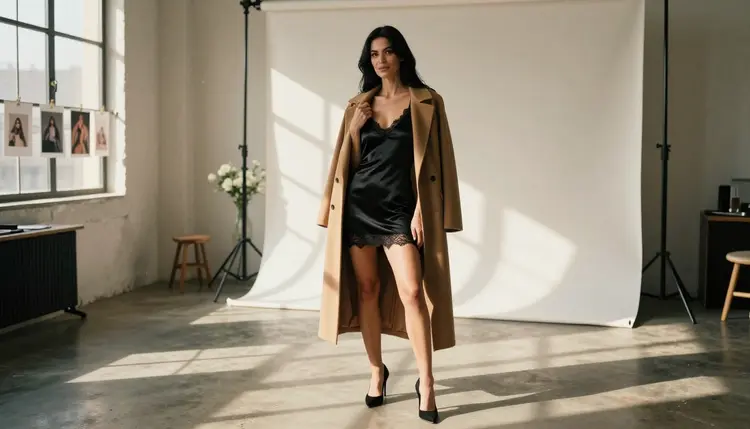
Most first attempts at NSFW AI video fail for boring reasons. The prompt asks for too much, the clip is too long, the model was never tested with adult prompts, or the character changes from one take to the next. None of this is a talent problem. It is a workflow problem, and every mistake below has a fix you can apply in your next session.
Think of it like a photographer going through a folder of rejected takes. The frames are not bad because the camera is bad. They are bad because the light, the pose and the instruction were never agreed before the shutter fired. Video adds motion on top, so each small slip gets multiplied across dozens of frames. Here are the nine most common ones, what they look like on screen, and what to do instead.
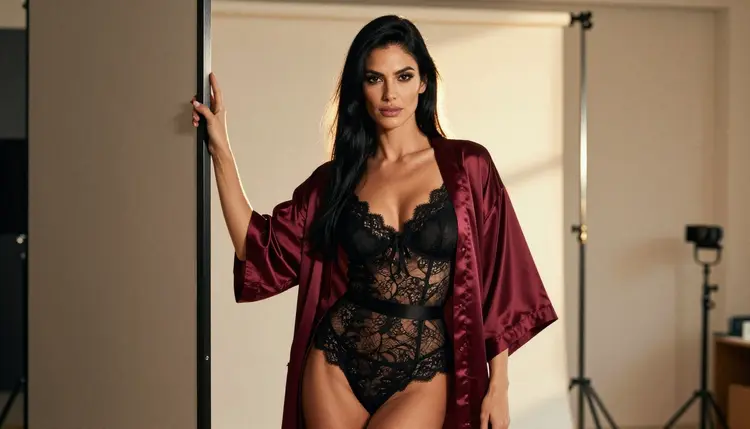
Everything here is for adults and about fictional characters. Picasso IA is a browser app, so there is nothing to install, and you can run every test below from the toolkit.
1. Starting with a video prompt and no still frame. Beginners type a long scene into a text-to-video box and hope the first result is the one. A better habit is to lock the look first with a single image. Generate the wardrobe, the light and the face with Seedream 4.5, which creates 4K images from text, and only then move to motion. If the still looks wrong, the video will look wrong with more frames. If you want a deeper look at the image-first route, Top 5 NSFW Image to Video AI Tools covers it.
2. Putting five actions in one prompt. "She walks in, turns, laughs, pours a drink and looks at the camera" is five clips, not one. Models tend to blend the actions into a vague wobble, or they perform the first and ignore the rest. Write one action per clip: a slow turn toward the window, a hand adjusting a robe strap, a glance over the shoulder. Then cut the clips together later. Short, single-action prompts are the easiest way to see what a model can do.
3. Leaving the camera unspecified. If you do not say how the camera behaves, the model decides, and its choice is often a drifting zoom that nobody asked for. Name one move and keep it simple: a slow push in, a static tripod frame, a gentle pan left. For a glamour or boudoir look, a locked-off frame with small movement in the subject usually reads as more deliberate than a camera that wanders. Add the lens feel too, such as 85mm portrait framing, so the depth of field stays consistent.
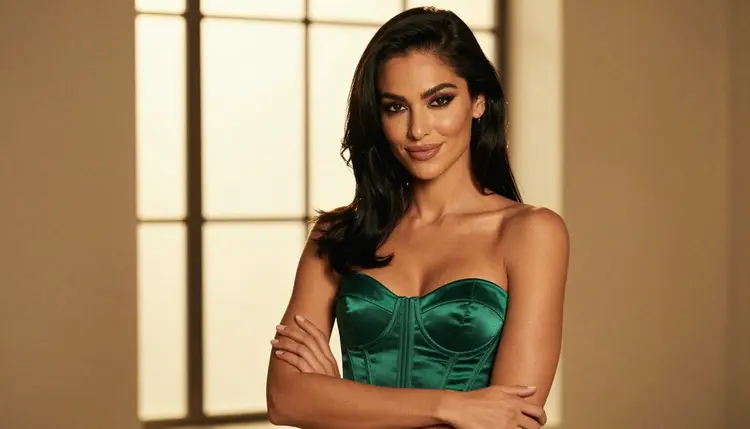
4. Assuming every model accepts adult prompts. This is the mistake that wastes the most time. A model can be excellent at motion and still refuse a lingerie or boudoir prompt. In Picasso IA, a small group of models is marked confirmed, meaning adult prompts were tested against that exact model repeatedly and it generated instead of rejecting. For video that group is LTX 2.3 Pro, Picasso IA Video and Seedance 2.5 Lite. Start there. Everything else in the catalog is untested: worth a try, but not a sure thing. The page on what confirmed means explains the label.
5. Writing a prompt full of adjectives and no nouns. "Beautiful, alluring, elegant, mysterious, cinematic" tells the model nothing it can draw. Replace mood words with things you could photograph: a black satin slip, a hotel corner, a warm lamp on the left, an 85mm lens, slow handheld sway. The same applies to video: describe the movement in physical terms, such as fabric swaying, a hand rising to a collar, hair moving in the breeze from an open window. For more prompt-level traps, read Top 10 Mistakes to Avoid in NSFW AI Prompts.
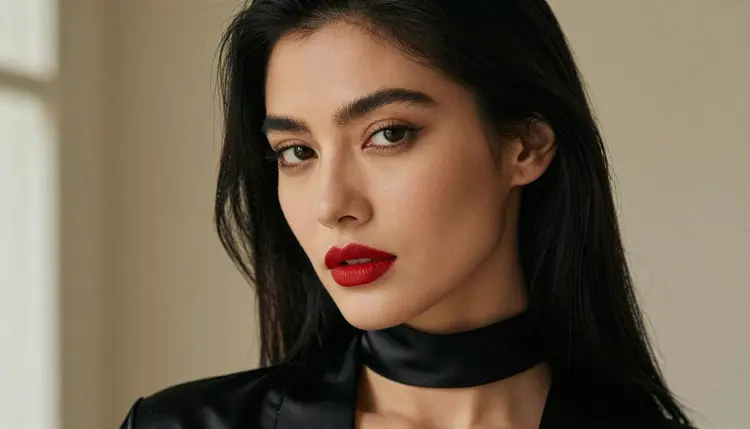
6. Letting the character change in every take. You write "a woman with long black hair" three times and get three different women. For a series, that breaks the whole project. Attach the same reference image each time. In the toolkit, every attached image gets an @1, @2 badge, and you can refer to it in the prompt; Picasso IA translates that reference into the syntax each model understands. Only models that accept several inputs show the badges, so check before you plan around them. Keeping one reference also keeps wardrobe and hair stable between clips.
7. Asking for long clips on the first try. A long clip gives the model more time to drift: faces soften, hands change, a robe that was burgundy becomes red. Start with the shortest clip the model offers, judge it, and only then extend. Seedance 2.5 Lite is listed up to 10 seconds, which is plenty for a test. If a three or four second take holds together, you have earned the longer one. If it does not, a longer clip will only show the same problem for longer.
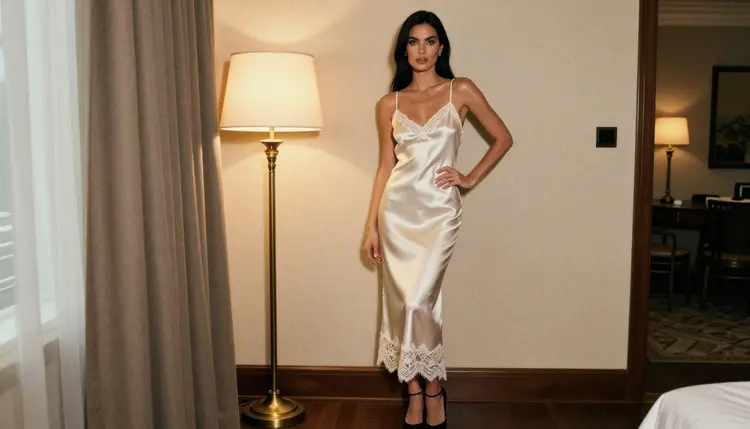
8. Judging a clip once, at full speed. A clip can look fine when it plays and fall apart when you pause it. Watch it three times: once at normal speed, once with the sound off if you are judging motion, and once scrubbing frame by frame. Check the hands first (exactly the right number of fingers, no extra hand drifting in), then jewelry and fabric edges, then the eyes. Keep a short note of what failed, because the note becomes your next prompt. A photographer reviewing test frames does the same: rejects are information.
9. Spending the heavy model on the first draft. It is tempting to open with the highest resolution available. Do the opposite. Draft on a model that is marked unlimited, such as Picasso IA Video for text or image to video, and save LTX 2.3 Pro and its 4K video from text for the take you already like. Credits vary by model and by options such as resolution and duration, so a draft-then-final habit keeps the expensive runs for the shots that matter. You can see how a few tools compare in Top 7 NSFW AI Video Generators.
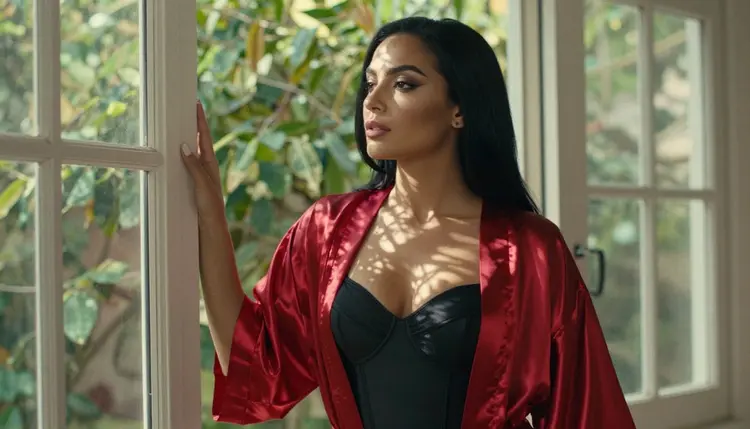
The nine mistakes above collapse into one repeatable routine. Follow these five steps in order and most of them stop happening on their own.
- Lock the still. Generate one image with the wardrobe, light and face you want, using Seedream 4.5 or Recraft V4.1 Pro, and keep it as your reference.
- Pick a confirmed video model. Choose LTX 2.3 Pro, Picasso IA Video or Seedance 2.5 Lite so your adult prompt is generated instead of refused.
- Write one action and one camera move. A single sentence for the subject, a single sentence for the camera, and the light named once.
- Draft short, then review frame by frame. Run a brief take, pause it, check hands, fabric and eyes, and write down what to change.
- Upgrade only the winner. Re-run the take that worked on your final model and resolution, with the same reference attached.
These are the six models Picasso IA lists as confirmed for adult prompts. Confirmed is the app's own result from repeated testing and is not a published setting of the model's maker, so it can change. The first three make the stills you animate, the last three make the motion.
Everything else in the full catalog is untested. Models such as Qwen Image 2 or Picasso Video (Pruna P-Video) are worth a try, but nobody has confirmed them either way, so treat a refusal as information and not as a failure. When a model cannot take your prompt, the app shows a message titled "Content Not Supported by This Model", recommends models that accept adult prompts and carries your prompt over, so you do not retype it. For a broader view, the full catalog lists everything, and Top 7 NSFW AI Video Generators With Sound looks at video that includes audio.
Picasso IA is for adults only. You must be 18 or older to use the NSFW tools, and the content is built around that: flirty, suggestive and glamorous, never explicit.
Every character is a fictional adult. Do not use a real or identifiable person, a celebrity or an acquaintance, and never write a prompt about anyone who could read as a minor. If a take drifts toward something that could read as a minor, delete it and rewrite the prompt with clearly adult details.
Your generations are private by default. What you create is tied to your account and is not published or shown to other people. Keep your own files to yourself as well, and only share what you have the right to share.
A new account can try a small free trial on selected models: Picasso IA Image, Picasso IA Editor Pro, Picasso IA Video and Seedance 2.5 Lite. That is enough to run your first still-to-video test without committing to anything. Details live on the pricing page.
Models carrying the infinity tag in the catalog do not spend credits on the plans that include unlimited generation, which makes them the natural place for drafts, retries and frame-by-frame experiments. Picasso IA Video, Seedance 2.5 Lite and Picasso Image Editor Pro are marked this way. Models without the tag use credits, and the amount depends on the model and the options you choose.
A simple plan for your first session: make one still, animate it on an unlimited model, review it frame by frame, fix one thing in the prompt, and repeat. When a take is right, send it to a higher resolution model. If you are just getting started with the whole idea, Best NSFW AI Generator for Beginners is a gentle first read, and Top 5 NSFW AI Video Prompt Ideas gives you ready scenes to try. For looks and styling, see Top 6 NSFW AI Aesthetics for Beginners, and for animated styles, Top 7 NSFW AI Anime Video Generators.
What is the biggest mistake beginners make with NSFW AI video?
Skipping the still frame and the model check. Beginners write a long video prompt on a model nobody tested with adult prompts, then blame the result. Lock a reference image first and pick a confirmed model such as Picasso IA Video so you know the prompt will be generated.
Which models are confirmed for adult video prompts?
For video, the confirmed ones are LTX 2.3 Pro, Picasso IA Video and Seedance 2.5 Lite. Confirmed means Picasso IA tested adult prompts against that exact model repeatedly and watched it generate. It is not a published setting of the maker, so check what confirmed means.
Can I use other models that are not on the confirmed list?
Yes. They are untested, which means worth a try but not promised either way. If one cannot take your prompt, the app shows "Content Not Supported by This Model", recommends models that accept adult prompts and carries your prompt over, so you do not start again from zero.
How long should my first clip be?
As short as the model allows. A brief take shows you whether the face, the fabric and the movement hold together. Seedance 2.5 Lite is listed up to 10 seconds, but you do not need to use all of it. Extend only after a short version works.
How do I keep the same character across clips?
Attach the same reference image every time. In the toolkit each attached image gets an @1 or @2 badge and you can refer to it in the prompt. Only models that accept several inputs show the badges, so confirm that your model does before building a series around it.
Should I start with text to video or image to video?
Image to video is the safer start for beginners, because the still already fixes the face, wardrobe and light. Make the still with Seedream 4.5, then animate it with Picasso IA Video. Text to video is better once you know what a model does with your wording.
How do I review a clip properly?
Watch it at normal speed, then pause and scrub frame by frame. Check hands first, then jewelry, fabric edges and eyes. Write down what failed in one sentence and change only that thing in the next prompt, so you always know which edit caused which result.
Is there a free way to practice?
A new account gets a small free trial on selected models, and models with the infinity tag do not spend credits on plans that include unlimited generation. Both are described on the pricing page. Use them for drafts, not for finals.
Are the characters real people?
No. Every character is a fictional adult, never a real or identifiable person and never anyone who could read as a minor. Prompts about real people or celebrities are not what these tools are for. The content is for adults only, 18 and older.
Are my videos public?
No. Generations are private by default, tied to your account and not published or shown to other people. You decide what to do with the files you make. Open the toolkit to start a test and keep your drafts organized in one place.